Translate SEO: meta titles, descriptions and alt text
Turn on SEO translation, then translate meta titles, meta descriptions and product image alt text for each language.
Translate the SEO text of your store: meta titles, meta descriptions and the alt text of product images. Search engines and screen readers then show it in the shopper's language.
Contact us to turn this onBefore you start
SmartCS blocks the meta title and the meta description by default, so they are never translated by accident. You turn them on once for the whole store. Image alt text is not blocked, and works on every plan.
Steps
Turn on SEO translation
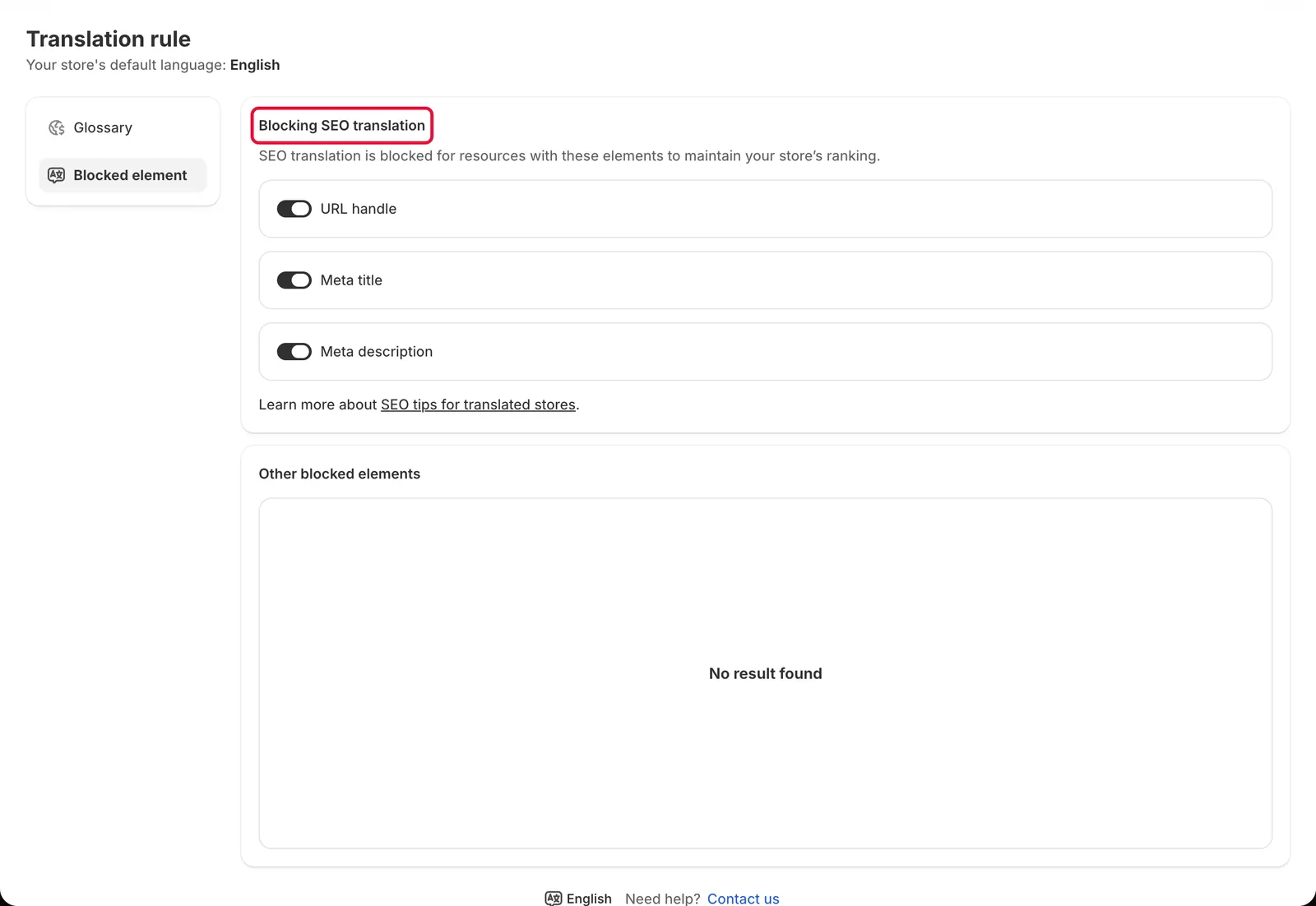
In Content translation, open Blocked elements. On the Blocked element tab, find the card Blocking SEO translation. A switch that is on means the element is blocked. Turn off Meta title and Meta description. Each change saves at once, and SmartCS then recounts your translation progress.
Open an item
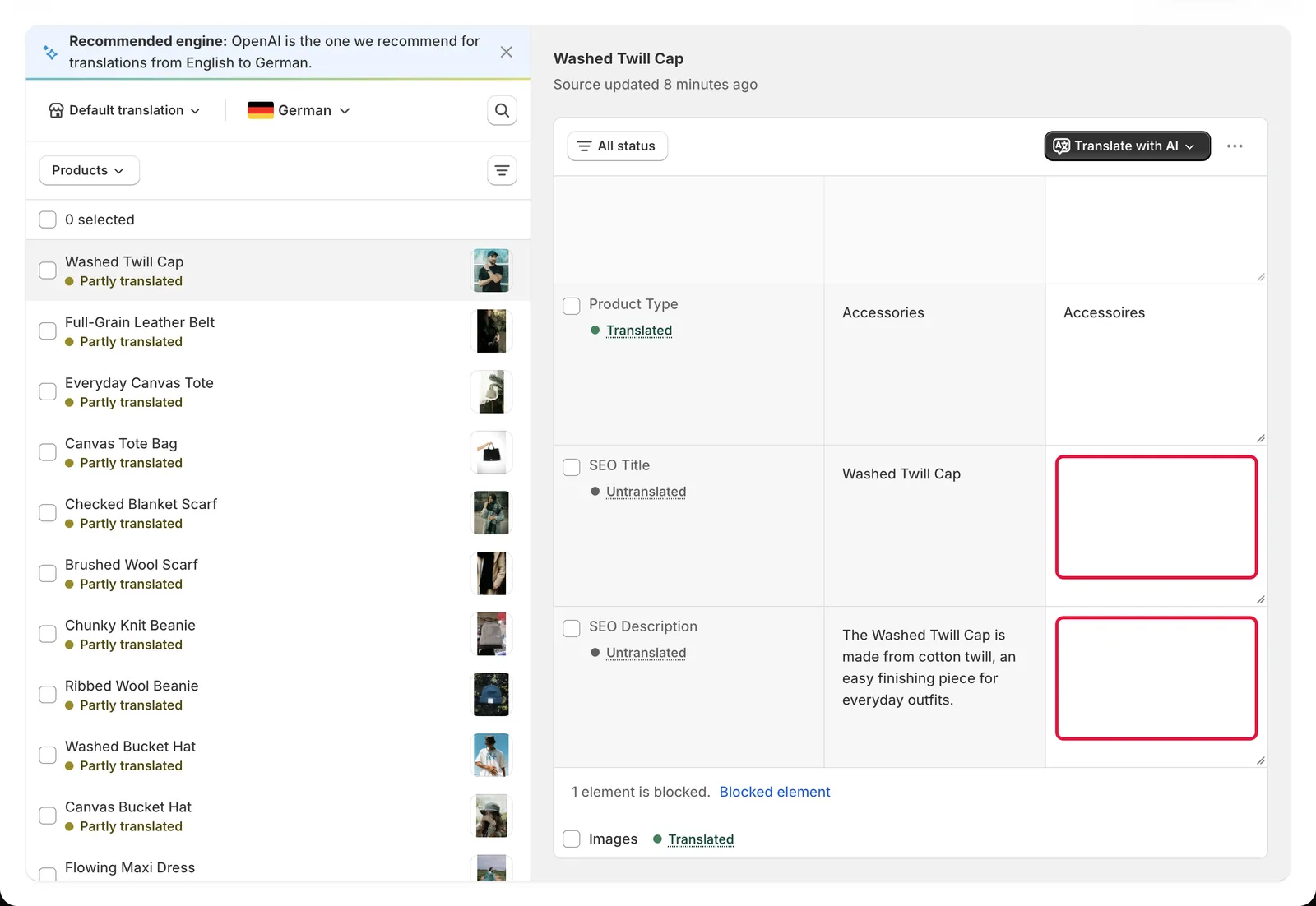
Open a row such as Products, then select an item. Meta fields exist for products, collections, blogs, blog posts and pages. The homepage title and description are in the Preferences row.
Translate the meta fields
Find the SEO Title and SEO Description fields (named Meta Title and Meta Description on other items). Type your translation, or use Translate with AI. A field that is still blocked shows Blocked with a link to Blocked element.
Translate image alt text
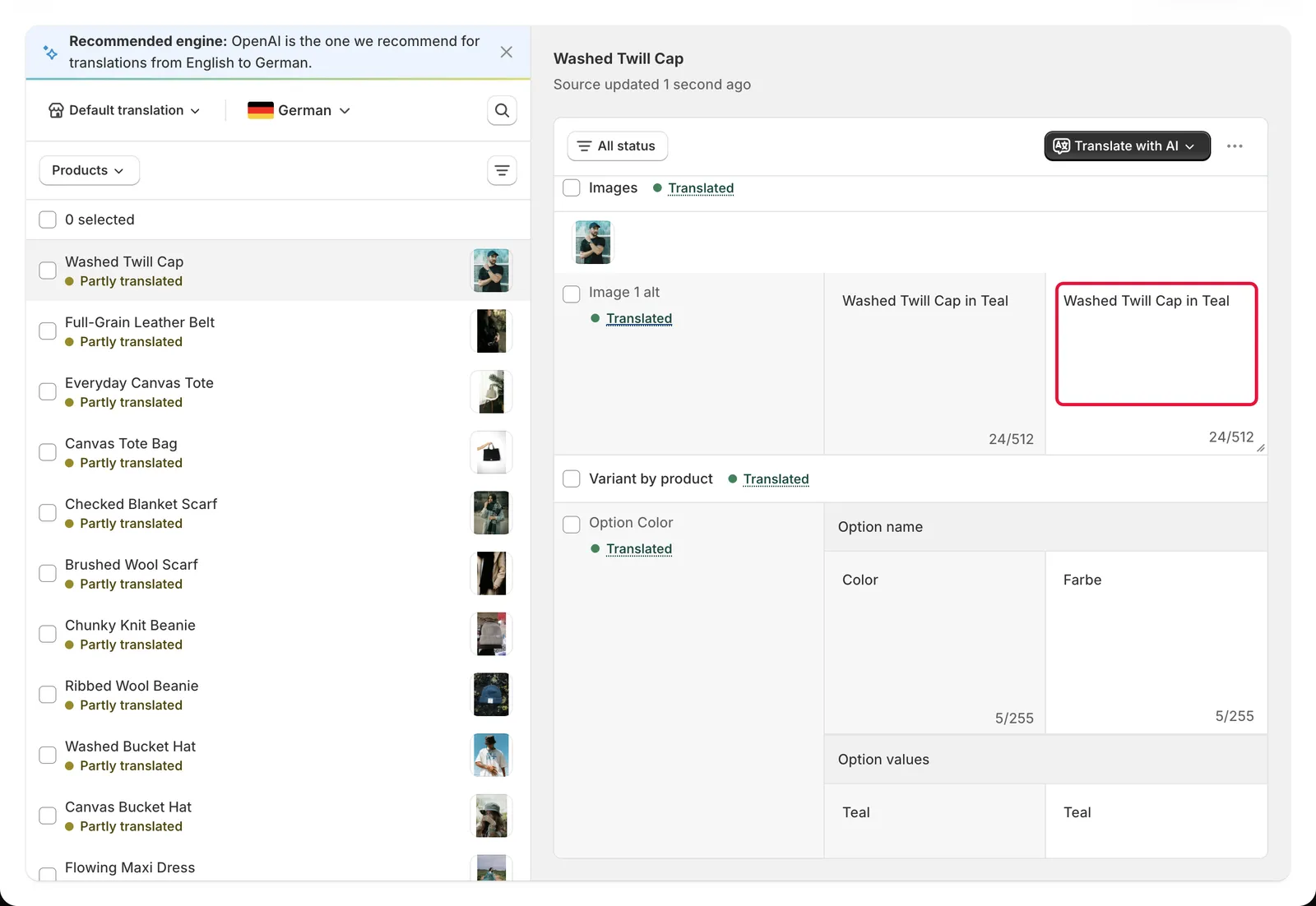
In a product, find the images section and the Image alt field of each image. Describe what the image shows, in a short sentence. The limit is 512 characters, and the editor tells you when the text is too long.
Good to know
Note
Alt text is read for product images only, and only for the first 20 images of a product. Images of collections and blog posts are not listed.
- If the switches are locked, the card says "Multilingual SEO isn't turned on for your store yet." Use Contact us to ask for it.
- Blocking only stops new translations. The ones you already made stay on your store. When you turn a switch back on, a banner in the card offers Remove translations to take them back. The banner shows only during that visit to the page, and you can close it. When you leave the page it is gone. To get it back, turn the switch off and on again.
- Translate the URL handle on its own switch. See Translate URL handles.
Related articles
Translate your homepage, pages and navigation
Translate your pages, navigation menus, homepage text and homepage title so shoppers see them in their language.
Translate URL handles
Turn on URL handle translation so products, collections, pages and blog posts get a web address in each language.
Last updated November 18, 2026