Pause automation or switch to the free engine
Choose what automatic translation does when your monthly quota runs out: pause, or keep going with the free engine.
Choose what your automation rules do when your monthly quota or your AI tokens run out. You can pause them, or let them continue with the free engine.
The setting is on every plan, but it only matters once you have automation rules, which start on Regional. It is one setting for your whole store and applies to every rule.
Steps
Open Localization settings
In SmartCS, open Account & Settings. In the Account sections menu, click Localization settings.
Find the automation card
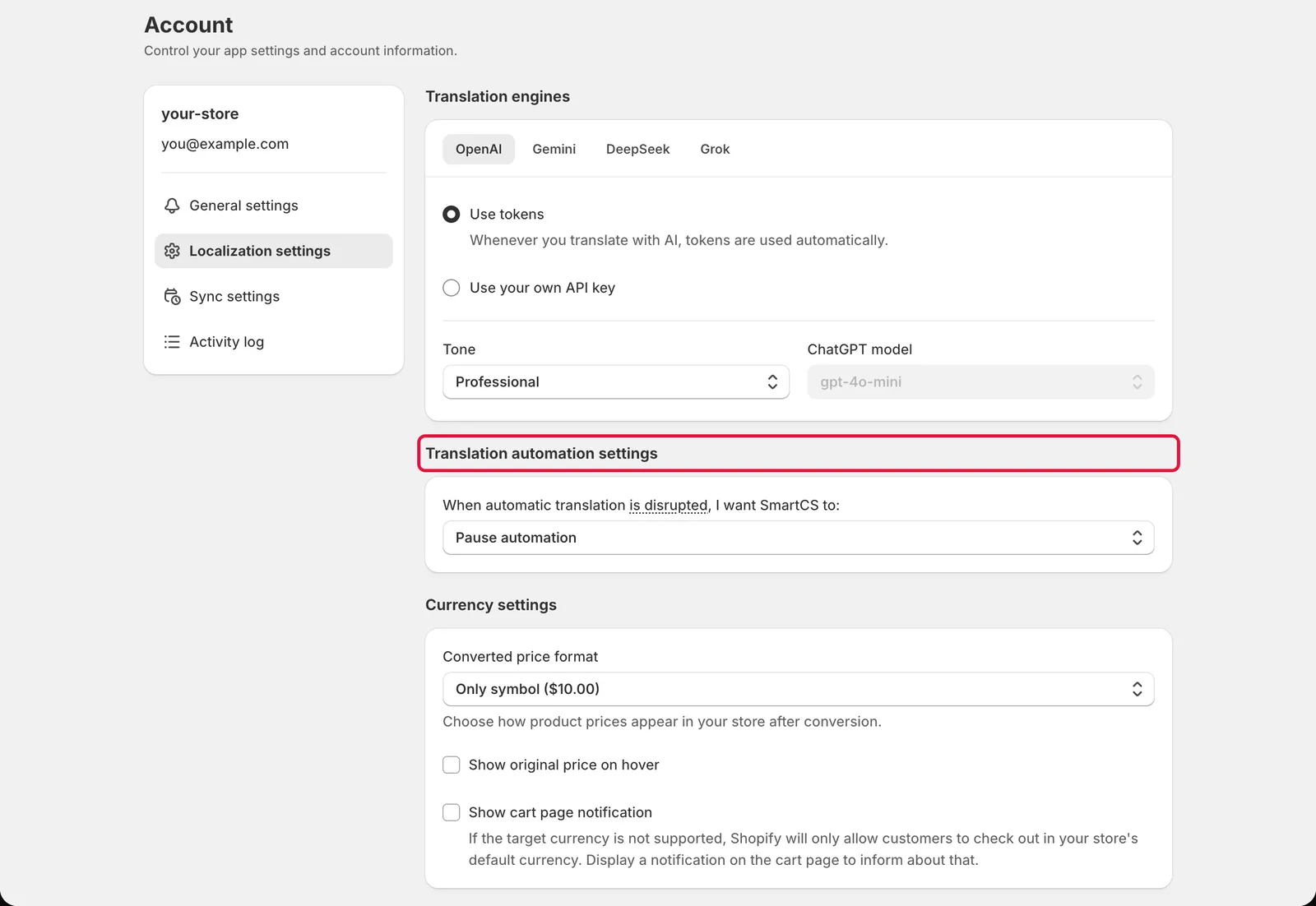
Scroll to Translation automation settings. The card reads "When automatic translation is disrupted, I want SmartCS to:". Click the words "is disrupted" to read when this happens.
Choose an option
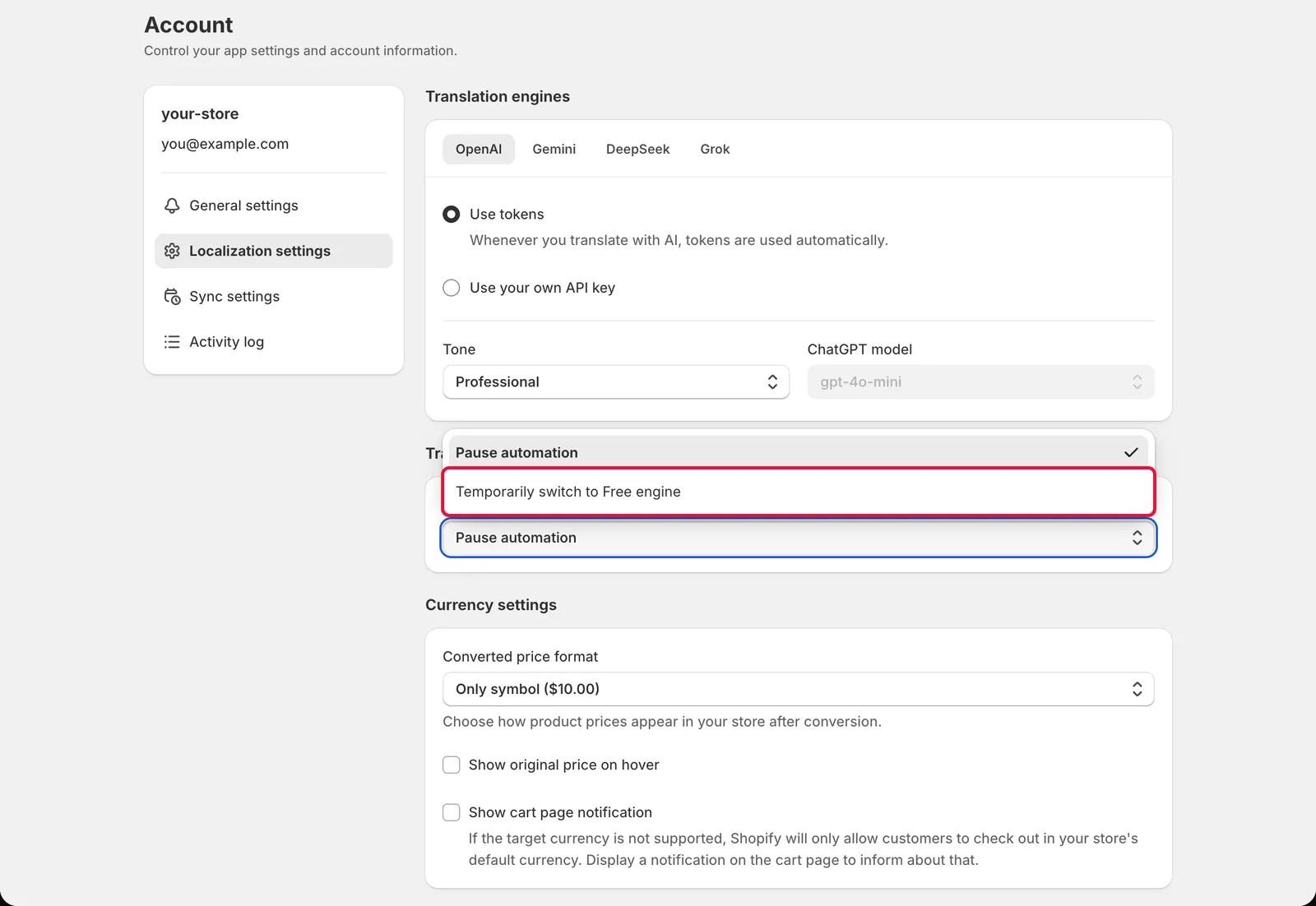
Open the list and choose one option:
- Pause automation: rules stop. Changed items wait and are translated when there is room again.
- Temporarily switch to Free engine: a run that does not fit your quota uses the Free engine instead. The Free engine does not use your quota or tokens.
The second option appears only when the Free engine is available for your store. Pause is the default.
Save your changes
Click Save in the save bar. The page shows Changes saved.
What happens when it is disrupted
With Pause automation, a banner on the translation pages says that automatic translation is paused. Each paused rule shows the reason, such as Monthly characters used up. See Automate translation with rules.
With Temporarily switch to Free engine, a run that would not fit is quoted again on the Free engine. If the quote then fits, the run goes on with that engine. Runs that fit are not changed.
Good to know
- The same choice is in the dialog that appears when you automate items from a list.
- A paused task can also be resumed from Task progress.
- To see which engines exist, read Translation engines.
Note
Nothing is sent by email. You see the pause in the app only.
Related articles
Automate translation with rules
Create rules that translate new and changed products, collections and other content automatically, and check each rule's status.
Track background tasks
Follow translations and other background tasks in the Task progress panel. Cancel, restart, retry or resume a task.
Last updated November 18, 2026