Translation status explained
Learn what each translation status means, where you see it, and what to do when a resource is Outdated, in Conflict or Failed.
A translation status tells you if a piece of content is ready, needs work, or needs a decision from you. Use it to find what to do next.
Where you see statuses
Read the status column
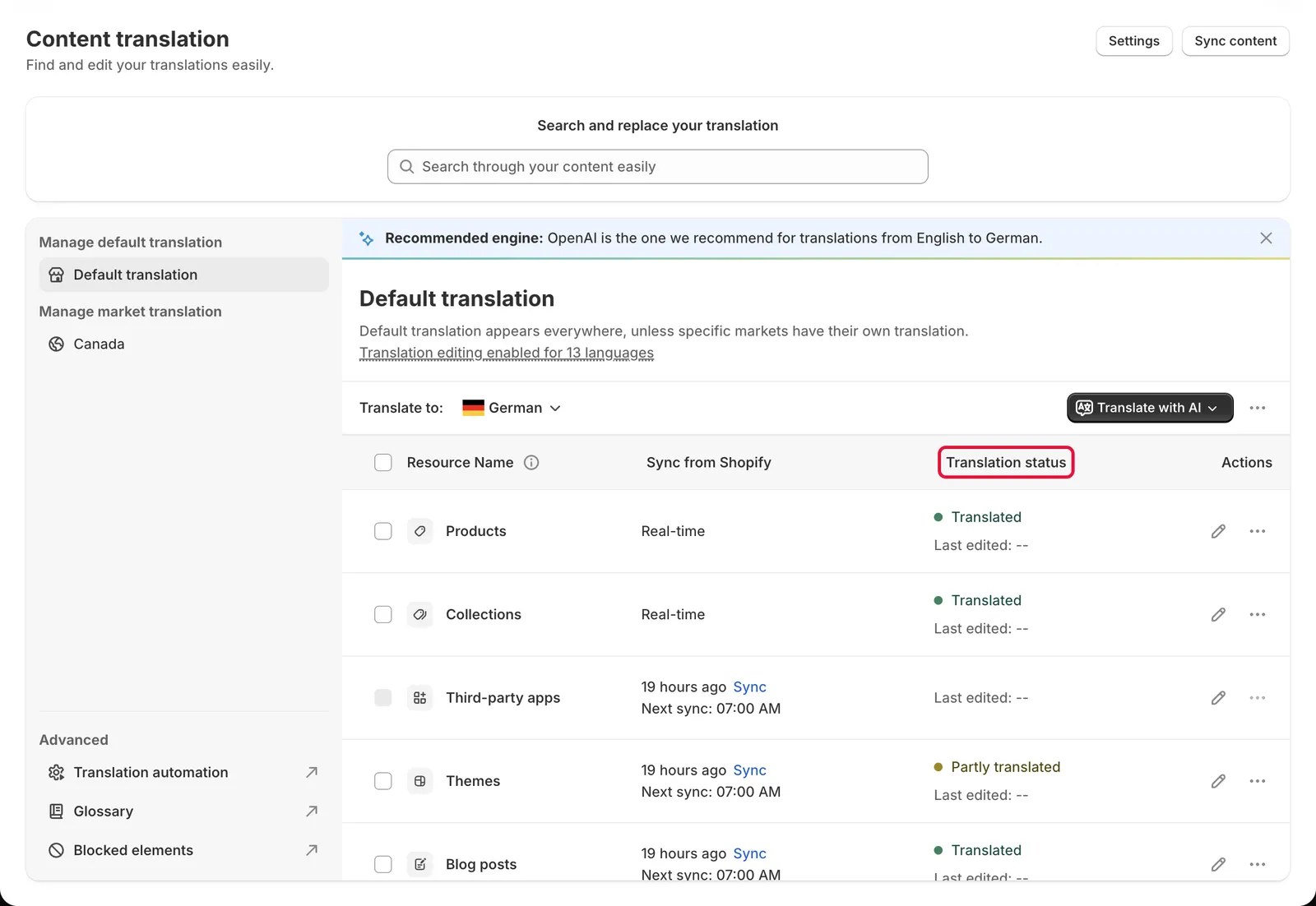
Open Content translation. The Translation status column shows one status for each row, with the date it was last edited. A row shows the status you should act on first. Conflict and Outdated come before the others. Failed is not in the table: it is folded into the row, which then shows Partly translated. A Blocked field is left out of the count, so it never changes the status of the row.
Check each field
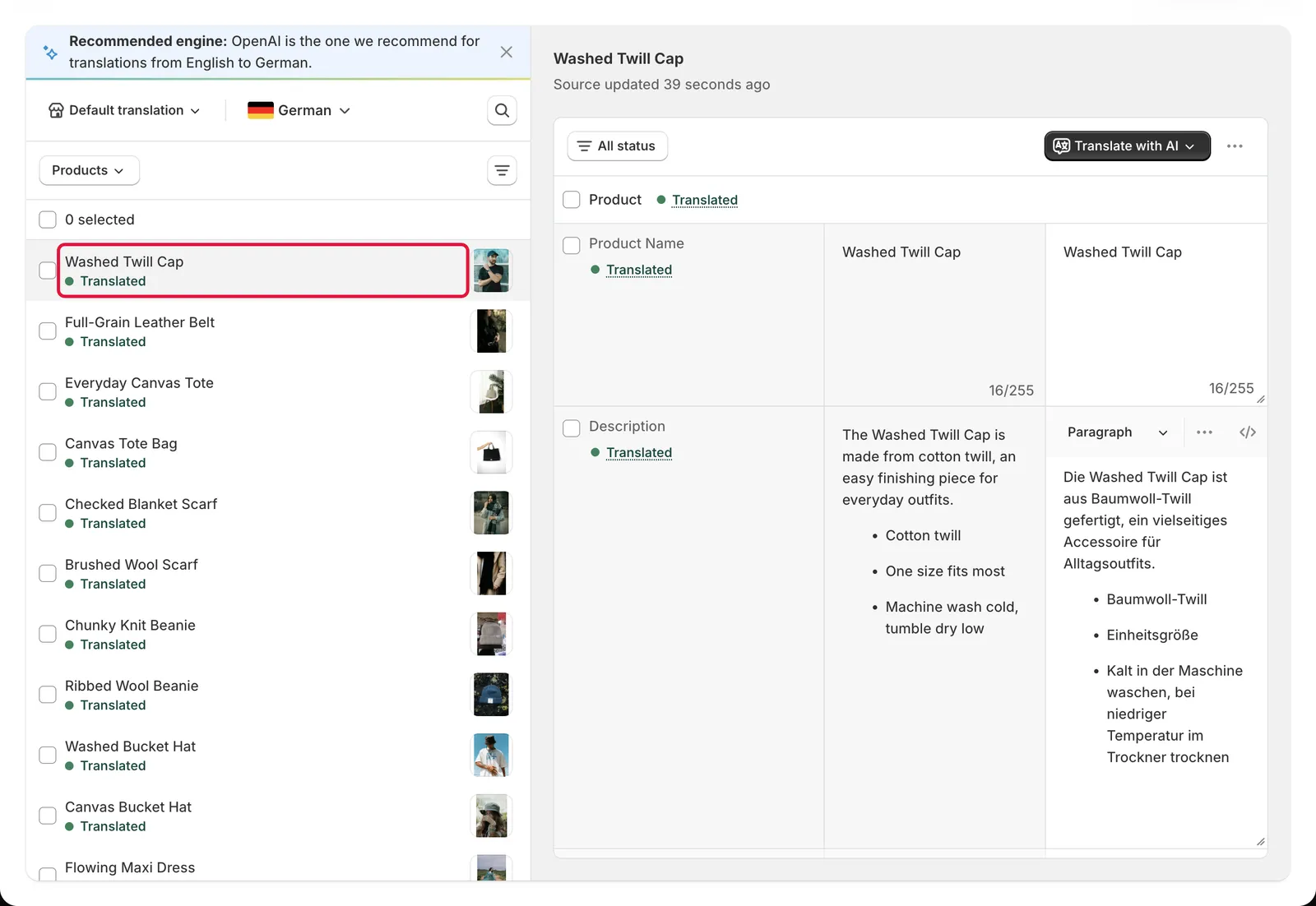
Select the pencil in a row to open the editor. Every item and every field has its own status there.
The statuses
| Status | What it means |
|---|---|
| Untranslated | Nothing is translated yet. |
| Partly translated | Some fields are translated and some are not. |
| Translated | The text is translated completely. |
| Outdated | The source text changed after it was translated, so the translation describes older text. |
| Conflict | Shopify holds a different translation than the one SmartCS sent. |
| Blocked | A rule you set, or the kind of field, keeps it from being translated. |
| Failed | Shopify refused this field, or the translation run for it failed. |
The table in Content translation shows only the first five. Blocked and Failed appear in the editor, for items and fields. When a row has several states, Conflict comes first, then Outdated.
What to do next
- Untranslated or Partly translated: translate with AI, or edit by hand. See Translate with AI.
- Outdated: translate again. Translate with AI changes only fields that are untranslated, outdated or failed. Or select Mark as translated if the old translation is still right.
- Conflict: choose Keep mine or Use Shopify's. See Sync content from Shopify and resolve conflicts.
- Failed: fix the field, for example shorten text that is too long, and save it. Or translate it again.
- Blocked: nothing to do. Change the rule if you want the field translated. See Blocked elements.
Note
Bulk actions and Translate with AI skip fields that are in Conflict. Resolve the conflict first.
Related articles
Content translation overview
See where you translate your store content, how the page is laid out, and how to start translating with AI or by hand.
Sync content from Shopify and resolve conflicts
Fetch new and changed content from Shopify into SmartCS, and choose what to keep when Shopify holds a different translation.
Last updated November 18, 2026