Edit translations manually
Open a resource in the translation editor, type or fix a translation field by field, use rich text, and save your changes.
Use the translation editor to write or correct a translation yourself. You work on one resource at a time, such as a product, and save every field you changed in one step.
Before you start
Add the language you want to edit, and keep translation edits turned on for it. If edits are off, the editor shows the text but you cannot change it. See Turn translation edits on or off.
Steps
Open the editor
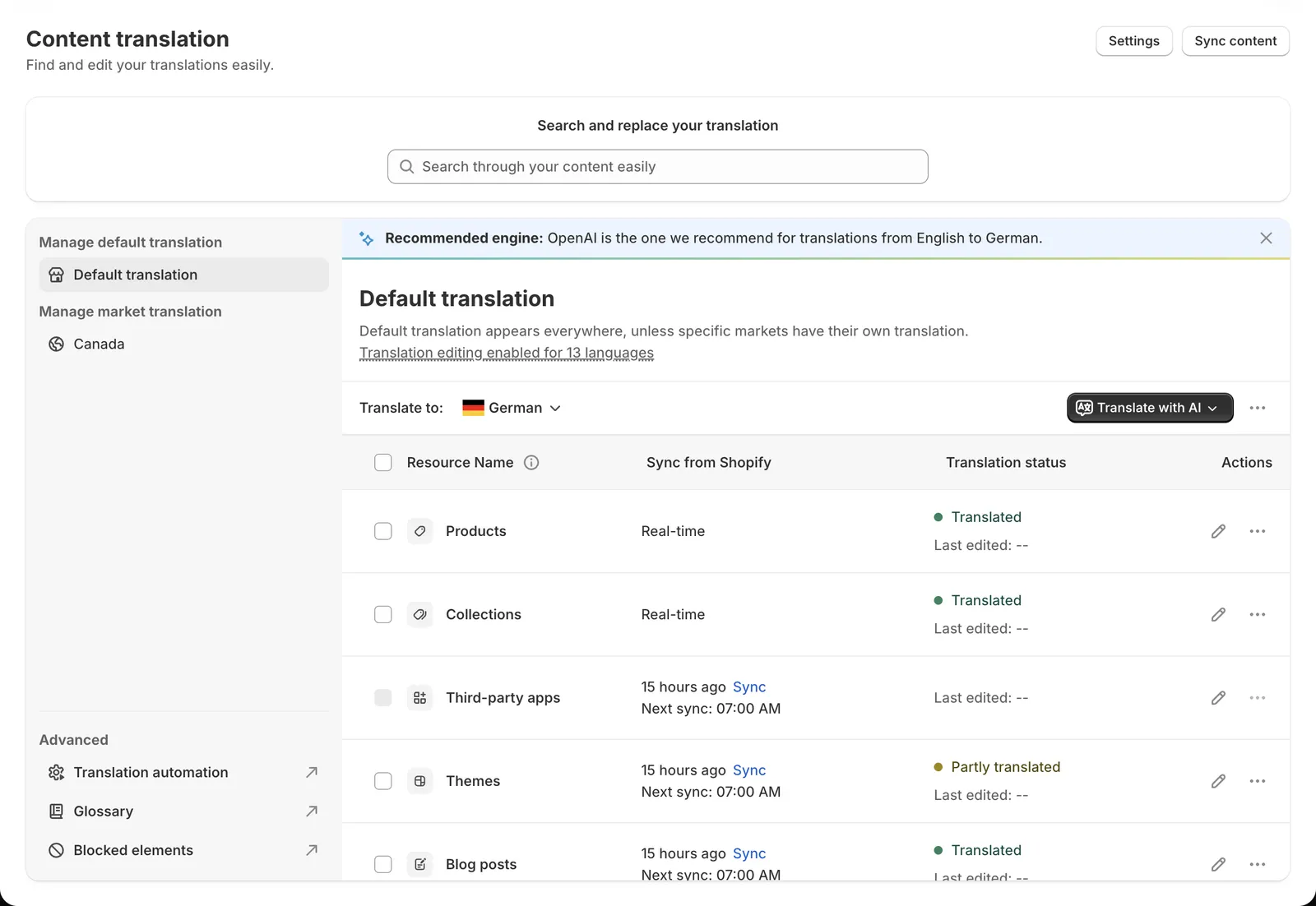
In SmartCS: Currency & Translate, open Content translation. Choose the language in the Translate to: list. In the row of a group, such as Products, select the edit (pencil) button. The editor opens in a full-screen window.
Choose an item
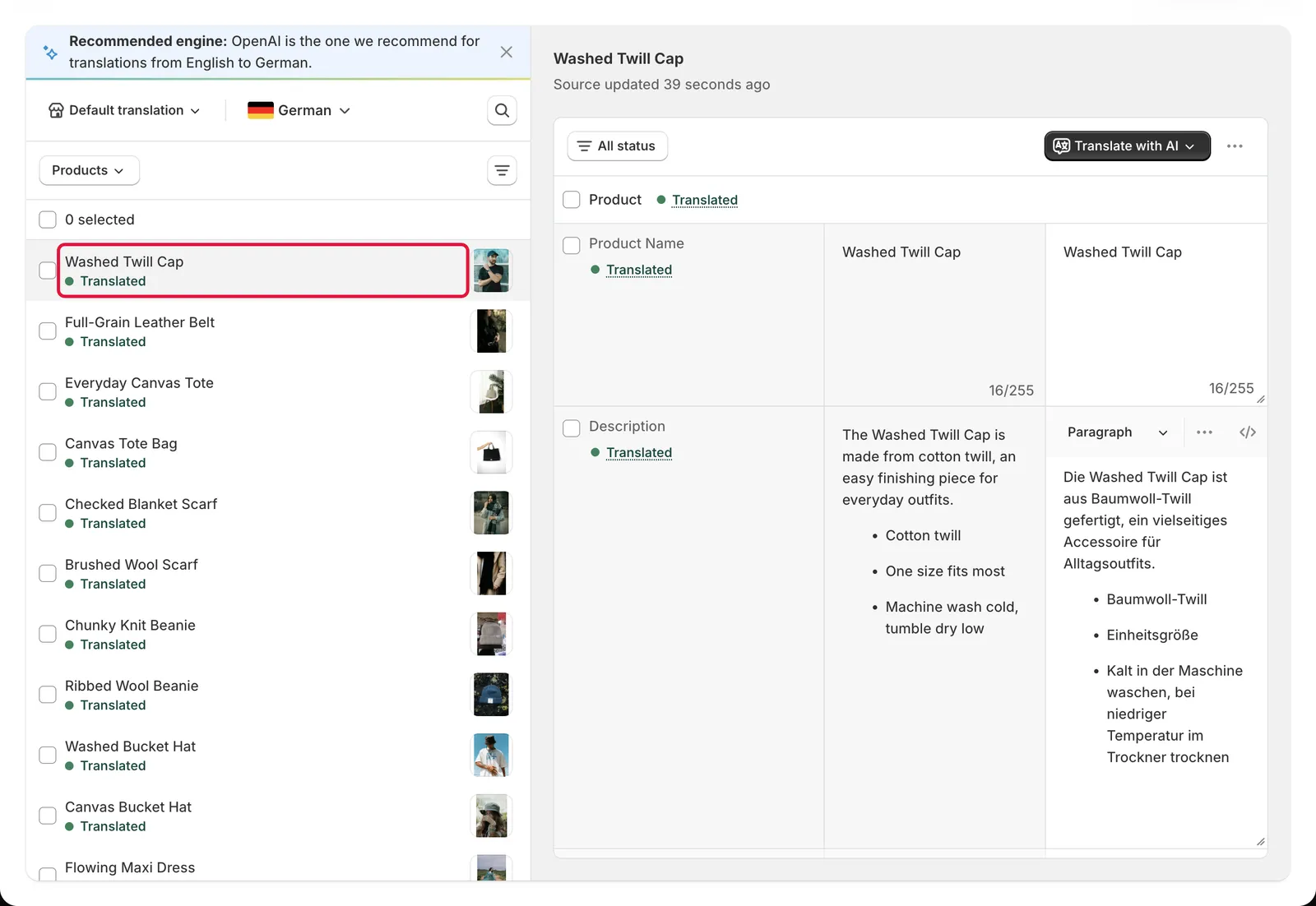
The list on the left shows the items of the group. The first item opens by itself. Select another item to open it. To find an item faster, see Find and filter content to translate.
Choose what to translate
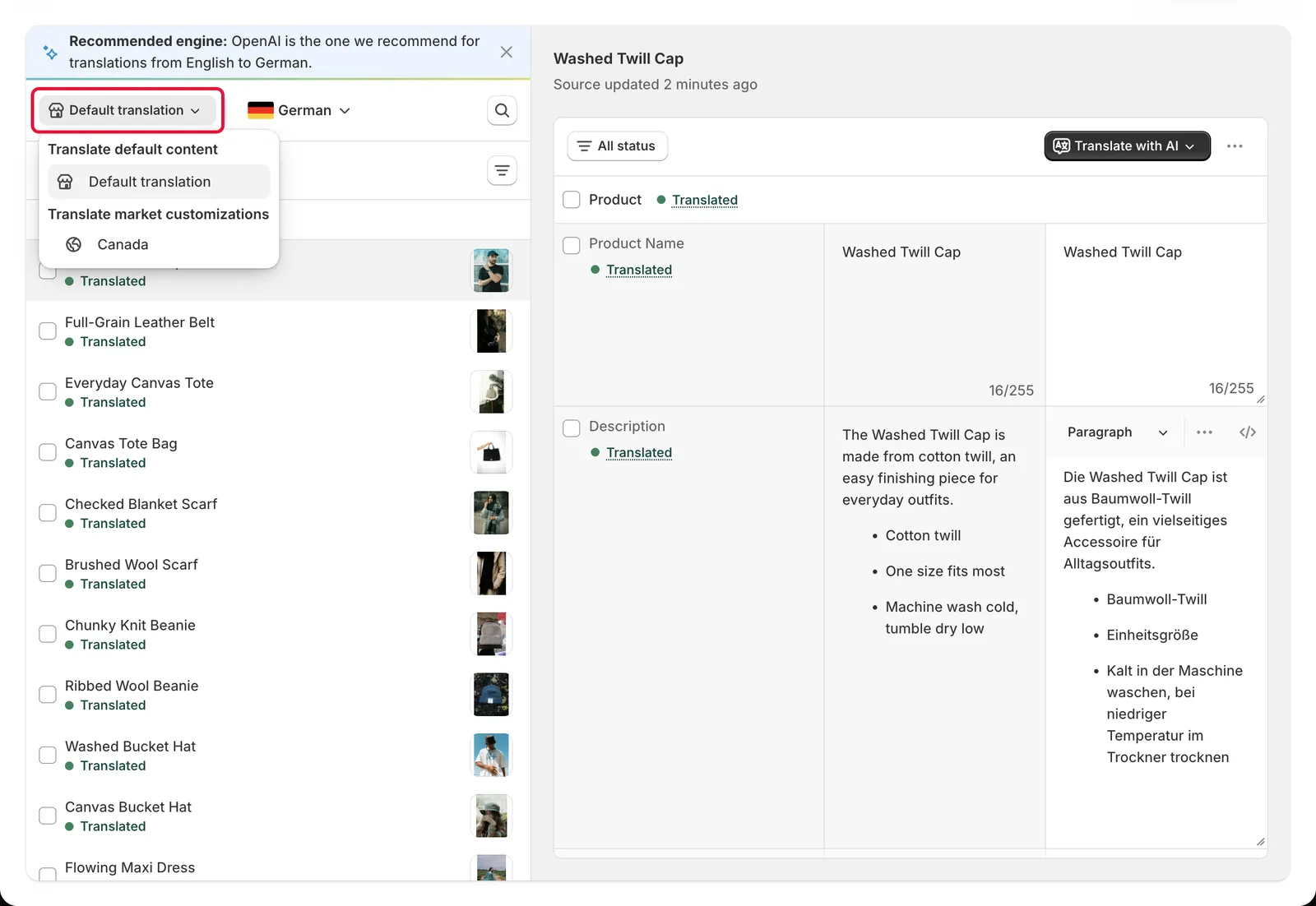
Use the first button in the left column to pick the scope. Translate default content edits the translation shown in every market. Translate market customizations lists the markets. Contact us to turn this on Without market translations in your plan, you can view a market but not edit it. See Default and market translations.
Type a translation
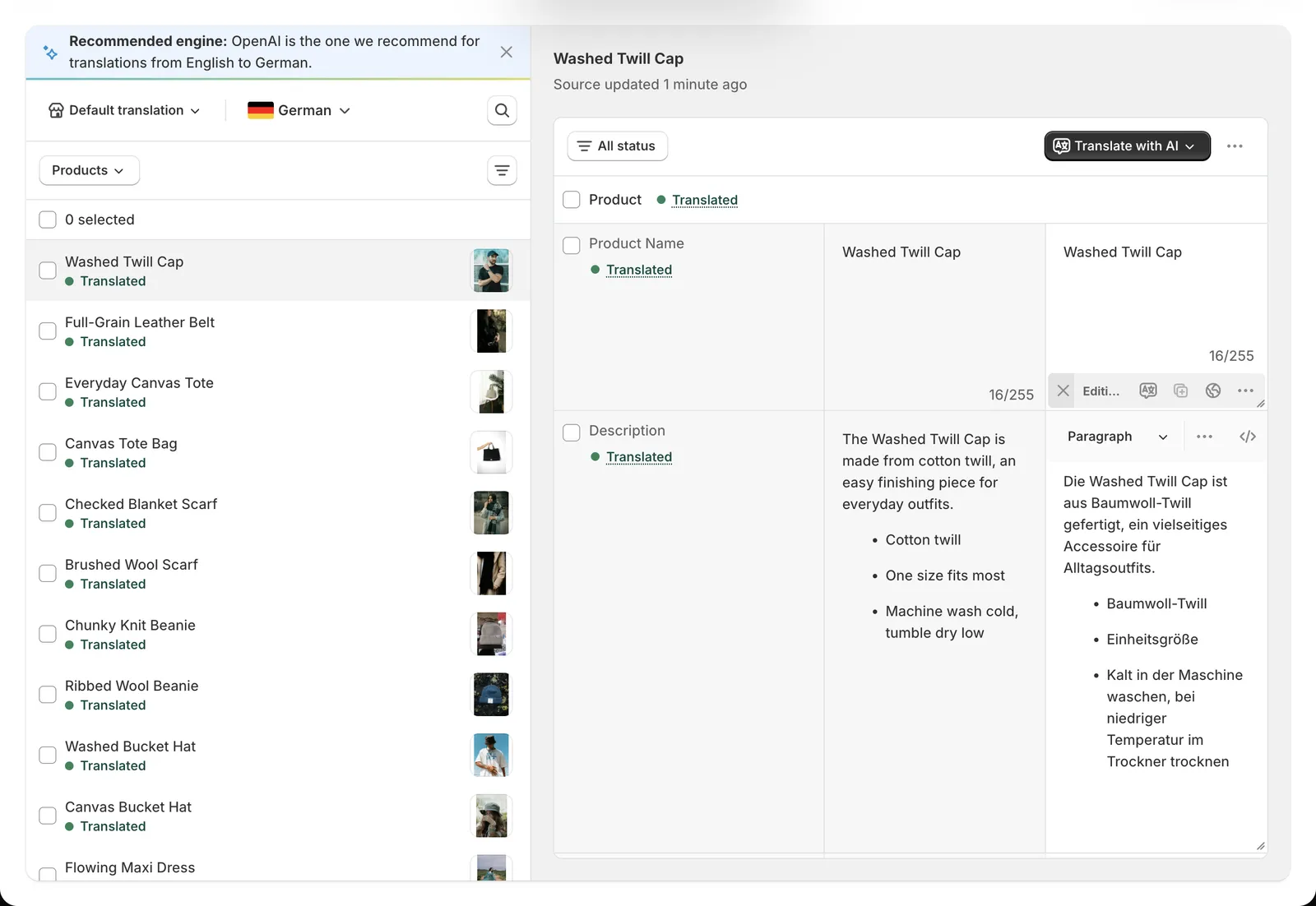
Each field is a row. The source text is on the left and your translation box is on the right. Click the box and type. A counter shows the length when the field has a limit. A status shows beside the field name, such as Translated or Untranslated.
Format rich text
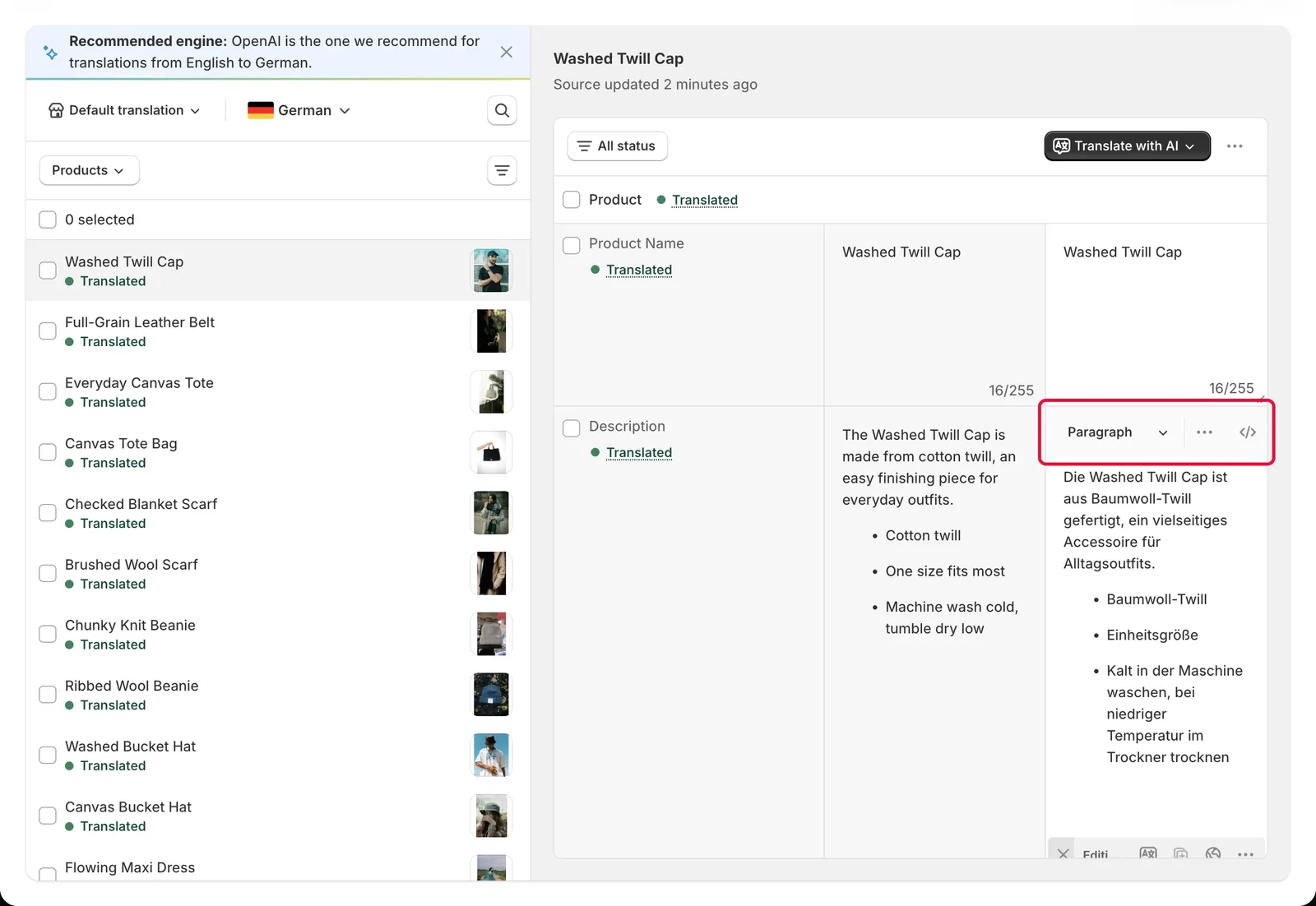
Fields that hold HTML, such as a product description, open with a toolbar. Use it for headings, bold, lists, links and colors. Select More formatting for more tools.
Edit the HTML
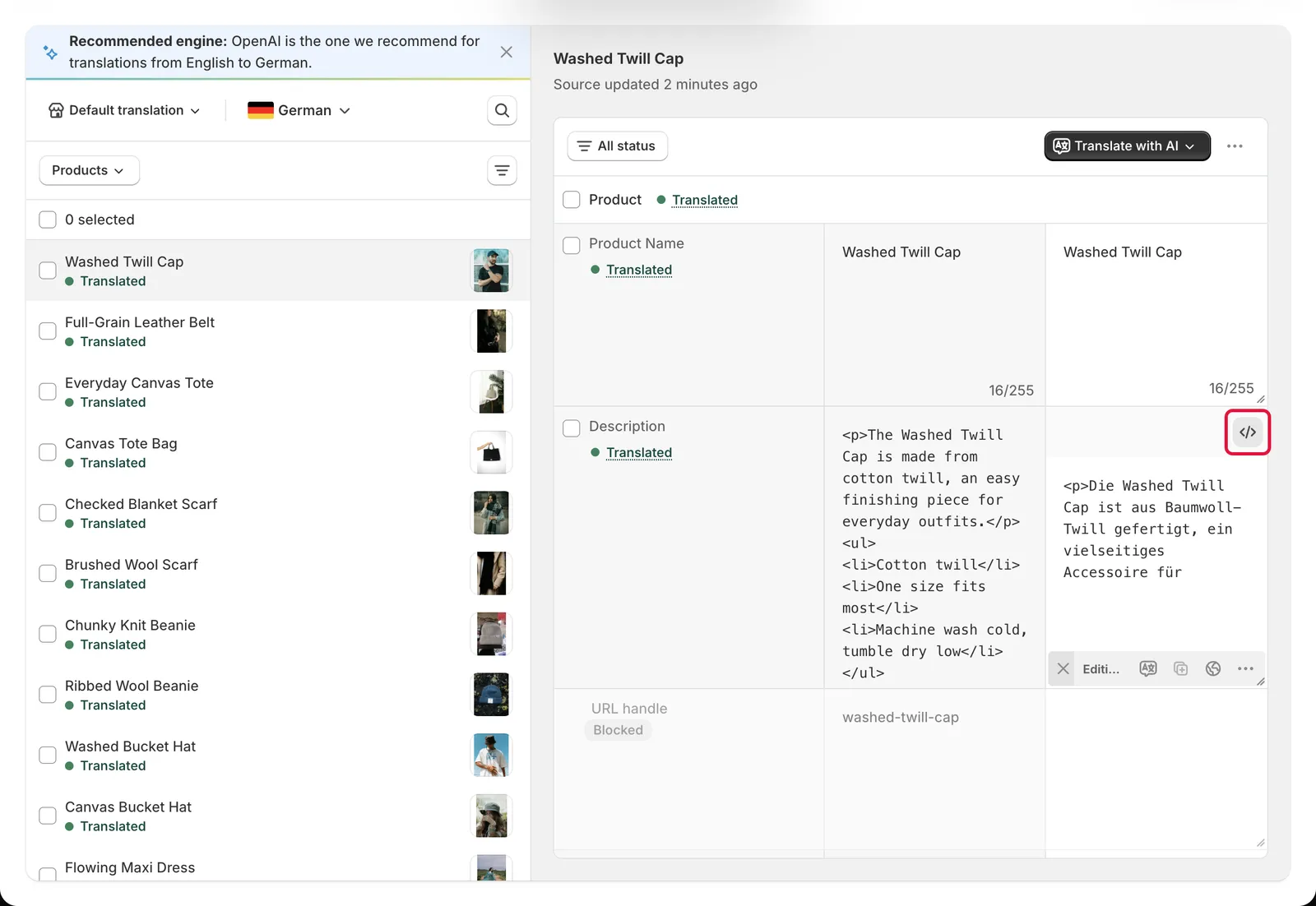
Select the code button at the end of the toolbar (Source code) to edit the HTML itself. Select the same button (Visual editor) to go back. If the HTML has elements the visual editor cannot keep, the field stays in code view.
Save your changes
When you change a field, a save bar appears at the top of the page. Select Save to save every changed field of the item, or Discard to drop your edits. A Saved message confirms it. If you open another item first, the editor asks you to Continue editing or Discard changes.
Field tools
Click a field to show a strip below its box. It has these tools:
- Translate with AI translates only this field. See Translate with AI.
- Re-use existing translation opens a list of up to 10 existing translations of the same text, for example from another resource. Pick one to copy it into the field. In a market, the list also offers the default translation. The button is dimmed when there is nothing to re-use.
- More actions opens Translation history and Block translation for this element. Contact us to turn this on Translation history is locked on a plan that keeps no history. See Translation history and Blocked elements.
To filter the fields of one item, select All status above the fields.
Good to know
- A saved translation cannot be empty. To remove one, use Delete translations. See Mark as translated and delete translations.
- A field marked Blocked is locked on purpose and cannot be edited.
- If the original text changed in Shopify, the field is highlighted. Check your translation before you save again.
- If a field was changed in Shopify after your last sync, choose Keep mine or Use Shopify's. See Sync content and resolve conflicts.
Note
When a job is translating an item, the editor locks that item until the job finishes. A language with edits off is read-only too.
Related articles
Translation engines: OpenAI, Gemini, Grok, DeepSeek
See which translation engines SmartCS offers and what each needs. Set the tone, or use your own API key for OpenAI or Gemini.
Find and filter content to translate
Search your store content, switch between resource groups, and filter the editor list by translation status or product details.
Last updated November 18, 2026