Email notifications and packing slips
Translate the email notifications Shopify sends to customers, and the packing slip that goes in the parcel.
Translate the order emails that Shopify sends to your customers, and the packing slip that goes in the parcel. Customers then read them in their own language.
Before you start
Packing slips are available on every plan. Email notifications need a higher plan.
Only the notifications that Shopify sends can be translated. Emails from other apps are not listed. To change the original text of a notification or a packing slip, edit it in Shopify. SmartCS translates the text, it does not write it.
Steps
Open the language
In Content translation, choose the language to translate into.
Translate notifications
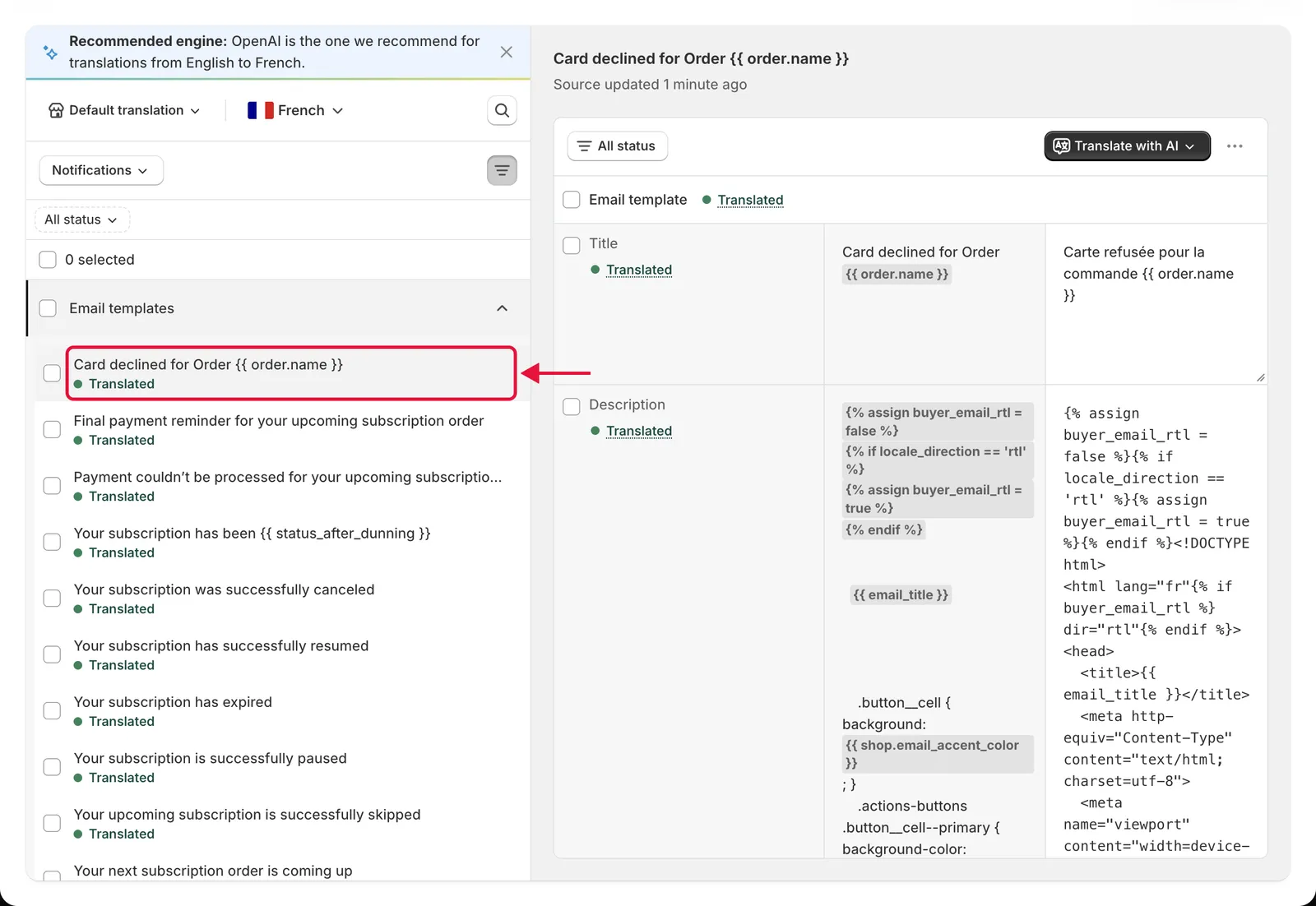
Open the Notifications row. Select an email template. Each template has a title and a body. Type your translation, or use Translate with AI.
On a plan without notifications the row is locked, with a Contact us link.
Translate the packing slip
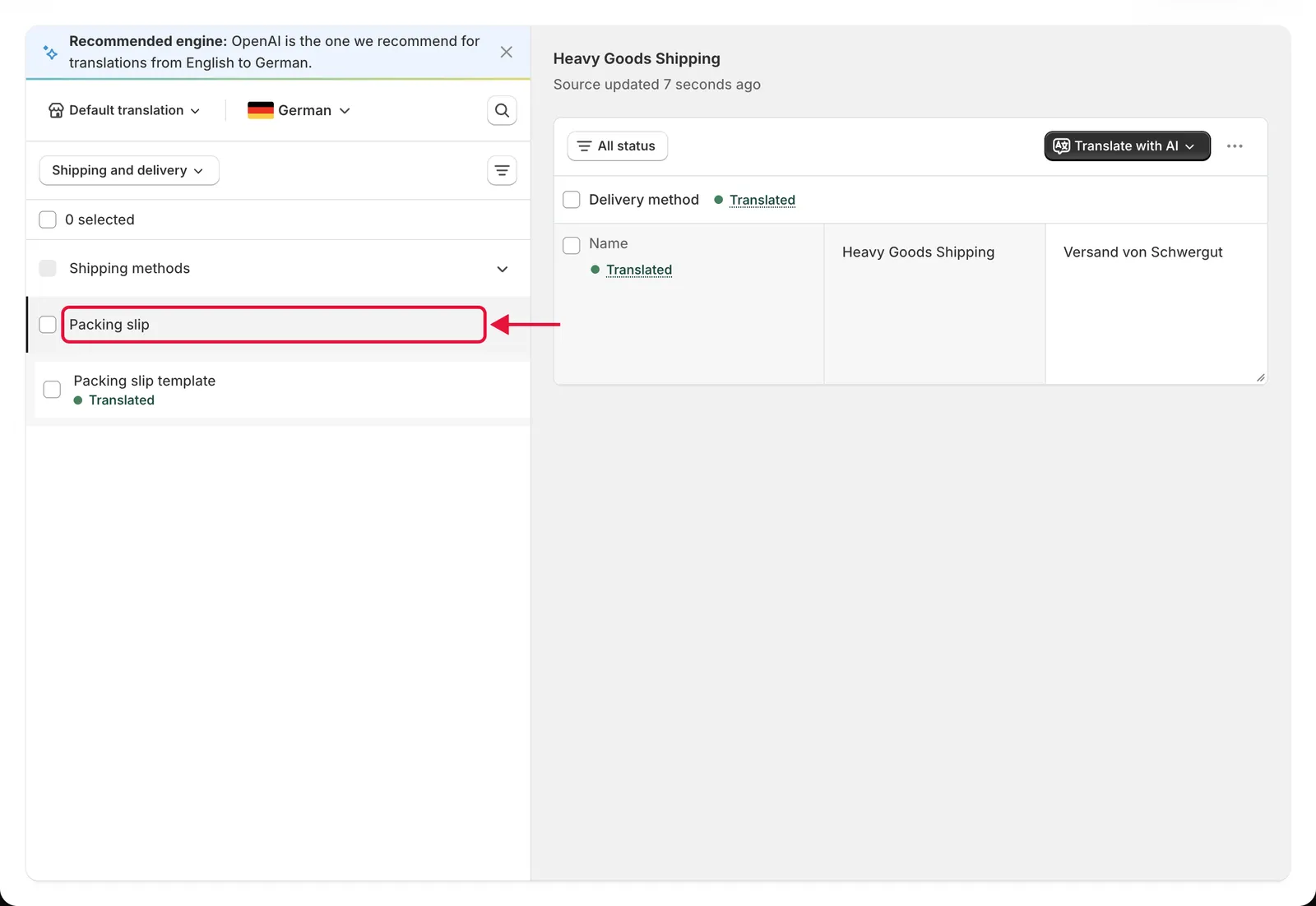
Open the Shipping and delivery row. Open its Packing slip part and translate the template text.
Keep the placeholders
Emails and packing slips contain placeholders written between double curly brackets or between a curly bracket and a percent sign. Keep each one exactly as it is. SmartCS protects them when you use AI, and shows them as grey chips in the original column.
Good to know
Note
Notifications and packing slips have one translation per language. You cannot translate them for one market only. Inside a market, they open as read-only with the message This resource can't have market-specific translations..
- When you change a template in Shopify, sync it to see the new text. See Sync content and conflicts.
Related articles
Metafields and metaobjects
Translate the text stored in your metafields and metaobjects, such as size guides or custom product details.
Checkout, payment and theme text
Translate the fixed words of your theme and the names of your payment and shipping methods, and see which checkout text SmartCS leaves out.
Last updated November 18, 2026