Block elements from translation
Choose which fields are never translated, from SEO meta tags and URL handles to a single field in the editor, and remove a block later.
Block a field so the app never translates it. A block stops new translations of that field and stops edits to it. It does not delete translations you already have, but text that is not yet on your store stays off it.
Before you start
Some content is always blocked and you cannot change it:
- Identifiers such as SKU, barcode and URL fields.
- Links, file references and raw JSON, because they are not language.
Steps
Open blocked elements
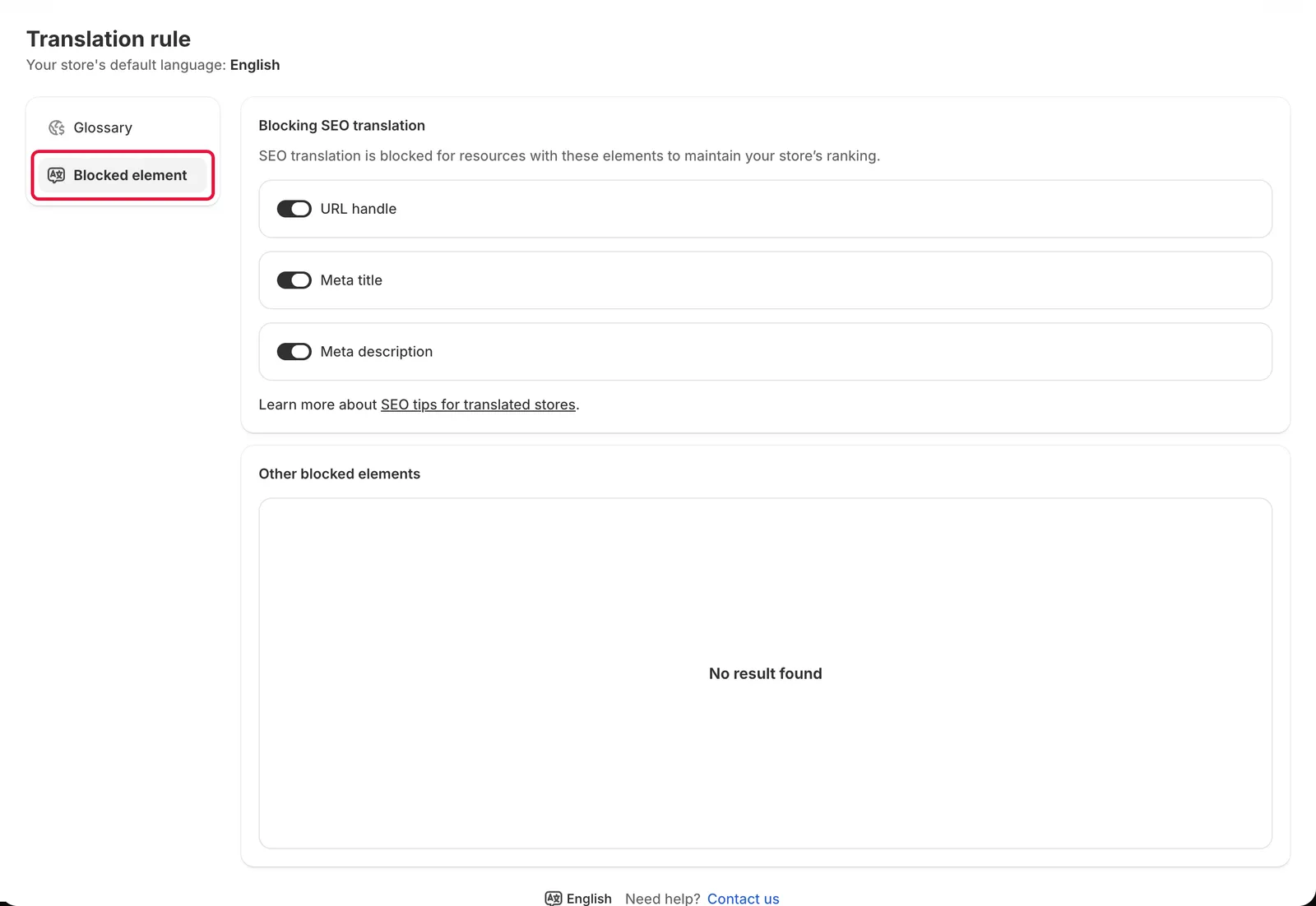
In SmartCS, open Content translation. Under Advanced, click Blocked elements. The page Translation rule opens on the Blocked element tab.
Block a field in the editor
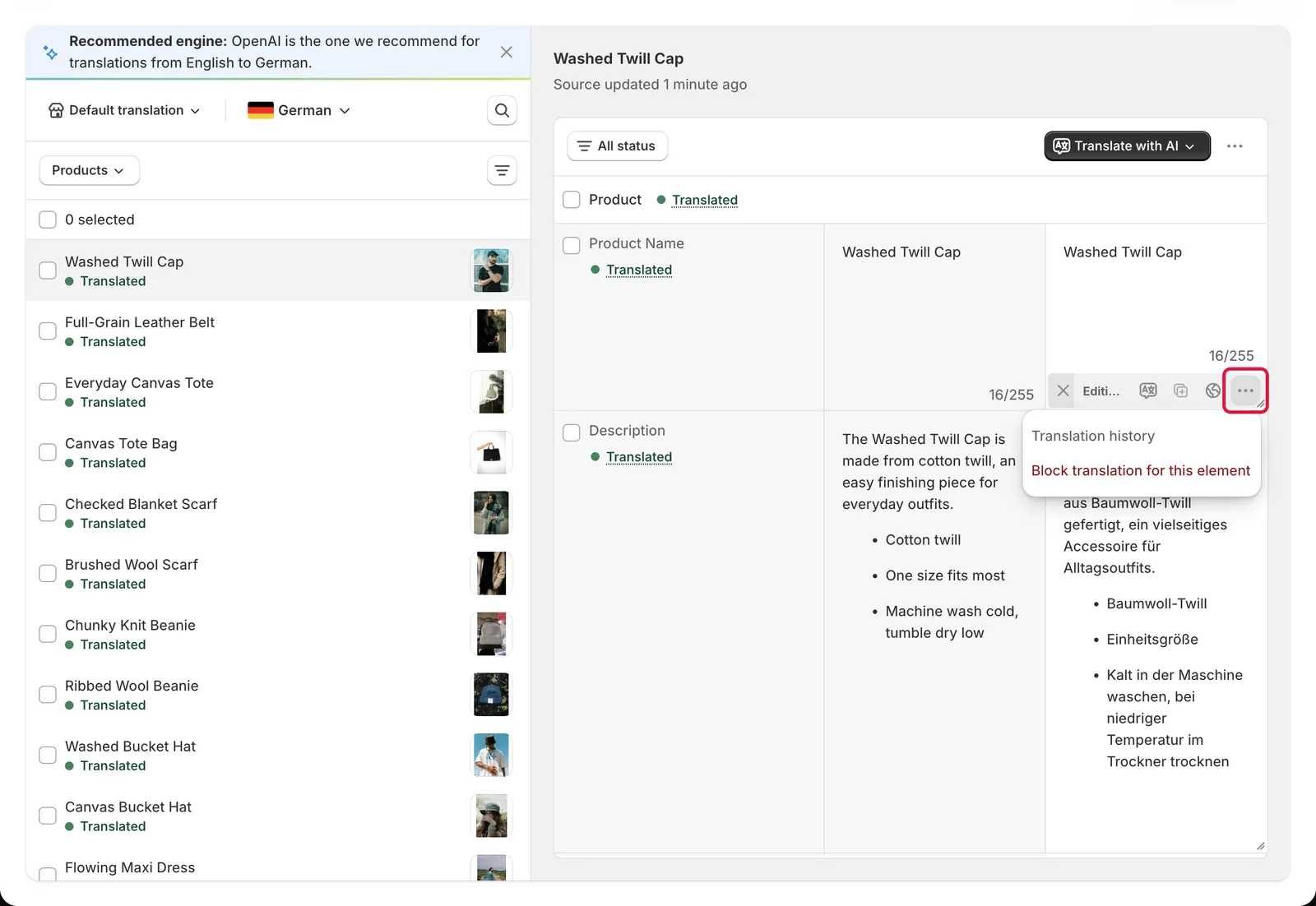
Open an item in the editor and find the field. Click the three-dot button More actions under the field, then Block translation for this element. The block applies to that field of this item in every language, and a message reads Element blocked. There is no confirmation, so click carefully.
Check your blocks
On the Blocked element tab, the card Other blocked elements lists each block with its resource, language and type. Blocks from the editor have the type One element.
Remove a block
Click Remove on a row, then confirm with Remove block. The field can be translated and edited again.
SEO fields
Contact us to turn this onThe card Blocking SEO translation has one switch each for URL handle, Meta title and Meta description. A switch that is on means the field is blocked. All three start on.
Turn a switch off to allow translation of that field. For the URL handle, a window asks you to confirm first, because translated handles change your web addresses. See Translate URL handles.
When you turn a switch on, a message may offer to remove the translations that already exist, using Remove translations or Remove translated handles. Text already on your store stays there until you remove it. Translations that are not yet on your store, or that change later, are held back while the field is blocked.
Good to know
- A blocked field is skipped by AI translation, bulk translation, automation and Search and replace.
- Existing translations of a blocked field are kept, and text already on your store stays live. Any translation that is not yet on your store, or that changes later, is held back until you remove the block.
- A blocked field cannot be edited by hand, reverted to an earlier version or filled by reusing a translation. The editor shows it read-only with a Blocked badge.
- Blocked fields are left out of translation progress.
- Some blocks are built into the app. They are not listed and you cannot remove them.
Related articles
Glossary: always or never translate a term
Create glossary rules so a brand name stays as it is, or a term always gets the wording you choose, in the languages you pick.
Automate translation with rules
Create rules that translate new and changed products, collections and other content automatically, and check each rule's status.
Last updated November 18, 2026