Translate SEO: meta titles, descriptions and alt text
Turn on SEO translation, then translate meta titles, meta descriptions and product image alt text for each language.
Translate the SEO text of your store: meta titles, meta descriptions and the alt text of product images. Search engines and screen readers then show it in the shopper's language.
Contáctenos para activar esta funciónBefore you start
SmartCS blocks the meta title and the meta description by default, so they are never translated by accident. You turn them on once for the whole store. Image alt text is not blocked, and works on every plan.
Steps
Turn on SEO translation
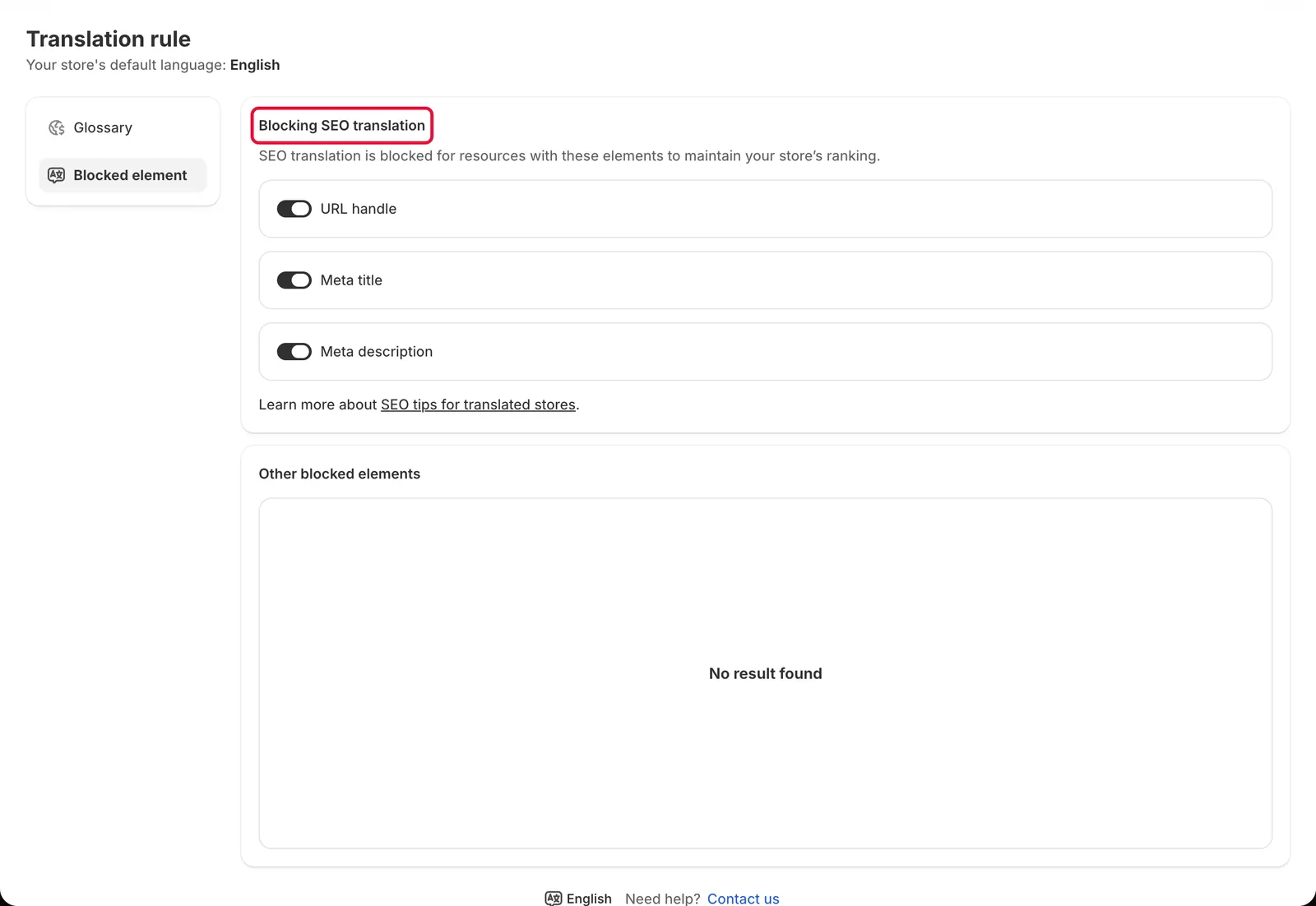
In Traducción de contenido, open Elementos bloqueados. On the Elemento bloqueado tab, find the card Bloqueo de la traducción SEO. A switch that is on means the element is blocked. Turn off Metatítulo and Metadescripción. Each change saves at once, and SmartCS then recounts your translation progress.
Open an item
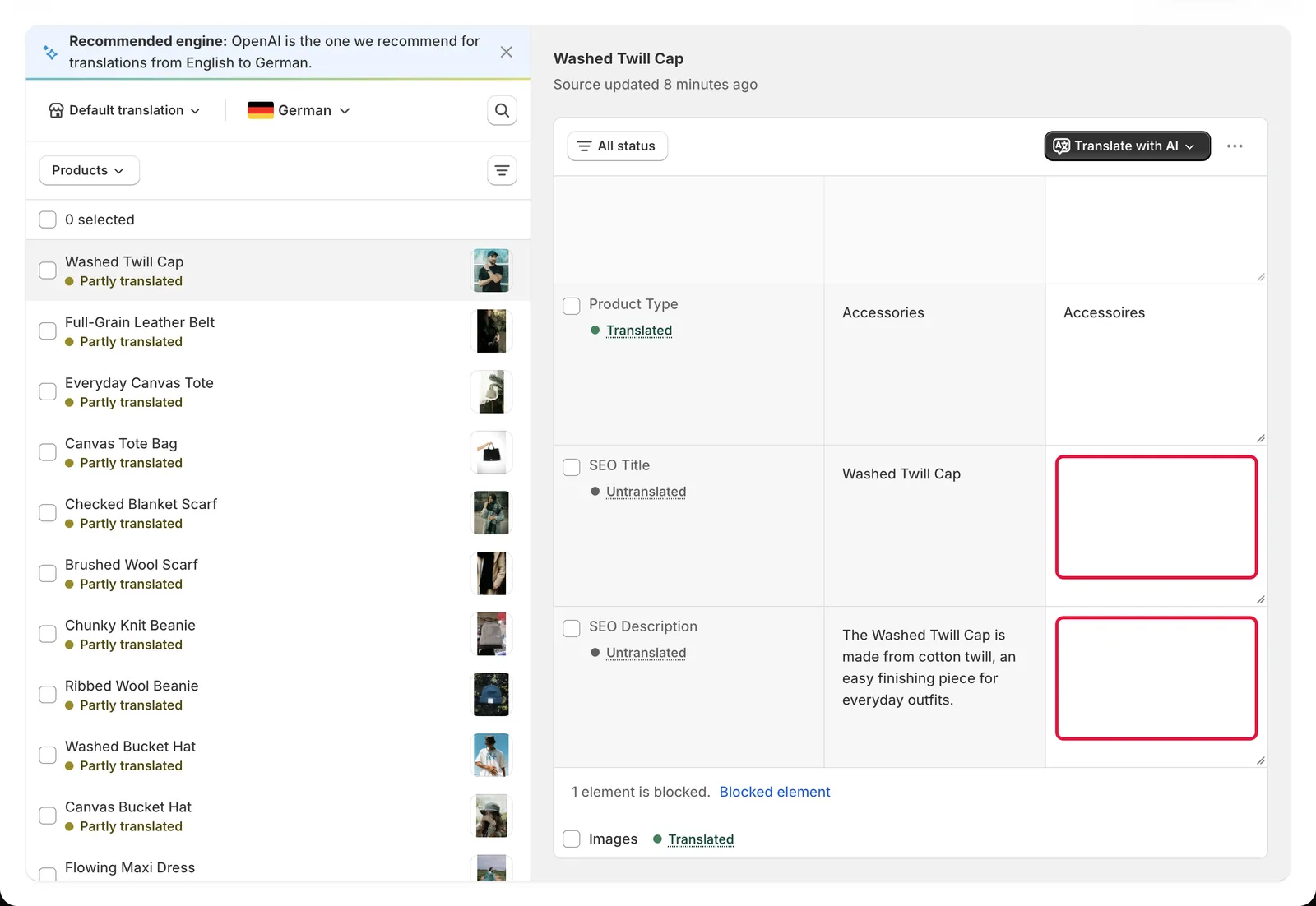
Open a row such as Productos, then select an item. Meta fields exist for products, collections, blogs, blog posts and pages. The homepage title and description are in the Preferences row.
Translate the meta fields
Find the SEO Title and SEO Description fields (named Meta Title and Meta Description on other items). Type your translation, or use Traducir con IA. A field that is still blocked shows Bloqueado with a link to Elemento bloqueado.
Translate image alt text
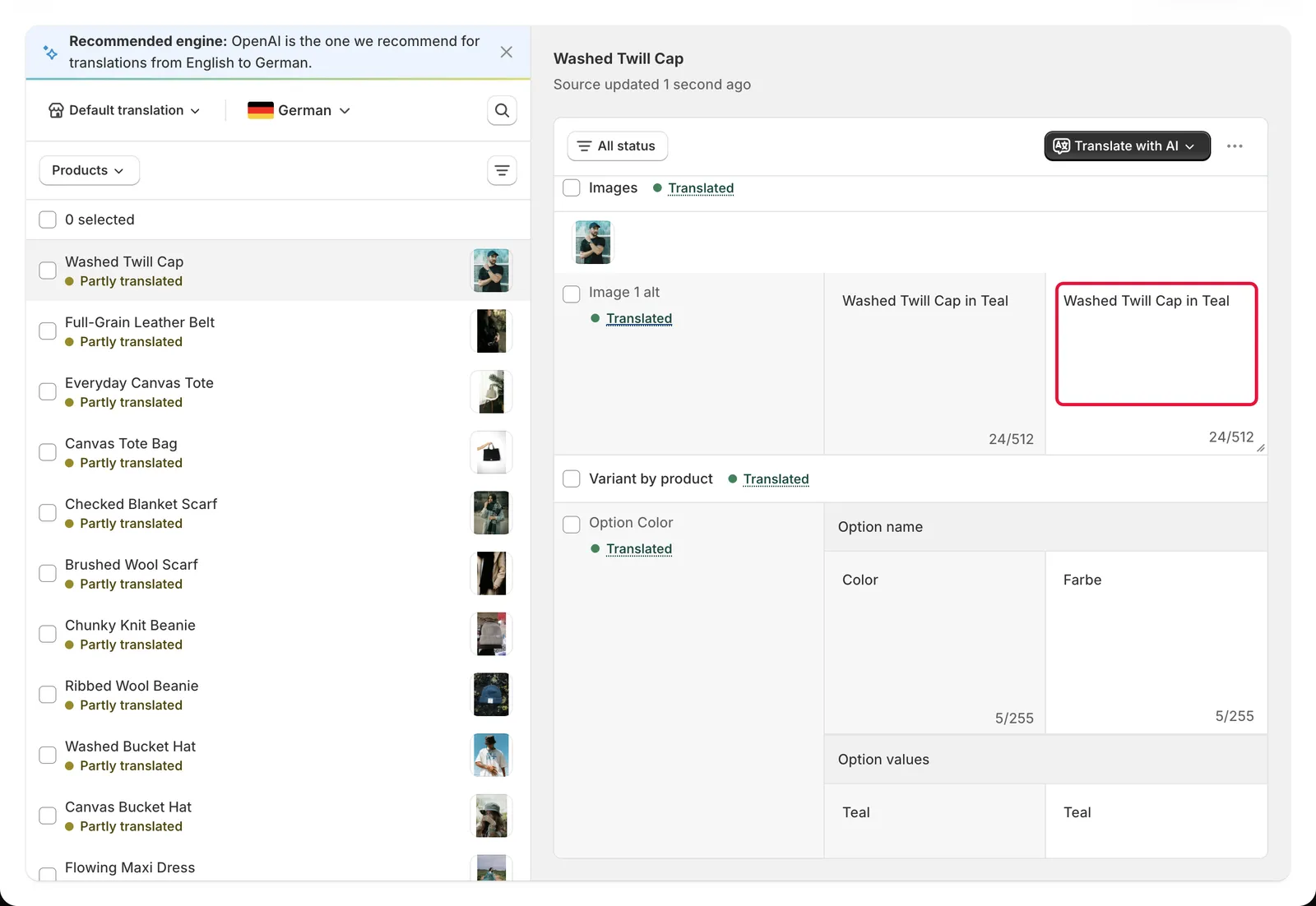
In a product, find the images section and the Image alt field of each image. Describe what the image shows, in a short sentence. The limit is 512 characters, and the editor tells you when the text is too long.
Good to know
Nota
Alt text is read for product images only, and only for the first 20 images of a product. Images of collections and blog posts are not listed.
- If the switches are locked, the card says "El SEO multilingüe aún no está activado en tu tienda." Use Contáctanos to ask for it.
- Blocking only stops new translations. The ones you already made stay on your store. When you turn a switch back on, a banner in the card offers Quitar traducciones to take them back. The banner shows only during that visit to the page, and you can close it. When you leave the page it is gone. To get it back, turn the switch off and on again.
- Translate the URL handle on its own switch. See Translate URL handles.
Artículos relacionados
Translate your homepage, pages and navigation
Translate your pages, navigation menus, homepage text and homepage title so shoppers see them in their language.
Translate URL handles
Turn on URL handle translation so products, collections, pages and blog posts get a web address in each language.
Última actualización: 18 de noviembre de 2026