Round converted prices
Round converted prices to a clean step or to an ending such as .99, for your whole store or for one currency, and check an example before you save.
Round converted prices so they look clean, for example 18.99 instead of 18.47. You set one rounding rule for your whole store, and you can give any currency its own rule.
Before you start
Rounding changes only prices that SmartCS converts. Your store currency is never converted, so it has no rounding rule of its own. You can add it to the store rule with the switch described below.
Set the rule for your whole store
Open Advanced
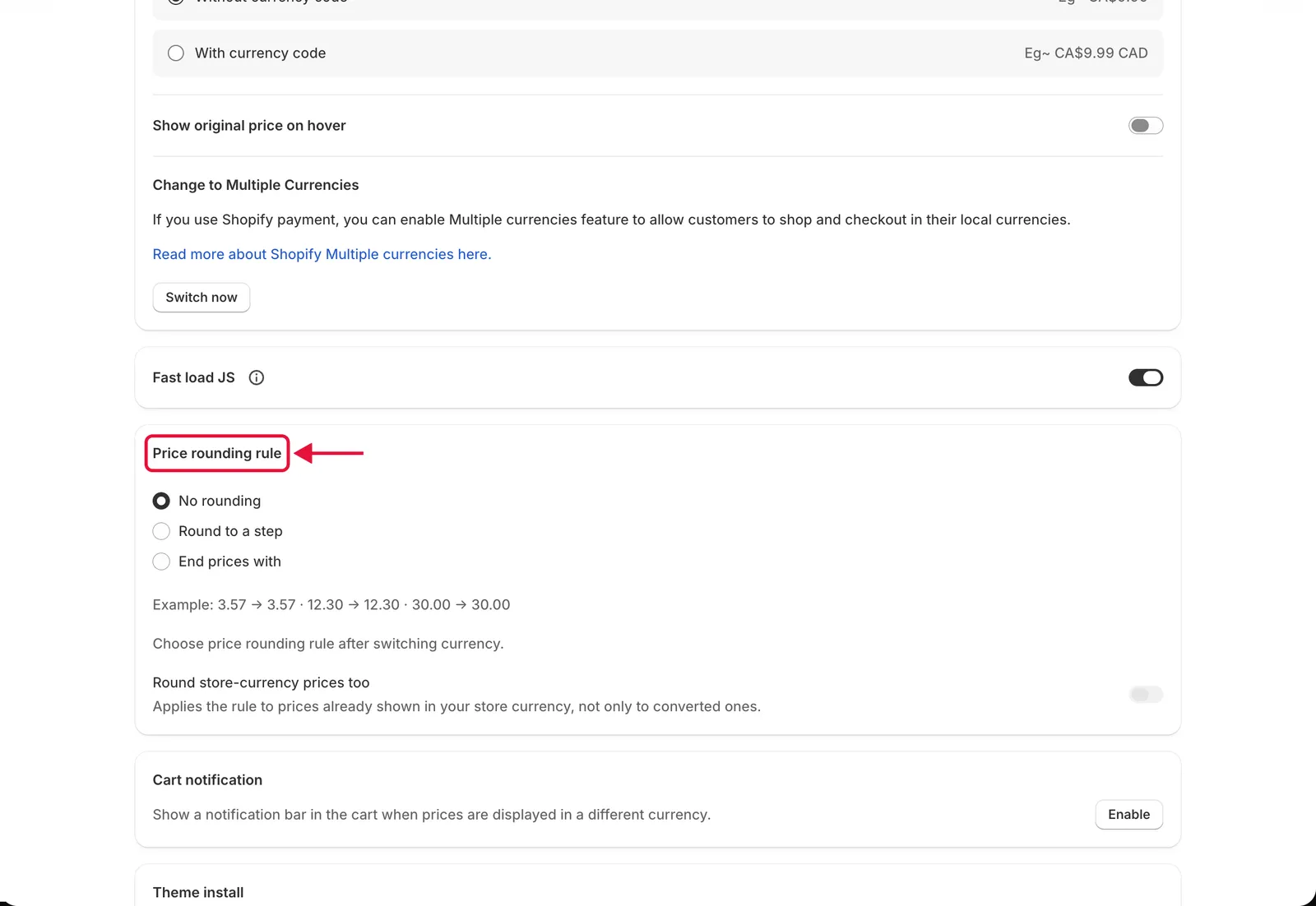
Open Pazar yönetimi. Under Genel ayarlar, click Para birimleri. Below the table, click Gelişmiş'e git. The Gelişmiş page opens.
Choose a rule
In Fiyat yuvarlama kuralı, choose one option:
- Yuvarlama yok: prices are not rounded.
- Bir adıma yuvarla: pick a step in En yakın değere yuvarla and a Yön. The direction is En yakın, Yukarı or Aşağı.
- Fiyatları şununla bitir: pick a step in Her şu aralıkta tekrarlanır, a direction, and an Bitiş such as 0.99.
Add a second ending
To use two endings, click İkinci bir bitiş ekle and fill in İkinci bitiş. The two endings must be different. Click Kaldır to go back to one.
Check the example
Look at the example line under the options. It shows three sample prices before and after rounding.
Round store-currency prices
To round prices that are already in your store currency, turn on Mağaza para birimindeki fiyatları da yuvarla. It is off by default and is unavailable when you choose Yuvarlama yok.
Save the rule
Click Kaydet in the Shopify save bar.
Give one currency its own rule
Uyarı
If you apply a rule to every currency in the final dialog, it becomes your store rule and every currency that had its own rule loses it. Those currencies follow the store rule instead.
Open Edit format
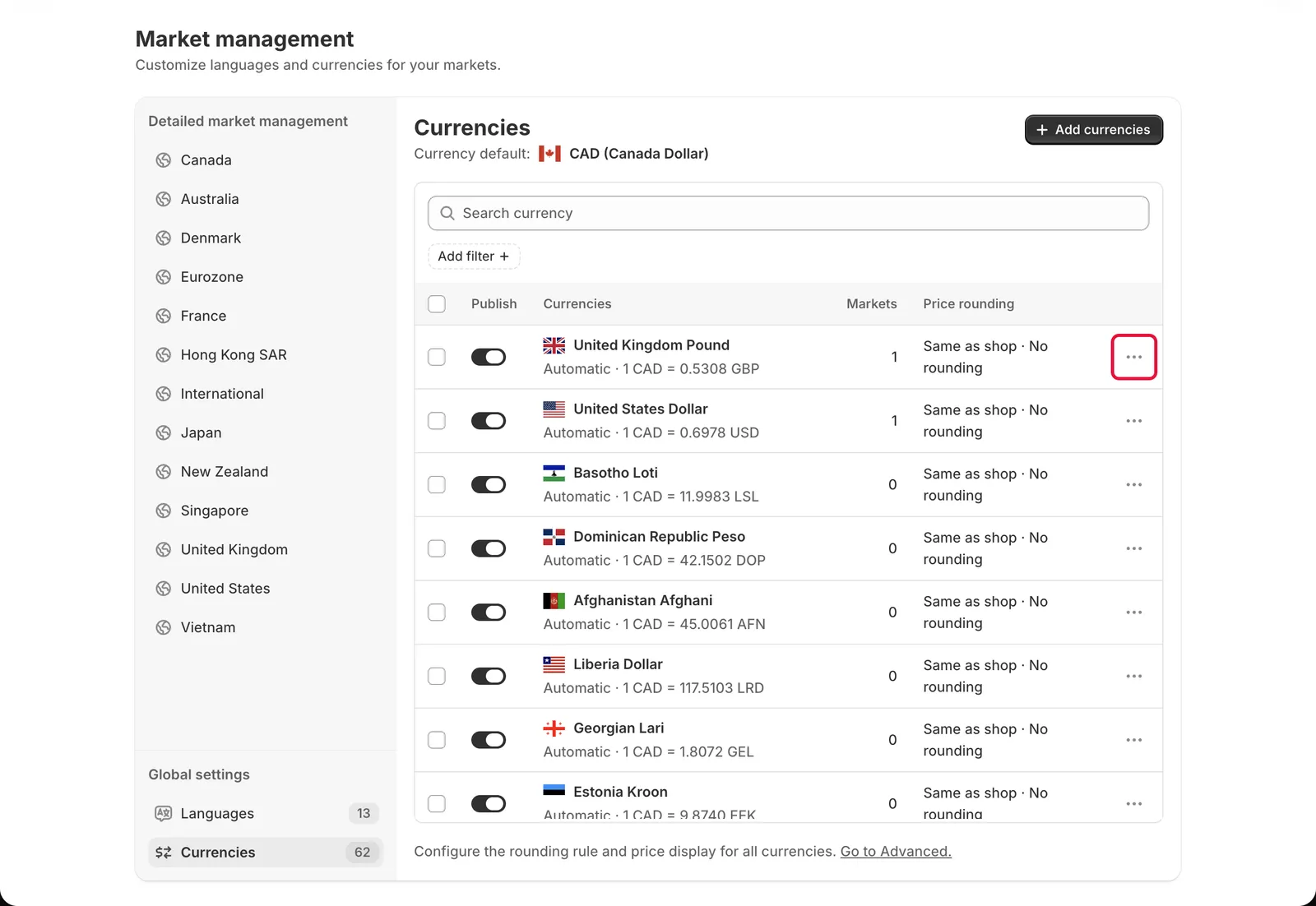
On the Currencies page, open the actions menu at the end of the currency row and click Biçimi düzenle. The Para birimi biçimi dialog opens. The Fiyat yuvarlama column shows the rule each currency uses now.
Choose a rounding rule
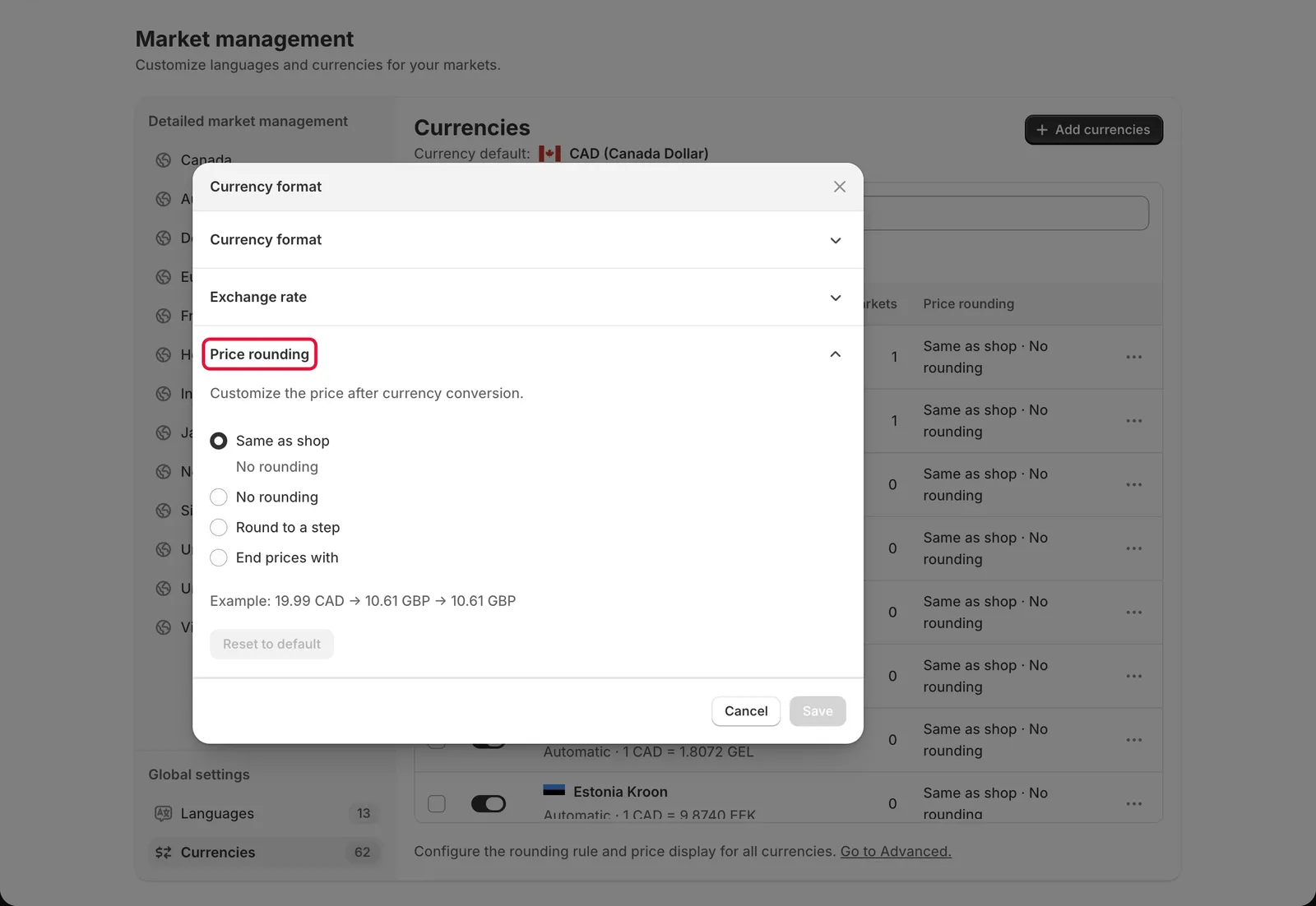
Open the Fiyat yuvarlama section. The first option, Mağazayla aynı, follows your store rule. The other options are the same as above.
Save and apply
Click Kaydet. If you set a rule for this currency, the app asks Bu yuvarlama diğer para birimlerine uygulansın mı? Tick the currencies you want, then click Uygula. Click Şimdi değil to keep the rule on this currency only.
Good to know
- Steps and endings depend on the currency. A currency with no decimals, such as the Japanese yen, cannot use an ending like .99. The app marks a rule that cannot apply to a currency as not applied.
- Exchange rates and formats are set in the same dialog. See Exchange rates and Format how prices look.
Not
While your store is in Multiple currencies mode, Shopify Markets rounds prices. The rules you set here do not apply. See Multiple currencies mode vs Switcher mode.
İlgili makaleler
Format how prices look
Write your own price format for a currency, with or without the currency code, using placeholders for the amount, and see an example before you save.
Unpublish or remove currencies
Hide a currency from your storefront with the Publish switch, or remove it completely, one currency at a time or several at once.
Son güncelleme: 18 Kasım 2026