Manage a market: regions, domains, languages, currencies
See one market's regions, domains, languages and currencies, add languages and currencies to it, and open its translations.
Open one market to see its regions, domains, languages and currencies, and to add languages and currencies to it.
Before you start
You create markets, regions and domains in the Shopify admin, under Settings, then Markets. SmartCS shows them and cannot add or delete one. To learn how the parts fit, read How SmartCS works with Shopify Markets.
Steps
Select a market
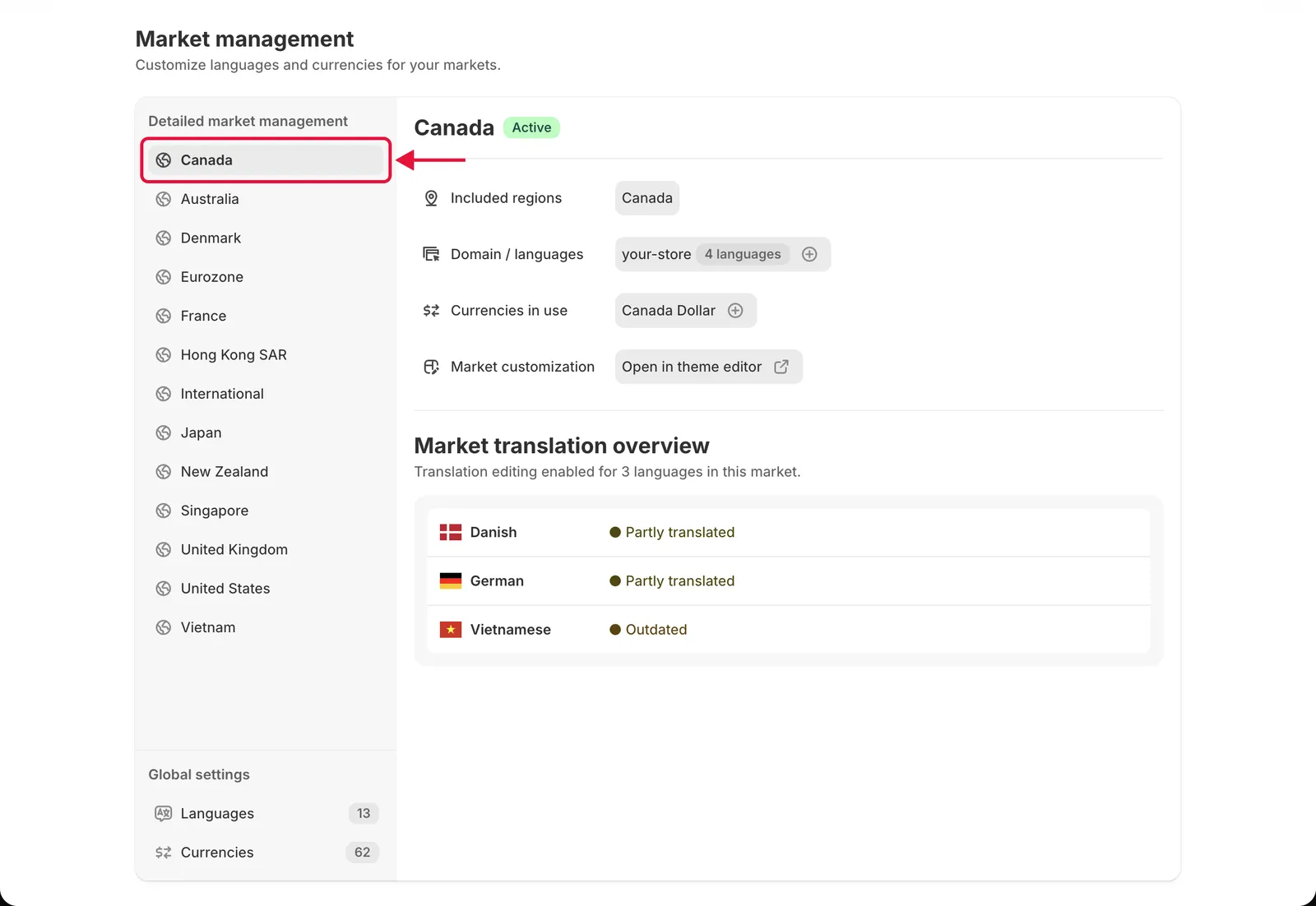
Open Pazar yönetimi. In the list Ayrıntılı pazar yönetimi, select a market. On a phone, use the selector at the top.
Read the market status
The top of the card shows the market name and Etkin. If the market is off, it says Bu pazar Shopify'da kapalı.
Check the regions
Check Dahil edilen bölgeler. These countries come from Shopify. You cannot edit them here.
Review domain languages
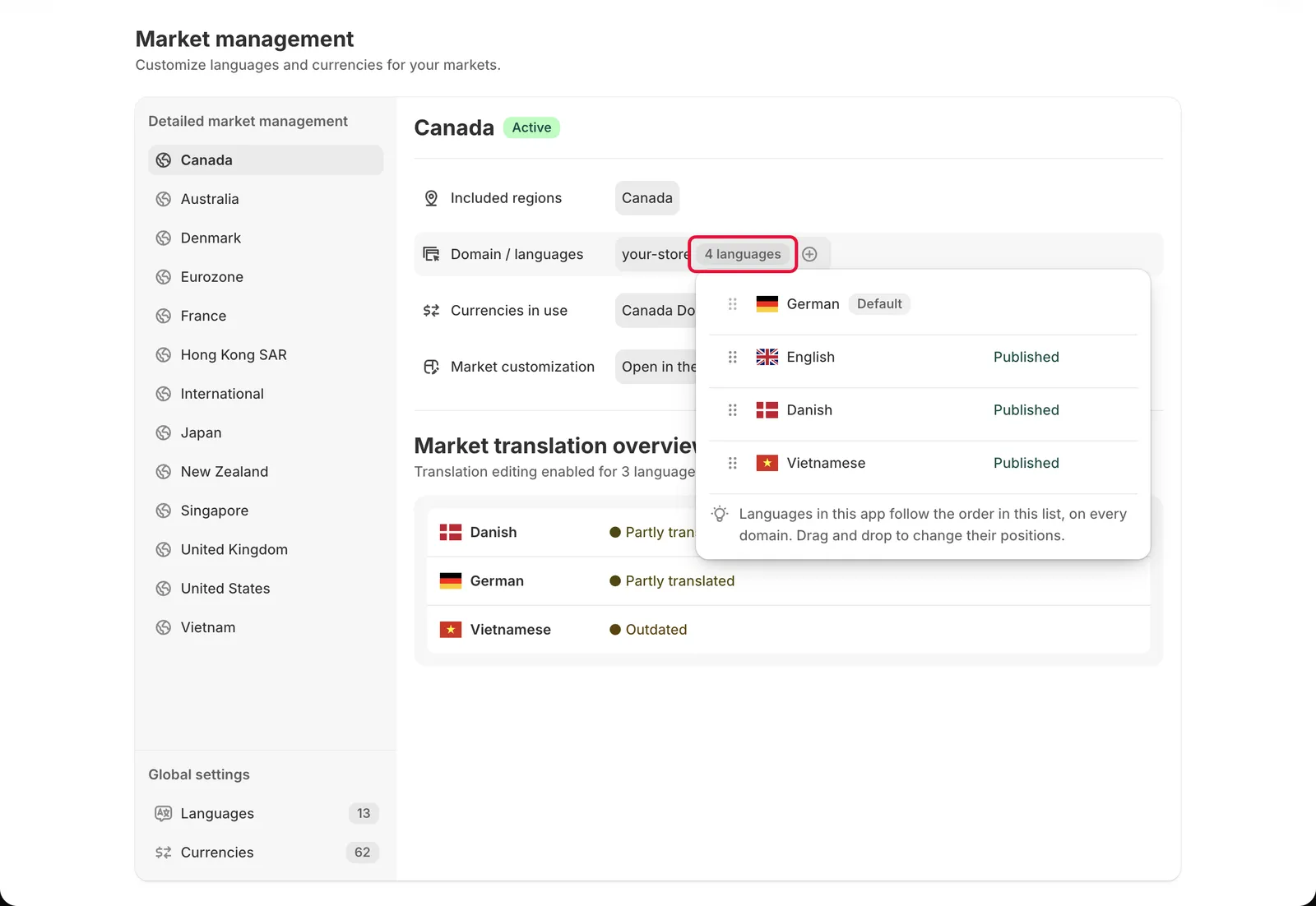
In Alan adı / diller, select the language count next to a domain. A list opens with the languages of that domain. Drag a language to change its position. This changes the order of languages inside SmartCS only. Shopify sets the order your shoppers see on the storefront.
Add languages to a domain
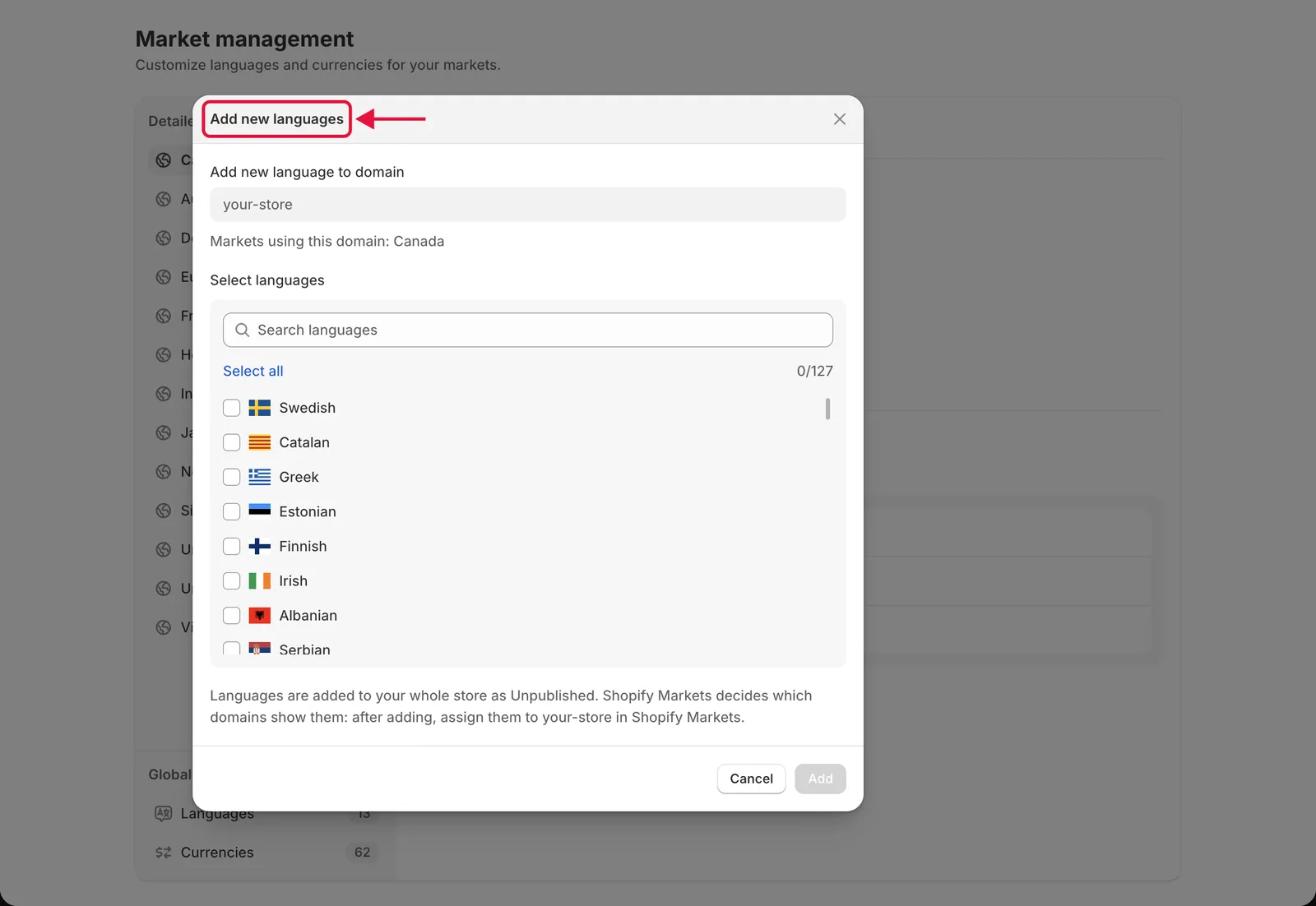
To add languages, select the plus button next to the domain. The dialog Yeni dil ekle opens. Languages are added to your whole store as unpublished. Then assign them to the domain in Shopify Markets.
Add currencies to the market
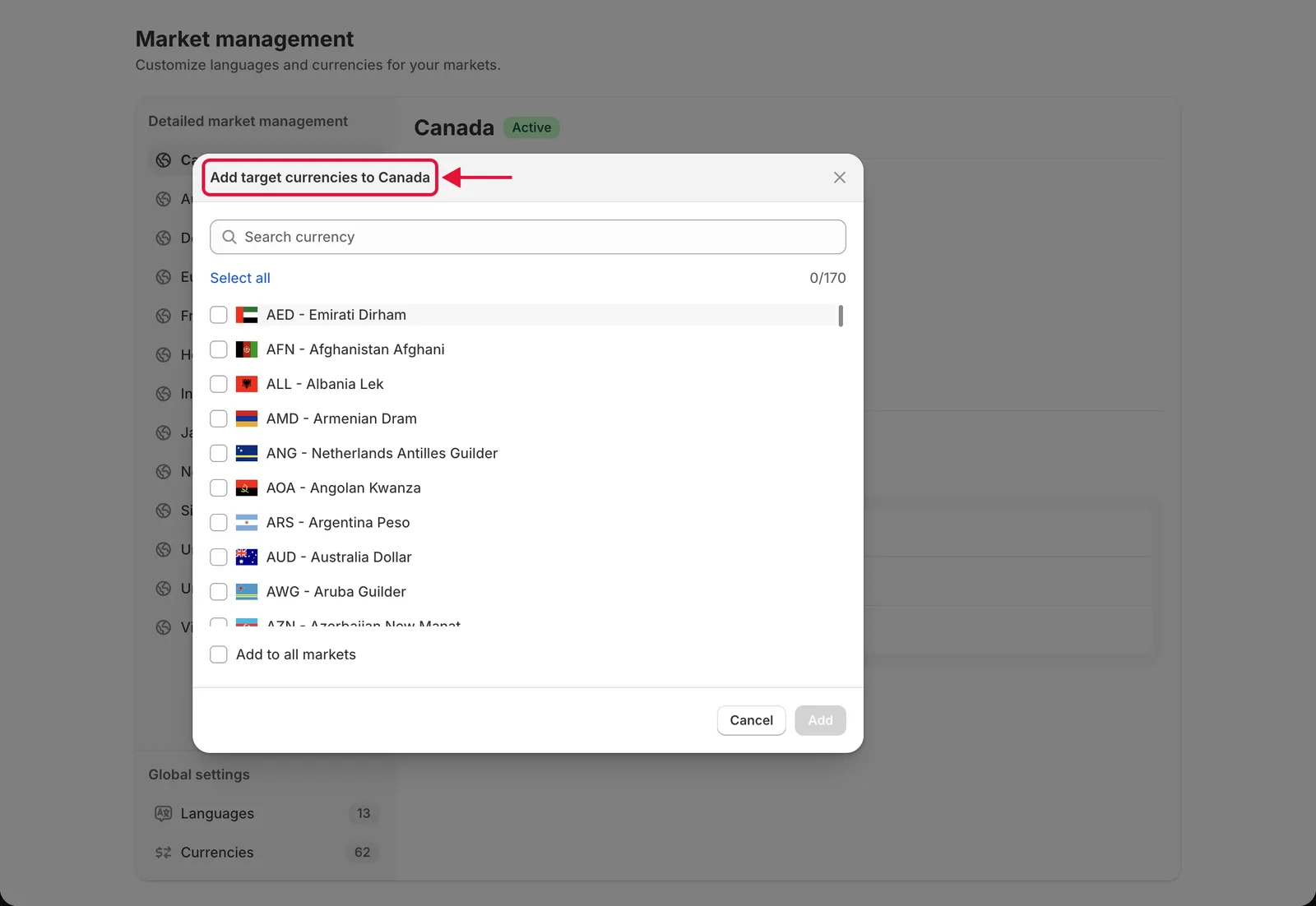
In Kullanımdaki para birimleri, select the plus button. Search, tick the currencies, and select Ekle. Tick Tüm pazarlara ekle to add them to every market.
Open the theme editor
In Pazar özelleştirme, select Tema düzenleyicide aç. The theme editor opens in a new tab with that market's preview.
Translate for the market
Below the card, Pazar çeviri genel bakışı lists the languages of the market that have translation edits on. For each language you can:
- Select Çeviriyi yönet to open its content for this market.
- Open the menu to choose Dili yayından kaldır or Dil yönetimine git.
Uyarı
Dili yayından kaldır unpublishes the language for your whole store, not only for this market. It happens at once, without a confirmation.
Select a row to see whether the language is published and whether edits are on. Untranslated items show the default translation. To copy translations from another market, see Re-use translations between markets.
Translating for a market is not on every store. Where it is not, a Kilitli label and a Bize ulaşın button appear beside Pazar çeviri genel bakışı. See How SmartCS works with Shopify Markets.
Good to know
- If the app still needs a permission, a banner asks you to grant it. Until then, the plus button next to a domain opens Shopify Markets, where you assign languages.
- If Shopify Markets already sets your prices, the currency dialog explains that you cannot assign currencies to a market here. See Multiple currencies and Switcher mode.
- The currency limit of your plan applies. When it is full, the currencies that are not yet on sale stay disabled in the dialog. Free planı: 3
- A change in Shopify reaches this page when you open it again.
İlgili makaleler
How SmartCS works with Shopify Markets
Learn how SmartCS reads your Shopify markets and how languages, translations and currencies relate to each market.
Re-use translations between markets
Copy the translations of one market into another market for the same language, without translating the same texts again.
Son güncelleme: 18 Kasım 2026