Search and replace in translations
Find a word across your store content and replace it in your translations, with a preview of every change before anything is saved.
Search your store content for a word or phrase, then replace it in your translations. You see every change before it is saved.
请联系我们以启用此功能Plans that include replacing text:
Free 方案:不包含Before you start
- Add at least one language besides your store's language. Replace only changes translations. It never changes your original text.
- Searching all your content from the 内容翻译 page, and the full results page, is a separate feature:
On plans without it, search and replace from the editor instead. See Replace from the editor.
Steps
These steps start from the Content page and the results page, which need Regional or higher. On Local Plus, use Replace from the editor.
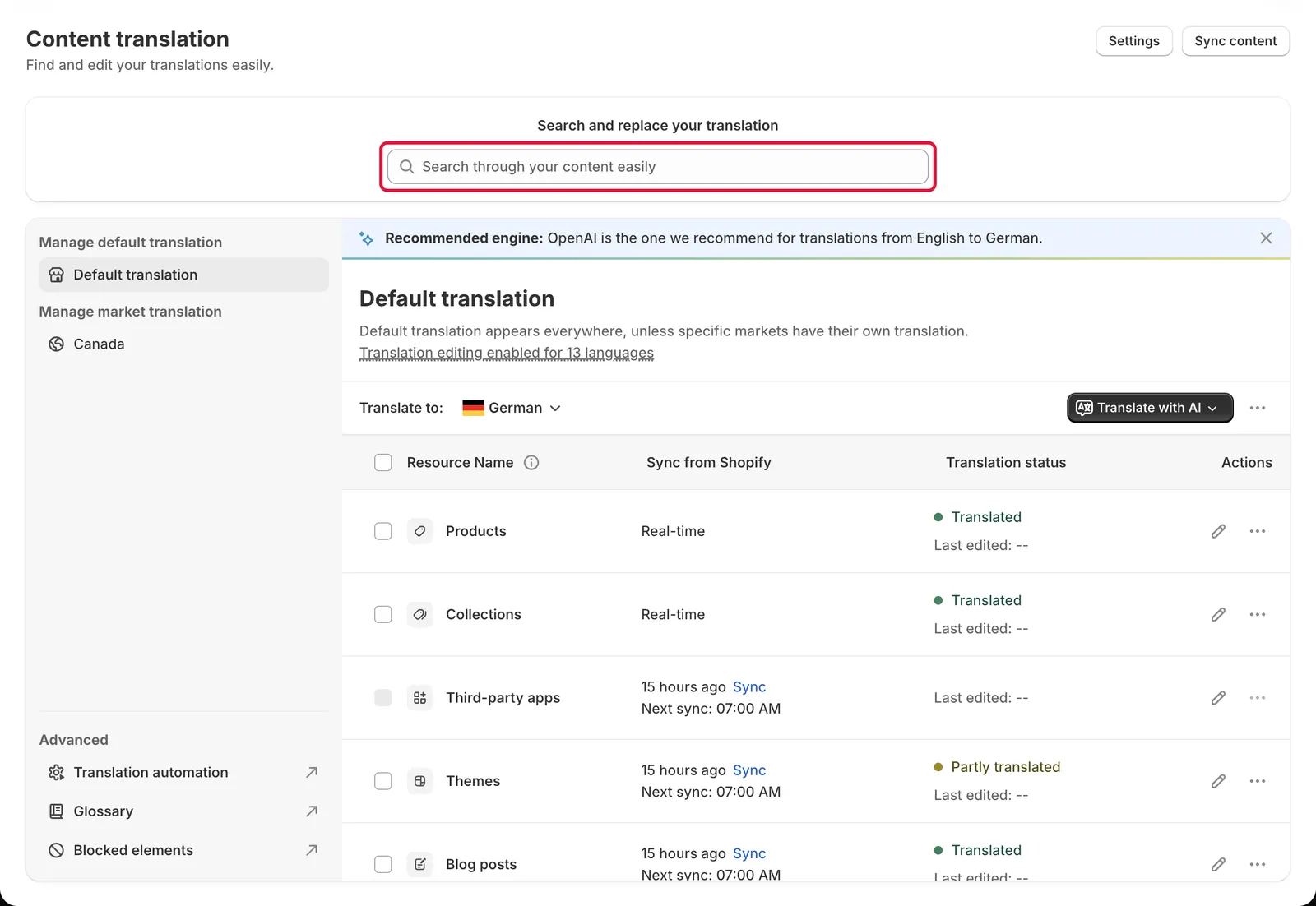
Search your content
Click 搜索您的内容 and type at least 2 characters. Results appear under the field, grouped by resource type. The search is accent-sensitive, so "cafe" does not find "café".
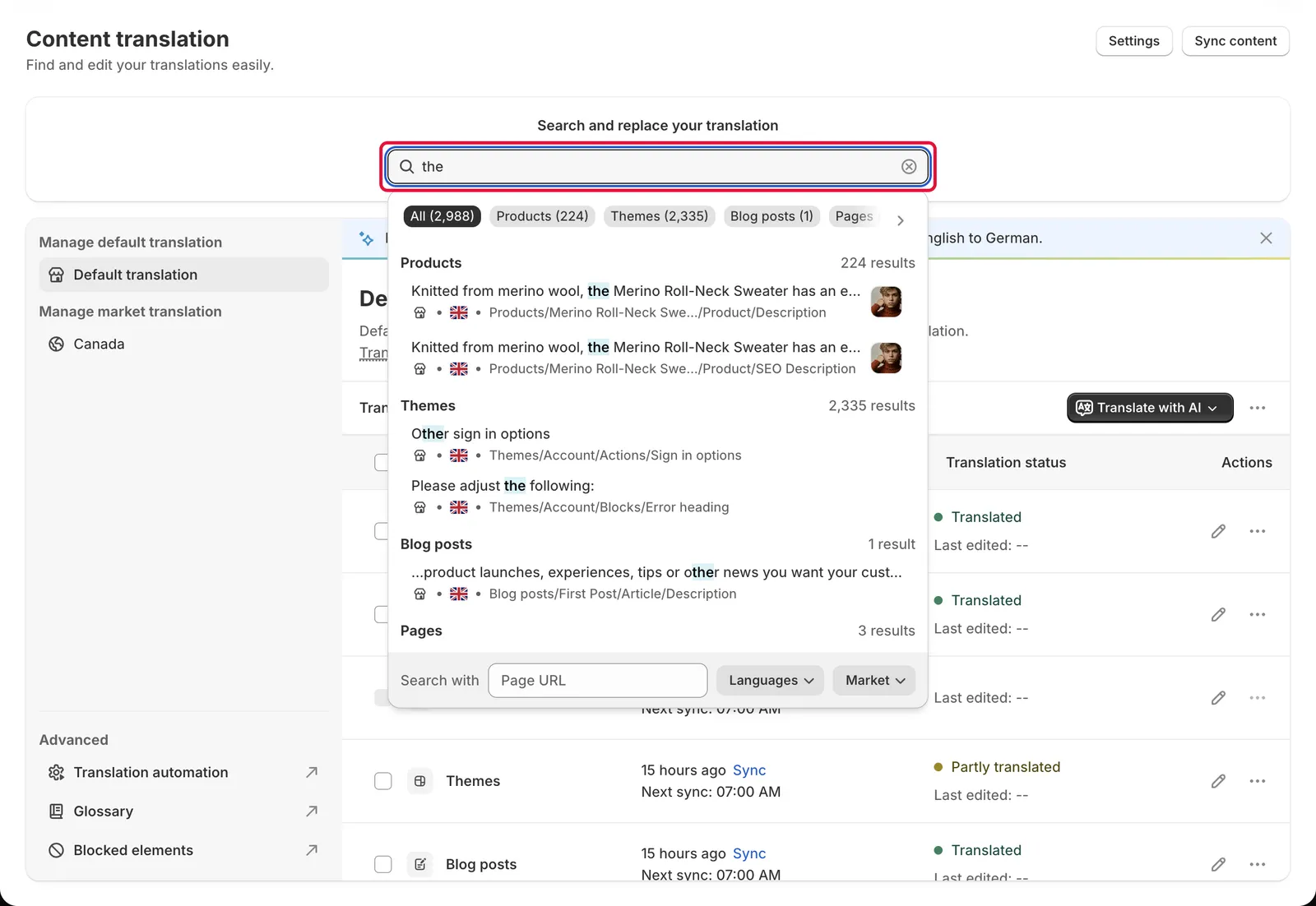
Use the filters under the field to narrow the results by 页面类型, 语言, 市场 or 页面 URL. Click a result to open it in the editor.
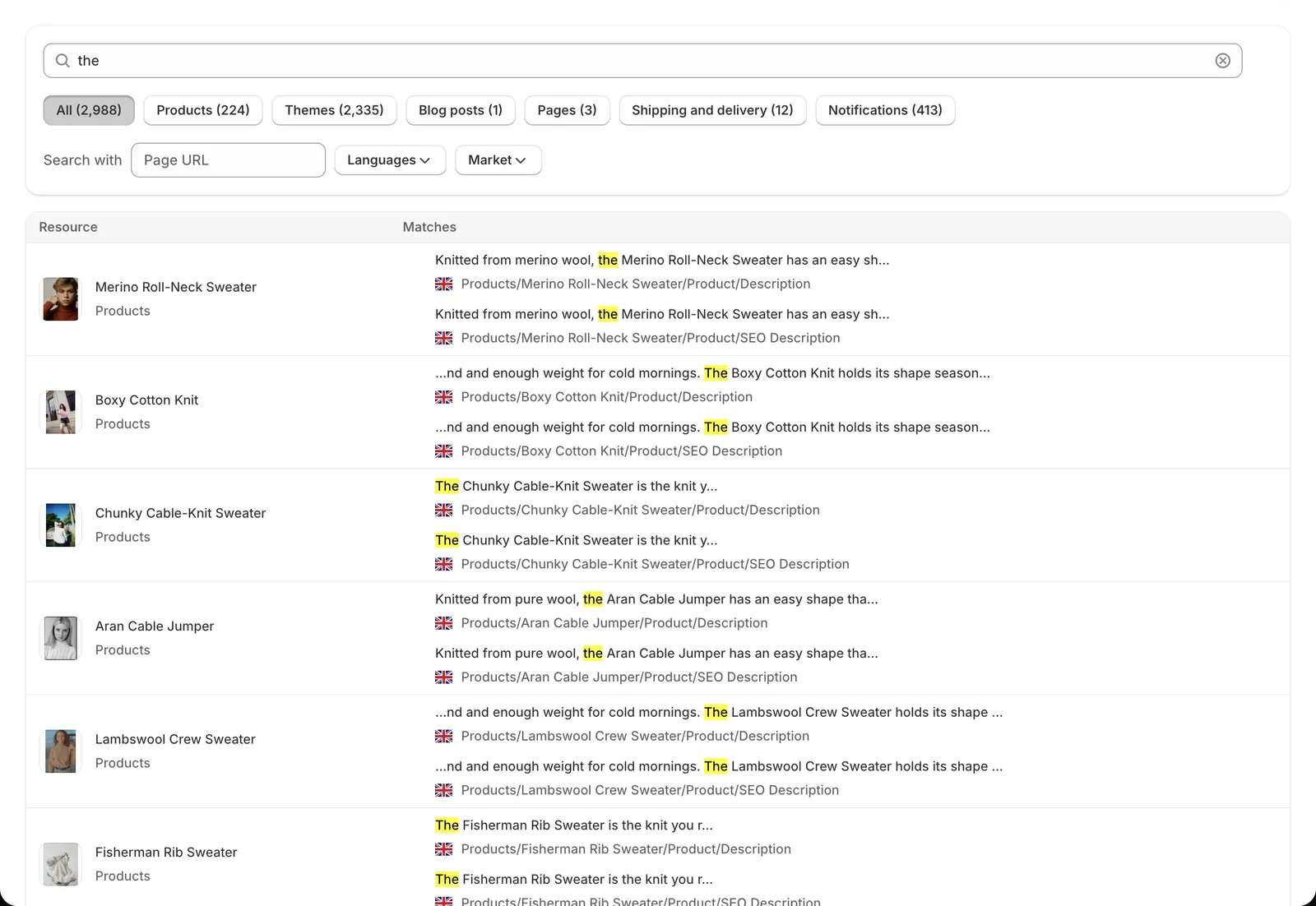
Show all results
Click 显示所有结果. The 搜索结果 page lists every match, 20 items per page. You can tick up to 500 matches in translations to replace only those.
Open the Replace window
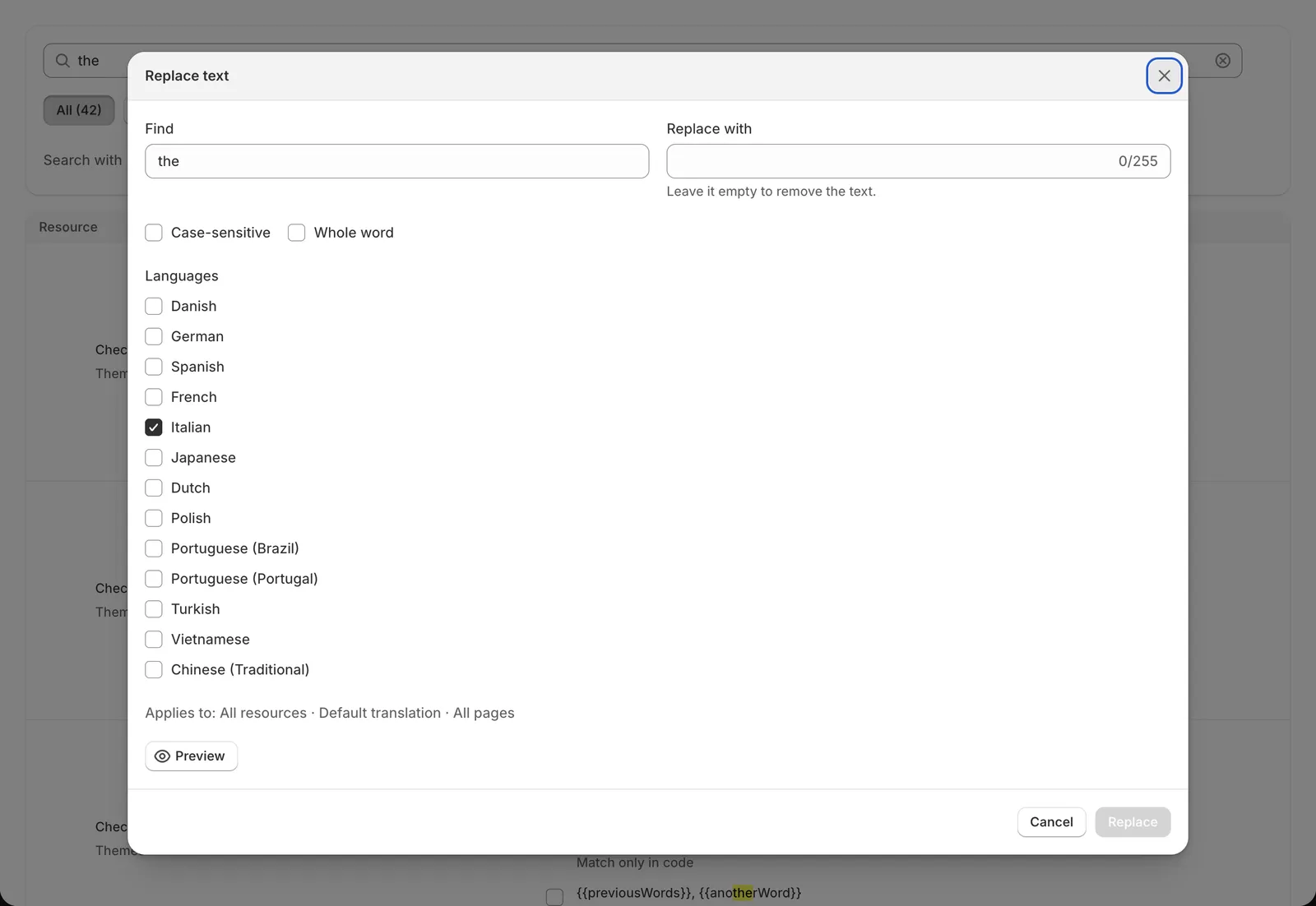
Click 替换 at the top of the page. The button stays off until at least one match is in a translation. The window 替换文本 opens.
Set the replacement
查找 is filled in with your search text. You can change it. Type the new text in 替换为, or leave it empty to remove the text. The new text can have up to 255 characters, and it cannot contain HTML or Liquid. Tick 区分大小写 or 全字匹配 if you need them. Under 语言, choose the languages to change.
Preview the changes
Click 预览. 替换 stays off until you preview the current settings, so preview again after any change. The window lists up to 50 changes, each shown before and after. It also lists what stays unchanged under 保持不变, with a reason for each.
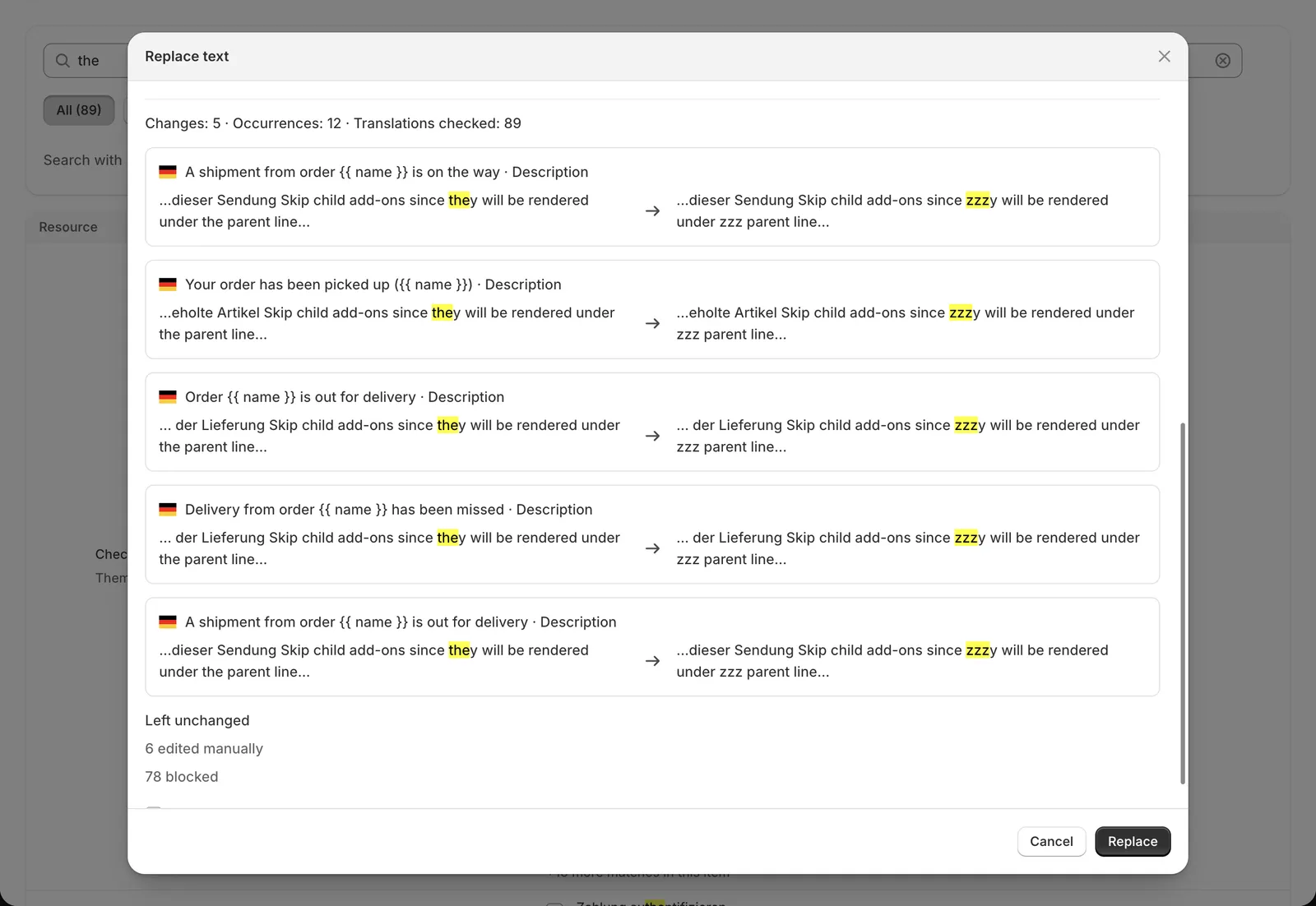
Replace the text
Click 替换. A small replace runs at once. A larger one runs in the background, and the button reads 在后台替换.
Replace from the editor
You can also search inside the editor. Open a resource group in 内容翻译, type at least 2 characters in 搜索, and select the All chip. When the matches are in more than one resource type, the button 替换所有项目中的“your search text” appears under the results. If the matches are all in one resource type, there is no button. The button opens the same 替换文本 window.
Good to know
- A translation you edited by hand is left unchanged. After the preview, tick the box that offers to replace it too.
- Translations in conflict with Shopify, blocked elements, text that exists only in code, text where the change would break the formatting, and translations that use the default translation are also left unchanged. For the last group, replace the text in your default translation instead. See Block elements from translation.
- The old text of each changed translation is kept as a version. See Translation history and revert.
- The new text should not contain the search text. If it does, running Replace again replaces it again.
- You can search up to 60 times per minute, and run up to 10 replaces per hour.
相关文章
Translate the switcher's texts
Translate the words on your storefront switcher, such as Language, Currency and Search, for each published language.
Glossary: always or never translate a term
Create glossary rules so a brand name stays as it is, or a term always gets the wording you choose, in the languages you pick.
最后更新:2026年11月18日