Content translation overview
See where you translate your store content, how the page is laid out, and how to start translating with AI or by hand.
Use 内容翻译 to translate the content of your store, such as products, collections, pages and theme text, into the languages you added.
Before you start
- Add the language in 市场管理 first. See Add and publish languages.
- Turn on translation editing for the language. The first time, the page shows the card 为您的重点语言启用翻译编辑. Select 启用翻译编辑, choose your languages, then select 确认.
- You can edit as many languages as your plan allows:
Steps
Open Content translation
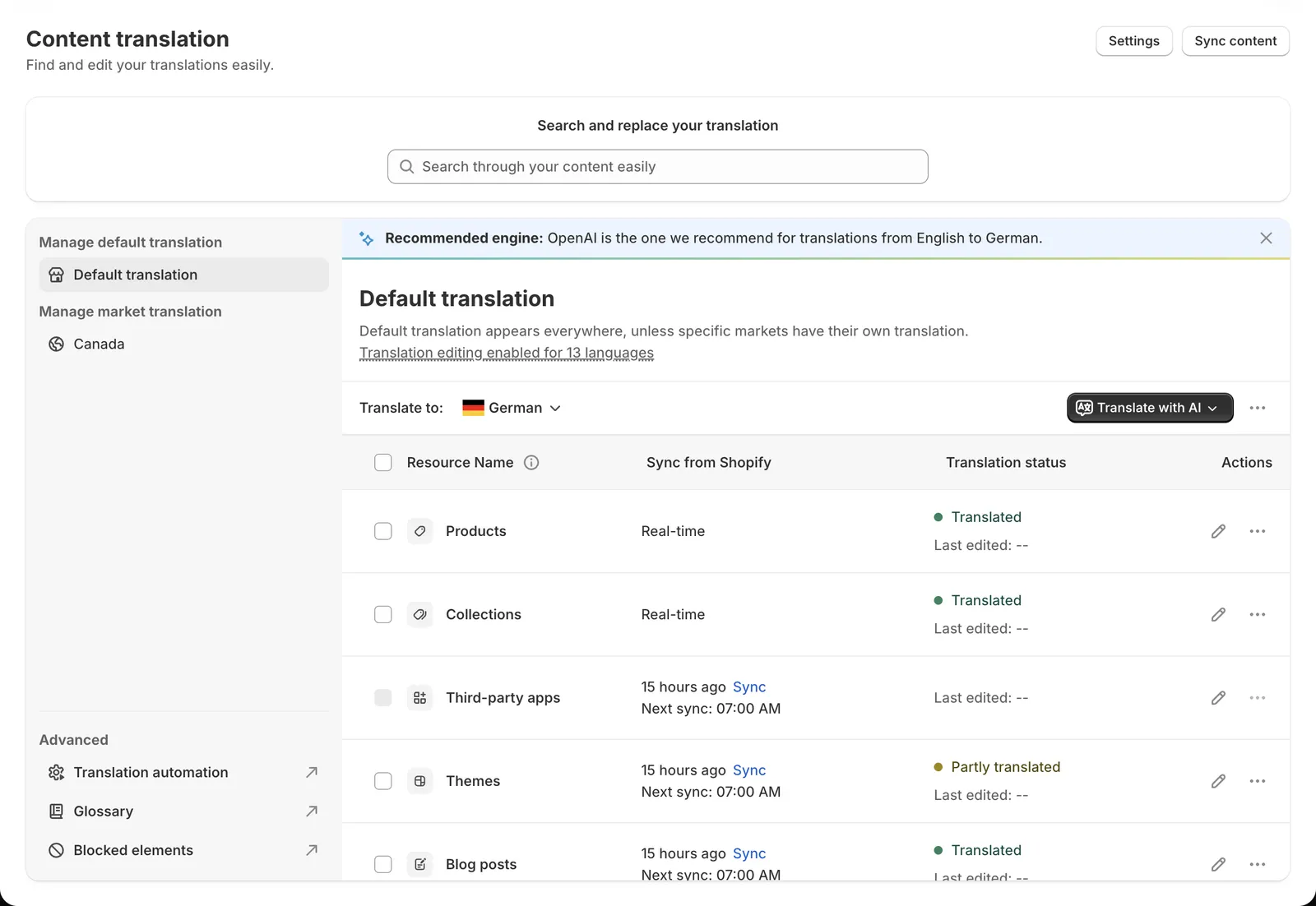
In SmartCS: Currency & Translate, open 内容翻译. SmartCS goes straight to the first language that has translation editing on. The page lists one row for each kind of content.
Pick a language
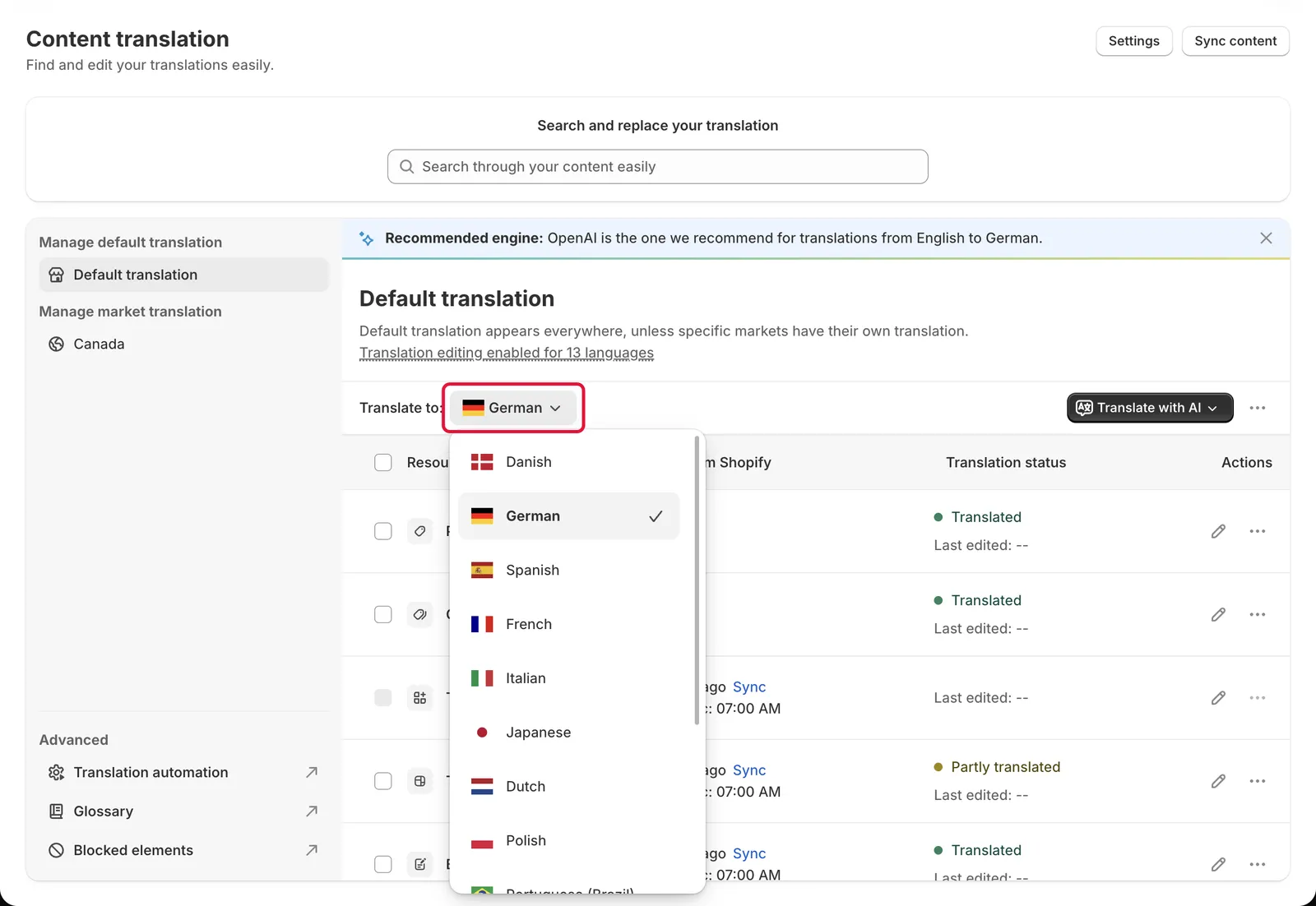
Next to 翻译为:, open the language list and pick the language you want to work on. Only languages with translation editing on appear.
Choose Default or a market
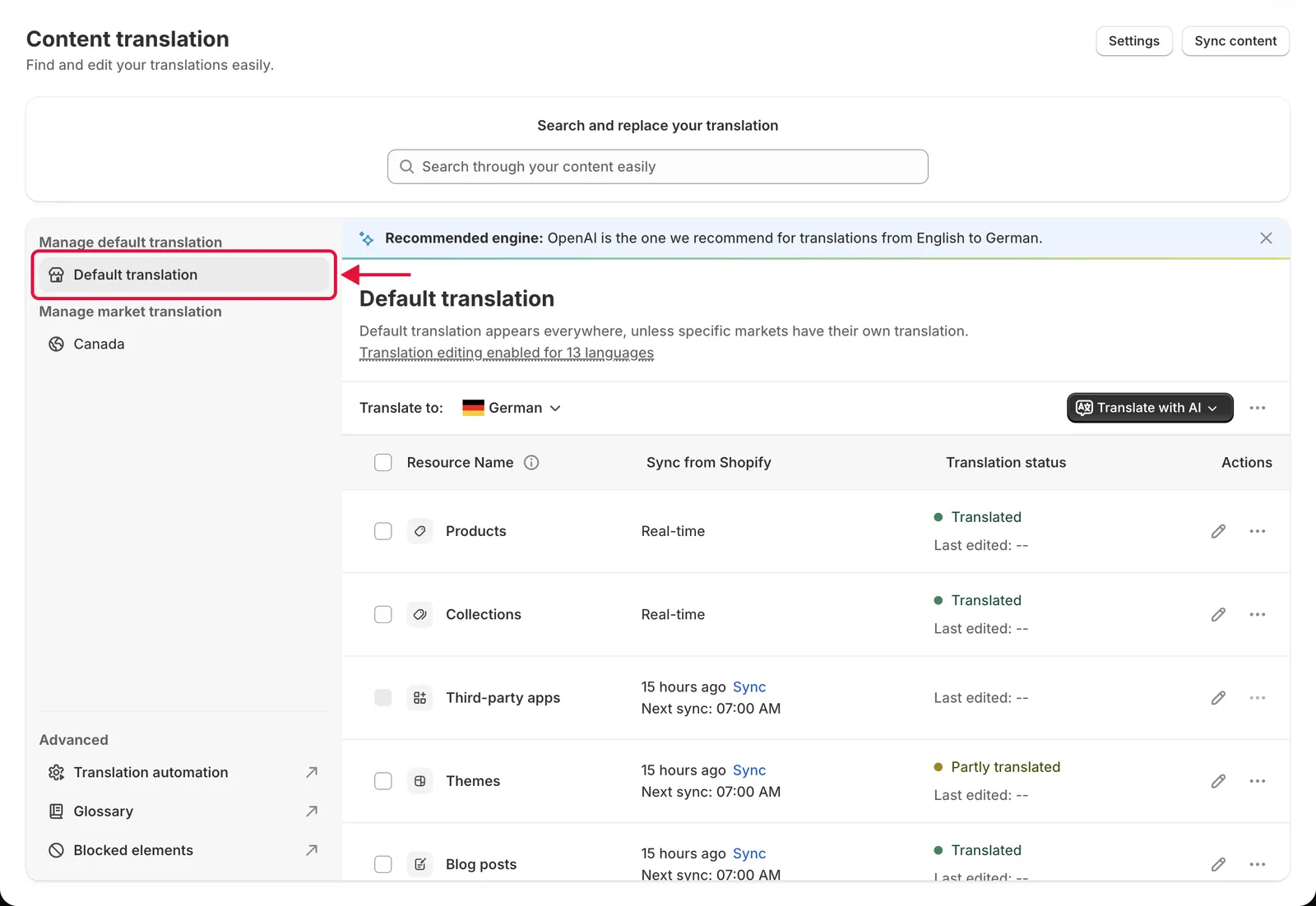
In the left column, keep 默认翻译 to translate for all markets. Pick a market under 管理市场翻译 to translate only for that market. See Default translations and market translations.
Read the table
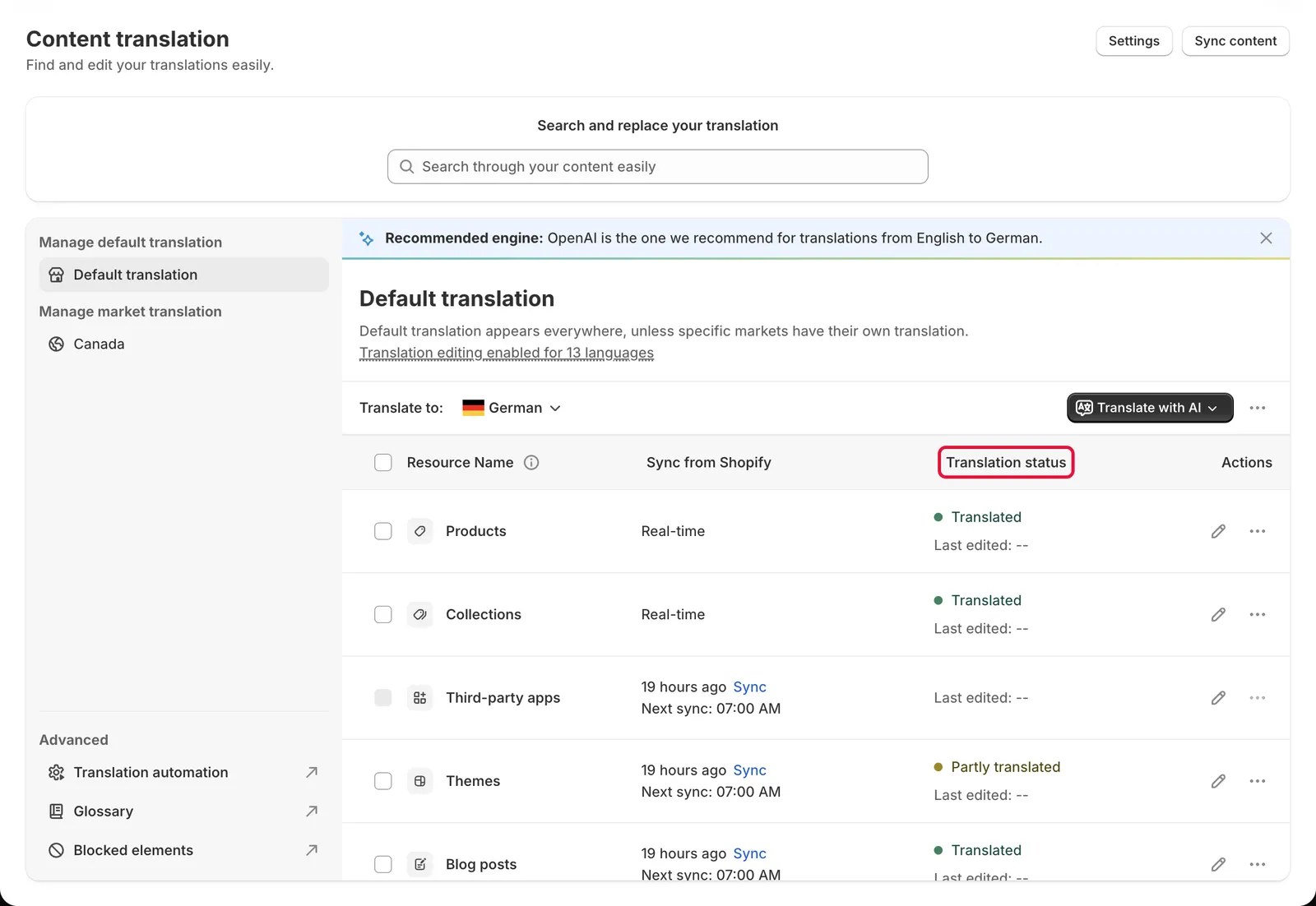
Each row shows the content kind, when it was last synced from Shopify, and its 翻译状态. A greyed-out row has nothing to translate yet. See Translation status explained.
Translate with AI
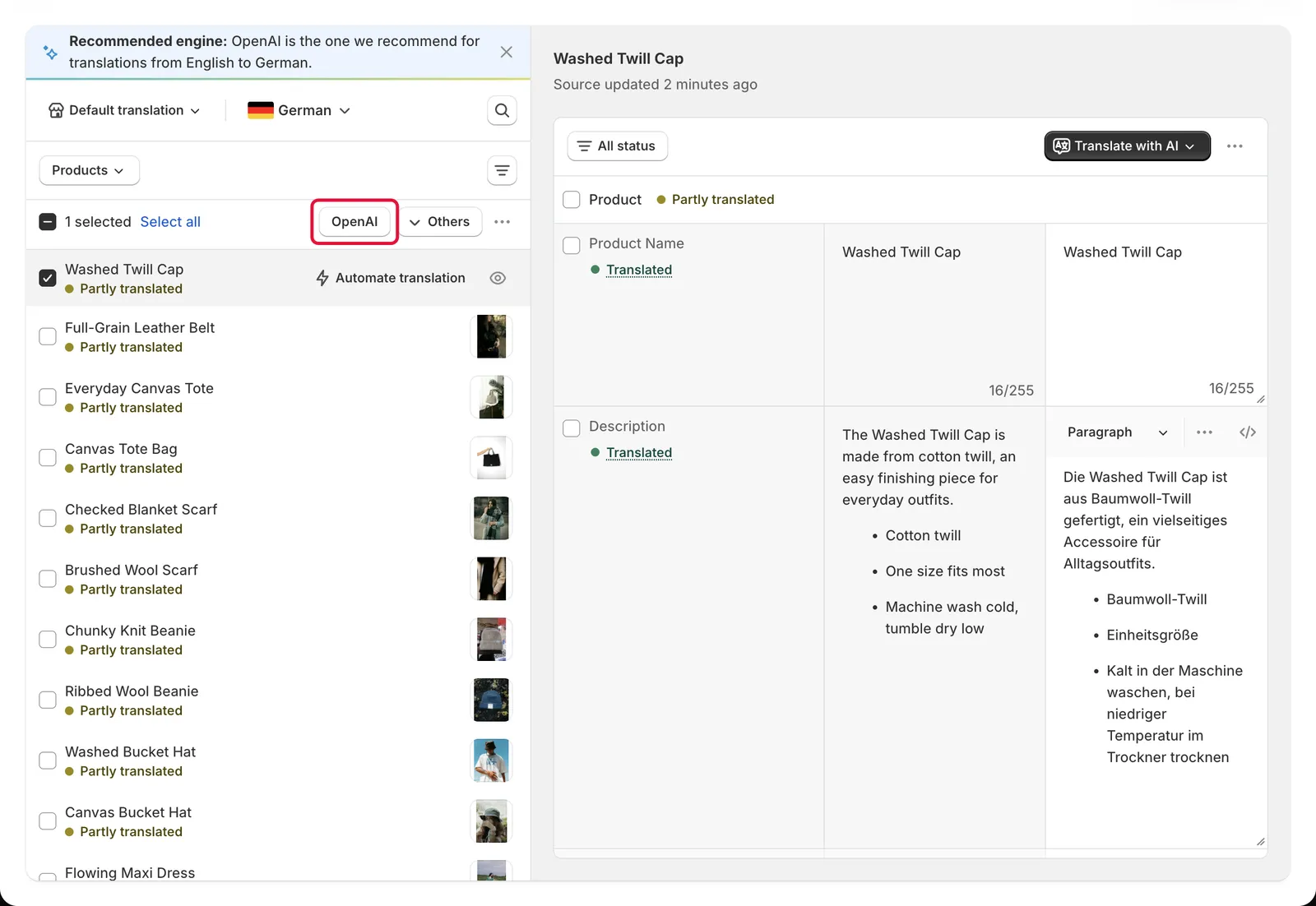
Tick the rows you want, or tick none to include every row. Select 使用 AI 翻译 and pick an engine. See Translate with AI.
Edit one resource
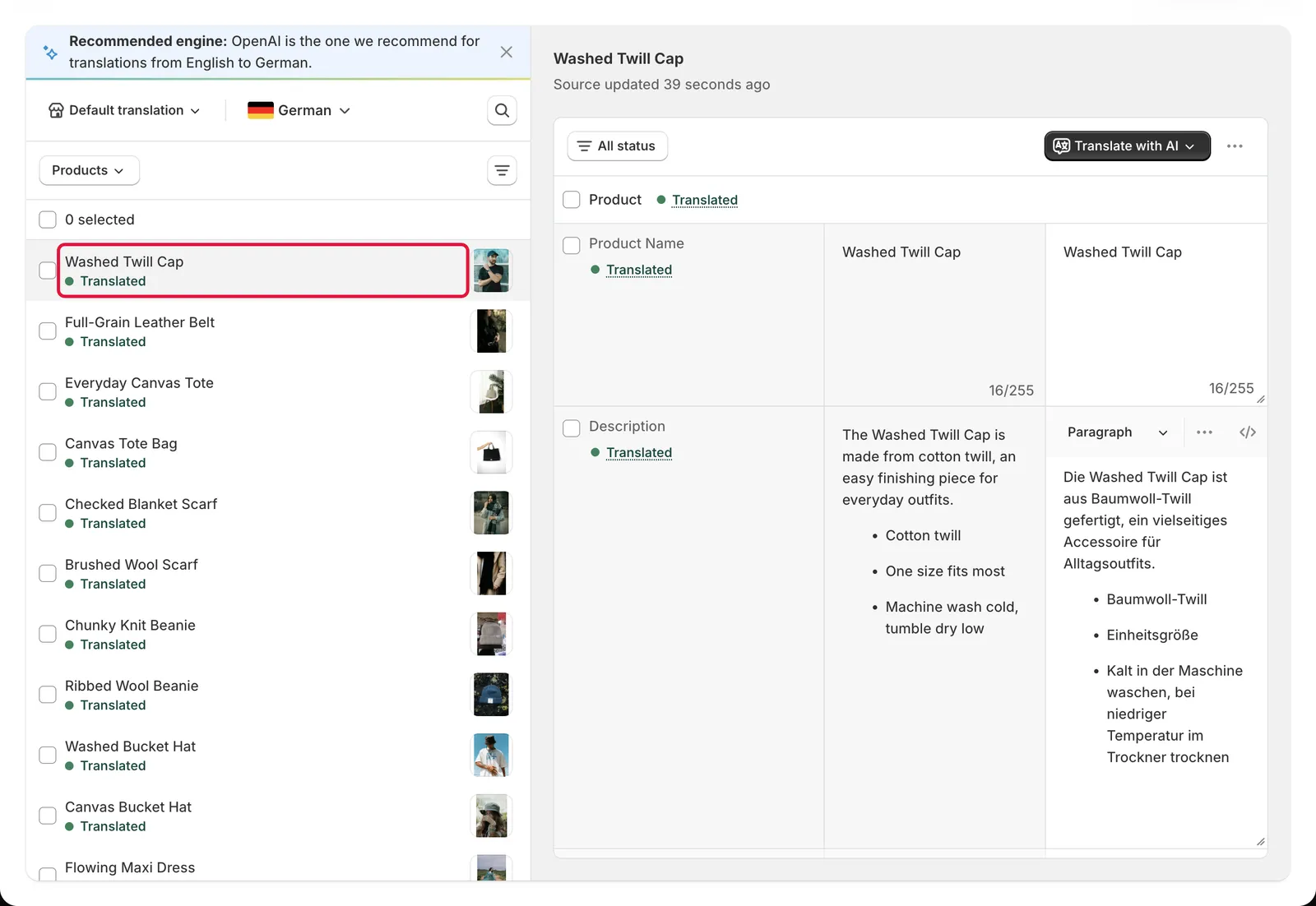
To translate by hand, select the pencil in a row. The editor opens in a window, with the source text next to your translation. See Edit translations manually.
Good to know
- Select 同步内容 to fetch changes from Shopify. See Sync content from Shopify and resolve conflicts.
- In the row menu (the three dots) and in the menu above the table, you find 标记为已翻译 and 删除翻译.
- 元字段, 元对象 and 通知 need a higher plan than the other content. 请联系我们以启用此功能
注意
Shoppers see a language only after you publish it in 市场管理.
相关文章
Multiple currencies mode vs Switcher mode
Learn how Switcher mode and Multiple currencies mode price your store, what each one changes for shoppers, and how to switch between them in the app.
Translation status explained
Learn what each translation status means, where you see it, and what to do when a resource is Outdated, in Conflict or Failed.
最后更新:2026年11月18日