Use a different image or file per language
Choose a different image or PDF file for each language, so shoppers see the right file in their language.
Choose a different image or PDF file for each language. You pick the file yourself. The app never translates or edits a file.
Before you start
- Only fields that hold one file can be replaced. These fields show a file picker instead of a text box. A field that holds a list of files is read-only.
- The field must already have a file in your source language.
- Product photos are not replaced here. The editor shows a preview of each product image, and you translate its alt text as normal text.
- Allowed files are JPG, PNG, GIF, WebP and PDF. The largest size is 20 MB.
Steps
Open the item
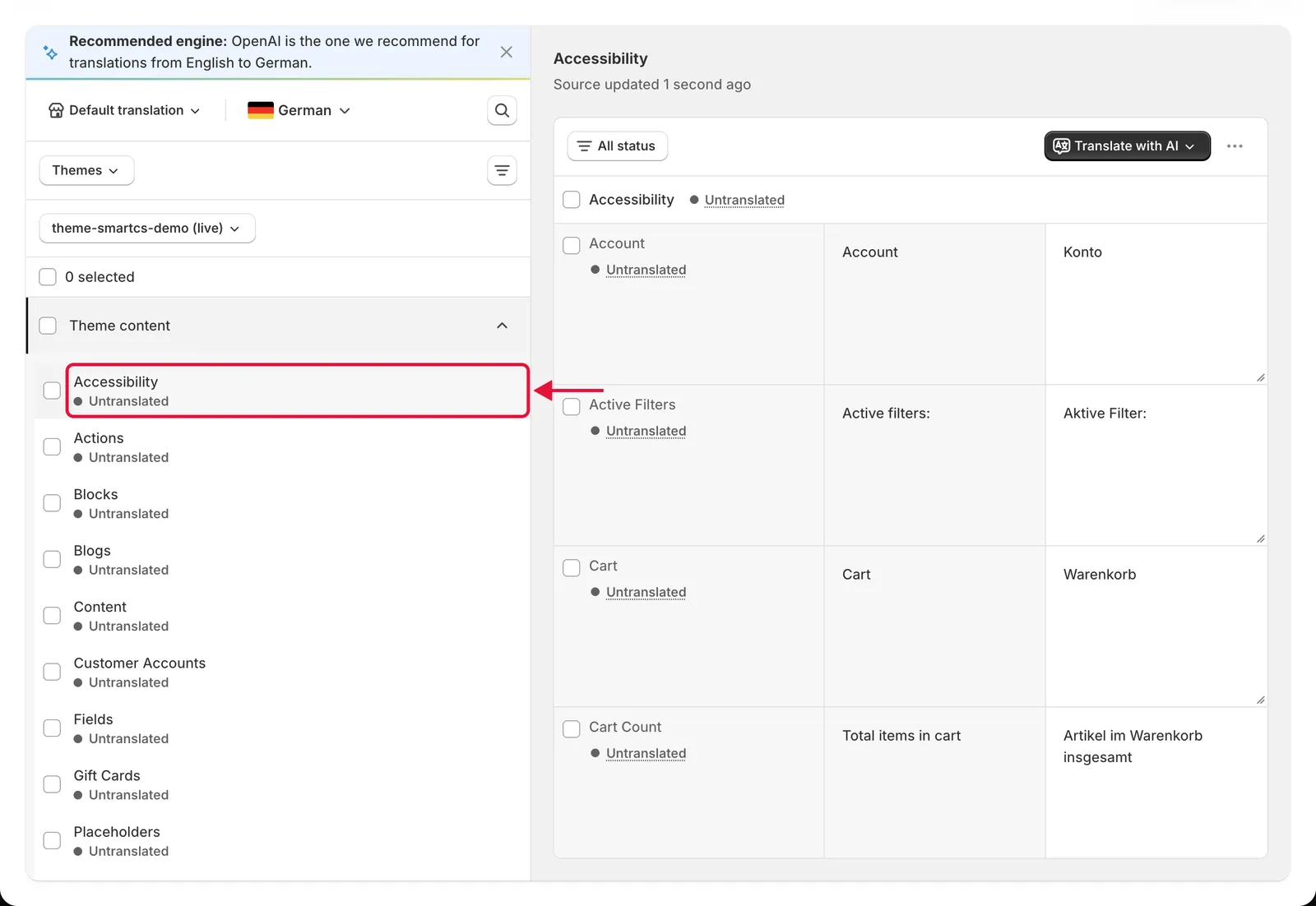
In SmartCS, open 内容翻译. Choose a language, then a content group that has image settings, such as 主题. Select the item.
Find the file field
Scroll to a field with a drop zone. If the language uses the source file, the field says 未选择文件 or shows the file name and a small preview.
Choose the new file
Select 选择文件或将其拖放到此处, or drop a file on the zone. The app uploads the file to Shopify Files. The field shows 正在上传文件... and then Shopify 正在处理文件....
Check the preview
When Shopify has the file, the field shows 当前文件:your file name and a preview. The new file is not live yet.
Save the item
Save the item with the save bar at the top of the page. The new file is then used for this language only. Other languages keep their own files.
Good to know
- A file that is too large shows 此文件超过 20 MB。. A file of another type shows 此处只能使用图片(JPG、PNG、GIF、WebP)和 PDF 文件。.
- Each store can upload up to 60 files an hour. If you upload more, you see 本小时上传次数过多。请稍后重试。. Wait up to an hour, then try again.
- If you see 请允许应用管理您的文件,然后重试。, the app does not yet have permission to manage your files. Open SmartCS again from your Shopify admin and approve the permissions it asks for. Then upload the file again.
注意
Fields that hold a file do not count as untranslated. A section stays complete even when you have not replaced its image.
For text fields, see Edit translations manually.
相关文章
Mark as translated and delete translations
Mark many resources as translated or delete their translations at once from the editor list, or from the menu of one item.
Translate your homepage, pages and navigation
Translate your pages, navigation menus, homepage text and homepage title so shoppers see them in their language.
最后更新:2026年11月18日