Find and filter content to translate
Search your store content, switch between resource groups, and filter the editor list by translation status or product details.
Find the item you want in the translation editor. You can switch the resource group, filter the list, and search your content.
Before you start
Open Traducción de contenido and select the edit (pencil) button in a group row. The list and its controls are in the left column of the editor. See Edit translations manually.
Switch the resource group
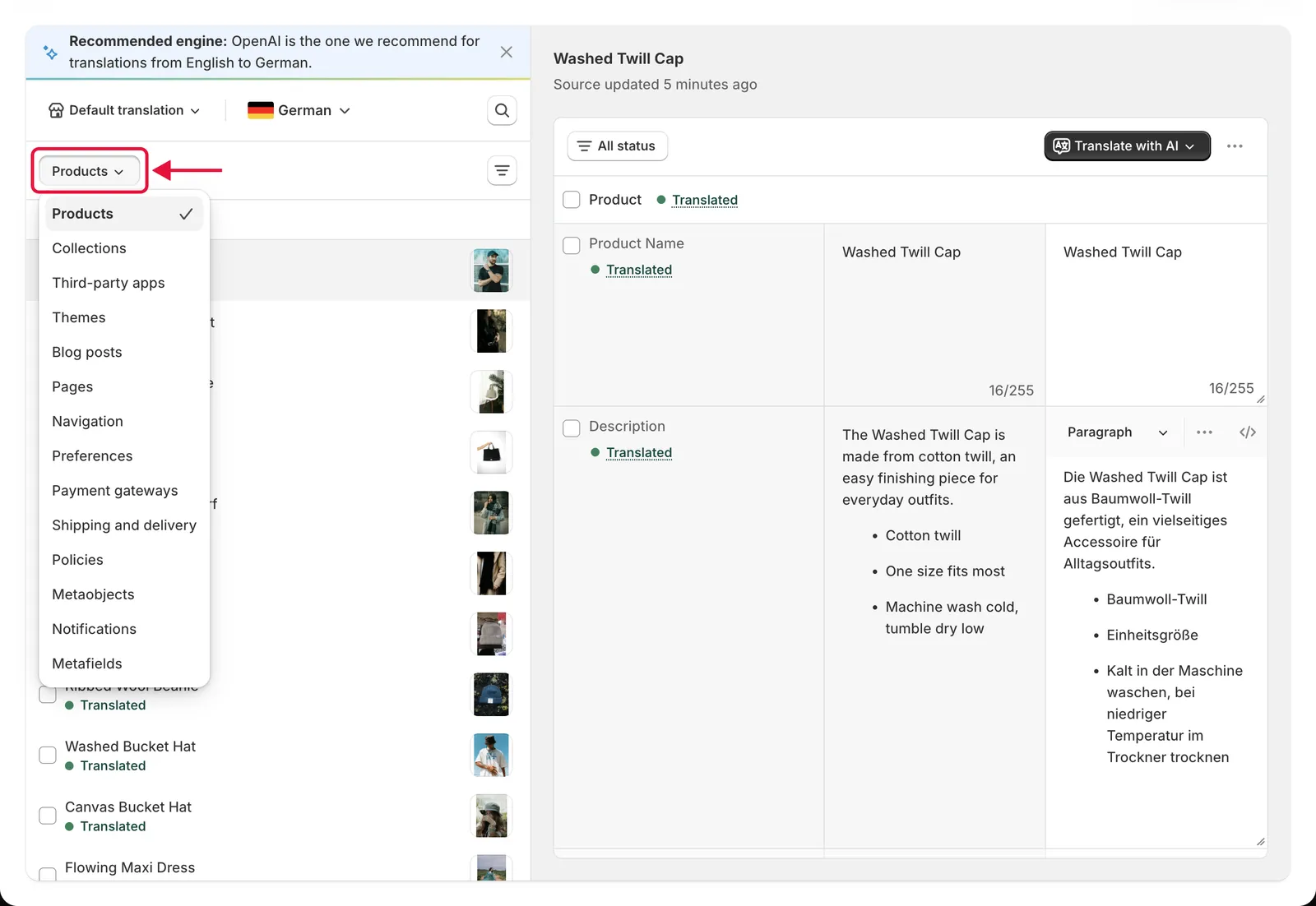
Select the group button at the top of the list, such as Productos. The menu lists every group, for example Colecciones, Temas, Páginas and Navegación. A group your plan does not include is dimmed. A group with nothing in it opens an empty message.
In Temas, a theme picker appears when your store has more than one theme.
Filter by translation status
Show the filters
Select the Filtros button above the list.
Pick a status
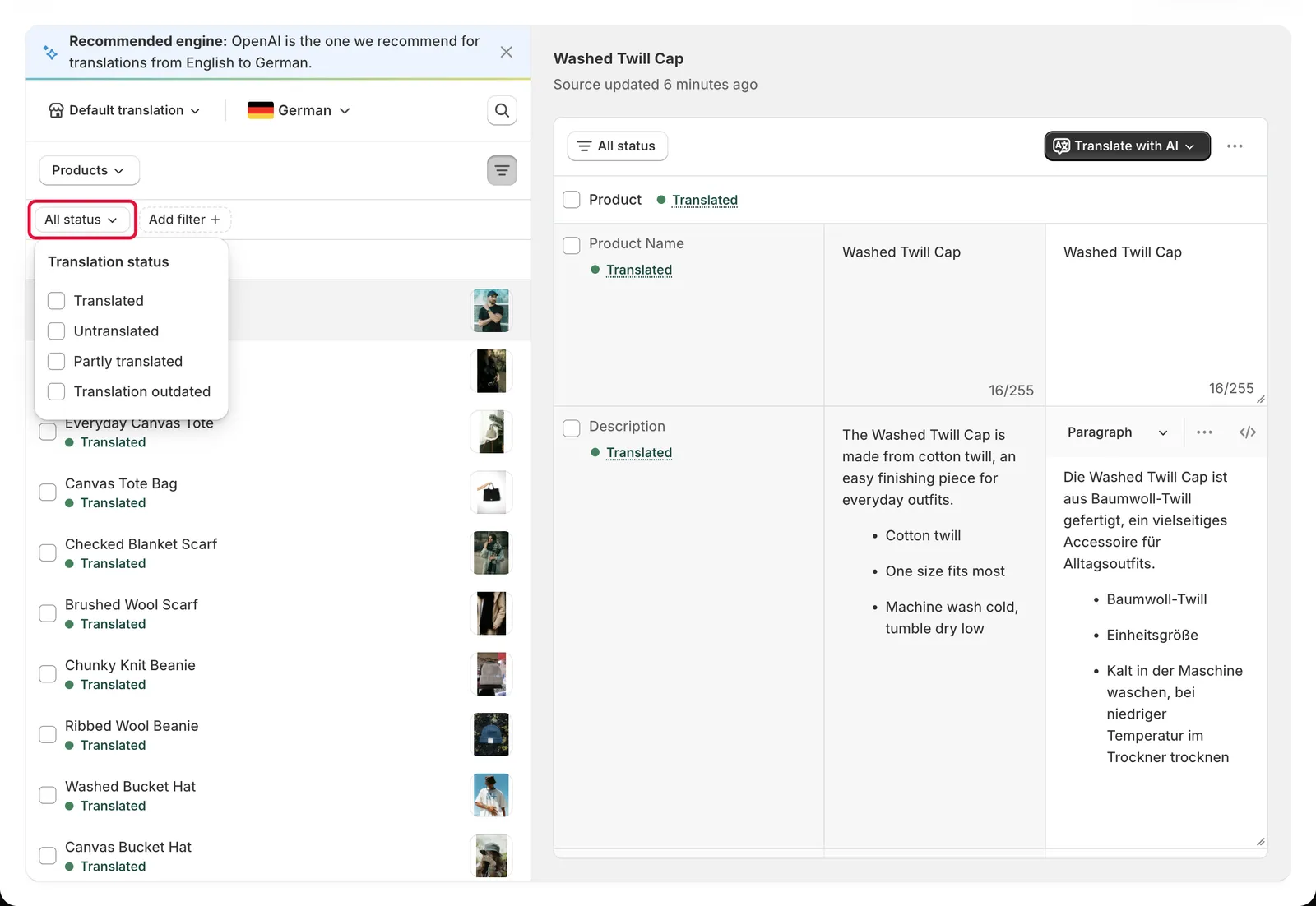
Select Todos los estados, then tick one or more of Traducido, Sin traducir, Traducido parcialmente and Traducción desactualizada. The list updates at once. See Translation status.
Filter products by details
Contáctenos para activar esta funciónAdd a filter
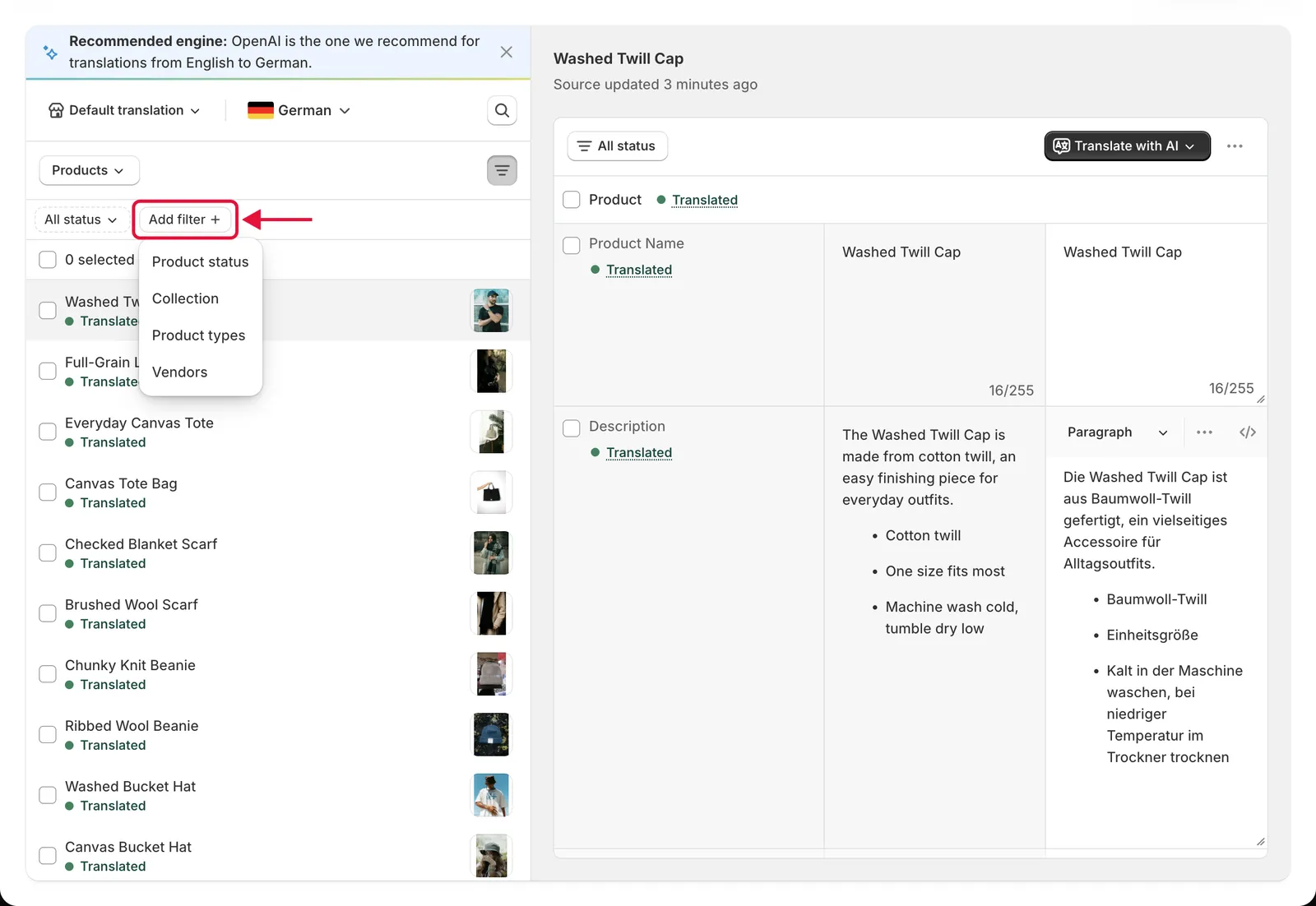
In the Productos group, select Añadir filtro in the filter row, then choose Estado del producto, Colección, Tipos de producto or Proveedores.
Pick values
Tick the values you want. The filter shows as a button with its values. Values inside one filter are alternatives. Different filters apply together.
Remove filters
Select Borrar inside a filter, or Borrar todo to remove them all.
Without this plan, the button is dimmed and marked as locked.
Search your content
Contáctenos para activar esta funciónOpen search
Select the Buscar button at the top of the left column and type at least 2 characters.
Narrow the search
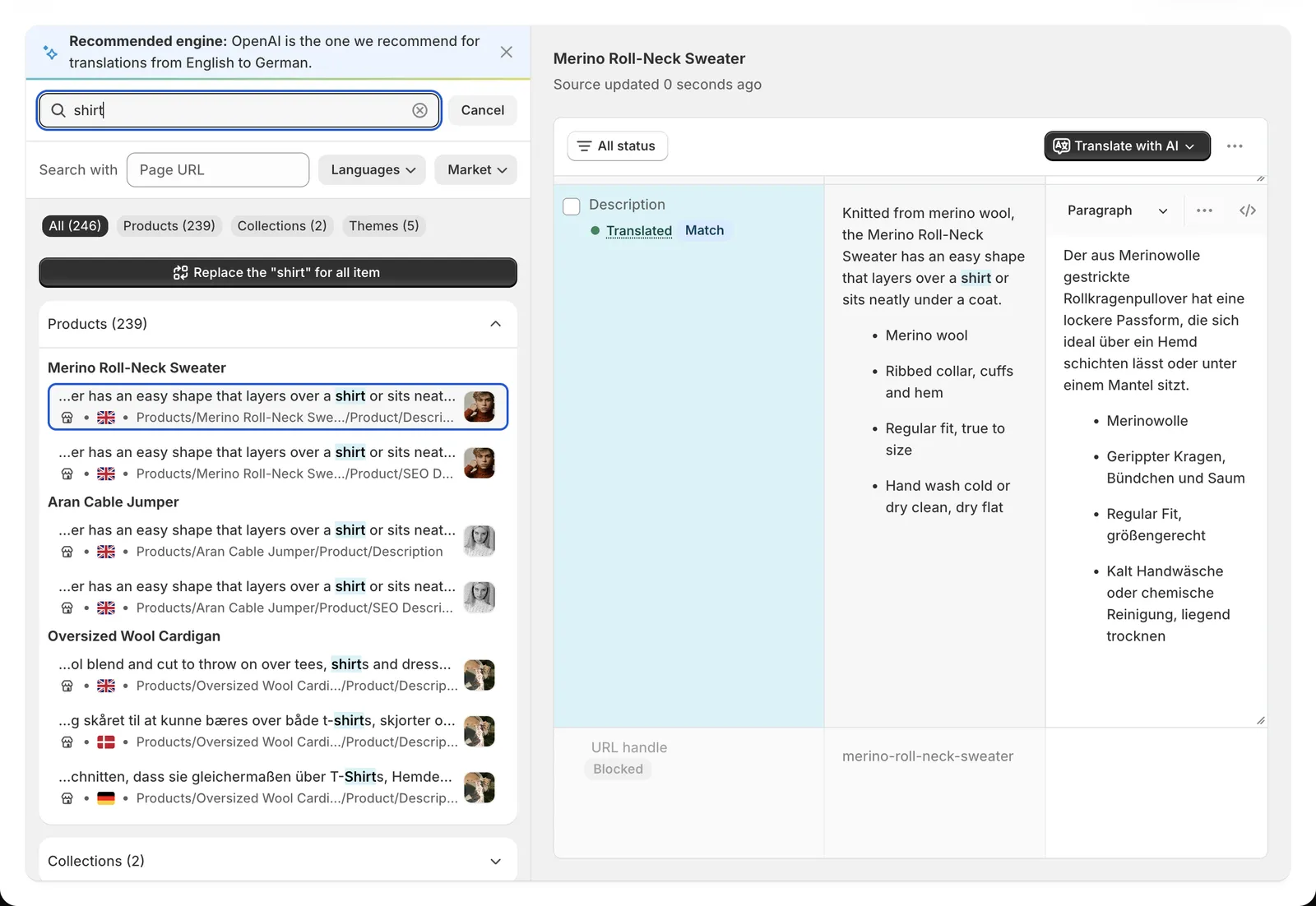
Results come from every group. Next to Buscar con you can enter a URL de la página, or pick Idiomas and a Mercado. Use the chips to show one group.
Open a result
Select a result. The editor opens the item and marks the field with the match. To change the found text everywhere, see Search and replace.
Good to know
- Without this plan, the search box only filters the list by item title.
- Long lists show a page counter with previous and next buttons.
- Your filters stay in the page address, so the back button and shared links keep them.
Nota
Changing filters clears the rows you ticked for bulk actions.
Artículos relacionados
Edit translations manually
Open a resource in the translation editor, type or fix a translation field by field, use rich text, and save your changes.
Review translations: approve or reject
Approve or reject translations that wait for your review, so only text you have checked is published to your store.
Última actualización: 18 de noviembre de 2026