Sync content from Shopify and resolve conflicts
Fetch new and changed content from Shopify into SmartCS, and choose what to keep when Shopify holds a different translation.
Sync content to bring new and changed content from Shopify into SmartCS. If a translation that SmartCS wrote was changed in Shopify, it is marked as a conflict and you choose which version to keep.
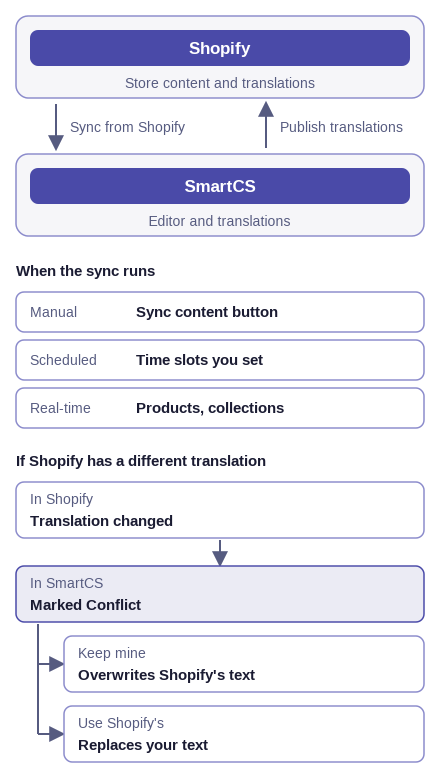
What a sync does
A sync reads your store content from Shopify. It finds new products and pages, and it finds source text that changed. A translation of text that changed becomes Desactualizado. Translations that already exist in Shopify for fields that have no translation in SmartCS are read in too.
If you cannot find content you want to translate, sync it first.
Sync by hand
Sync everything
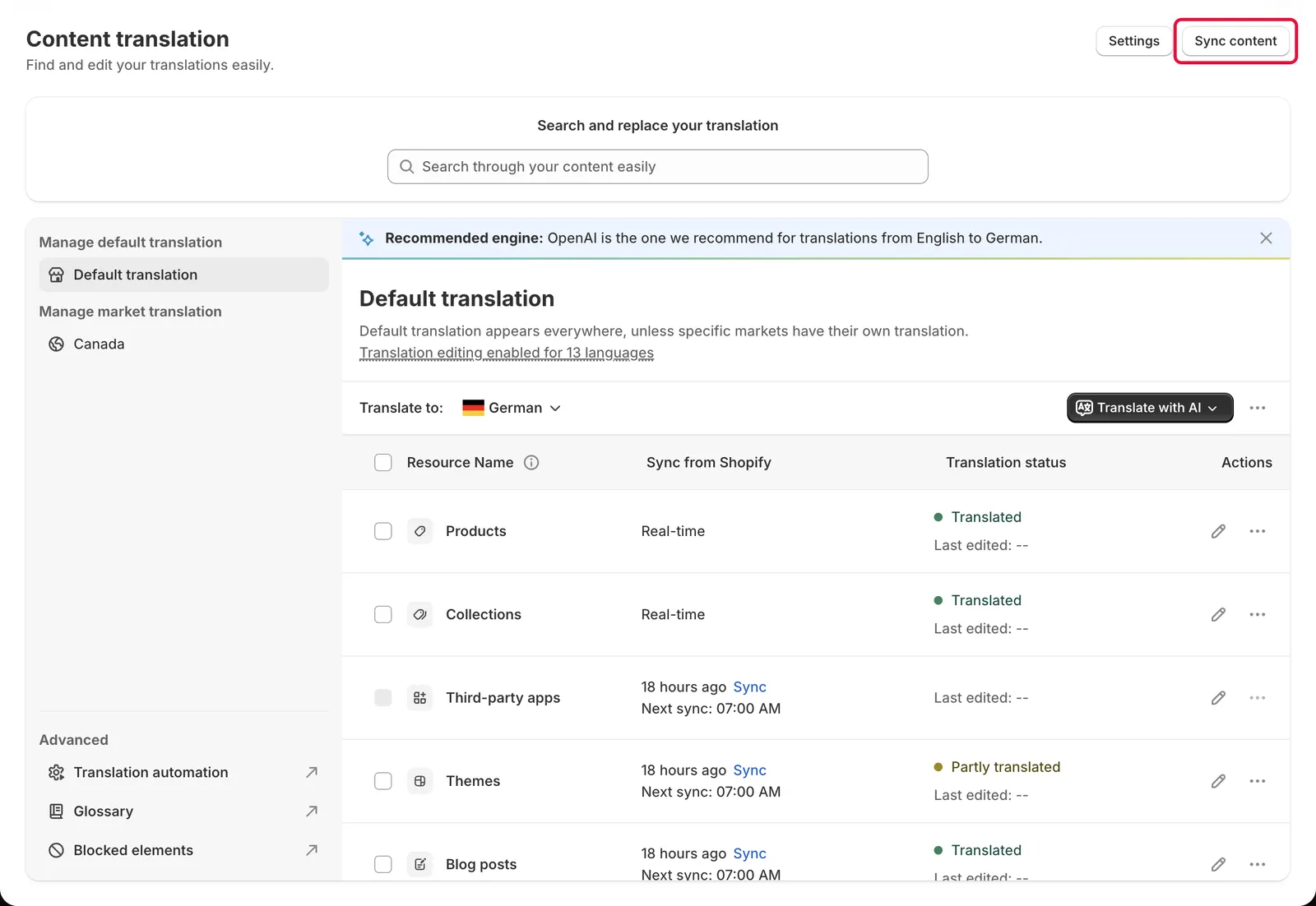
Open Traducción de contenido. Select Sincronizar contenido at the top of the page. The button is off until a language has translation editing on.
Sync one row
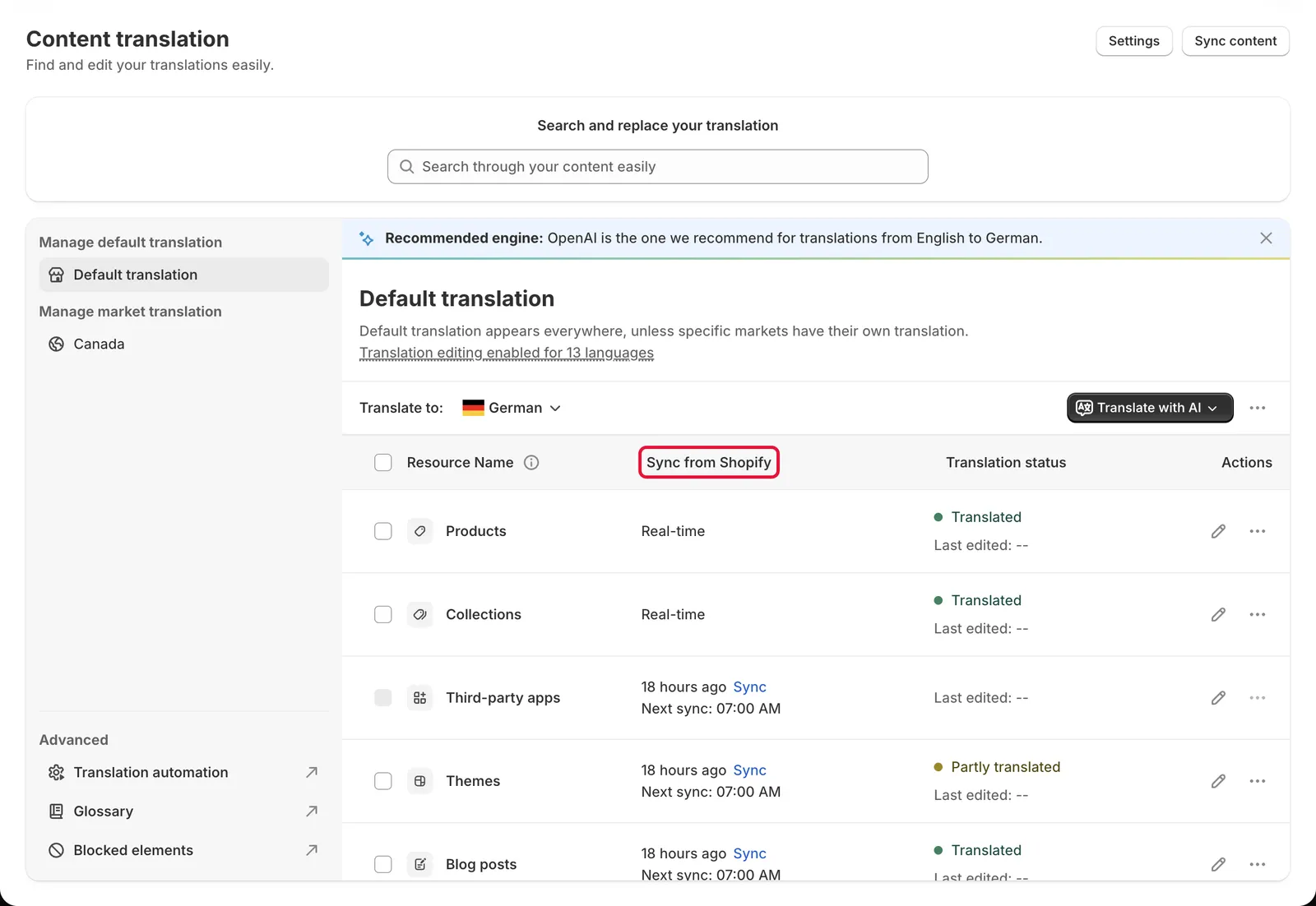
In the Sincronizar desde Shopify column, select Sincronizar in a row to sync only that kind of content.
Wait for it to finish
The row shows Sincronizando.... When it ends, the table updates. If nothing changed, the page says: Todo está ya actualizado con Shopify.
If you sync too often, the page asks you to try again after a short wait. A failed sync shows Falló la sincronización in the row. Select Sincronizar to try again.
Automatic sync
The Sincronizar desde Shopify column also tells you how a row stays up to date: En tiempo real, or the time of the last sync with the next planned time.
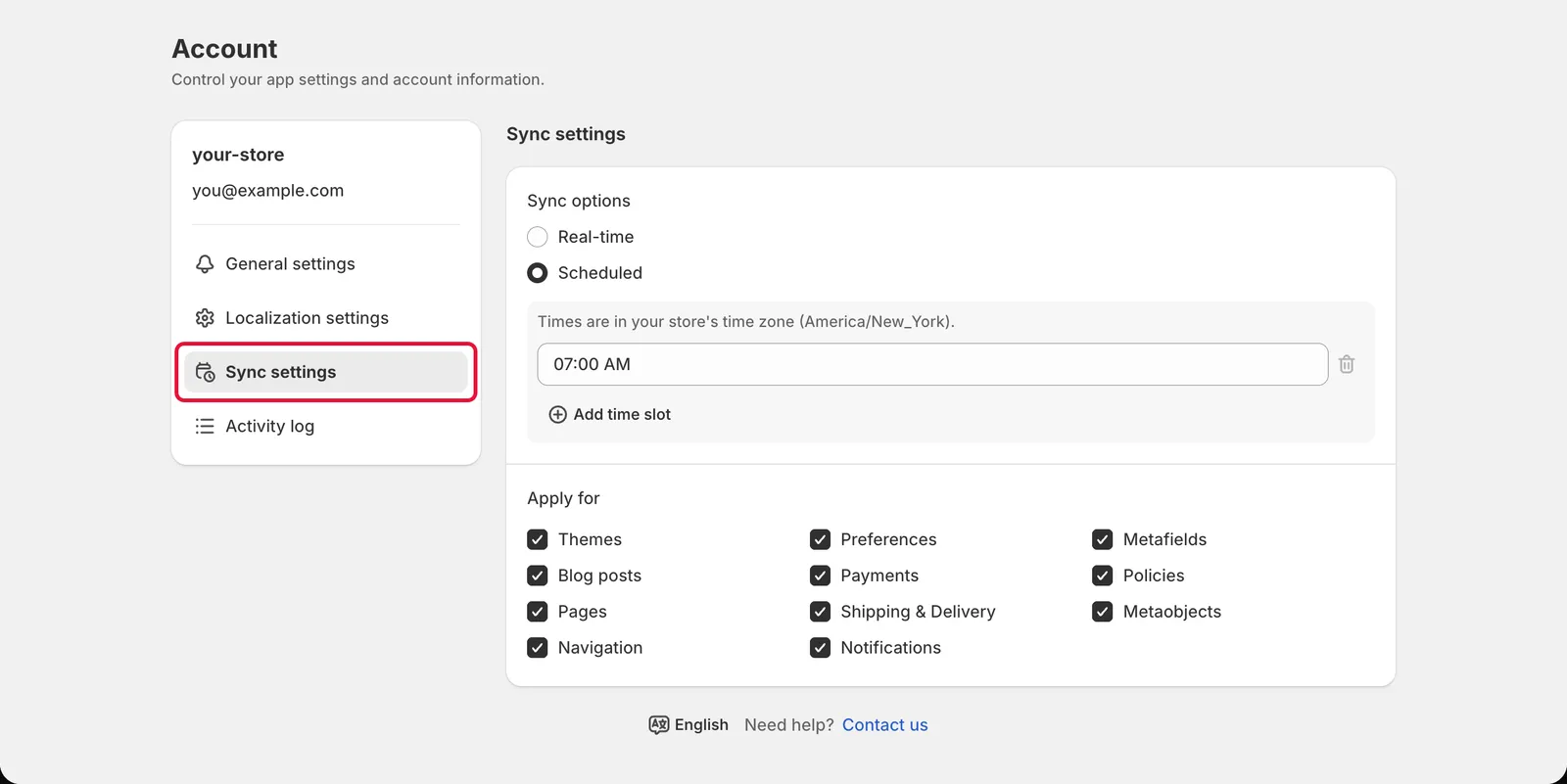
Contáctenos para activar esta función Scheduled sync runs at the times you set in Cuenta y configuración > Configuración de sincronización. It needs at least one time slot.
Contáctenos para activar esta función Real-time sync covers products and collections. It also needs SmartCS to have permission to read your products. Without it, those rows follow the schedule.
On Free, and on Local Plus without an add-on, there are no time slots, so the settings on that page are greyed out. You can still sync by hand. See Sync settings: scheduled or real-time.
Resolve a conflict
A conflict happens when a translation that SmartCS wrote was changed in Shopify afterwards, for example in the Shopify admin or by another app. SmartCS notices this for products and collections that change in Shopify. It does not choose for you. A row, an item and a field show Conflicto.
Open the item
Open Traducción de contenido. Select the pencil in the row that shows Conflicto, then open the item.
Read the banner
A banner says how many fields have a different translation on Shopify. Each of those fields also shows: Shopify tiene una traducción diferente.
Choose a version
Select Conservar la mía to overwrite the Shopify version with yours. Select Usar la de Shopify to accept the Shopify version. Use the banner for the whole item, or the buttons under a field for one field.
Good to know
- If you save a field that is in conflict, a dialog titled Shopify tiene una traducción diferente opens. Select Conservar la mía to save yours, or Cancelar to go back.
- Translate with AI, Marcar como traducido and Eliminar traducciones skip fields in conflict, so nothing is overwritten by accident.
Advertencia
Conservar la mía replaces the translation that is live in Shopify. Check the Shopify text first if someone on your team edited it on purpose.
Artículos relacionados
Translation status explained
Learn what each translation status means, where you see it, and what to do when a resource is Outdated, in Conflict or Failed.
Default translations and market translations
Learn when to use the default translation for all markets and when to add a translation that only one market shows.
Última actualización: 18 de noviembre de 2026