Assign a currency and language to each location
Choose the currency and language each country gets when geolocation switches or recommends them, for one country or for many at once.
Choose which currency and language visitors from each country get when geolocation switches or recommends them. You can set one country, or many countries at once.
請聯絡我們以啟用此功能Before you start
- Turn on geolocation first. See Geolocation: switch or recommend by visitor location.
- Publish the languages and add the currencies you want to assign. The lists only offer languages you published and currencies you added.
Steps
Open the location table
In SmartCS, open 切換器設定. On the 一般 tab, open 地理定位 and click 設定. The 地理定位設定 page lists every country, with its 已分配語言 and 已分配貨幣.
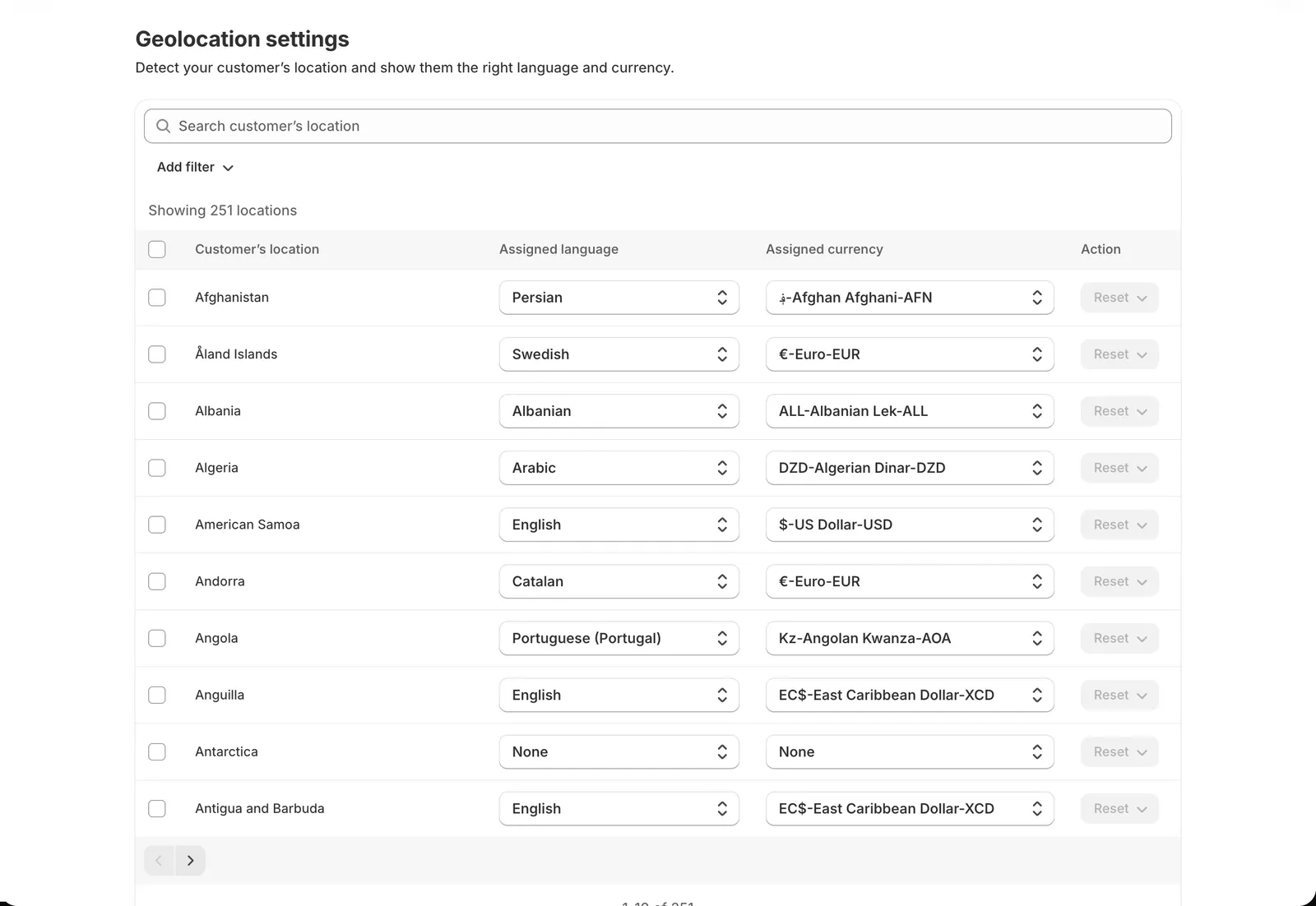
Find a country
Type in the search field to find a country. To search by another column, click 新增篩選條件 and choose 客戶位置. A button with the column name appears. Click it to choose 已分配語言 or 已分配貨幣 instead. Click 全部清除 to remove the filter and the search. The table shows 10 countries a page.
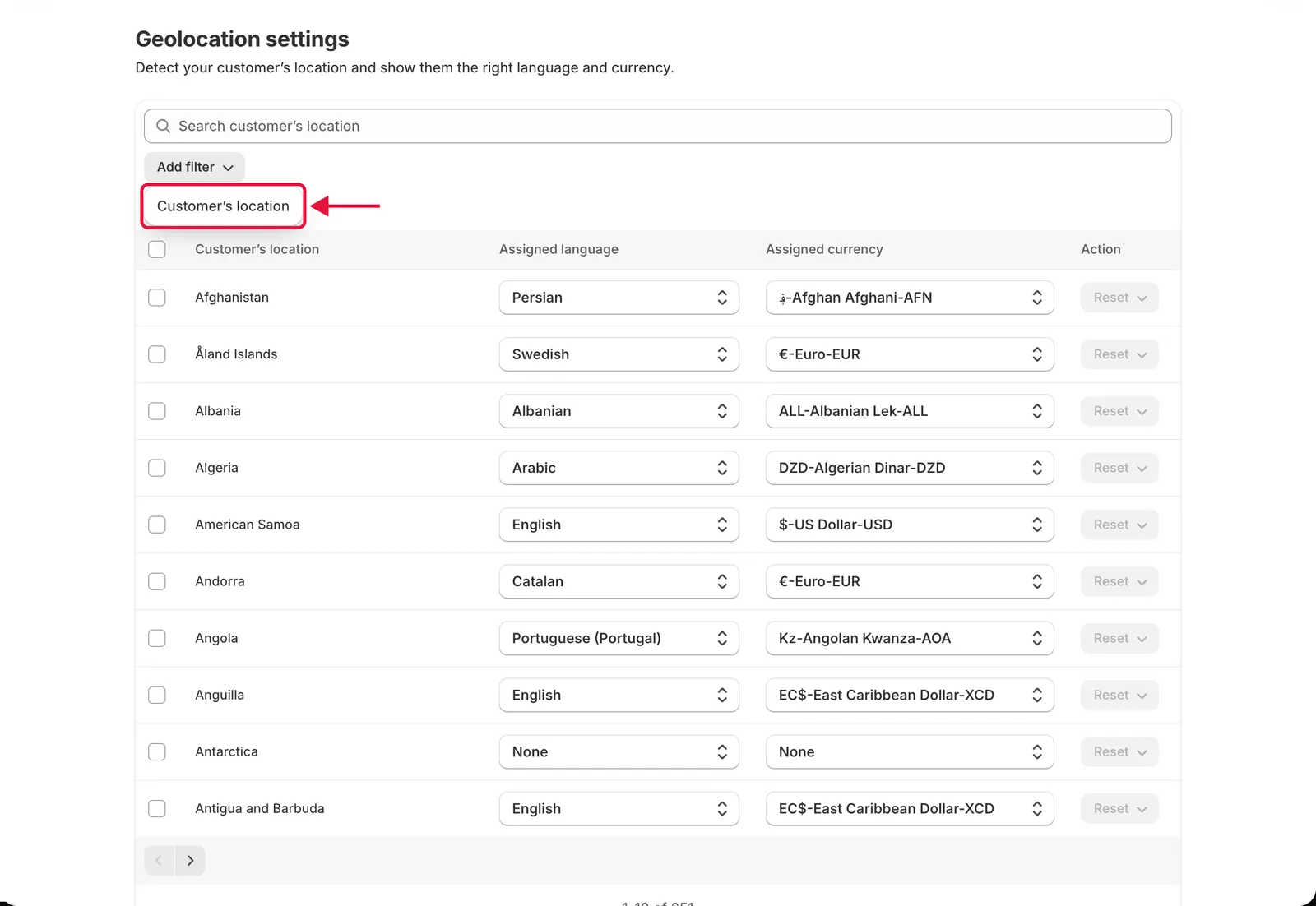
Assign one country
In the row of a country, open the 已分配語言 list or the 已分配貨幣 list. Search for a value and choose it. The change saves at once. There is no save bar on this page.
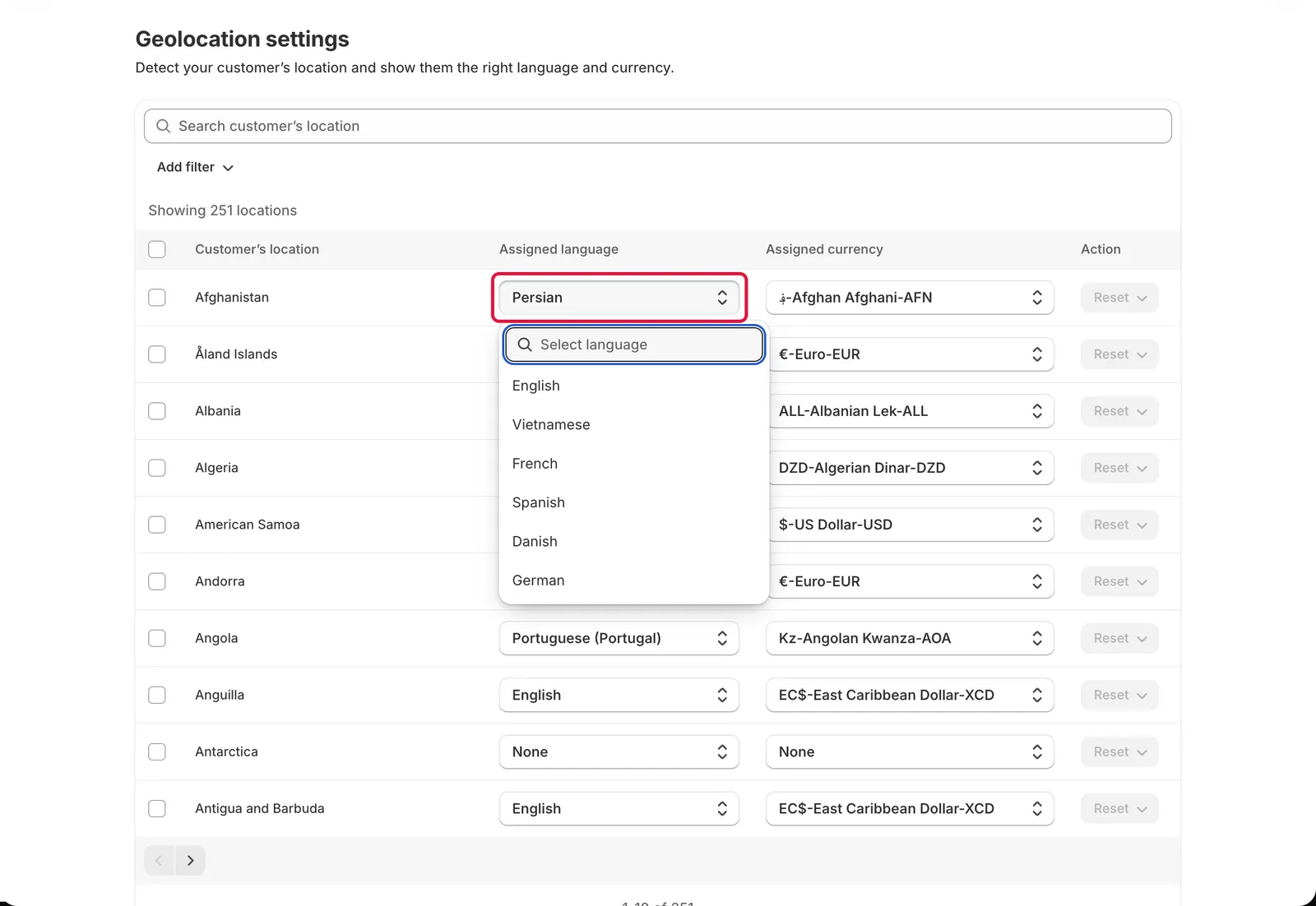
Assign several countries
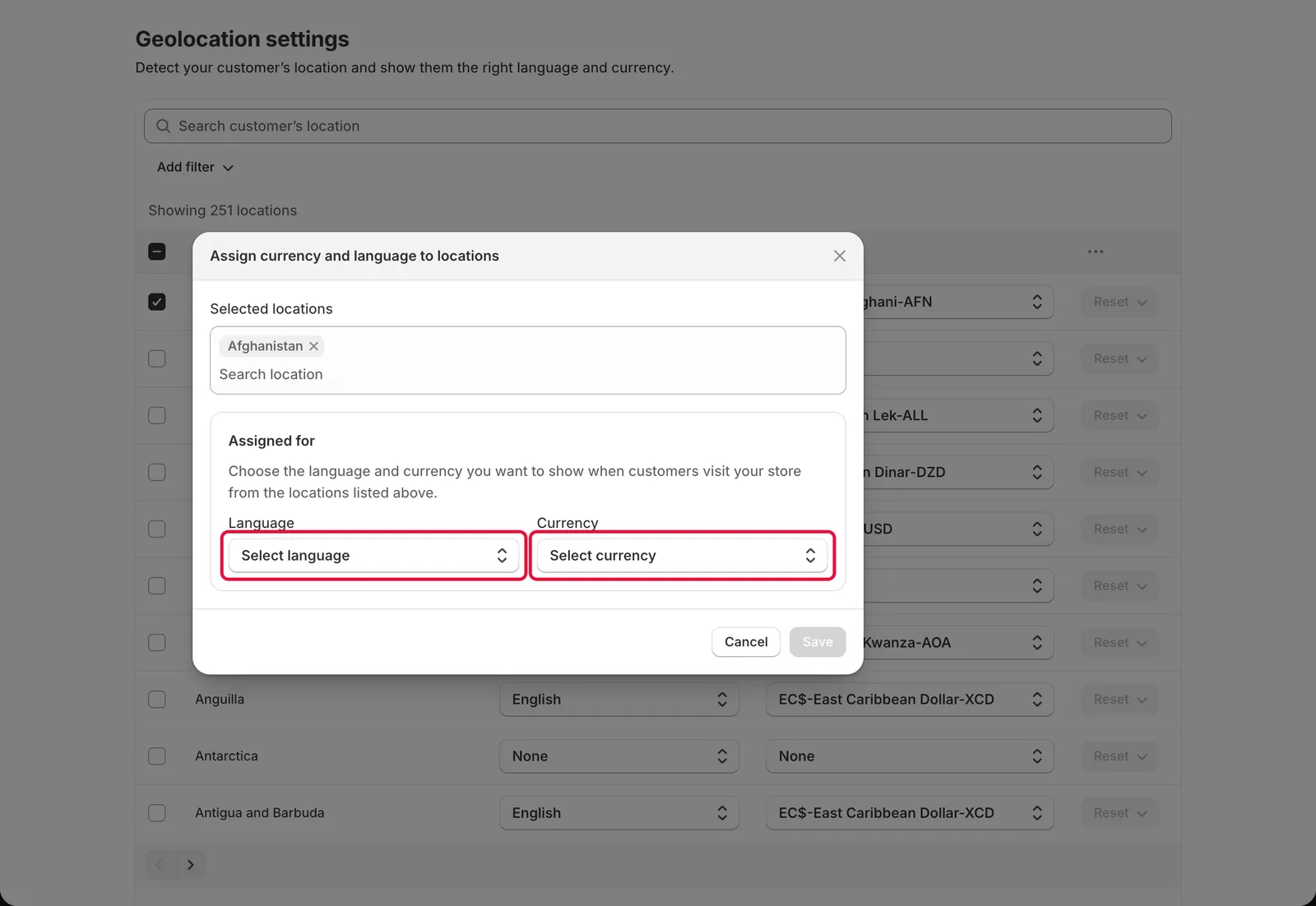
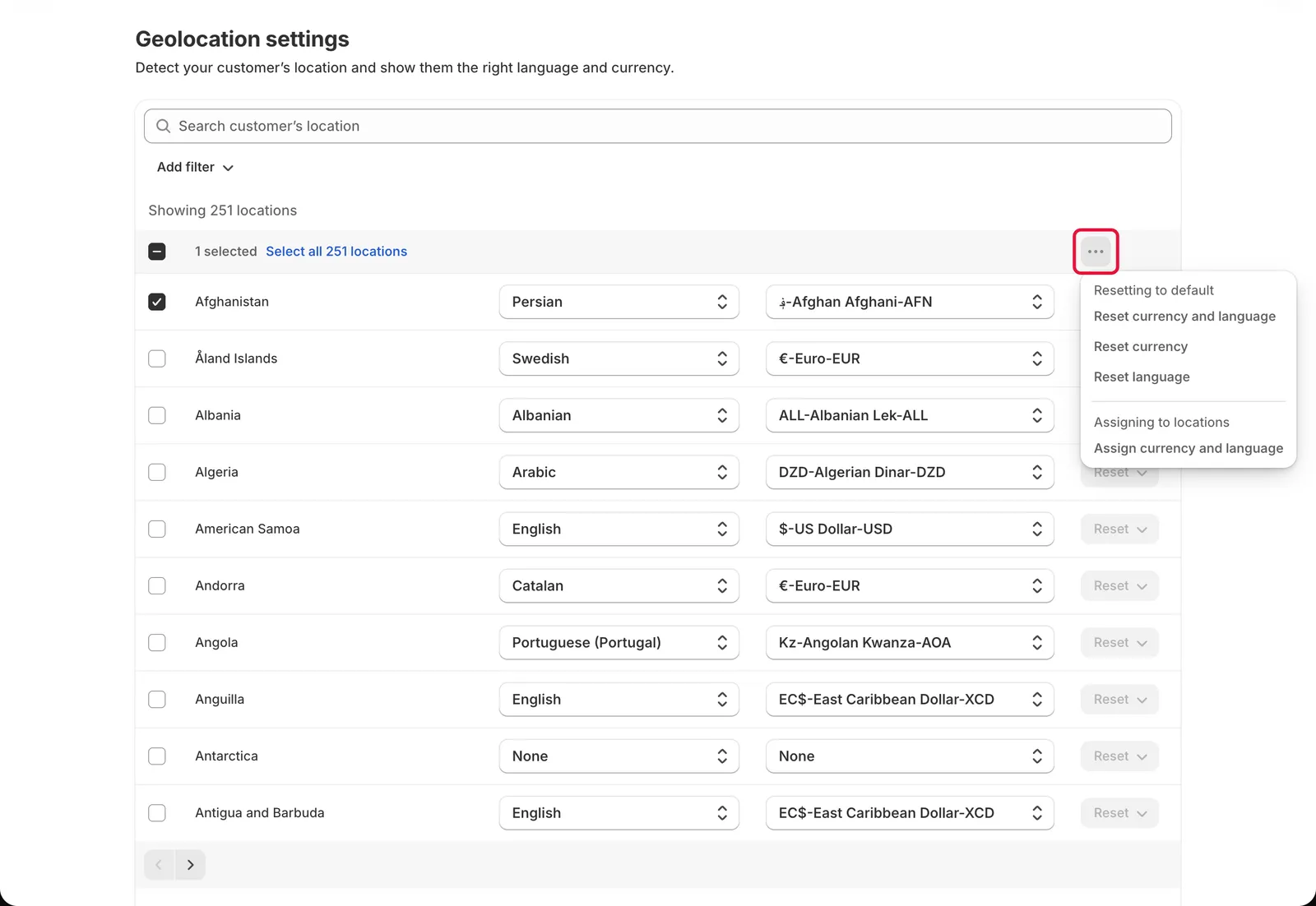
Tick the countries you want. The table header shows how many are selected. To select every country, use the select all link in the header. It is not offered while a search is active. Then open the menu at the end of the header and click 分配貨幣和語言.
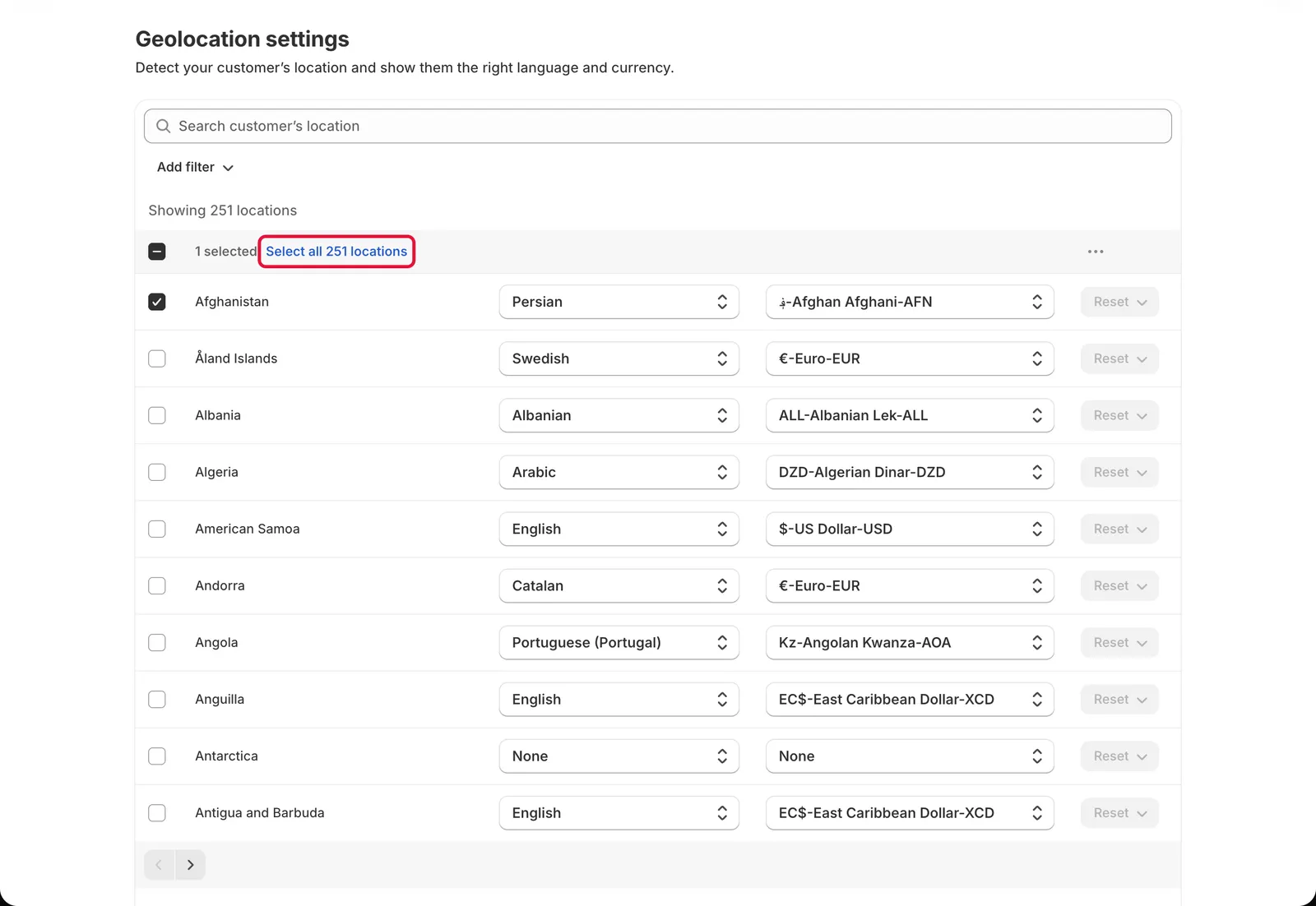
Choose the values
In the 為位置分配貨幣和語言 dialog, check the countries under 所選位置. Under 分配給, choose a 語言, a 貨幣, or both. Click 儲存. An empty list leaves that value as it is.
Reset to the default
Choose what to reset
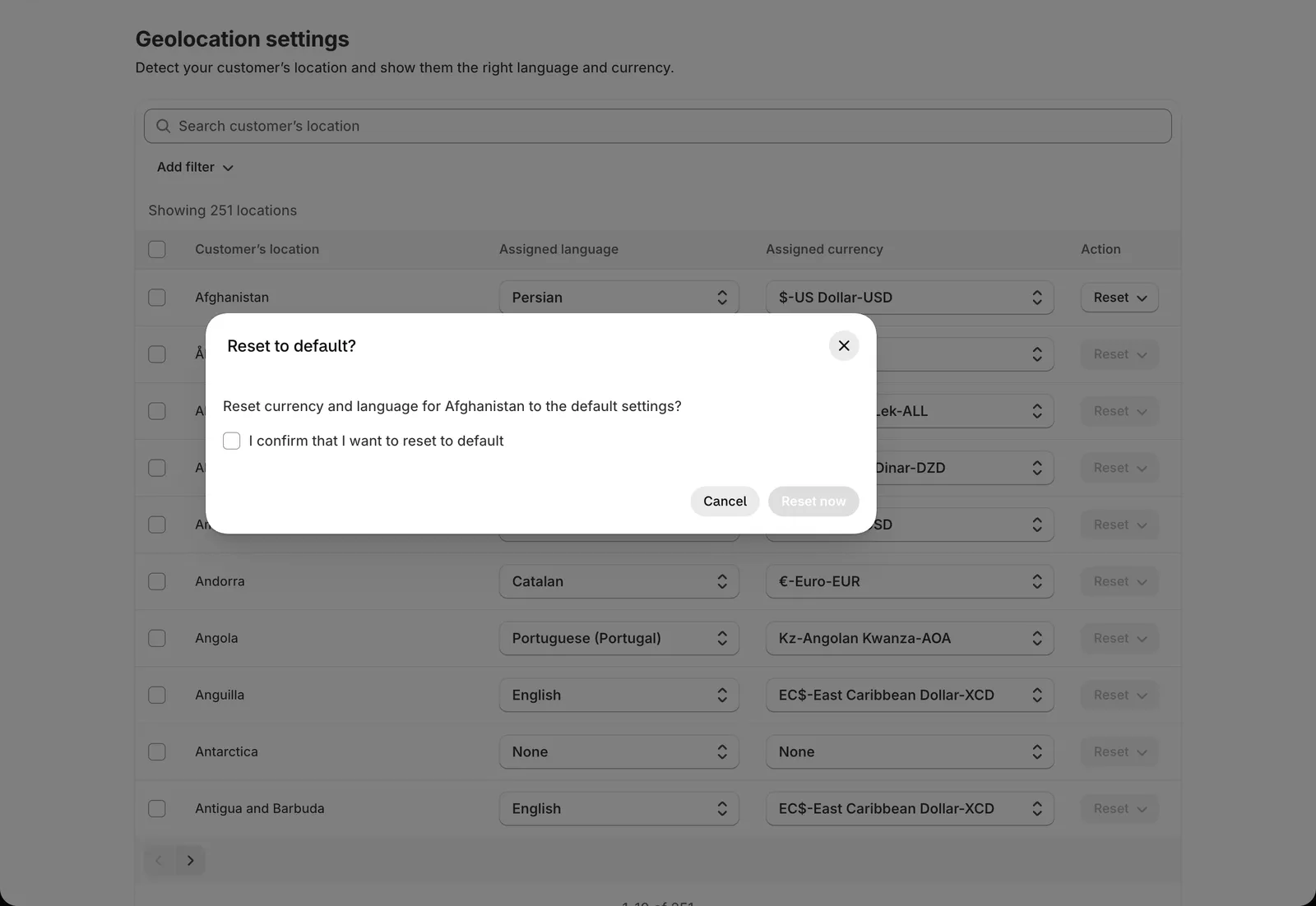
In a row, click 重置. The button is on only when the row differs from the default. Choose 重置貨幣和語言, 重置貨幣 or 重置語言. For several countries, use the menu in the table header and the group 重置為預設值.
Good to know
- A country with no assignment gets its default language. For the currency, it gets the country's own default currency when your store offers it. Otherwise it gets the currency of its market.
- Your assignments apply to Auto switch and to the pop-up in Recommend mode. The language only applies when the language source is 訪客的位置.
- The visitor only gets a language you have published and a currency your store offers. The app tries the language you assigned, then the country's default language. If none of them is published, the visitor's language stays as it is. The same goes for the currency.
- If a change cannot be saved, the previous value comes back and the page shows 無法儲存此更改. Publish the language or add the currency in 市場管理, then try again. See Add and publish languages and Add and publish currencies.
- If your store uses Shopify Markets for currencies, a country can only switch to the currency of its own market.
注意
On the Free plan, 設定 in the 地理定位 section is grey text, so you cannot open this page. The page itself says that assigning a language and currency to a location is not available on your plan.
相關文章
Geolocation: switch or recommend by visitor location
Switch a visitor's currency and language by location, or recommend them in a pop-up on the first visit, using Auto switch or Recommend mode.
Your subscription and usage
See your plan, your billing details and how much of each limit your store has used in SmartCS.
最後更新:2026年11月18日