Choose where the switcher appears
Place the switcher in a corner, on the side, over the top of the page or inside your theme, and set the corner and the distance from the edge.
Choose where the switcher appears on your store. You can float it in a corner, pin it to a side, put it in a bar over the top of the page, or place it inside your theme.
請聯絡我們以啟用此功能Before you start
Position is part of customization, so your plan must include it. On a plan without it, the fields are locked.
The app then shows the message 您的商店尚未開啟切換器自訂功能。 with a 聯絡我們 button.
Desktop and mobile have their own position. Choose a device first, with 設定物件 at the bottom of the settings. See Desktop and mobile.
Steps
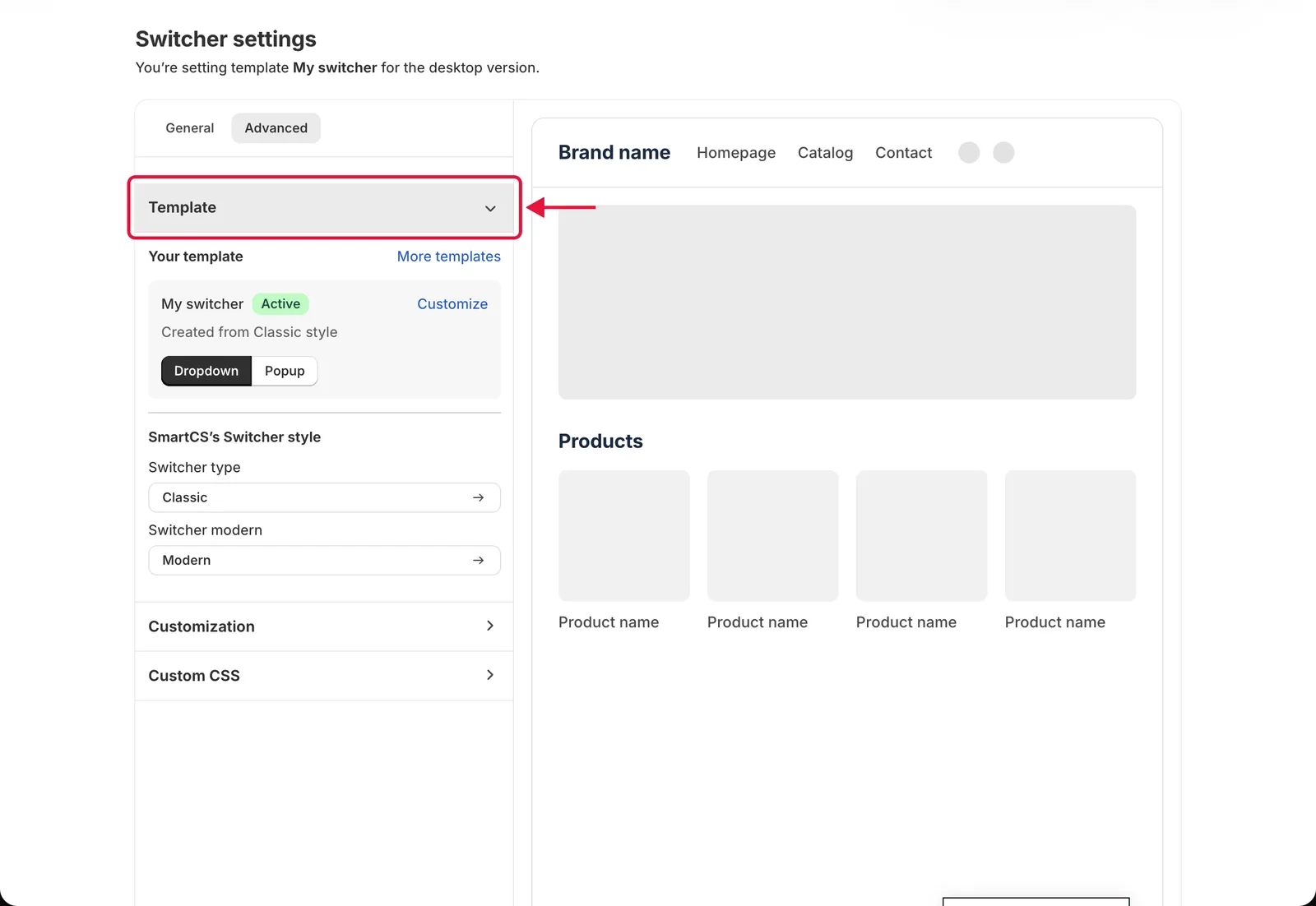
Open the Position card
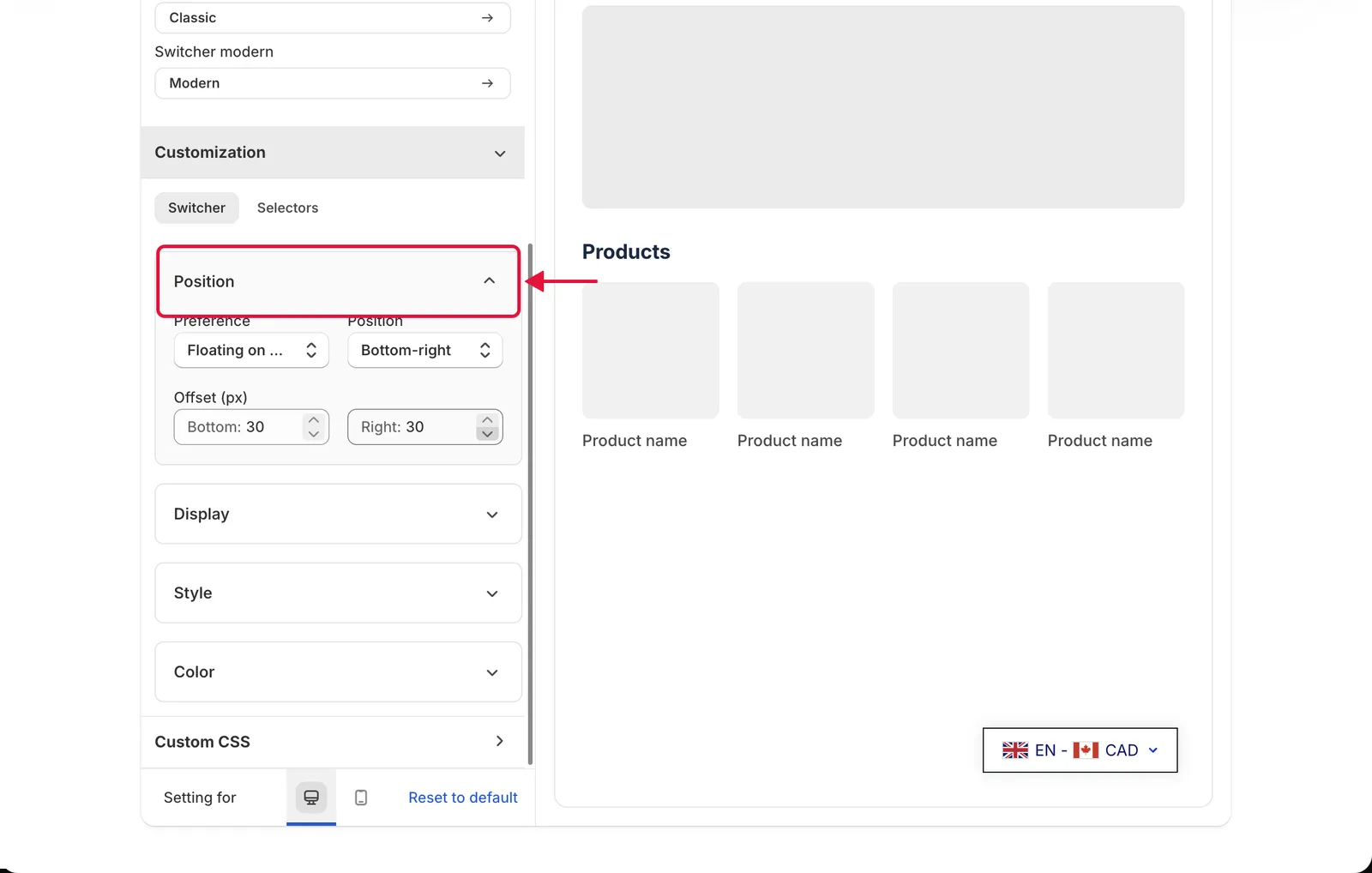
On the 切換器 tab, click 位置. The preview on the right shows your choices as you make them.
Choose a preference
Open 偏好 and choose one option:
- 懸浮在頁面角落: the switcher stays in a corner while shoppers scroll.
- 嵌入頁面中: the switcher sits inside your theme. See the last step.
- 覆蓋在頁面頂部: a bar at the top of the page. Classic templates only.
- 側邊懸浮: the switcher sits halfway down the side of the page. Modern templates only.
Set the corner and offset
For 懸浮在頁面角落, choose a corner in 位置. Then enter the distance from the two edges in 偏移(px). Each number is from 0 to 500.
For 覆蓋在頁面頂部, choose 左對齊 or 右對齊. For 側邊懸浮, the corner you choose decides if the switcher is on the left or the right side.
Save your changes
Click 儲存 in the bar at the top of the page. Select 放棄 to undo your changes.
Place it in your theme
For 嵌入頁面中, the card shows your store theme and the link 開啟佈景主題編輯器. Add the SmartCS Switcher block in the theme editor. See Add the switcher as an app block.
Good to know
- When you change the preference, the app resets the offsets to their default values. Check them again.
- If the settings of the two devices differ, the 高階 tab shows a banner with 套用. It copies the other device's settings into the one you are editing. Save to keep them.
- 嵌入頁面中 has no offset. If your theme has no SmartCS Switcher block, the switcher appears in a corner.
- For 嵌入頁面中, the app can show the note 根據您所使用的佈景主題,切換器的實際位置可能有所不同。. The real position can differ from the preview, so check your store after you save.
- On a phone, a theme header often has room for an icon only. If the switcher does not fit there, use a corner or the top bar on mobile.
相關文章
Switcher templates and your own templates
Choose a Classic or Modern template for your switcher, apply it, and save your own template after you customize it.
Add the switcher as an app block
Place the switcher inside a section of your theme with the SmartCS Switcher app block, so it sits where you want instead of in a corner.
最後更新:2026年11月18日