Assign a currency and language to each location
Choose the currency and language each country gets when geolocation switches or recommends them, for one country or for many at once.
Choose which currency and language visitors from each country get when geolocation switches or recommends them. You can set one country, or many countries at once.
Neem contact met ons op om dit in te schakelenBefore you start
- Turn on geolocation first. See Geolocation: switch or recommend by visitor location.
- Publish the languages and add the currencies you want to assign. The lists only offer languages you published and currencies you added.
Steps
Open the location table
In SmartCS, open Wisselaarinstellingen. On the Algemeen tab, open Geolocatie and click Instellingen. The Geolocatie-instellingen page lists every country, with its Toegewezen taal and Toegewezen valuta.
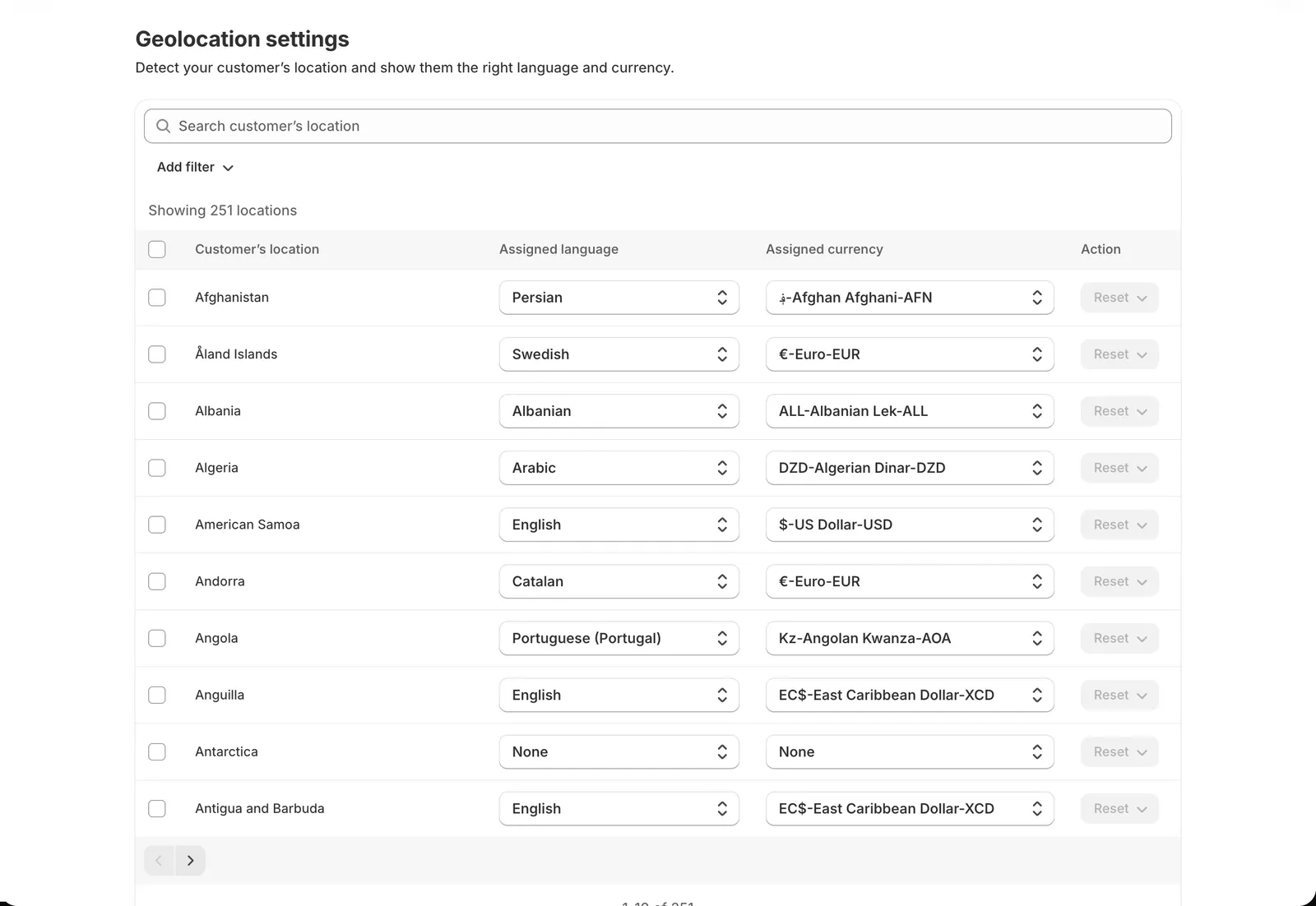
Find a country
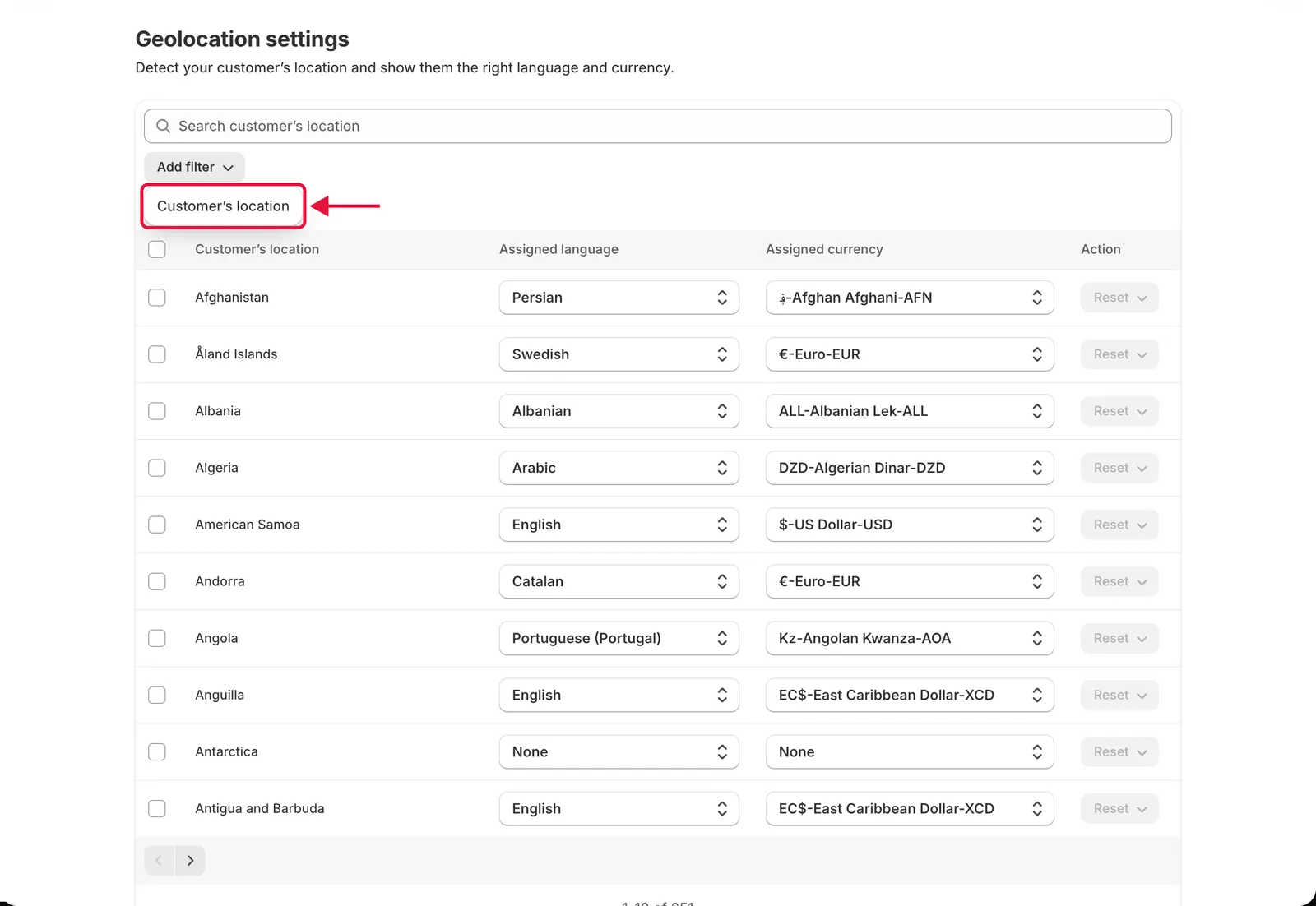
Type in the search field to find a country. To search by another column, click Filter toevoegen and choose Locatie van klant. A button with the column name appears. Click it to choose Toegewezen taal or Toegewezen valuta instead. Click Alles wissen to remove the filter and the search. The table shows 10 countries a page.
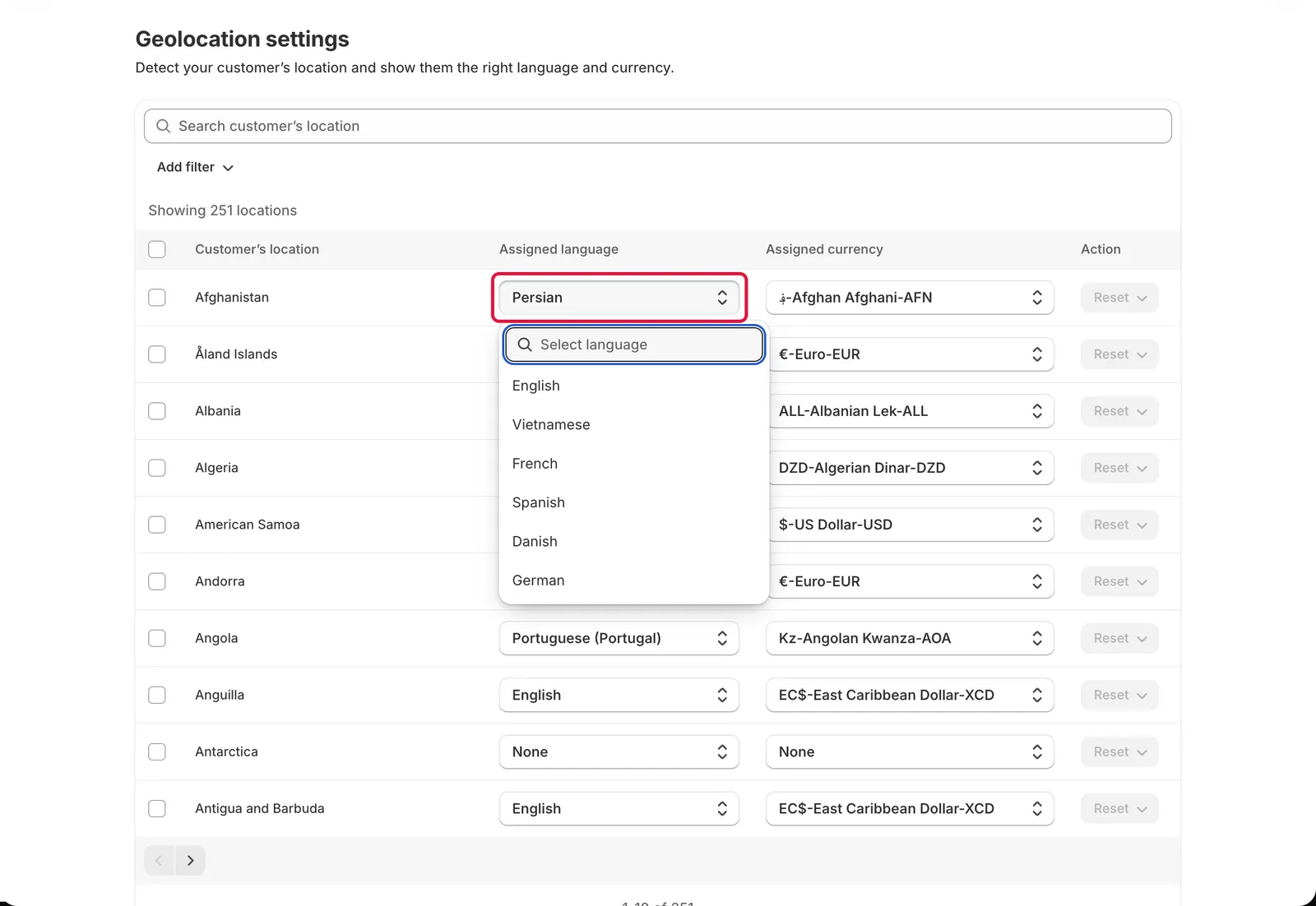
Assign one country
In the row of a country, open the Toegewezen taal list or the Toegewezen valuta list. Search for a value and choose it. The change saves at once. There is no save bar on this page.
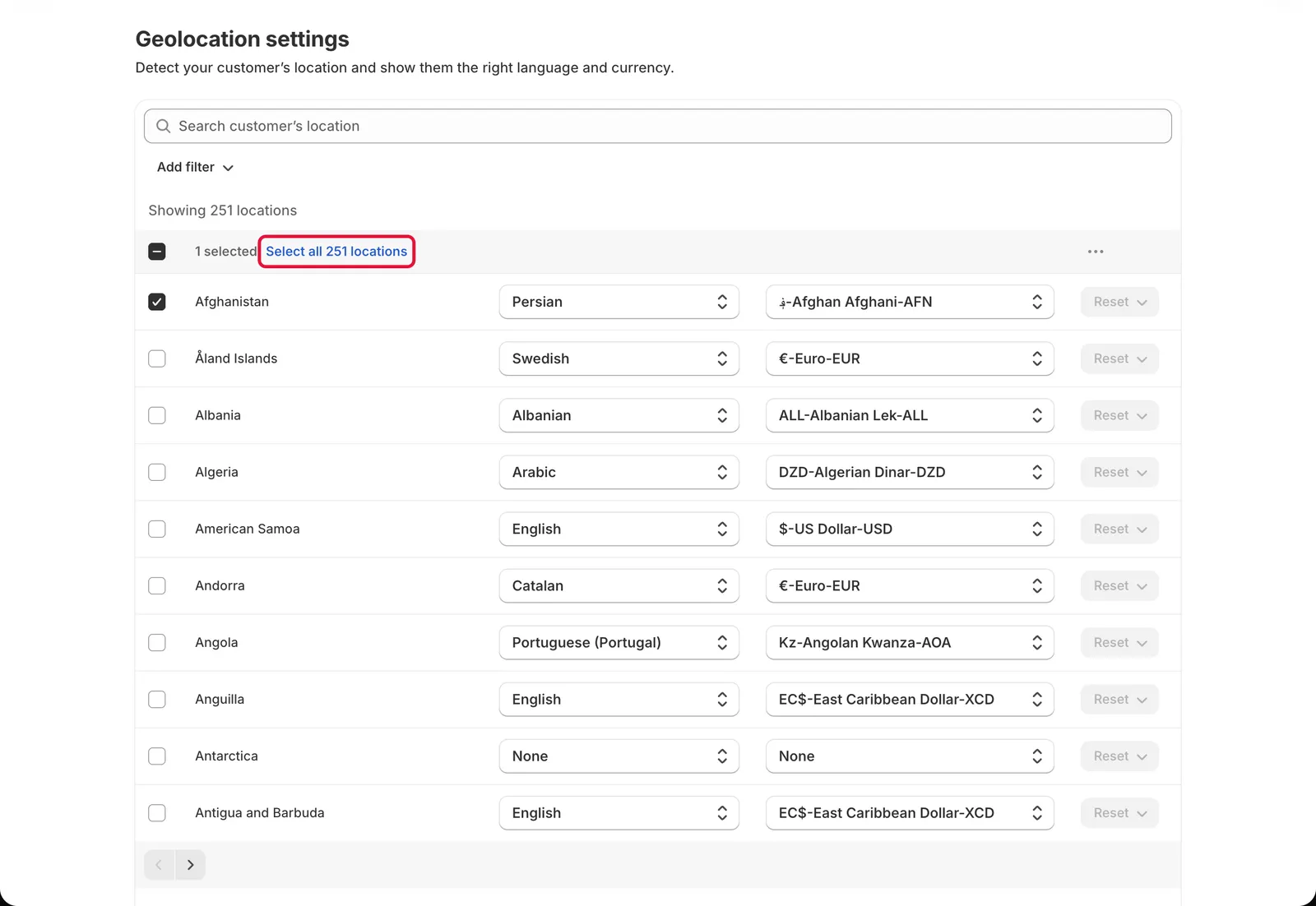
Assign several countries
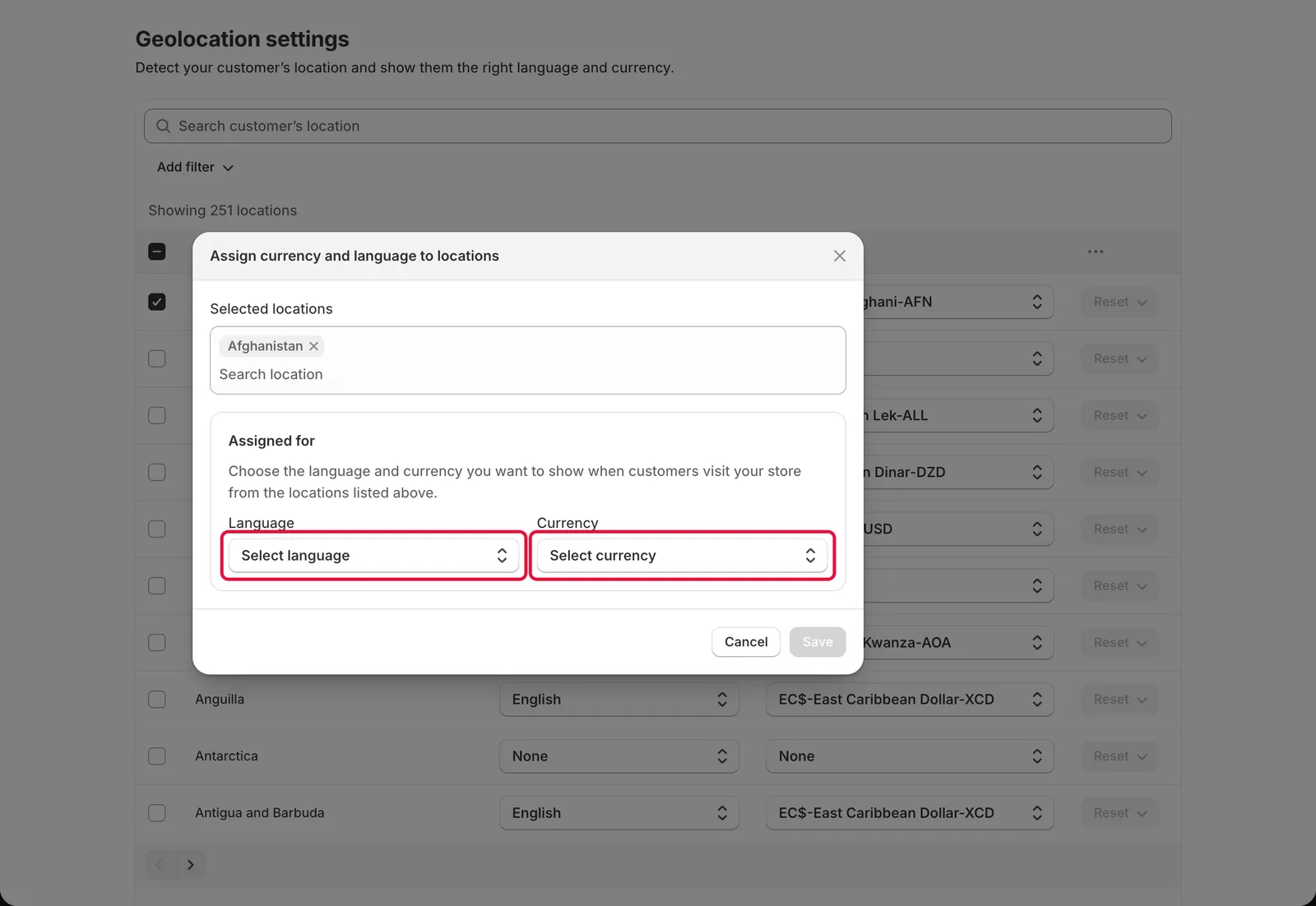
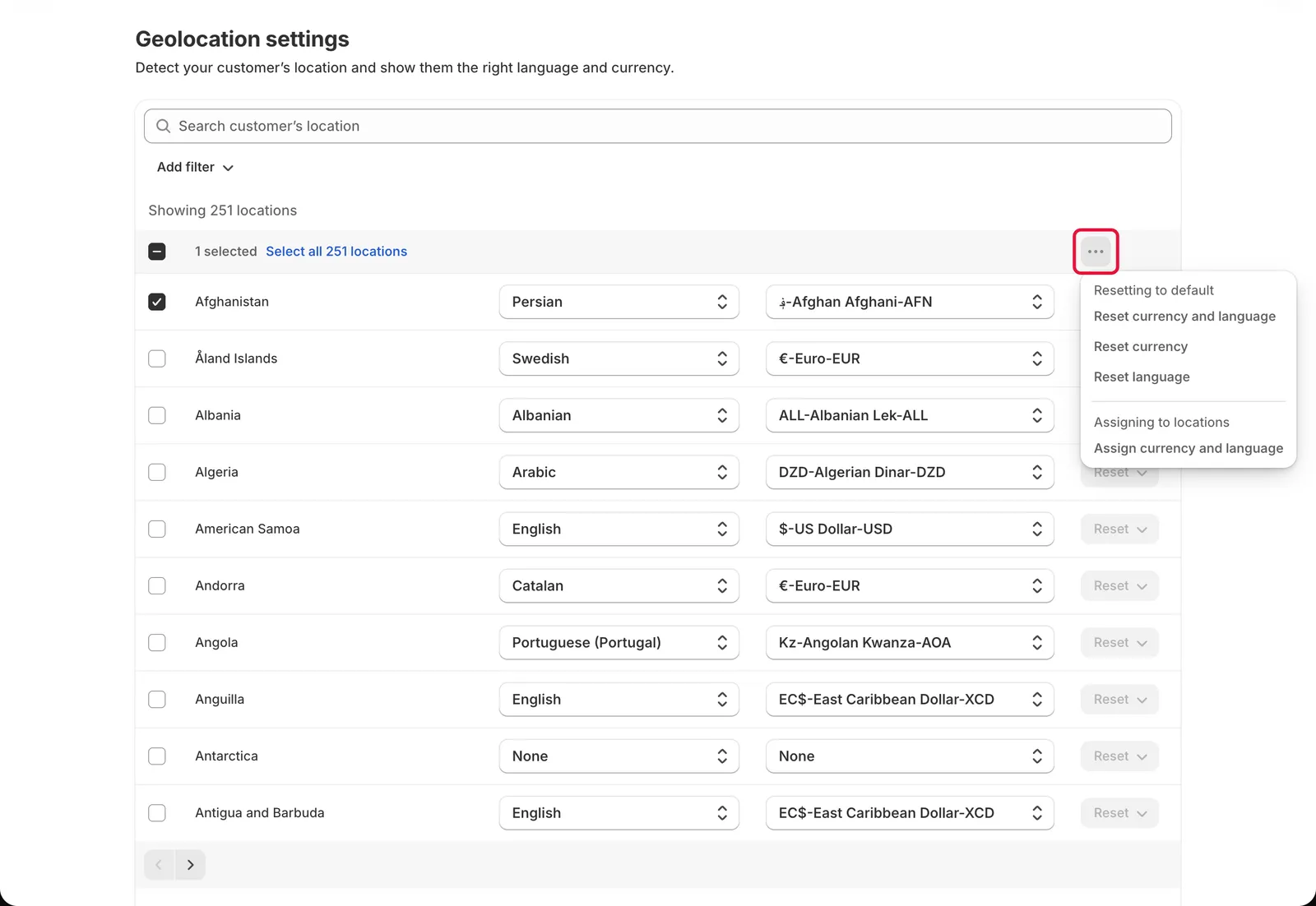
Tick the countries you want. The table header shows how many are selected. To select every country, use the select all link in the header. It is not offered while a search is active. Then open the menu at the end of the header and click Valuta en taal toewijzen.
Choose the values
In the Valuta en taal aan locaties toewijzen dialog, check the countries under Geselecteerde locaties. Under Toegewezen voor, choose a Taal, a Valuta, or both. Click Opslaan. An empty list leaves that value as it is.
Reset to the default
Choose what to reset
In a row, click Terugzetten. The button is on only when the row differs from the default. Choose Valuta en taal terugzetten, Valuta terugzetten or Taal terugzetten. For several countries, use the menu in the table header and the group Terugzetten naar standaard.
Confirm the reset
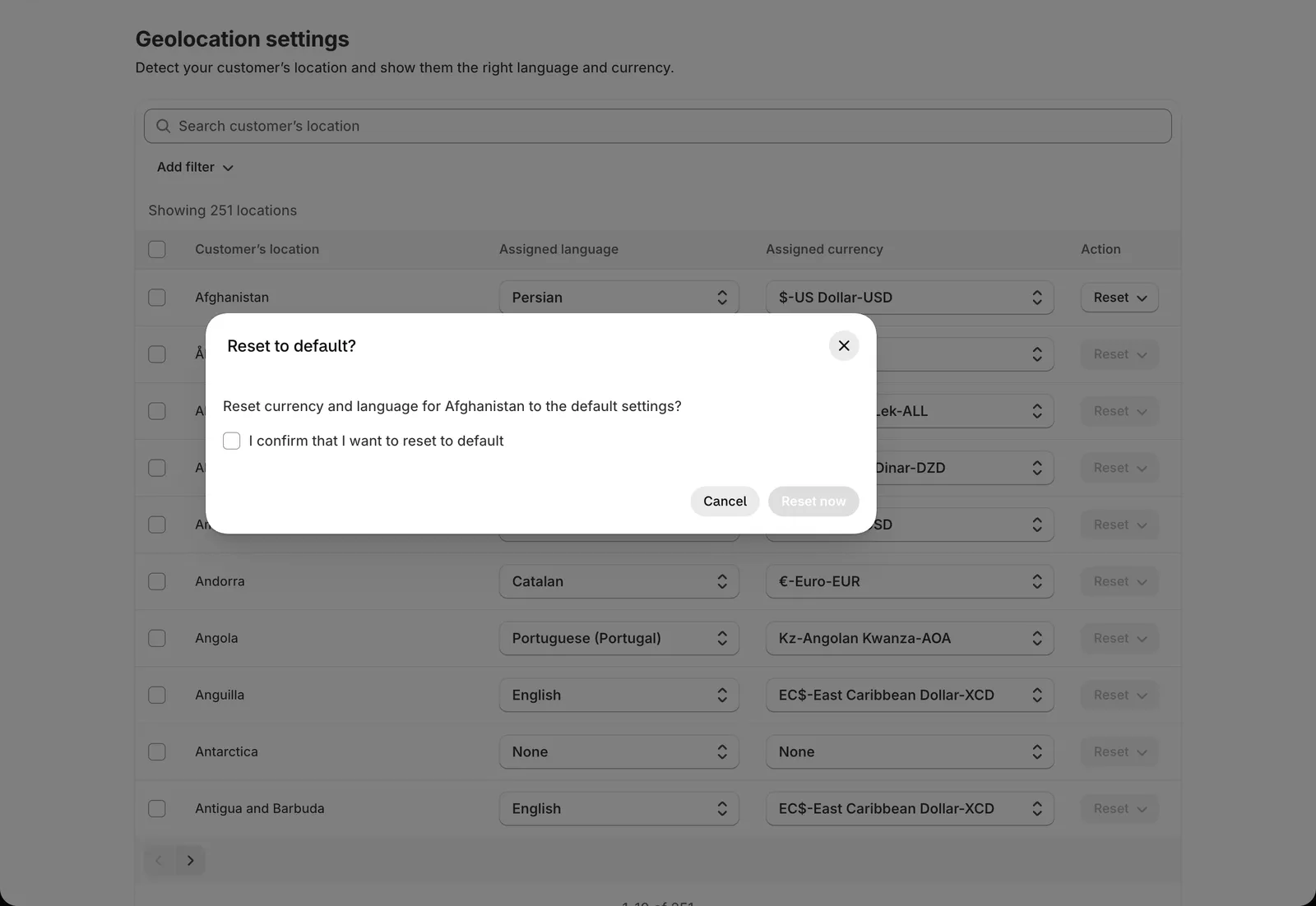
In the Terugzetten naar standaard? dialog, tick Ik bevestig dat ik wil terugzetten naar de standaard, then click Nu terugzetten.
Good to know
- A country with no assignment gets its default language. For the currency, it gets the country's own default currency when your store offers it. Otherwise it gets the currency of its market.
- Your assignments apply to Auto switch and to the pop-up in Recommend mode. The language only applies when the language source is Locatie van bezoekers.
- The visitor only gets a language you have published and a currency your store offers. The app tries the language you assigned, then the country's default language. If none of them is published, the visitor's language stays as it is. The same goes for the currency.
- If a change cannot be saved, the previous value comes back and the page shows Kon deze wijziging niet opslaan. Publish the language or add the currency in Marktbeheer, then try again. See Add and publish languages and Add and publish currencies.
- If your store uses Shopify Markets for currencies, a country can only switch to the currency of its own market.
Opmerking
On the Free plan, Instellingen in the Geolocatie section is grey text, so you cannot open this page. The page itself says that assigning a language and currency to a location is not available on your plan.
Gerelateerde artikelen
Geolocation: switch or recommend by visitor location
Switch a visitor's currency and language by location, or recommend them in a pop-up on the first visit, using Auto switch or Recommend mode.
Your subscription and usage
See your plan, your billing details and how much of each limit your store has used in SmartCS.
Laatst bijgewerkt: 18 november 2026