Assign a currency and language to each location
Choose the currency and language each country gets when geolocation switches or recommends them, for one country or for many at once.
Choose which currency and language visitors from each country get when geolocation switches or recommends them. You can set one country, or many countries at once.
Kontakt os for at aktivere detteBefore you start
- Turn on geolocation first. See Geolocation: switch or recommend by visitor location.
- Publish the languages and add the currencies you want to assign. The lists only offer languages you published and currencies you added.
Steps
Open the location table
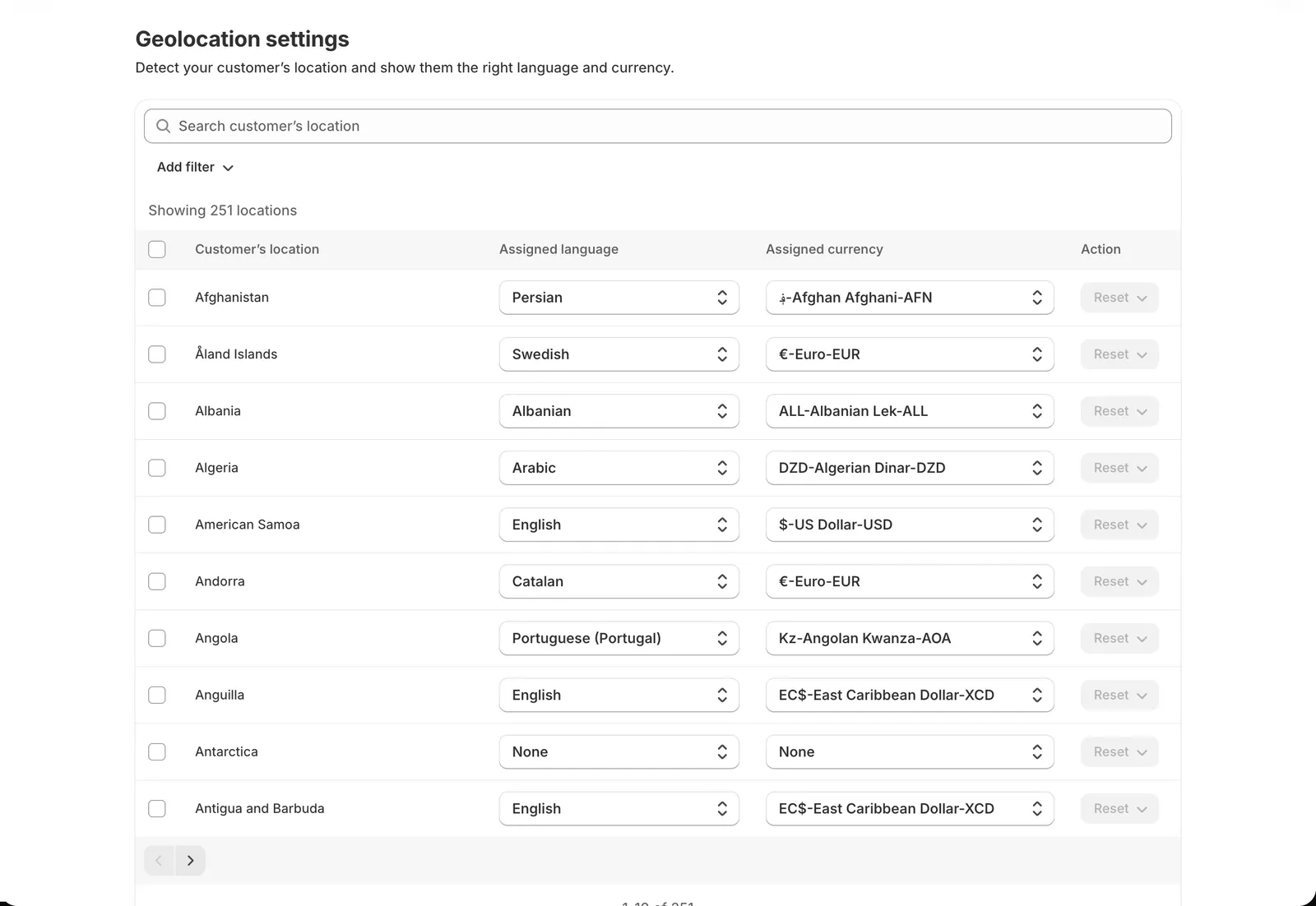
In SmartCS, open Skifteindstillinger. On the Generelt tab, open Geolokalisering and click Indstillinger. The Geolokaliseringsindstillinger page lists every country, with its Tildelt sprog and Tildelt valuta.
Find a country
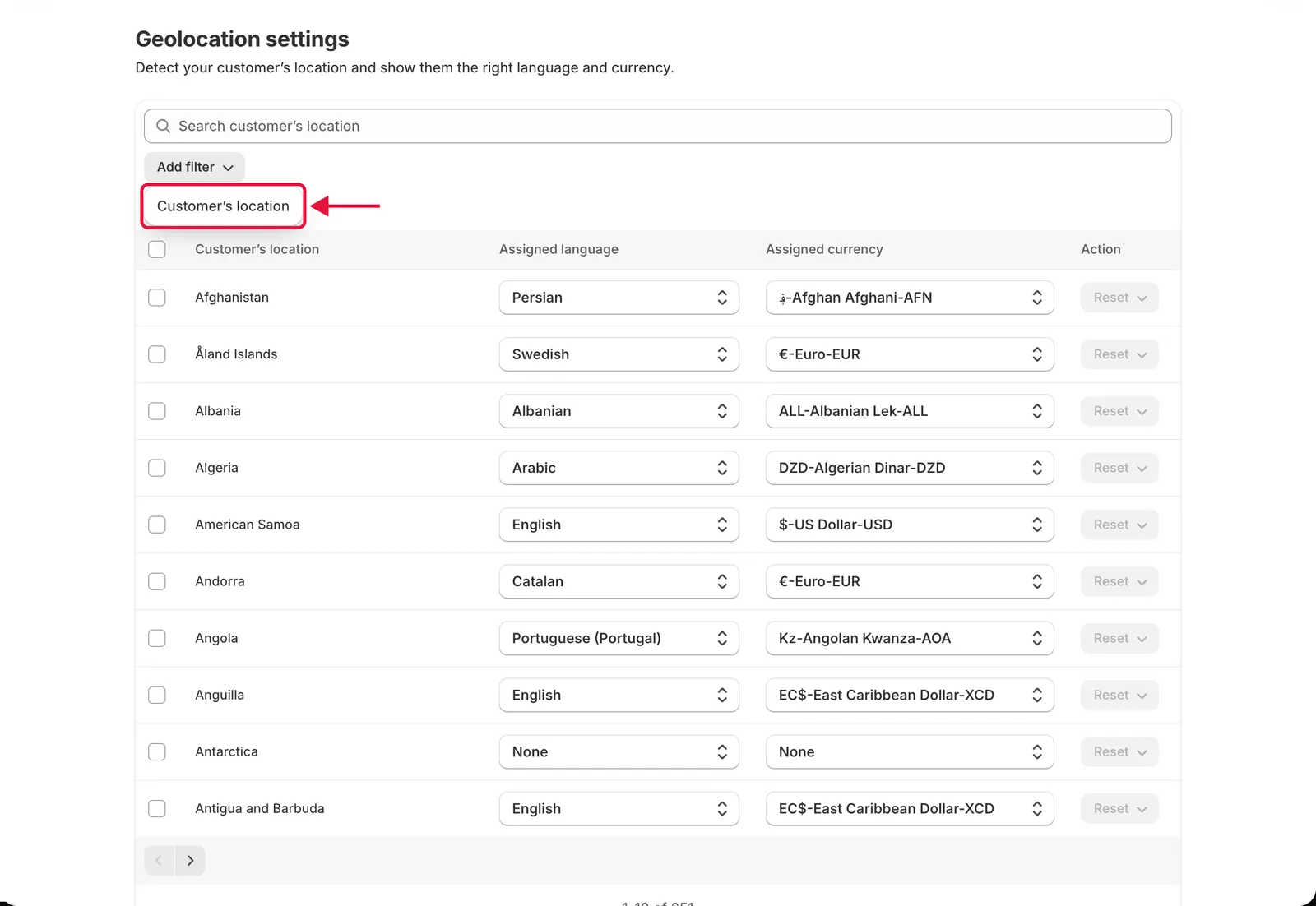
Type in the search field to find a country. To search by another column, click Tilføj filter and choose Kundens placering. A button with the column name appears. Click it to choose Tildelt sprog or Tildelt valuta instead. Click Ryd alle to remove the filter and the search. The table shows 10 countries a page.
Assign one country
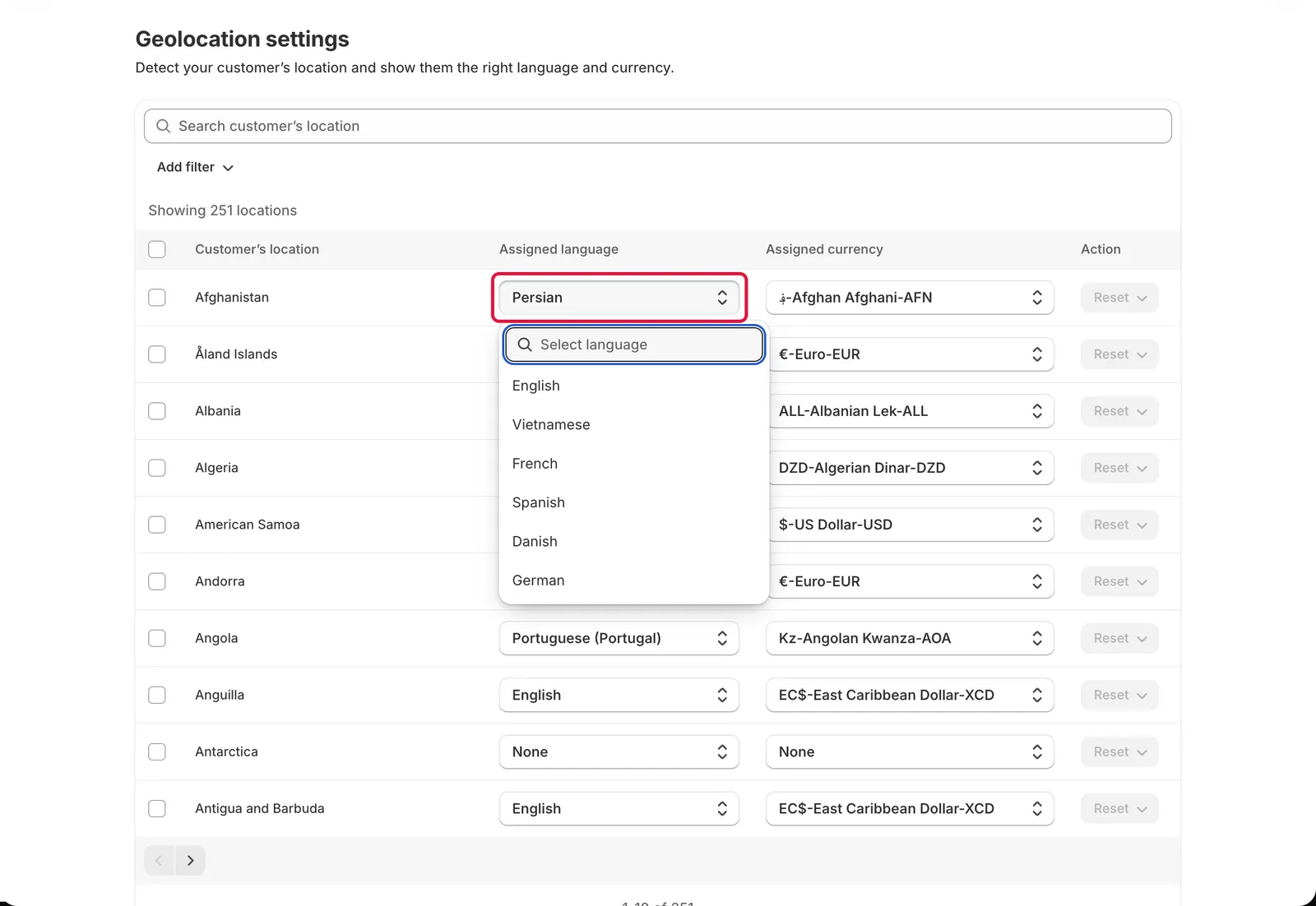
In the row of a country, open the Tildelt sprog list or the Tildelt valuta list. Search for a value and choose it. The change saves at once. There is no save bar on this page.
Assign several countries
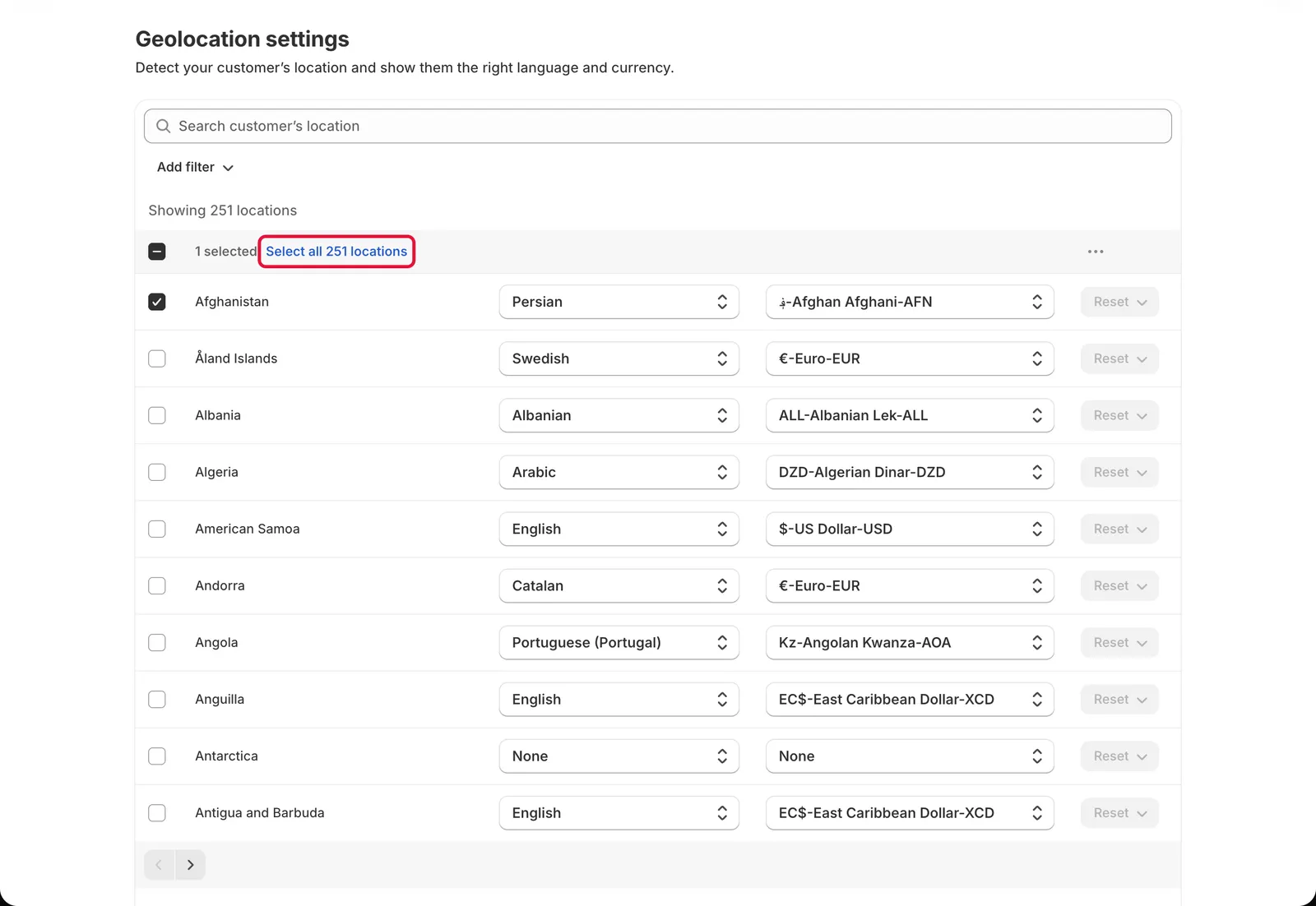
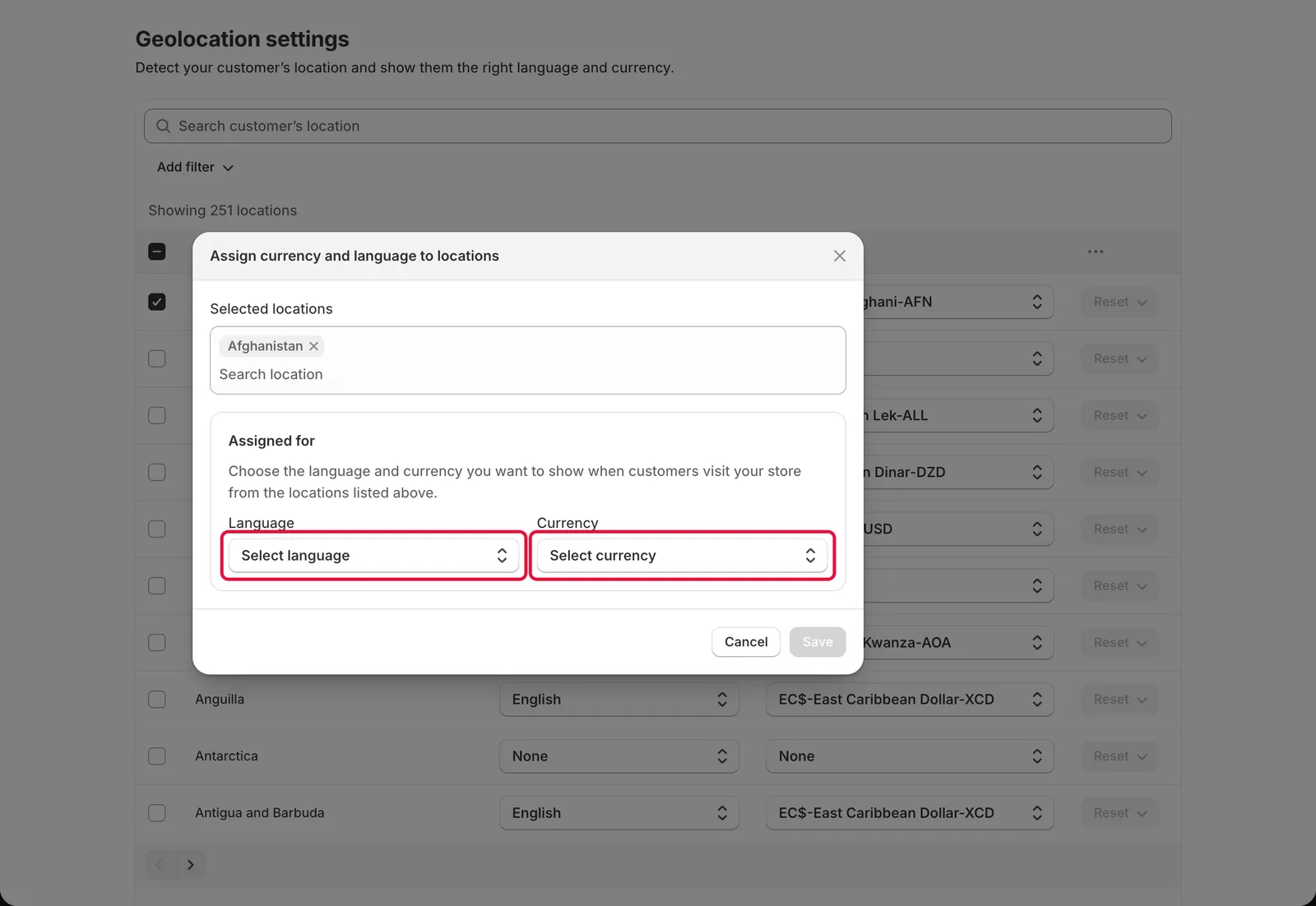
Tick the countries you want. The table header shows how many are selected. To select every country, use the select all link in the header. It is not offered while a search is active. Then open the menu at the end of the header and click Tildel valuta og sprog.
Choose the values
In the Tildel valuta og sprog til placeringer dialog, check the countries under Valgte placeringer. Under Tildelt for, choose a Sprog, a Valuta, or both. Click Gem. An empty list leaves that value as it is.
Reset to the default
Choose what to reset
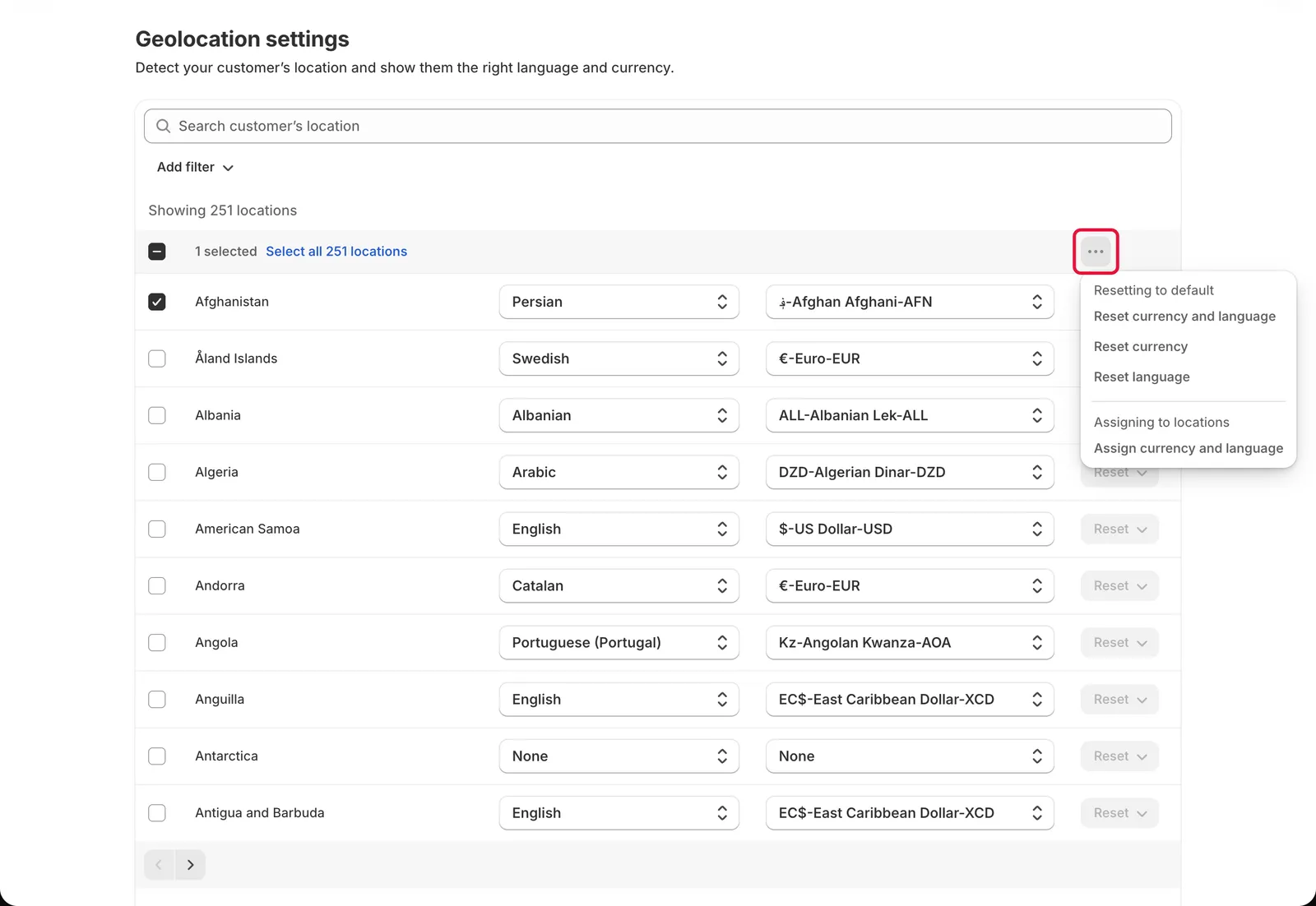
In a row, click Nulstil. The button is on only when the row differs from the default. Choose Nulstil valuta og sprog, Nulstil valuta or Nulstil sprog. For several countries, use the menu in the table header and the group Nulstiller til standard.
Confirm the reset
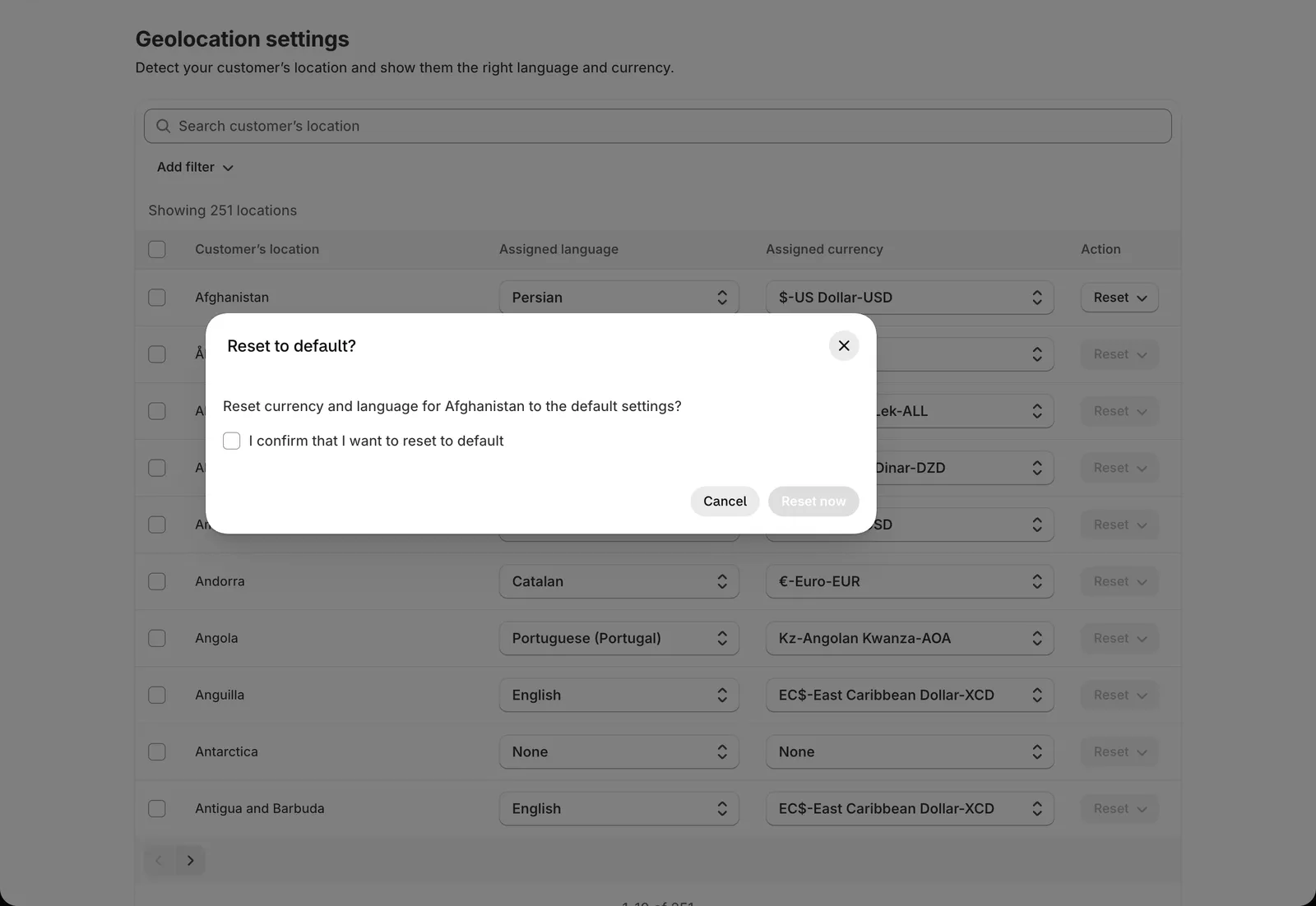
In the Nulstil til standard? dialog, tick Jeg bekræfter, at jeg vil nulstille til standard, then click Nulstil nu.
Good to know
- A country with no assignment gets its default language. For the currency, it gets the country's own default currency when your store offers it. Otherwise it gets the currency of its market.
- Your assignments apply to Auto switch and to the pop-up in Recommend mode. The language only applies when the language source is Besøgendes placering.
- The visitor only gets a language you have published and a currency your store offers. The app tries the language you assigned, then the country's default language. If none of them is published, the visitor's language stays as it is. The same goes for the currency.
- If a change cannot be saved, the previous value comes back and the page shows Denne ændring kunne ikke gemmes. Publish the language or add the currency in Markedsadministration, then try again. See Add and publish languages and Add and publish currencies.
- If your store uses Shopify Markets for currencies, a country can only switch to the currency of its own market.
Bemærk
On the Free plan, Indstillinger in the Geolokalisering section is grey text, so you cannot open this page. The page itself says that assigning a language and currency to a location is not available on your plan.
Relaterede artikler
Geolocation: switch or recommend by visitor location
Switch a visitor's currency and language by location, or recommend them in a pop-up on the first visit, using Auto switch or Recommend mode.
Your subscription and usage
See your plan, your billing details and how much of each limit your store has used in SmartCS.
Sidst opdateret 18. november 2026