Automate translation with rules
Create rules that translate new and changed products, collections and other content automatically, and check each rule's status.
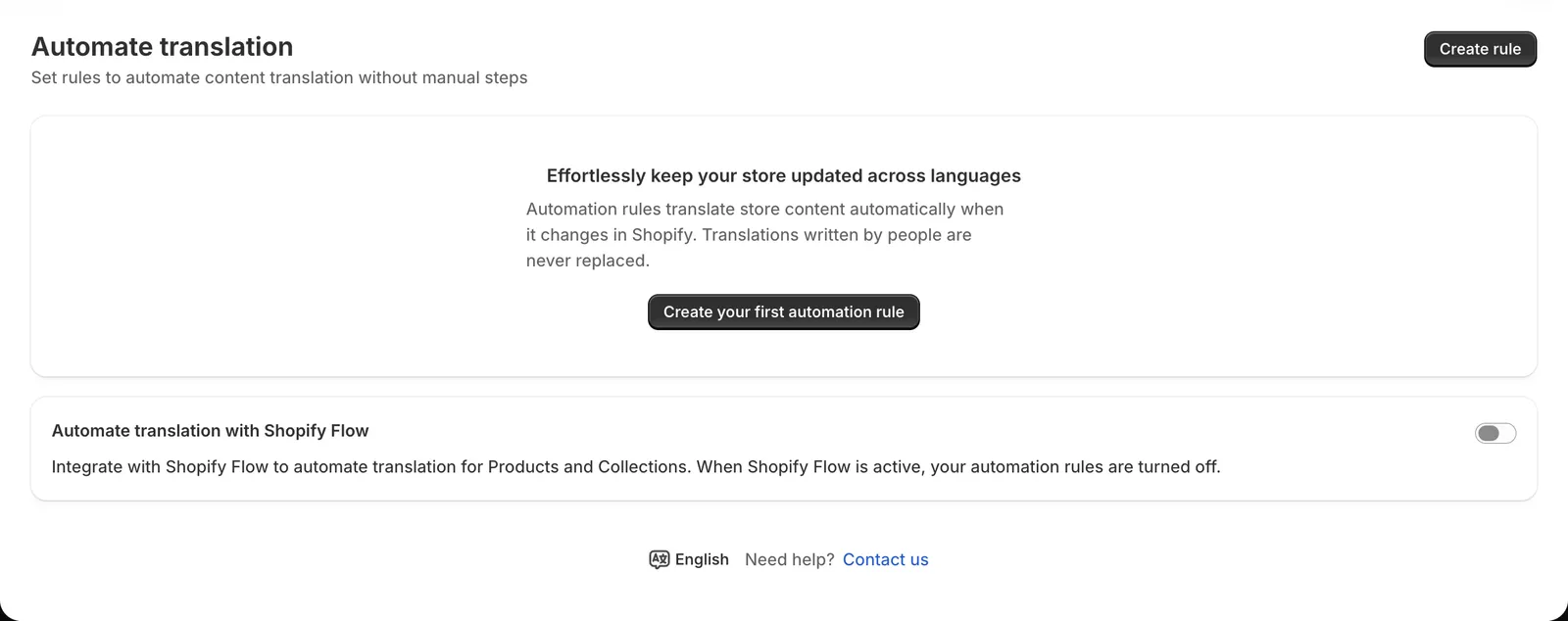
Use automation rules to translate store content when it changes in Shopify, without starting a run each time. A rule says which content, which markets and which engine.
請聯絡我們以啟用此功能Rules translate what changes while they are on. Translations written by people are never replaced.
What your plan allows
The number of items that rules can automate depends on the resource.
產品:
Free 方案:0產品系列:
Free 方案:0其他資源:
Free 方案:0Before you start
- Turn on automatic updates for the language and resource you want. A rule only translates languages that have them on. See Automatic updates per language.
- Choose what happens when your quota runs out. See Pause automation or switch to the free engine.
Steps
Name the rule and pick markets
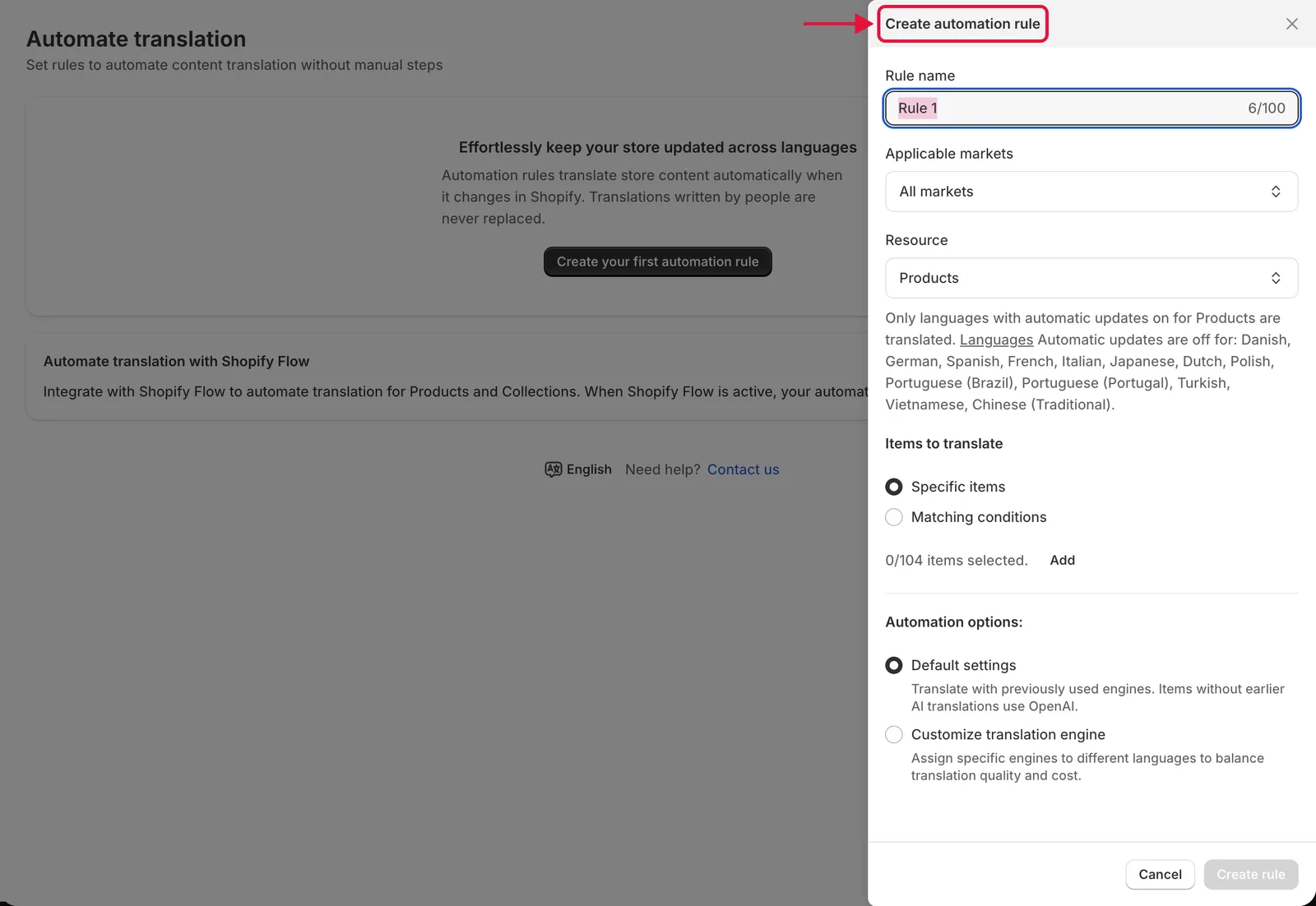
Enter a 規則名稱. In 適用市場, keep 所有市場 or choose some. Choosing a market also selects 預設翻譯.
Choose the resource
Open 資源 and pick one resource, such as 產品 or 產品系列. Resources your plan does not include are grey.
Choose the items
Under 待翻譯專案, choose one option:
- 指定專案: click 新增 and tick the items.
- 匹配條件: for products only. Filter by status, category, tag or collection. Tick 包含將來符合這些條件的專案 to include new items later.
Choose the engine
Under 自動化選項: choose 預設設定 to use the engines you used before. Choose 自訂翻譯引擎 to give each group of languages its own engine.
Save the rule
Click 建立規則. The toast says 規則已建立.
Automate items from a list
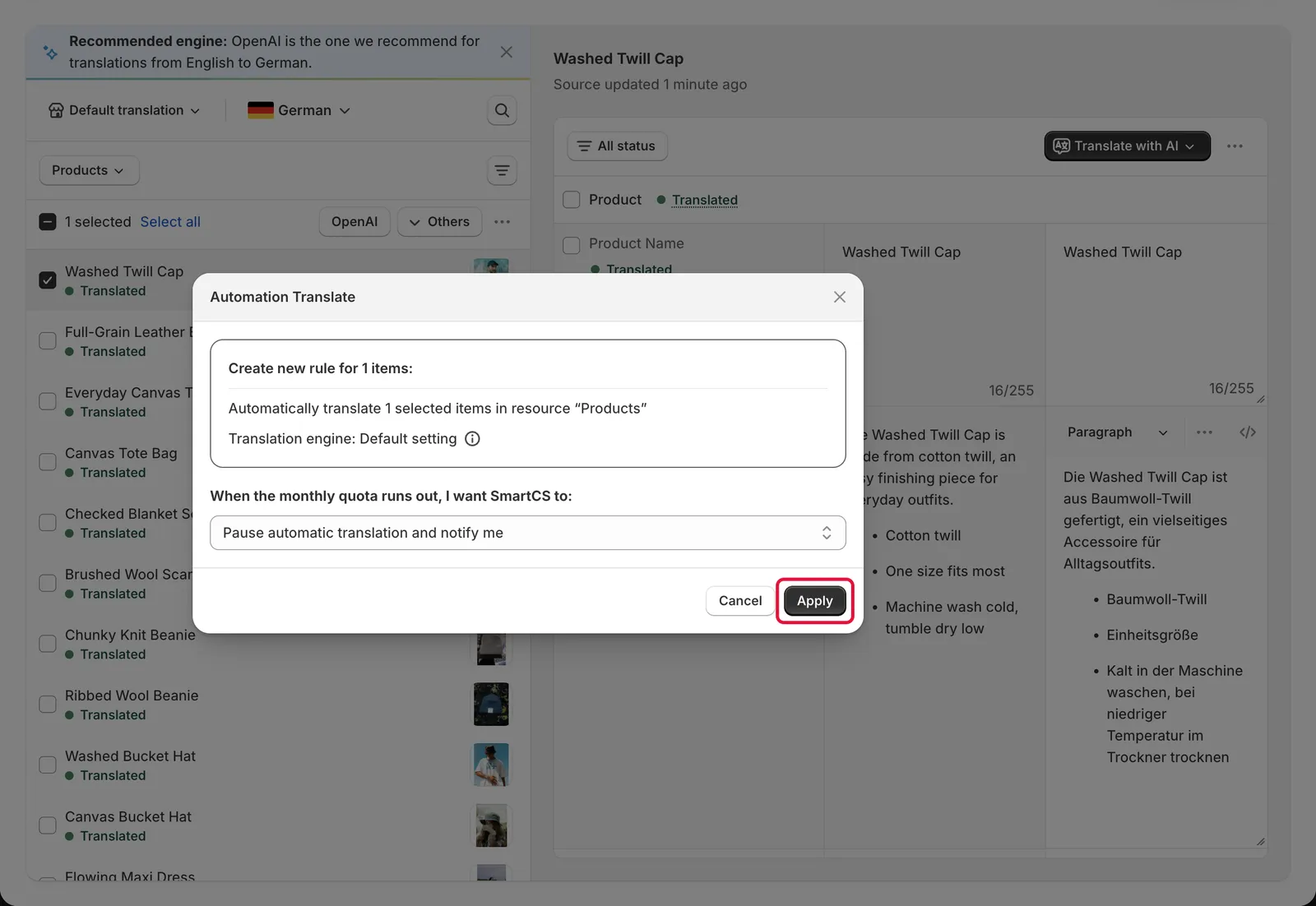
On a resource page, tick items, click the more actions button and choose 自動翻譯. A dialog creates one rule for the ticked items with the default engines. Click 套用 to save it.
If your plan has no automation
If your store cannot create rules yet, the page shows "您的商店尚未開啟自動化規則。", 建立您的第一條自動化規則 stays off, and 聯絡我們 asks for it.
Read the rules table
Each rule has a switch and a status: 啟用, 關閉, 已暫停 or 未執行. A paused rule says why, for example 已達到自動化專案上限. The line above the table shows how many items count against your limit.
When items wait, a banner says that automatic translation is paused. Items translate when there is room again. See Task progress for the runs.
Good to know
- Deleting a rule keeps the translations it made.
- An item can be in one rule at a time. If an item is in another rule, the dialog offers to move it.
- Rules start runs in the background. Cancel or resume them in Task progress.
相關文章
Block elements from translation
Choose which fields are never translated, from SEO meta tags and URL handles to a single field in the editor, and remove a block later.
Pause automation or switch to the free engine
Choose what automatic translation does when your monthly quota runs out: pause, or keep going with the free engine.
最後更新:2026年11月18日