Automate translation with rules
Create rules that translate new and changed products, collections and other content automatically, and check each rule's status.
Use automation rules to translate store content when it changes in Shopify, without starting a run each time. A rule says which content, which markets and which engine.
Neem contact met ons op om dit in te schakelenRules translate what changes while they are on. Translations written by people are never replaced.
What your plan allows
The number of items that rules can automate depends on the resource.
Producten:
Free-abonnement: 0Collecties:
Free-abonnement: 0Andere resource:
Free-abonnement: 0Before you start
- Turn on automatic updates for the language and resource you want. A rule only translates languages that have them on. See Automatic updates per language.
- Choose what happens when your quota runs out. See Pause automation or switch to the free engine.
Steps
Open the rules page
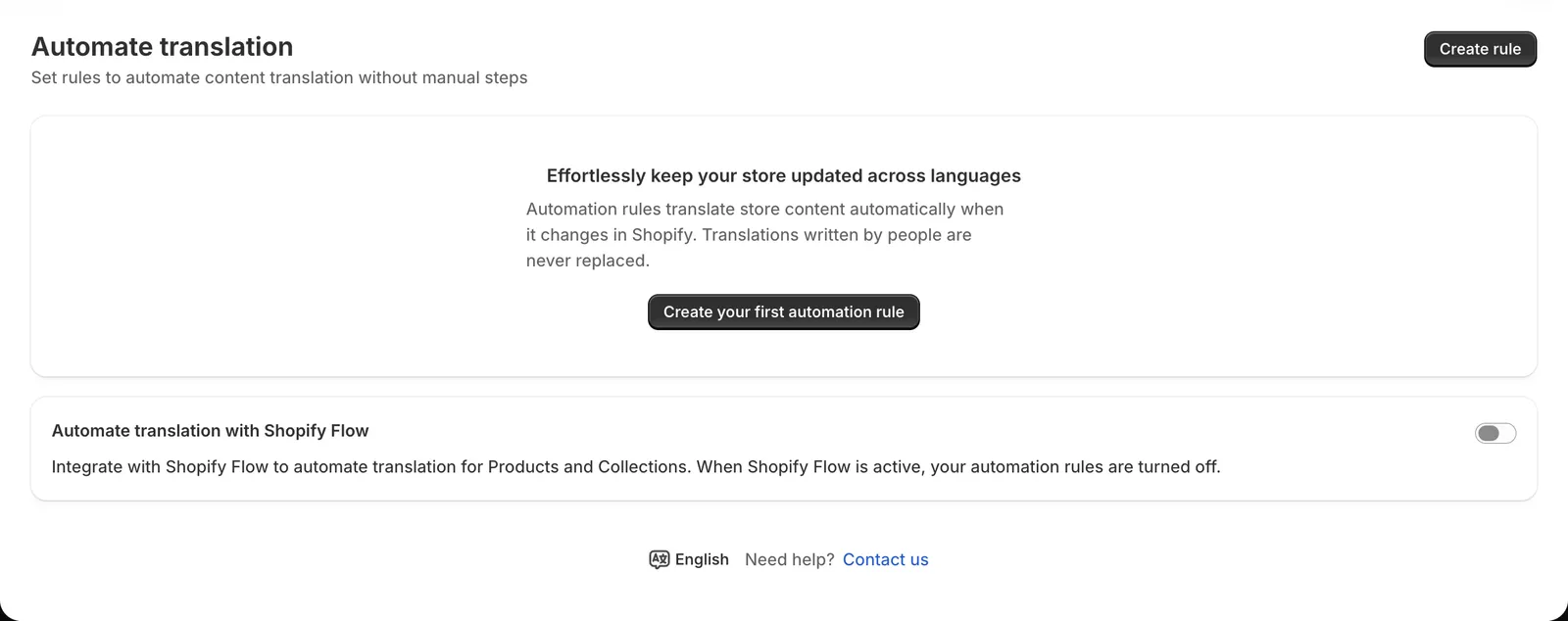
In SmartCS, open Contentvertaling. In the Geavanceerd list, click Vertaalautomatisering. The page is called Vertaling automatiseren.
Create a rule
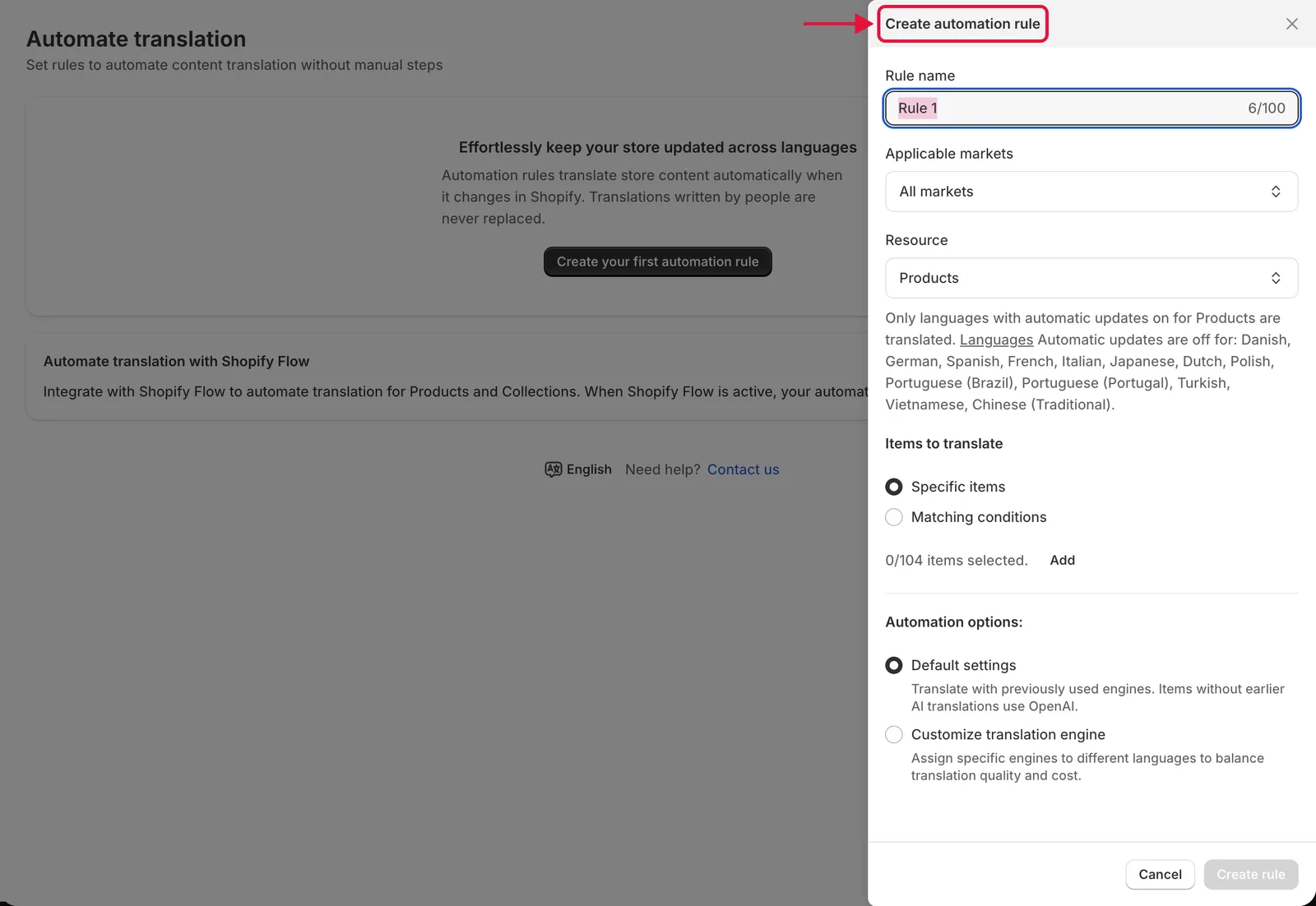
Click Regel maken. On a new page, click Maak je eerste automatiseringsregel. The Automatiseringsregel maken panel opens.
Name the rule and pick markets
Enter a Regelnaam. In Toepasselijke markten, keep Alle markten or choose some. Choosing a market also selects Standaardvertaling.
Choose the resource
Open Resource and pick one resource, such as Producten or Collecties. Resources your plan does not include are grey.
Choose the items
Under Te vertalen items, choose one option:
- Specifieke items: click Toevoegen and tick the items.
- Overeenkomende voorwaarden: for products only. Filter by status, category, tag or collection. Tick Toekomstige items die aan deze voorwaarden voldoen meenemen to include new items later.
Choose the engine
Under Automatiseringsopties: choose Standaardinstellingen to use the engines you used before. Choose Vertaalengine aanpassen to give each group of languages its own engine.
Save the rule
Click Regel maken. The toast says Regel gemaakt.
Automate items from a list
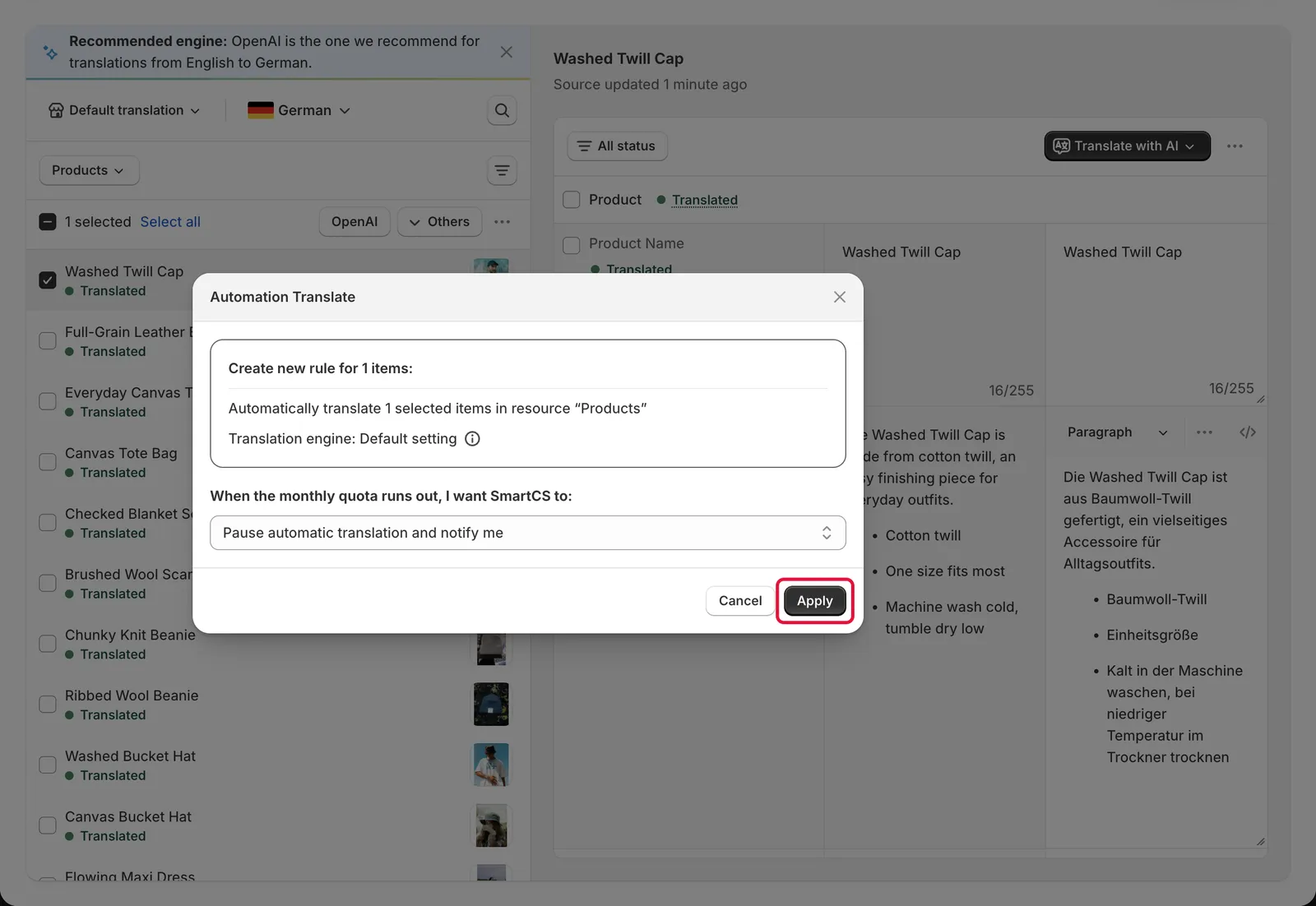
On a resource page, tick items, click the more actions button and choose Vertaling automatiseren. A dialog creates one rule for the ticked items with the default engines. Click Toepassen to save it.
If your plan has no automation
If your store cannot create rules yet, the page shows "Automatiseringsregels staan voor jouw winkel nog niet aan.", Maak je eerste automatiseringsregel stays off, and Neem contact met ons op asks for it.
Read the rules table
Each rule has a switch and a status: Actief, Uit, Onderbroken or Niet actief. A paused rule says why, for example Limiet voor geautomatiseerde items bereikt. The line above the table shows how many items count against your limit.
When items wait, a banner says that automatic translation is paused. Items translate when there is room again. See Task progress for the runs.
Good to know
- Deleting a rule keeps the translations it made.
- An item can be in one rule at a time. If an item is in another rule, the dialog offers to move it.
- Rules start runs in the background. Cancel or resume them in Task progress.
Gerelateerde artikelen
Block elements from translation
Choose which fields are never translated, from SEO meta tags and URL handles to a single field in the editor, and remove a block later.
Pause automation or switch to the free engine
Choose what automatic translation does when your monthly quota runs out: pause, or keep going with the free engine.
Laatst bijgewerkt: 18 november 2026