Sync settings: scheduled or real-time
Choose when SmartCS reads changed content from Shopify: at set times or in real time for products and collections, and which content types the schedule covers.
Use 同步設定 to choose when SmartCS reads new and changed content from Shopify. You can sync at times you set, or in real time for products and collections.
請聯絡我們以啟用此功能You can always sync by hand from 內容翻譯. See Sync content from Shopify and resolve conflicts.
Before you start
A scheduled sync needs time slots. Until your store has at least one, the whole card on this page is greyed out. Time slots on each plan:
Free 方案:0Steps
Open Sync settings
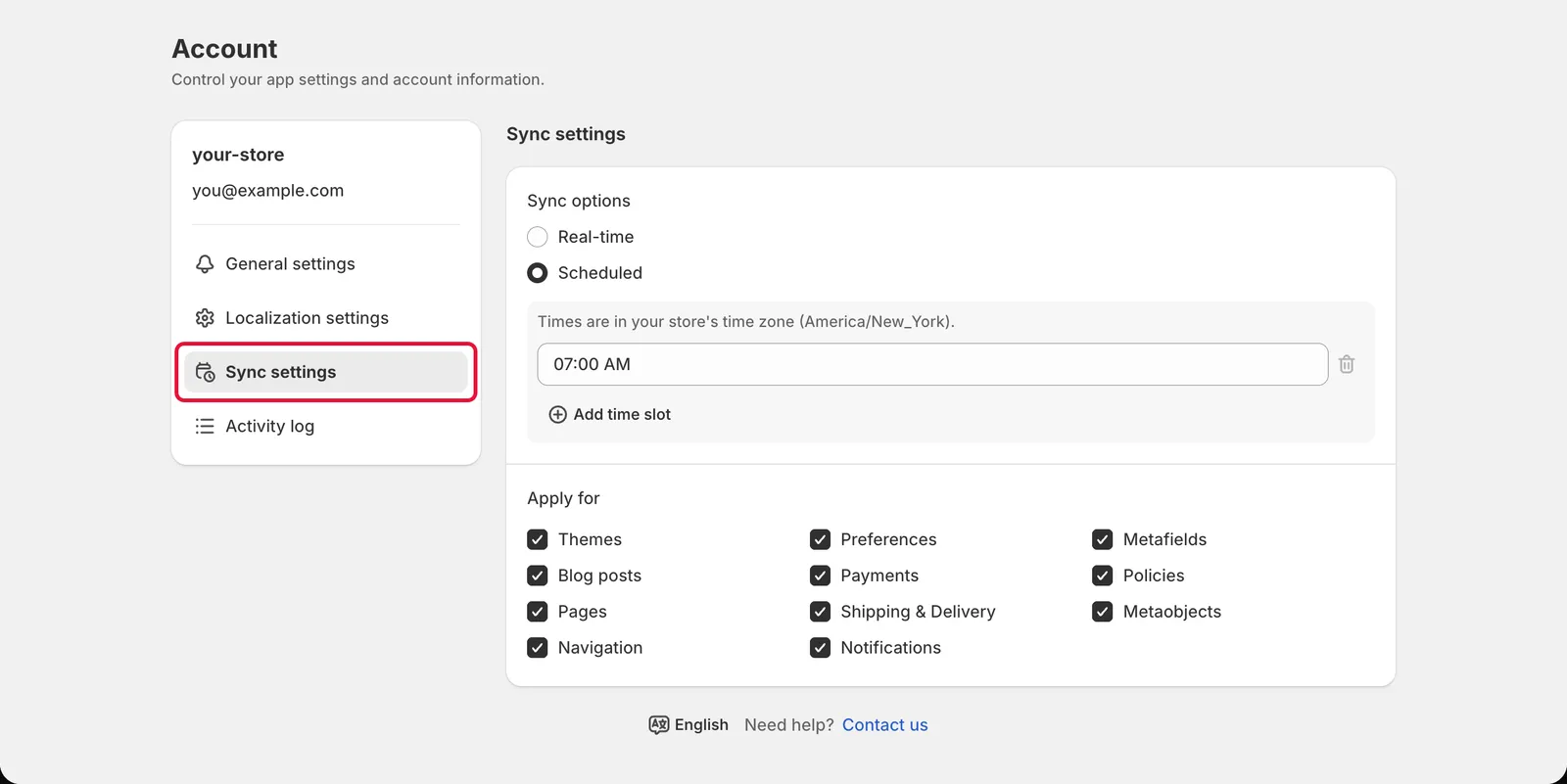
In SmartCS, open 帳戶與設定. In the 帳戶分割槽 menu, click 同步設定. This page has no Save button. Each change is saved after a short pause, and the page shows 設定已儲存.
Choose Scheduled or Real-time
Under 同步選項, choose 定時 or 即時.
請聯絡我們以啟用此功能Real-time covers products and collections: changes in Shopify are sent to SmartCS as they happen. It needs the permission to read products. If your store has not approved that permission yet, products and collections sync on the schedule. The other content types always sync at your times.
Set the times
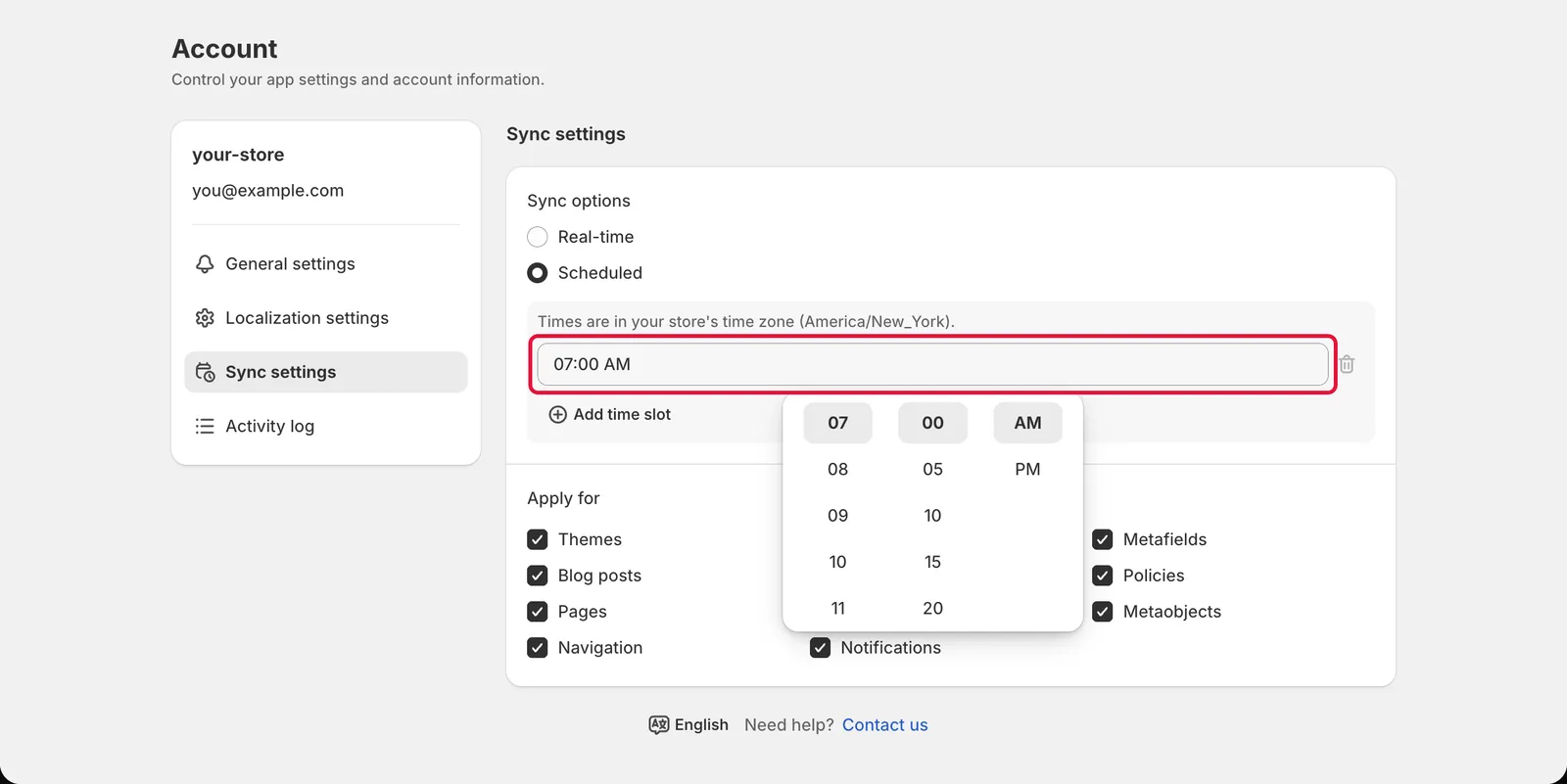
In the grey box, click a time to open the picker. Choose the hour, the minutes and AM or PM. Click 新增時段 to add a slot, or click the delete button next to a slot to remove it. The only slot cannot be deleted.
Choose what to sync
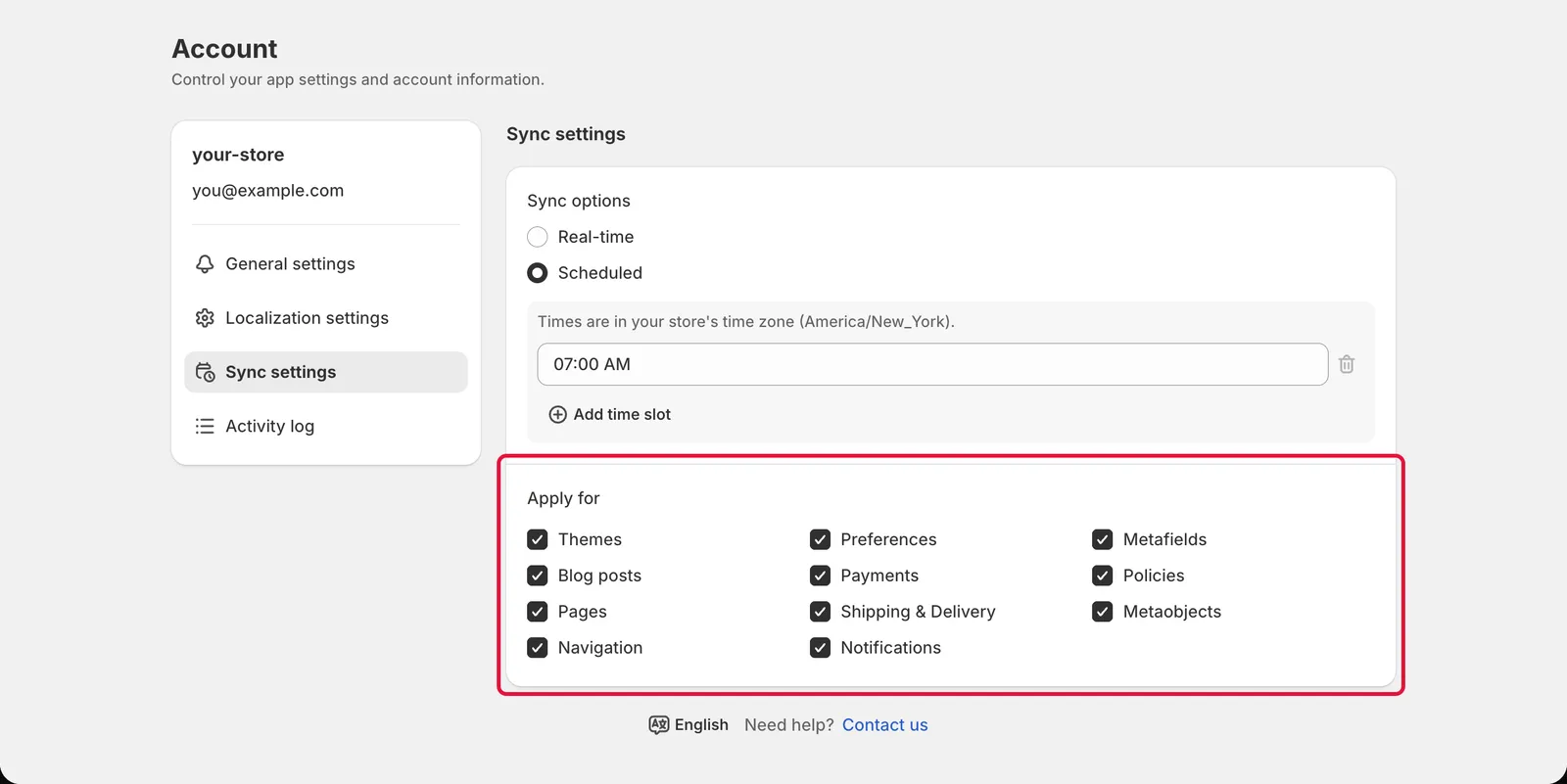
Under 適用於, tick the content types that the schedule updates: 佈景主題, 偏好設定, 元欄位, 部落格文章, 支付, 政策, 頁面, 配送, 元物件, 導覽 and 通知. All of them are ticked by default.
Good to know
- Times are in your store's time zone. A new schedule starts with one slot at 07:00 AM.
- Minutes go in steps of 5. Two slots must be at least 1 hour apart. The page shows 請將時段設定為至少間隔 1 小時。 when they are not, and it does not save the list.
- A content type that you untick updates only when you sync by hand. Products and collections are not in this list. They follow 定時 or 即時.
- Keep at least one content type ticked. If you untick them all, the page asks you to select one and saves nothing until you do.
- If your plan has fewer slots than you saved, for example after a plan change, the extra slots stay in the list but do not run. You can delete them.
- If a change cannot be saved, a banner says so and the page goes back to the last saved settings.
注意
In real-time mode the times still apply. They drive the content types under 適用於.
相關文章
Localization settings: engines, own API key, tone
Set the tone of each translation engine, use your own API key, choose what automation does when your quota runs out, and pick the converted price format.
General settings: app language
Change the language of the SmartCS screens in your Shopify admin. The choice is saved for your store and does not change what shoppers see.
最後更新:2026年11月18日