Sync settings: scheduled or real-time
Choose when SmartCS reads changed content from Shopify: at set times or in real time for products and collections, and which content types the schedule covers.
Use Configuración de sincronización to choose when SmartCS reads new and changed content from Shopify. You can sync at times you set, or in real time for products and collections.
Contáctenos para activar esta funciónYou can always sync by hand from Traducción de contenido. See Sync content from Shopify and resolve conflicts.
Before you start
A scheduled sync needs time slots. Until your store has at least one, the whole card on this page is greyed out. Time slots on each plan:
Plan Free: 0Steps
Open Sync settings
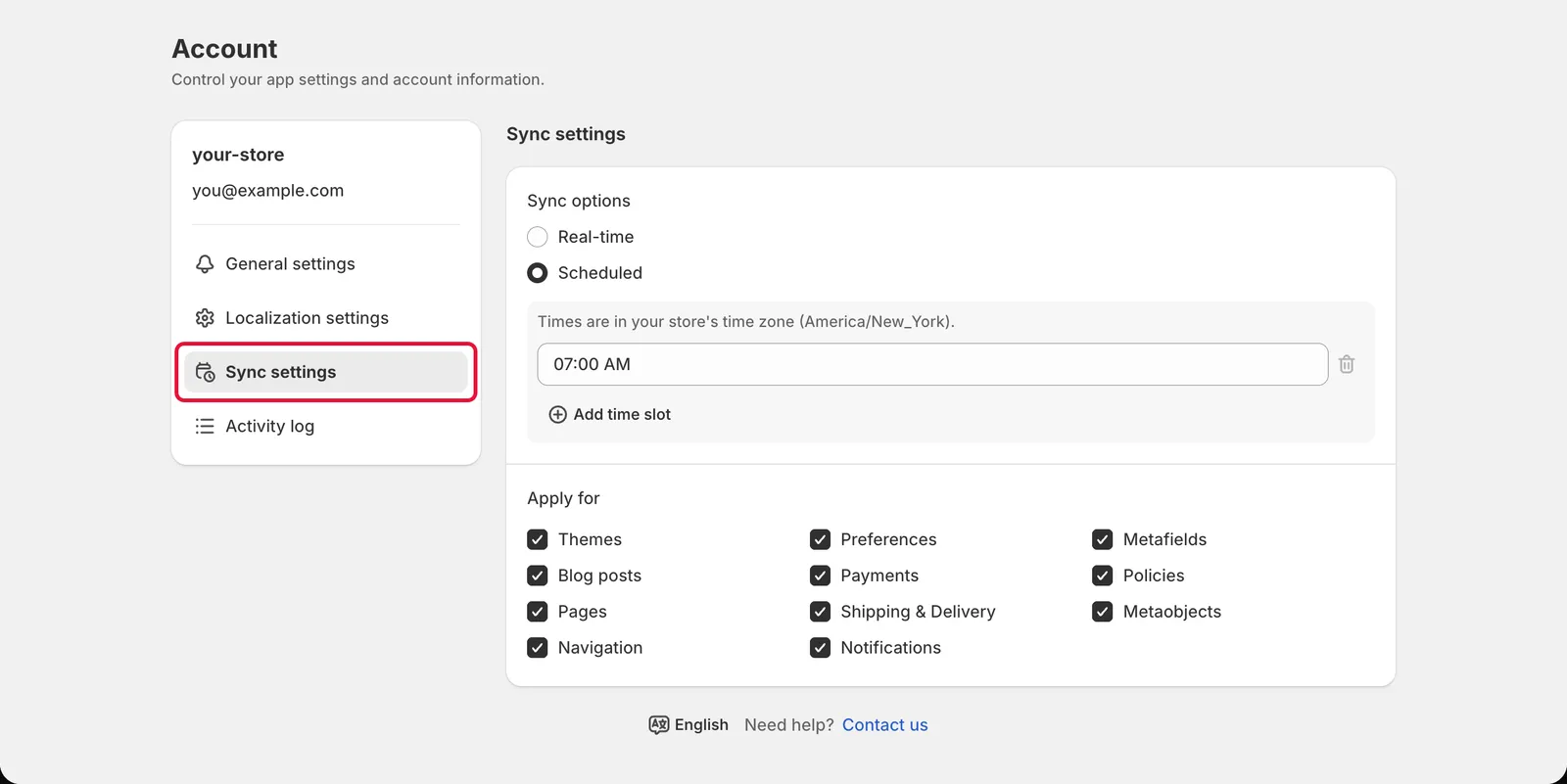
In SmartCS, open Cuenta y configuración. In the Secciones de la cuenta menu, click Configuración de sincronización. This page has no Save button. Each change is saved after a short pause, and the page shows Configuración guardada.
Choose Scheduled or Real-time
Under Opciones de sincronización, choose Programada or En tiempo real.
Contáctenos para activar esta funciónReal-time covers products and collections: changes in Shopify are sent to SmartCS as they happen. It needs the permission to read products. If your store has not approved that permission yet, products and collections sync on the schedule. The other content types always sync at your times.
Set the times
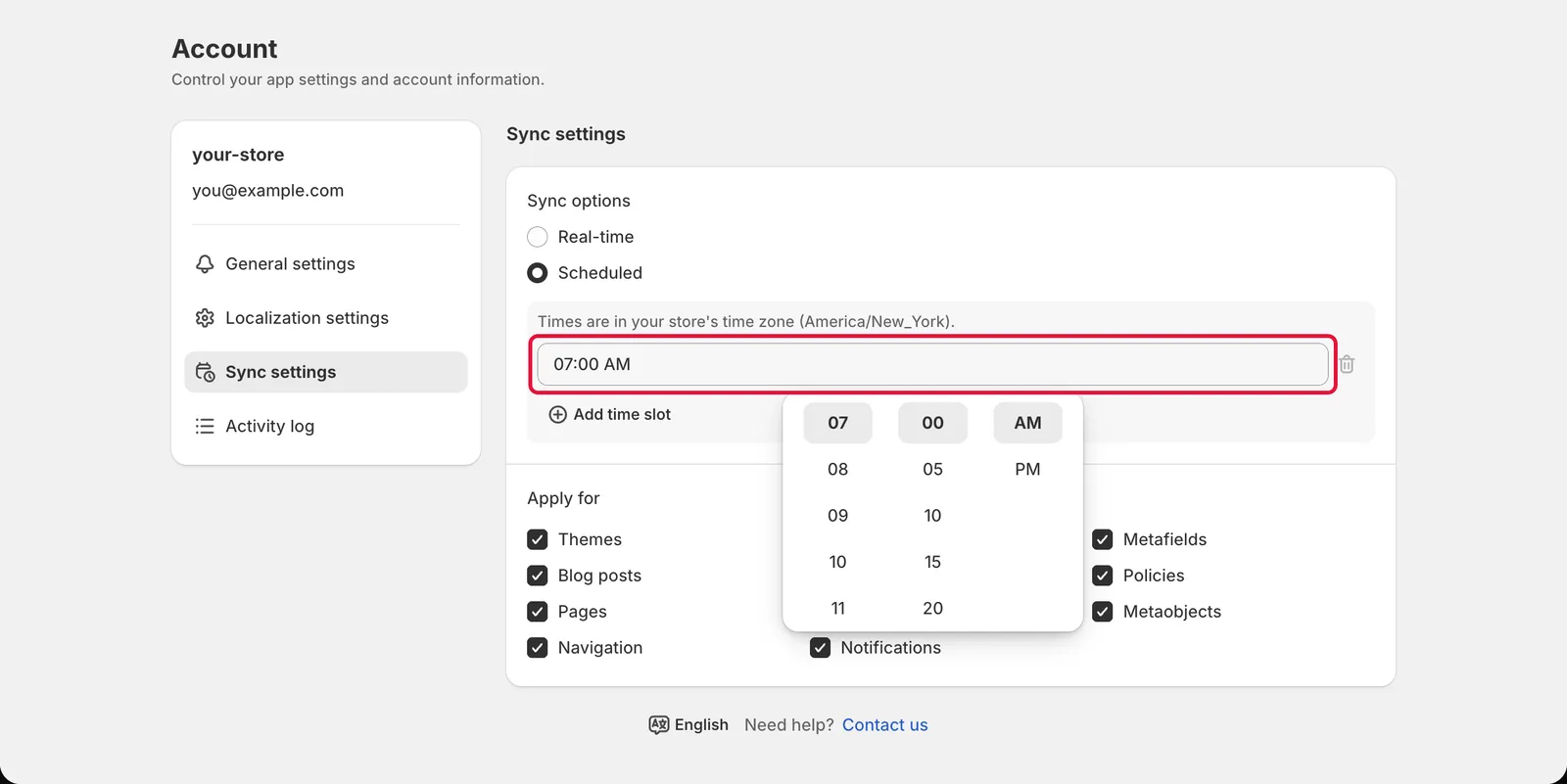
In the grey box, click a time to open the picker. Choose the hour, the minutes and AM or PM. Click Añadir franja horaria to add a slot, or click the delete button next to a slot to remove it. The only slot cannot be deleted.
Choose what to sync
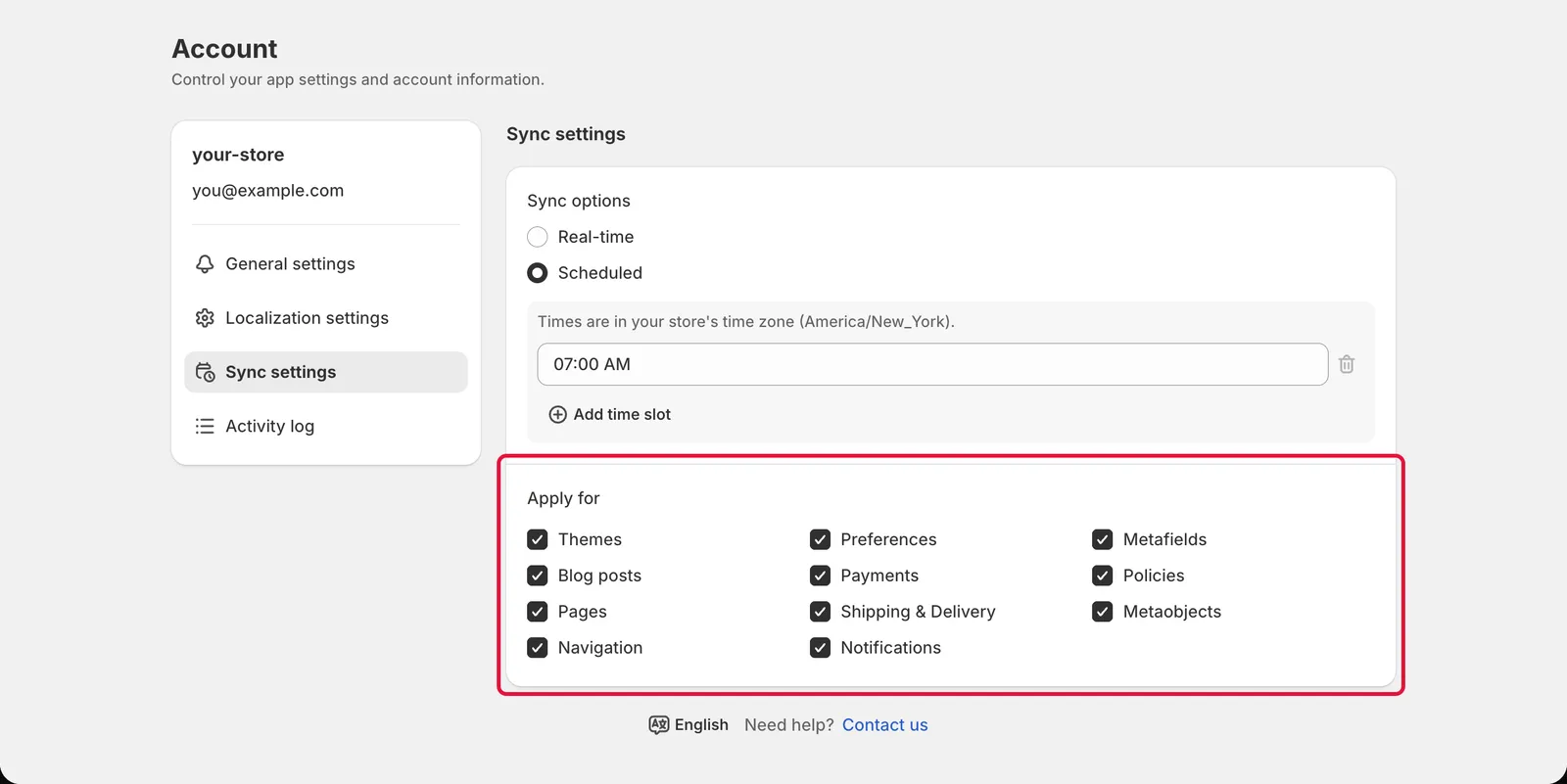
Under Aplicar a, tick the content types that the schedule updates: Temas, Preferencias, Metacampos, Entradas del blog, Pagos, Políticas, Páginas, Envío y entrega, Metaobjetos, Navegación and Notificaciones. All of them are ticked by default.
Good to know
- Times are in your store's time zone. A new schedule starts with one slot at 07:00 AM.
- Minutes go in steps of 5. Two slots must be at least 1 hour apart. The page shows Establece franjas horarias separadas al menos 1 hora when they are not, and it does not save the list.
- A content type that you untick updates only when you sync by hand. Products and collections are not in this list. They follow Programada or En tiempo real.
- Keep at least one content type ticked. If you untick them all, the page asks you to select one and saves nothing until you do.
- If your plan has fewer slots than you saved, for example after a plan change, the extra slots stay in the list but do not run. You can delete them.
- If a change cannot be saved, a banner says so and the page goes back to the last saved settings.
Nota
In real-time mode the times still apply. They drive the content types under Aplicar a.
Artículos relacionados
Localization settings: engines, own API key, tone
Set the tone of each translation engine, use your own API key, choose what automation does when your quota runs out, and pick the converted price format.
General settings: app language
Change the language of the SmartCS screens in your Shopify admin. The choice is saved for your store and does not change what shoppers see.
Última actualización: 18 de noviembre de 2026