Sync settings: scheduled or real-time
Choose when SmartCS reads changed content from Shopify: at set times or in real time for products and collections, and which content types the schedule covers.
Use 동기화 설정 to choose when SmartCS reads new and changed content from Shopify. You can sync at times you set, or in real time for products and collections.
이 기능은 문의하시면 켜 드립니다You can always sync by hand from 콘텐츠 번역. See Sync content from Shopify and resolve conflicts.
Before you start
A scheduled sync needs time slots. Until your store has at least one, the whole card on this page is greyed out. Time slots on each plan:
Free 요금제: 0Steps
Open Sync settings
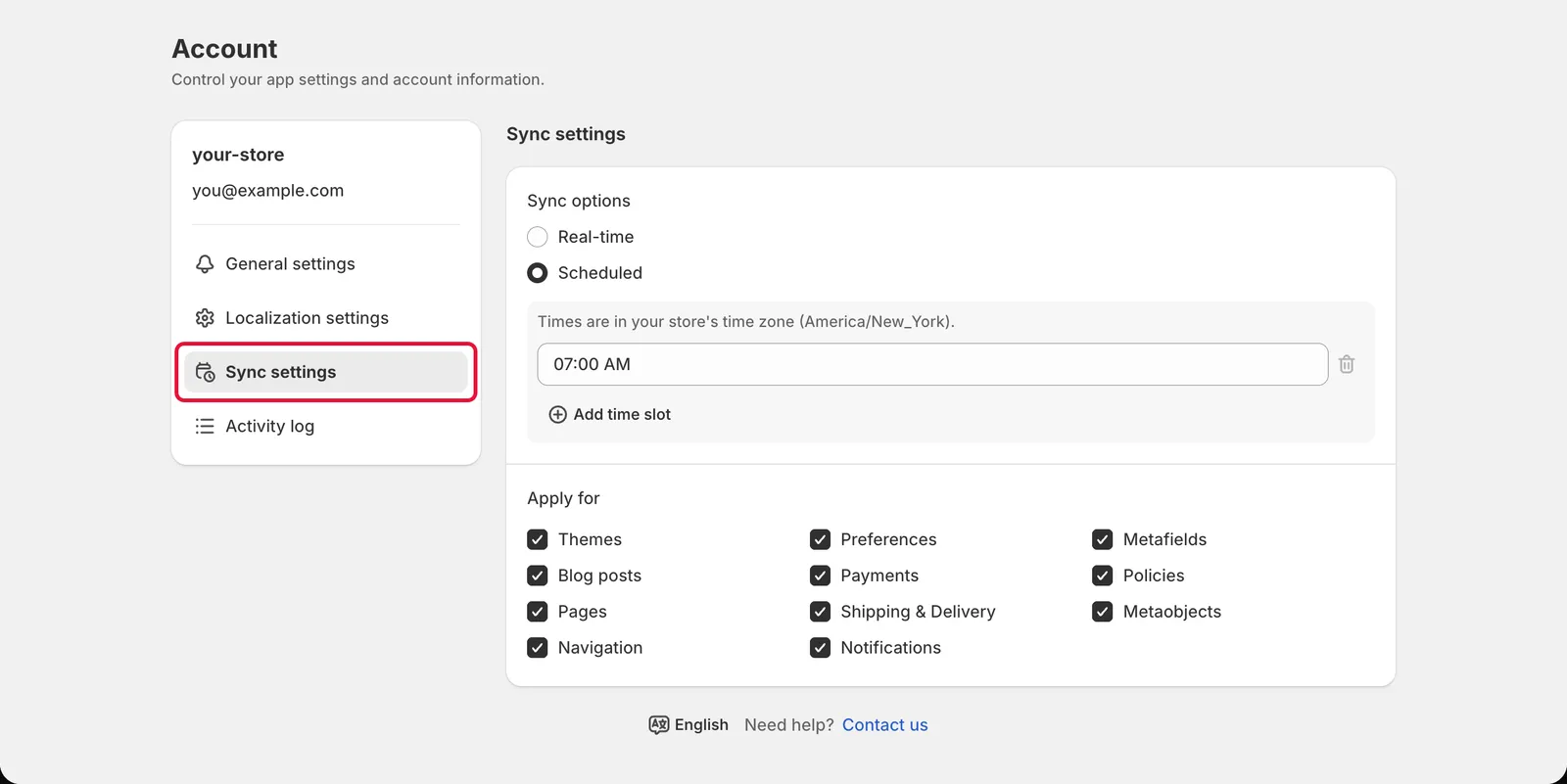
In SmartCS, open 계정 및 설정. In the 계정 섹션 menu, click 동기화 설정. This page has no Save button. Each change is saved after a short pause, and the page shows 설정이 저장되었습니다.
Choose Scheduled or Real-time
Under 동기화 옵션, choose 예약 or 실시간.
이 기능은 문의하시면 켜 드립니다Real-time covers products and collections: changes in Shopify are sent to SmartCS as they happen. It needs the permission to read products. If your store has not approved that permission yet, products and collections sync on the schedule. The other content types always sync at your times.
Set the times
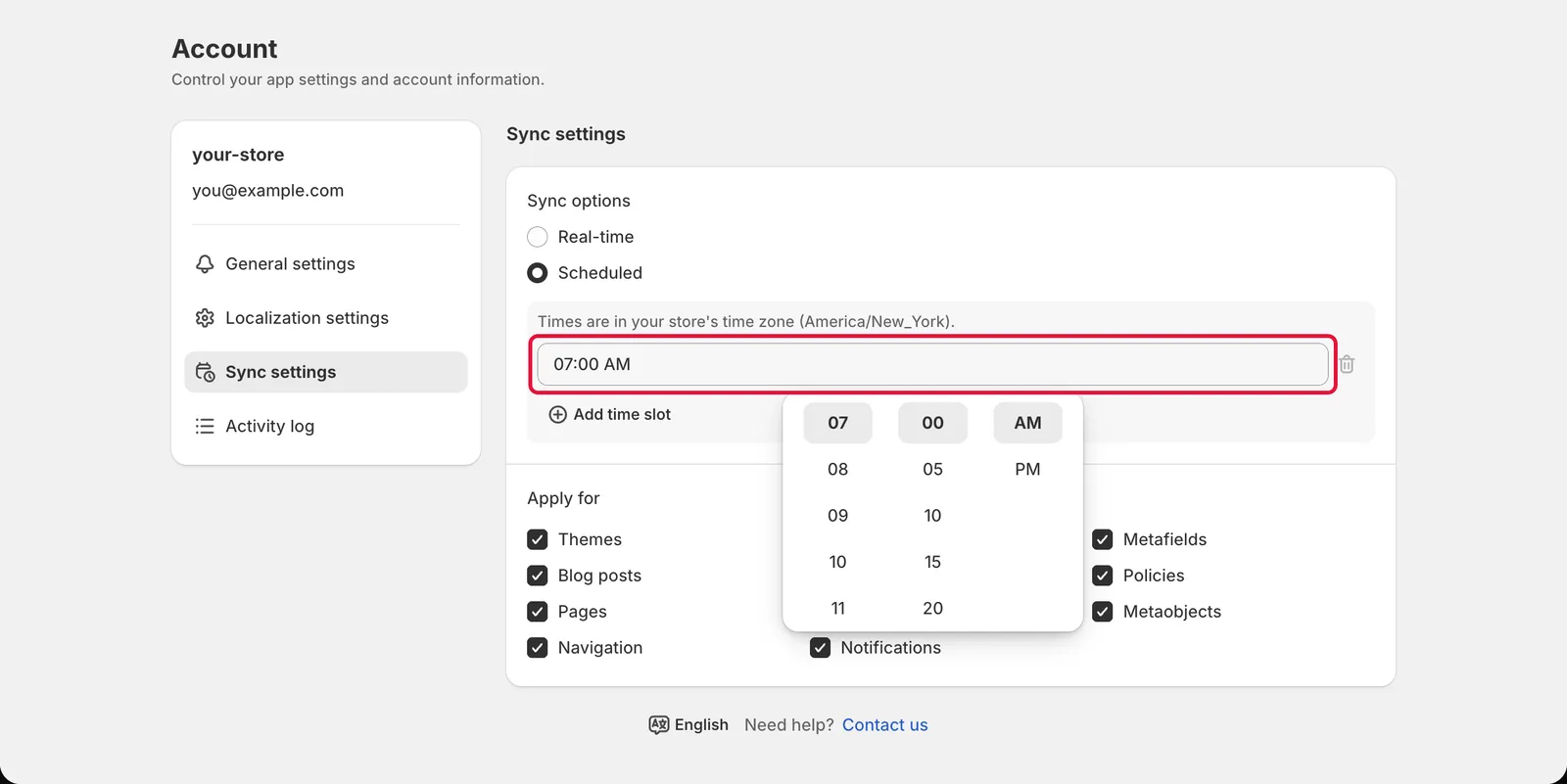
In the grey box, click a time to open the picker. Choose the hour, the minutes and AM or PM. Click 시간대 추가 to add a slot, or click the delete button next to a slot to remove it. The only slot cannot be deleted.
Choose what to sync
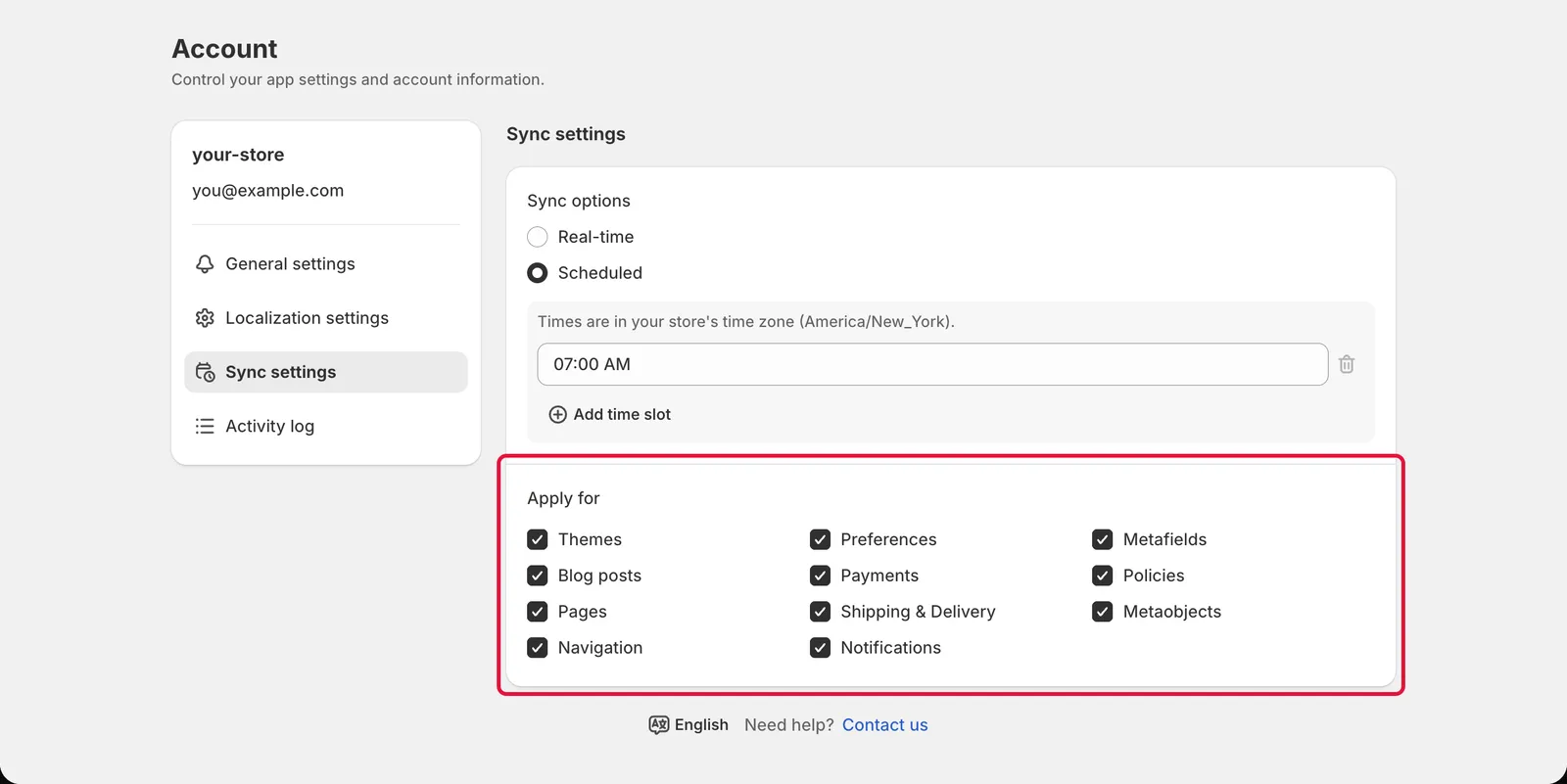
Under 적용 대상, tick the content types that the schedule updates: 테마, 환경설정, 메타필드, 블로그 게시물, 결제, 정책, 페이지, 배송 및 배달, 메타오브젝트, 내비게이션 and 알림. All of them are ticked by default.
Good to know
- Times are in your store's time zone. A new schedule starts with one slot at 07:00 AM.
- Minutes go in steps of 5. Two slots must be at least 1 hour apart. The page shows 시간대 간격을 1시간 이상으로 설정하세요 when they are not, and it does not save the list.
- A content type that you untick updates only when you sync by hand. Products and collections are not in this list. They follow 예약 or 실시간.
- Keep at least one content type ticked. If you untick them all, the page asks you to select one and saves nothing until you do.
- If your plan has fewer slots than you saved, for example after a plan change, the extra slots stay in the list but do not run. You can delete them.
- If a change cannot be saved, a banner says so and the page goes back to the last saved settings.
참고
In real-time mode the times still apply. They drive the content types under 적용 대상.
관련 문서
Localization settings: engines, own API key, tone
Set the tone of each translation engine, use your own API key, choose what automation does when your quota runs out, and pick the converted price format.
General settings: app language
Change the language of the SmartCS screens in your Shopify admin. The choice is saved for your store and does not change what shoppers see.
최종 업데이트: 2026년 11월 18일