Localization settings: engines, own API key, tone
Set the tone of each translation engine, use your own API key, choose what automation does when your quota runs out, and pick the converted price format.
Use 本地化設定 to set how each translation engine writes, what automatic translation does when your quota runs out, and how converted prices look in your store.
The page has three cards. One save bar saves all of them.
Steps
Open Localization settings
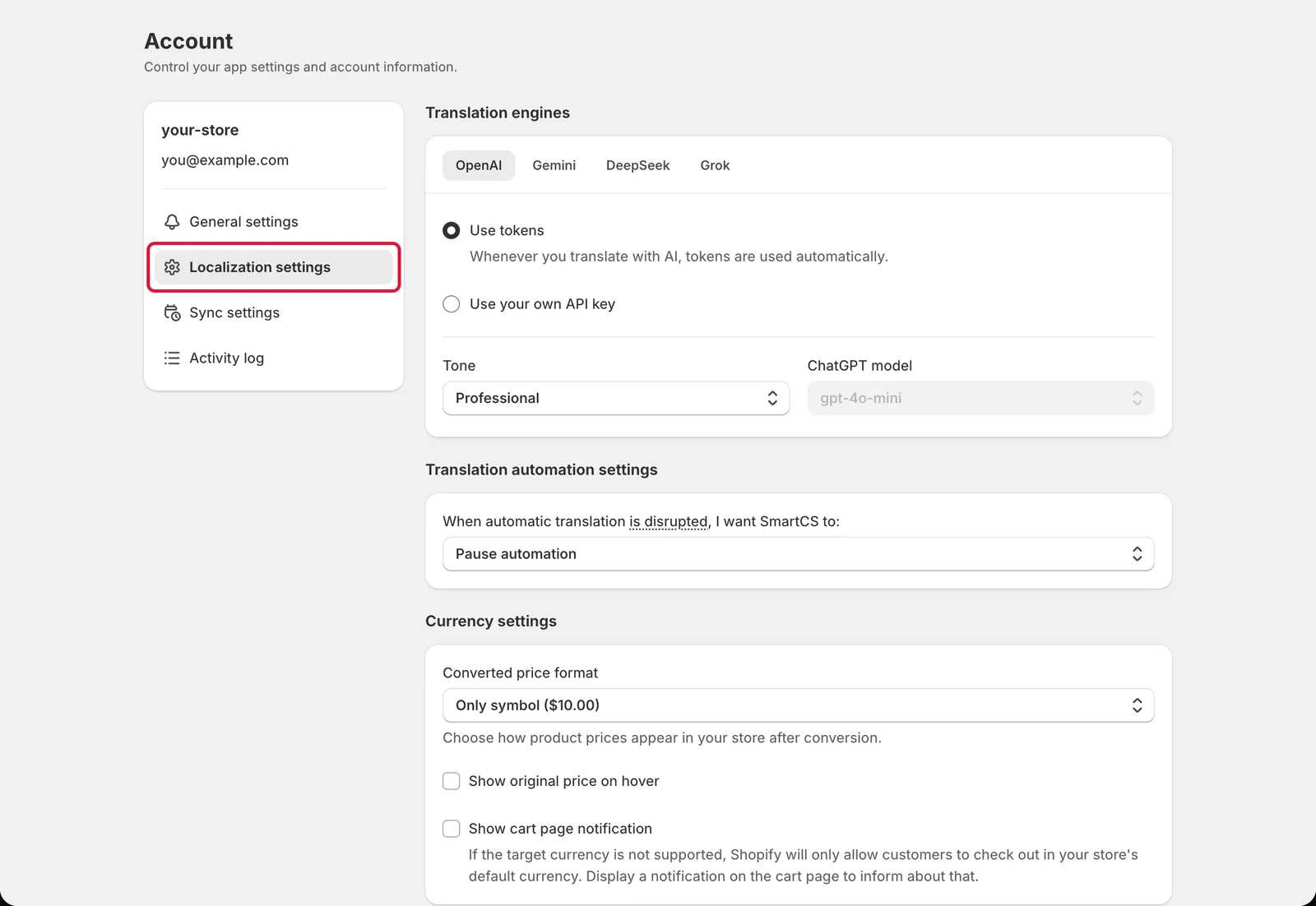
In SmartCS, open 帳戶與設定. In the 帳戶分割槽 menu, click 本地化設定. The cards are 翻譯引擎, 翻譯自動化設定 and 貨幣設定.
Set the tone
請聯絡我們以啟用此功能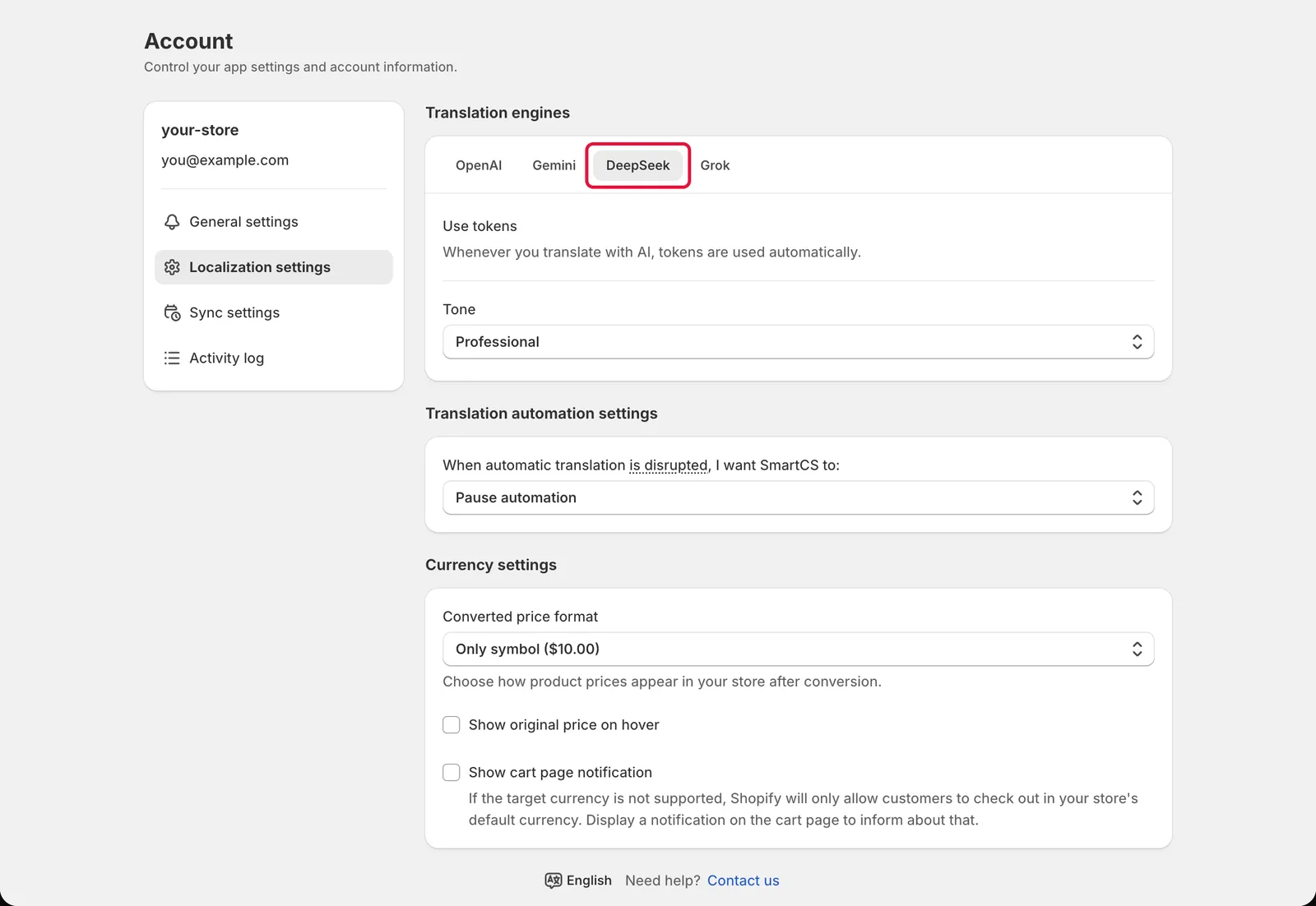
In 翻譯引擎, click the tab of an engine, such as DeepSeek. Open 語氣 and choose 專業, 隨性, 簡潔 or 創意. The tone is saved for that engine. See Translation engines for the engines SmartCS offers.
Use your own API key
請聯絡我們以啟用此功能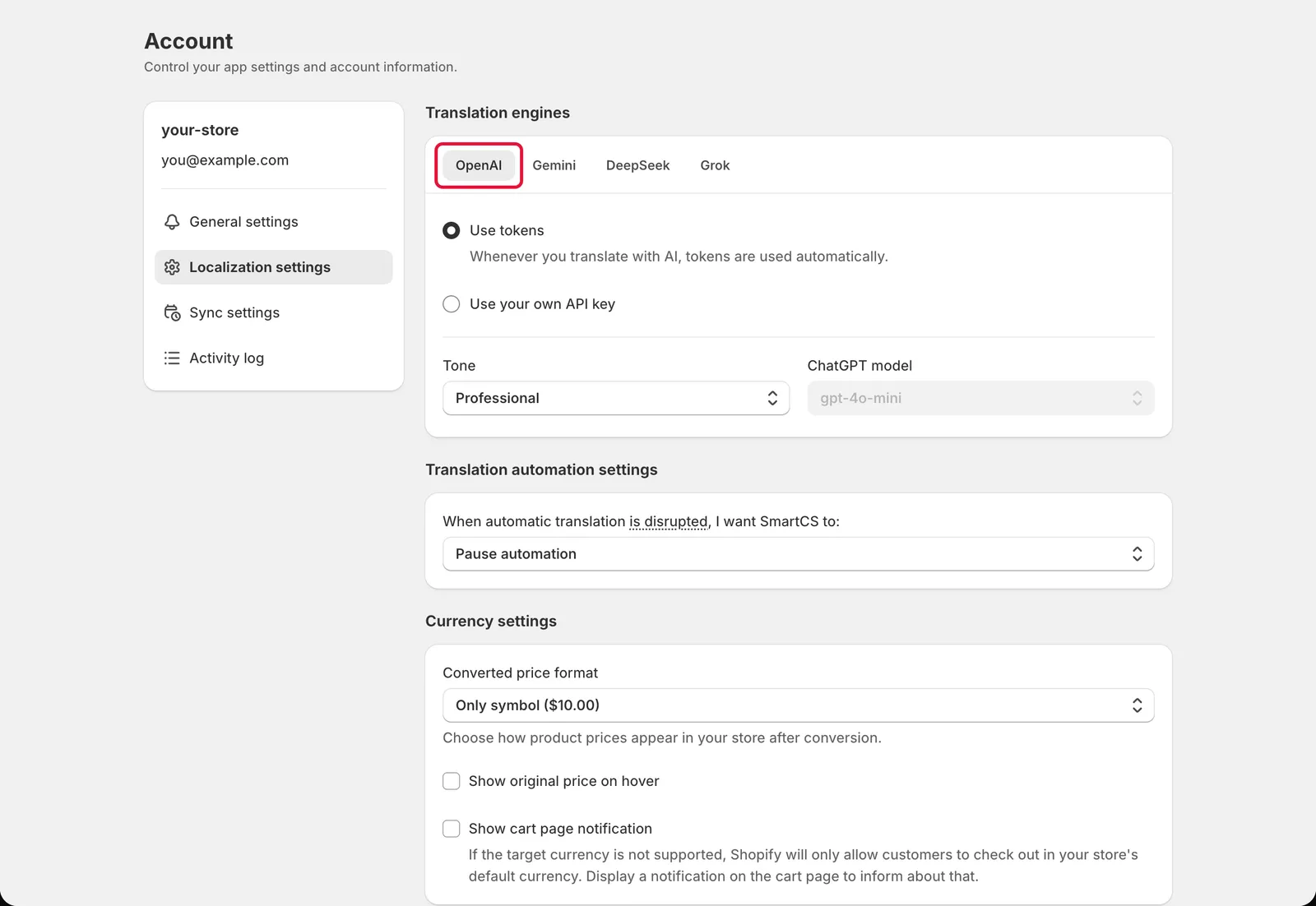
On the OpenAI or Gemini tab, choose 使用您自己的 API 金鑰. Paste your key in API 金鑰. Click 儲存 in the save bar. SmartCS checks the key with the provider before it saves anything. If the provider refuses the key, nothing is saved and the reason shows under the field.
Choose what automation does
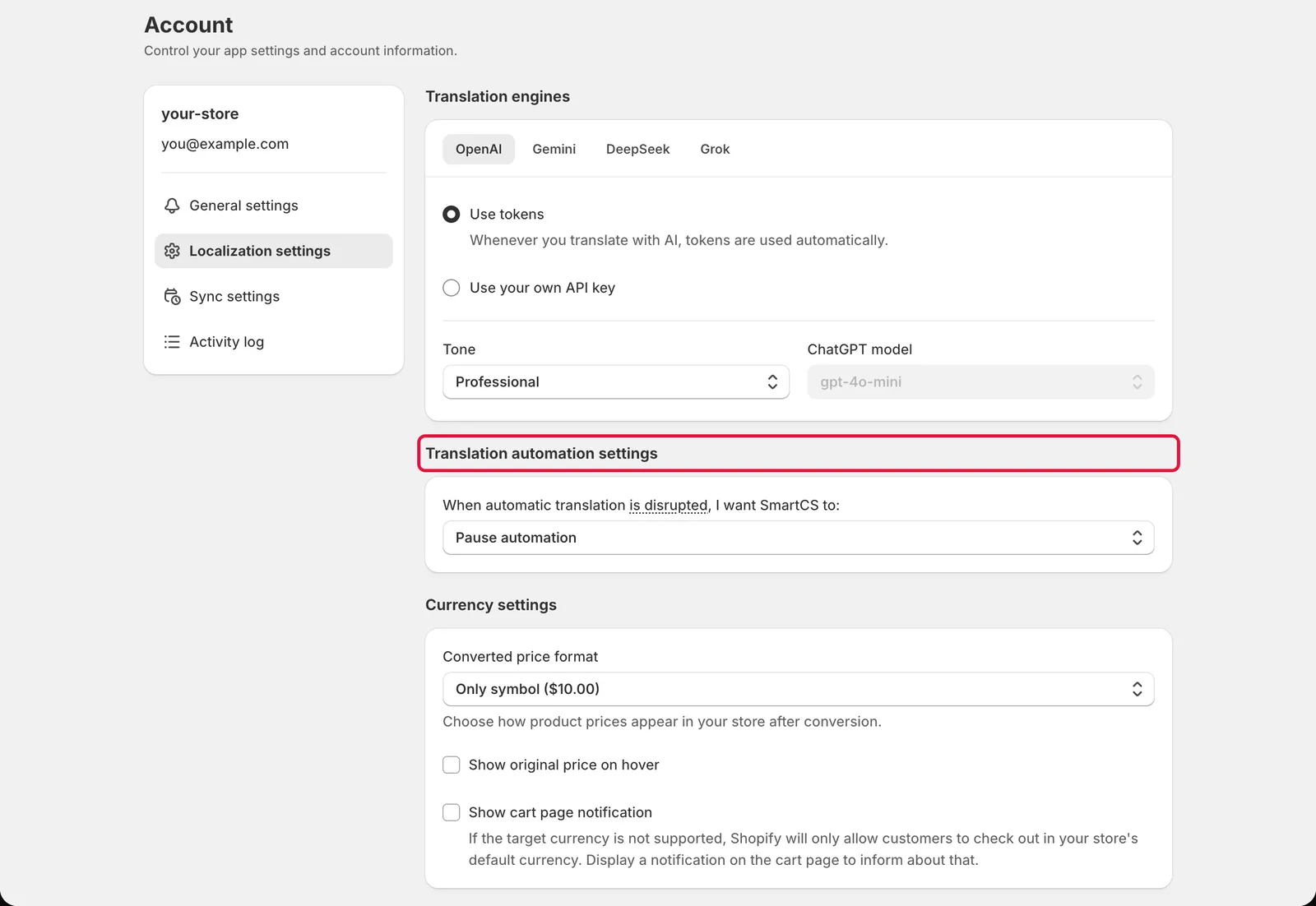
In 翻譯自動化設定, open the list that follows the sentence 當自動翻譯中斷時,我希望 SmartCS: Choose 暫停自動化 or 臨時切換到免費引擎. The second option appears only when the Free engine is available for your store. See Pause automation or switch to the free engine.
Set the price format
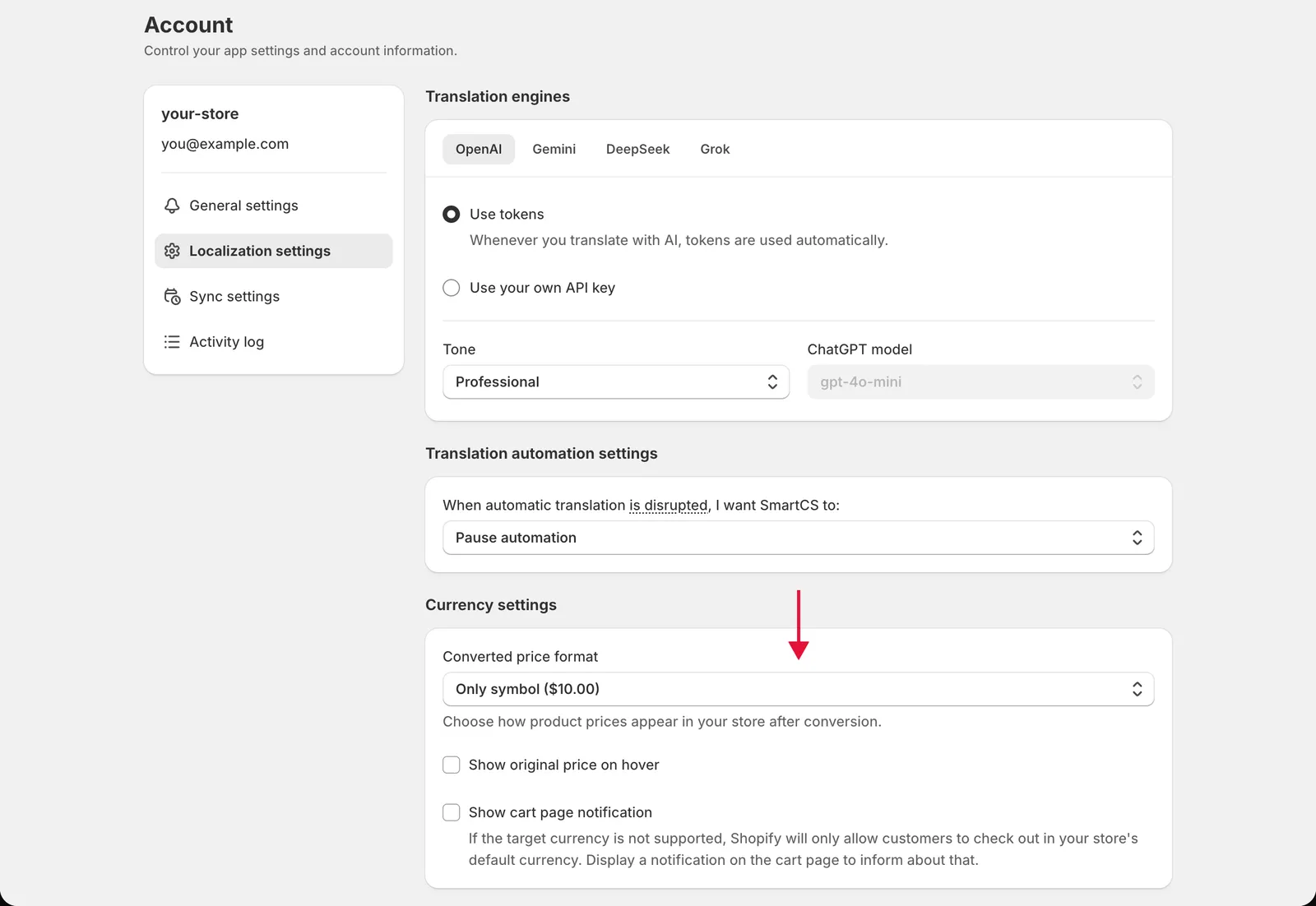
In 貨幣設定, open 換算後價格格式 and choose 僅符號($10.00) or 符號和程式碼($10.00 USD). Two checkboxes follow: 滑鼠懸停時顯示原價 and 顯示購物車頁面通知. When the cart notification is on, more fields let you change its wording and colors. See Currency format and Cart notification.
Save your changes
Click 儲存 in the save bar. The page shows 更改已儲存. Click 放棄 to go back to the saved values. While you have unsaved changes, the engine tabs and the 帳戶分割槽 menu are off.
Good to know
- Currency settings go live on your storefront when you save.
- A plan that does not include an engine or an own key shows that option locked, or does not show the tab.
- To check a saved key, click 檢查金鑰. To stop using it, click 移除金鑰 and confirm. These two buttons act at once, and they are off while the page has unsaved changes. Save or discard your changes first. After you remove a key, translations on that engine use tokens again.
- If a key stops working, a red banner at the top of the engine card says why, for example that the key is out of credit. Runs that use the key cannot start until it works again.
- If one card cannot be saved, the page shows 部分更改未儲存. It names the cards that failed. The other cards are saved.
- SmartCS deletes your saved keys when you uninstall the app.
相關文章
Wallet and SmartCS tokens
Check your token balance, see how AI translation uses tokens and read your token history in the SmartCS wallet.
Sync settings: scheduled or real-time
Choose when SmartCS reads changed content from Shopify: at set times or in real time for products and collections, and which content types the schedule covers.
最後更新:2026年11月18日