Localization settings: engines, own API key, tone
Set the tone of each translation engine, use your own API key, choose what automation does when your quota runs out, and pick the converted price format.
Use Impostazioni di localizzazione to set how each translation engine writes, what automatic translation does when your quota runs out, and how converted prices look in your store.
The page has three cards. One save bar saves all of them.
Steps
Open Localization settings
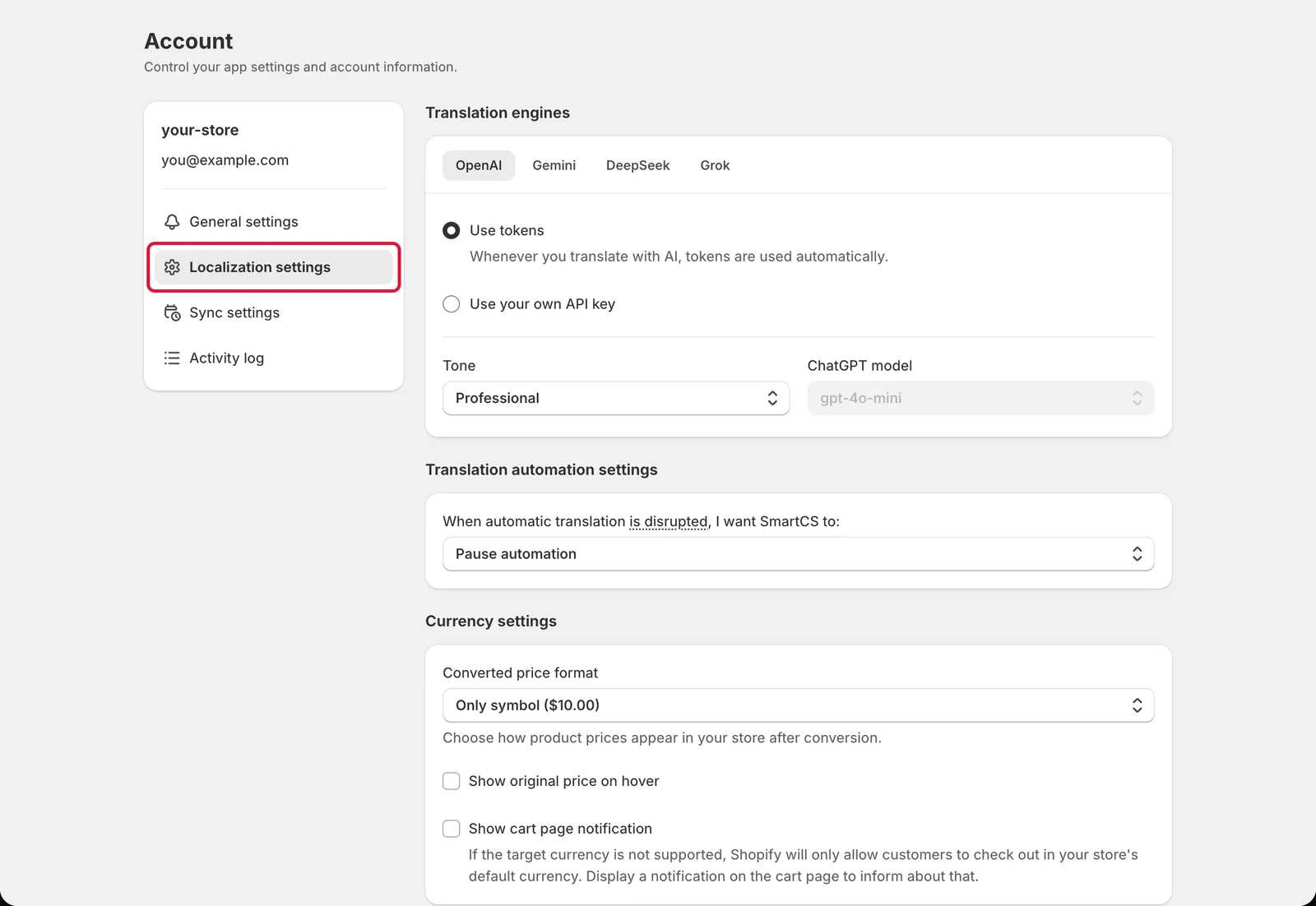
In SmartCS, open Account e impostazioni. In the Sezioni dell'account menu, click Impostazioni di localizzazione. The cards are Motori di traduzione, Impostazioni di automazione della traduzione and Impostazioni valuta.
Set the tone
Contattaci per attivare questa funzione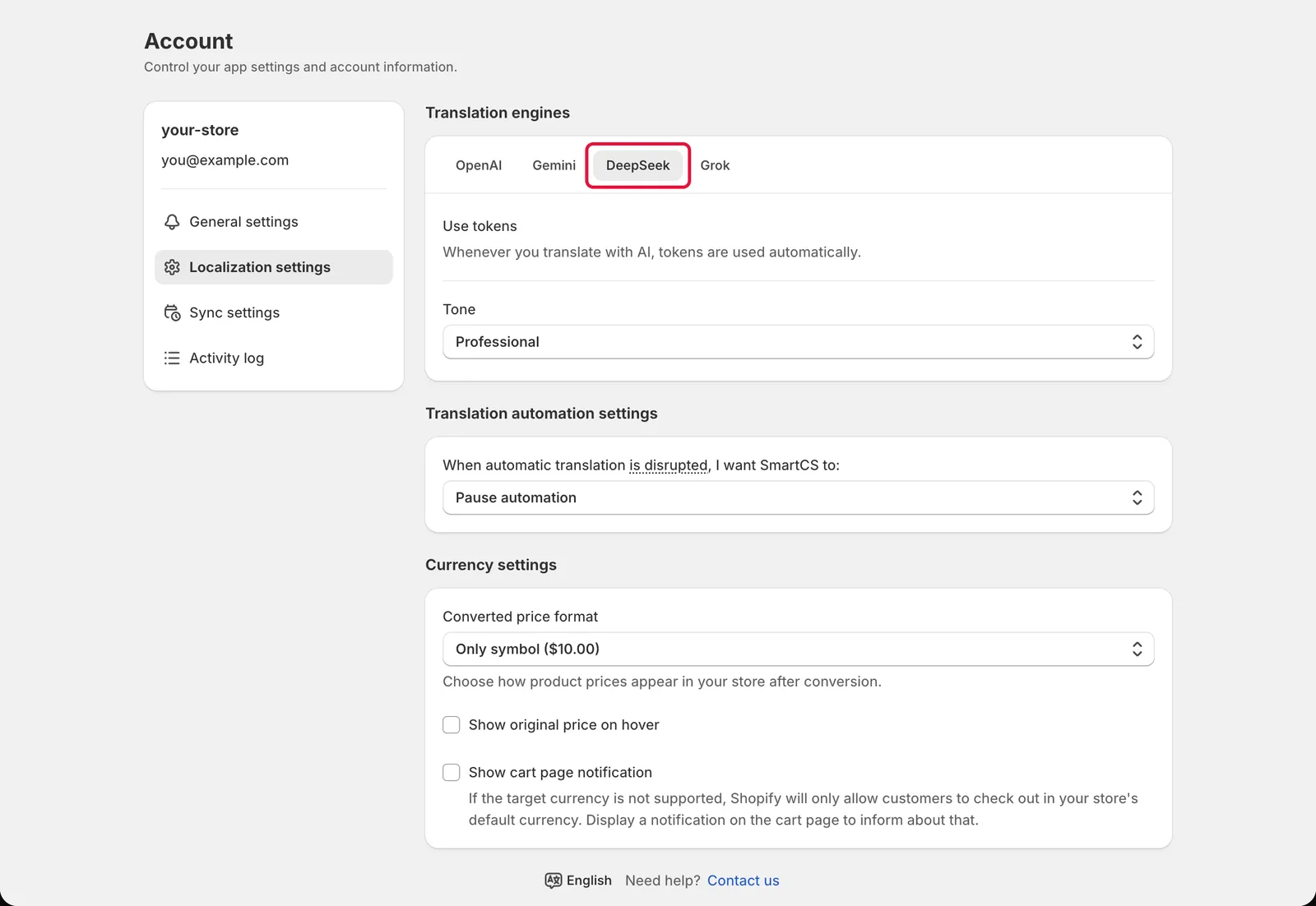
In Motori di traduzione, click the tab of an engine, such as DeepSeek. Open Tono and choose Professionale, Informale, Semplice or Creativo. The tone is saved for that engine. See Translation engines for the engines SmartCS offers.
Use your own API key
Contattaci per attivare questa funzione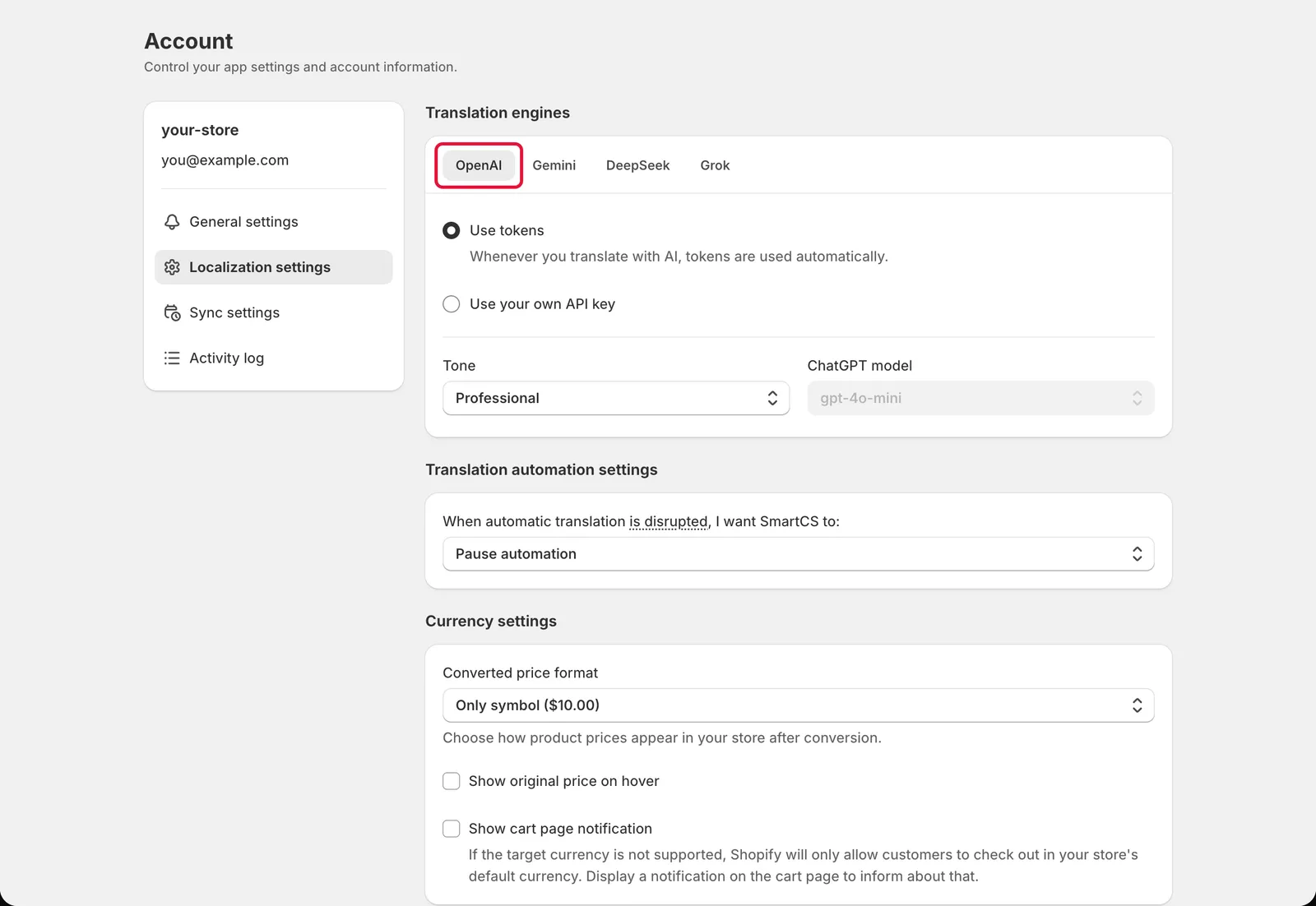
On the OpenAI or Gemini tab, choose Usa la tua chiave API. Paste your key in Chiave API. Click Salva in the save bar. SmartCS checks the key with the provider before it saves anything. If the provider refuses the key, nothing is saved and the reason shows under the field.
Choose what automation does
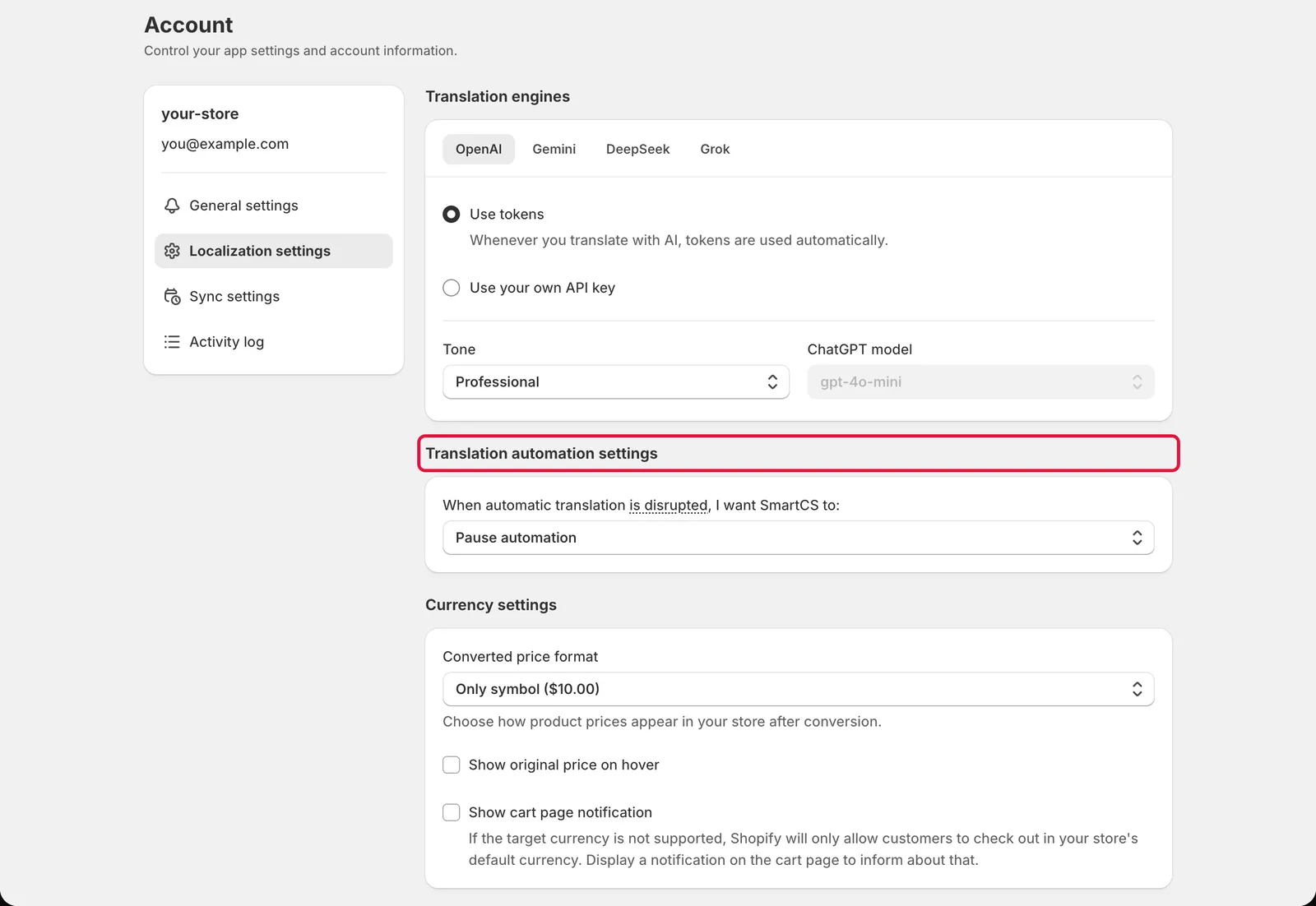
In Impostazioni di automazione della traduzione, open the list that follows the sentence Quando la traduzione automatica viene interrotta, voglio che SmartCS Choose Metta in pausa l'automazione or Passi temporaneamente al motore gratuito. The second option appears only when the Free engine is available for your store. See Pause automation or switch to the free engine.
Set the price format
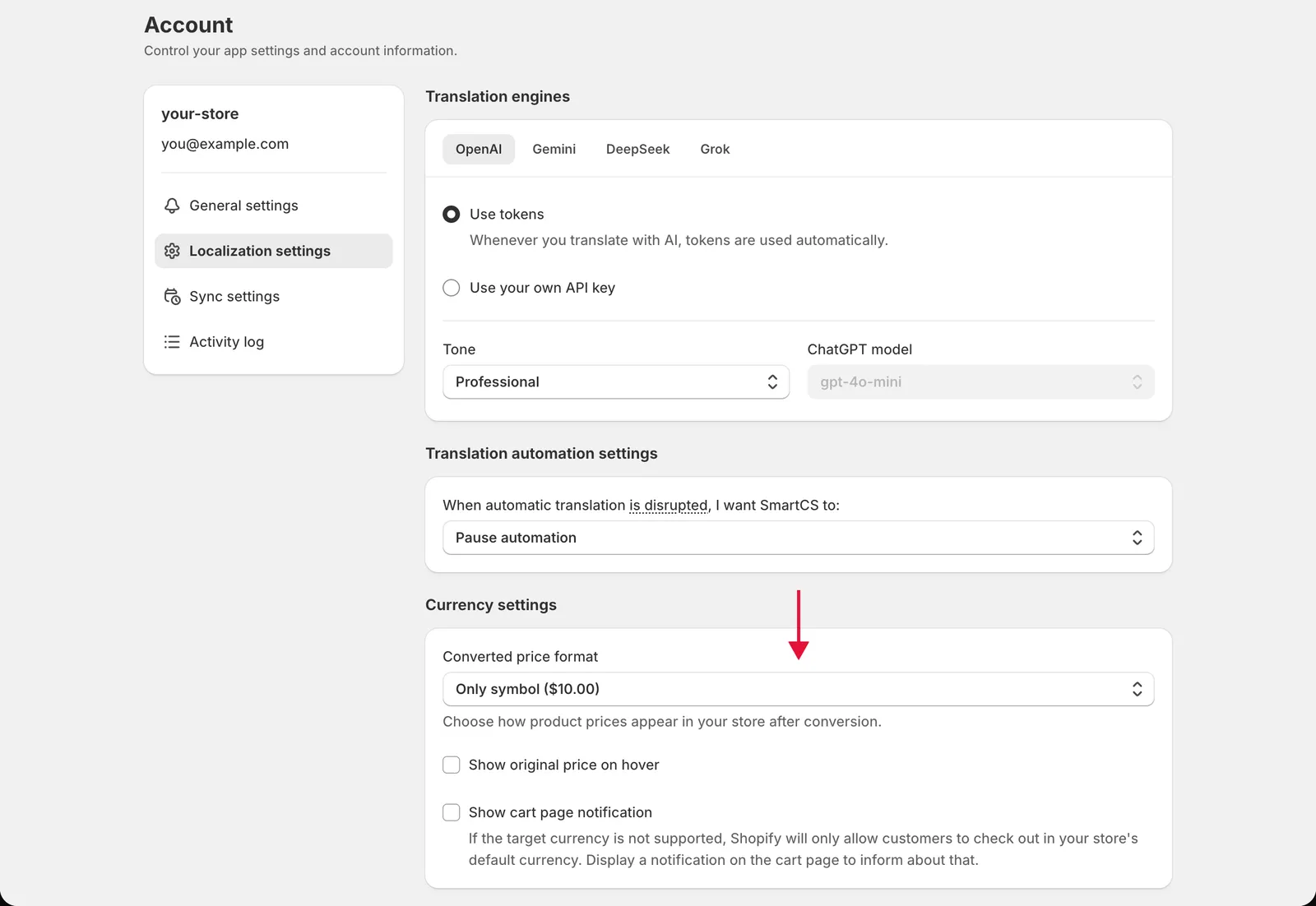
In Impostazioni valuta, open Formato del prezzo convertito and choose Solo simbolo ($10.00) or Simbolo e codice ($10.00 USD). Two checkboxes follow: Mostra il prezzo originale al passaggio del mouse and Mostra la notifica nella pagina del carrello. When the cart notification is on, more fields let you change its wording and colors. See Currency format and Cart notification.
Save your changes
Click Salva in the save bar. The page shows Modifiche salvate. Click Annulla to go back to the saved values. While you have unsaved changes, the engine tabs and the Sezioni dell'account menu are off.
Good to know
- Currency settings go live on your storefront when you save.
- A plan that does not include an engine or an own key shows that option locked, or does not show the tab.
- To check a saved key, click Controlla chiave. To stop using it, click Rimuovi chiave and confirm. These two buttons act at once, and they are off while the page has unsaved changes. Save or discard your changes first. After you remove a key, translations on that engine use tokens again.
- If a key stops working, a red banner at the top of the engine card says why, for example that the key is out of credit. Runs that use the key cannot start until it works again.
- If one card cannot be saved, the page shows Alcune modifiche non sono state salvate. It names the cards that failed. The other cards are saved.
- SmartCS deletes your saved keys when you uninstall the app.
Articoli correlati
Wallet and SmartCS tokens
Check your token balance, see how AI translation uses tokens and read your token history in the SmartCS wallet.
Sync settings: scheduled or real-time
Choose when SmartCS reads changed content from Shopify: at set times or in real time for products and collections, and which content types the schedule covers.
Ultimo aggiornamento: 18 novembre 2026