Localization settings: engines, own API key, tone
Set the tone of each translation engine, use your own API key, choose what automation does when your quota runs out, and pick the converted price format.
Use Yerelleştirme ayarları to set how each translation engine writes, what automatic translation does when your quota runs out, and how converted prices look in your store.
The page has three cards. One save bar saves all of them.
Steps
Open Localization settings
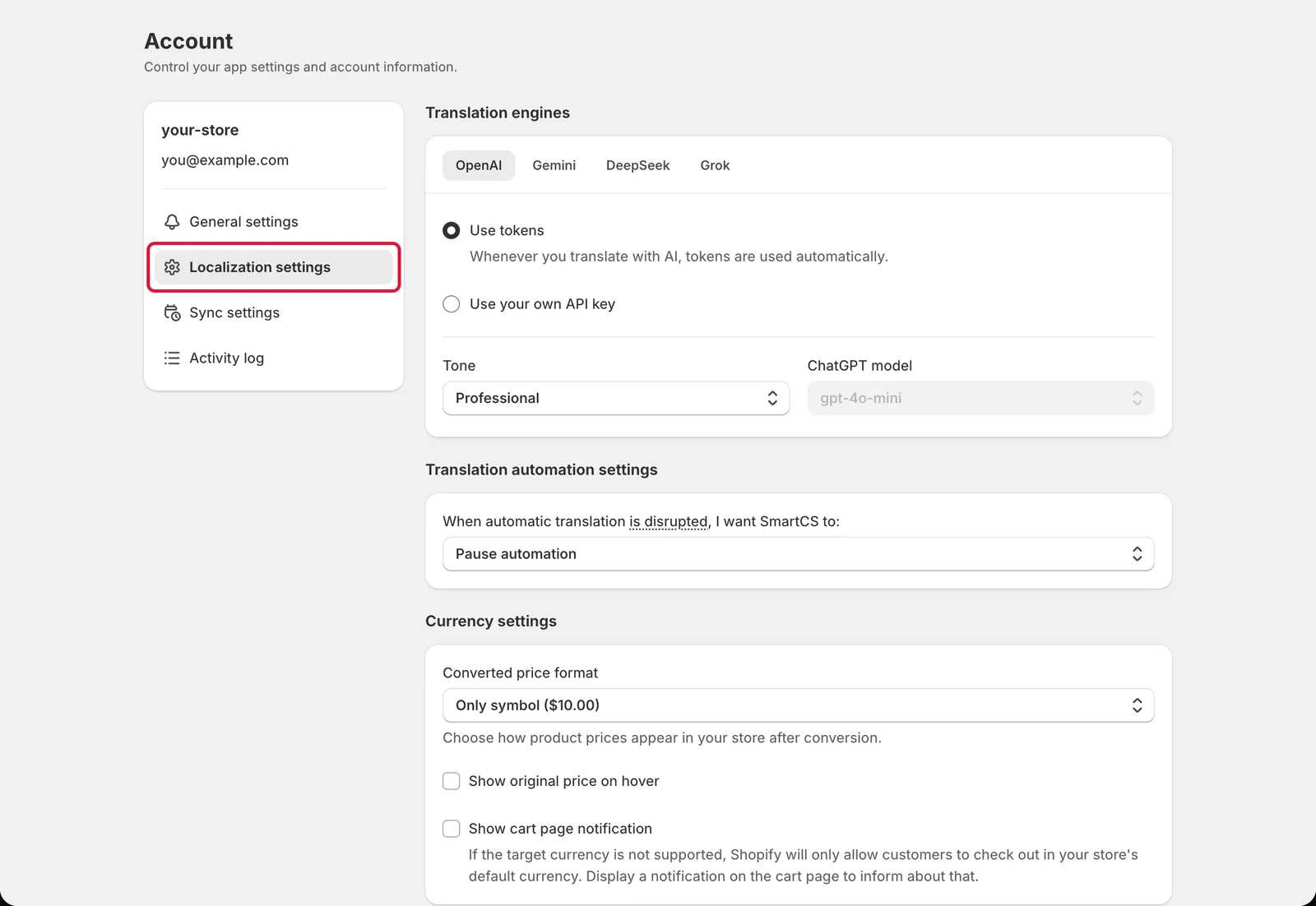
In SmartCS, open Hesap ve ayarlar. In the Hesap bölümleri menu, click Yerelleştirme ayarları. The cards are Çeviri motorları, Çeviri otomasyonu ayarları and Para birimi ayarları.
Set the tone
Bunu açmak için bize ulaşın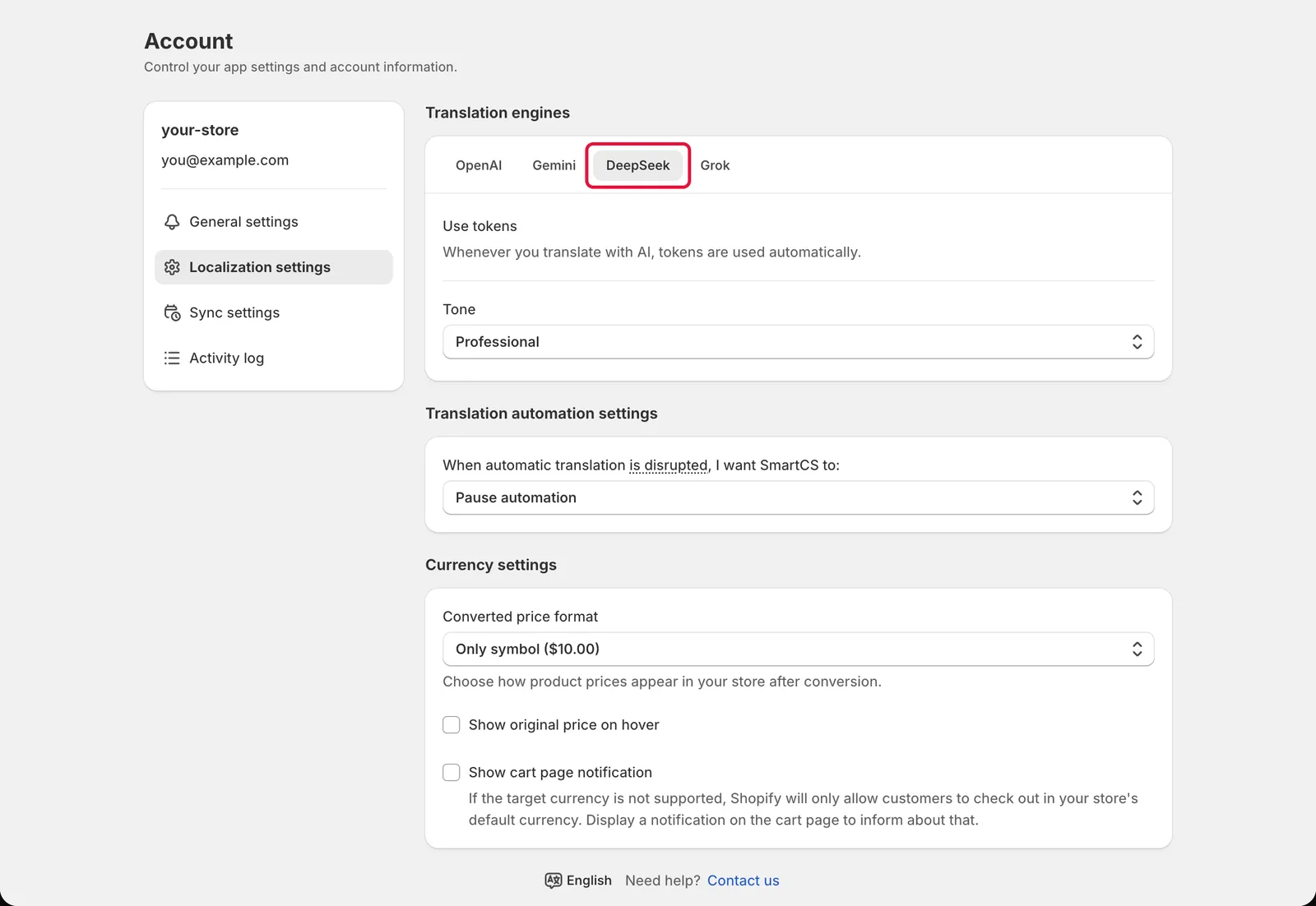
In Çeviri motorları, click the tab of an engine, such as DeepSeek. Open Ton and choose Profesyonel, Samimi, Sade or Yaratıcı. The tone is saved for that engine. See Translation engines for the engines SmartCS offers.
Use your own API key
Bunu açmak için bize ulaşın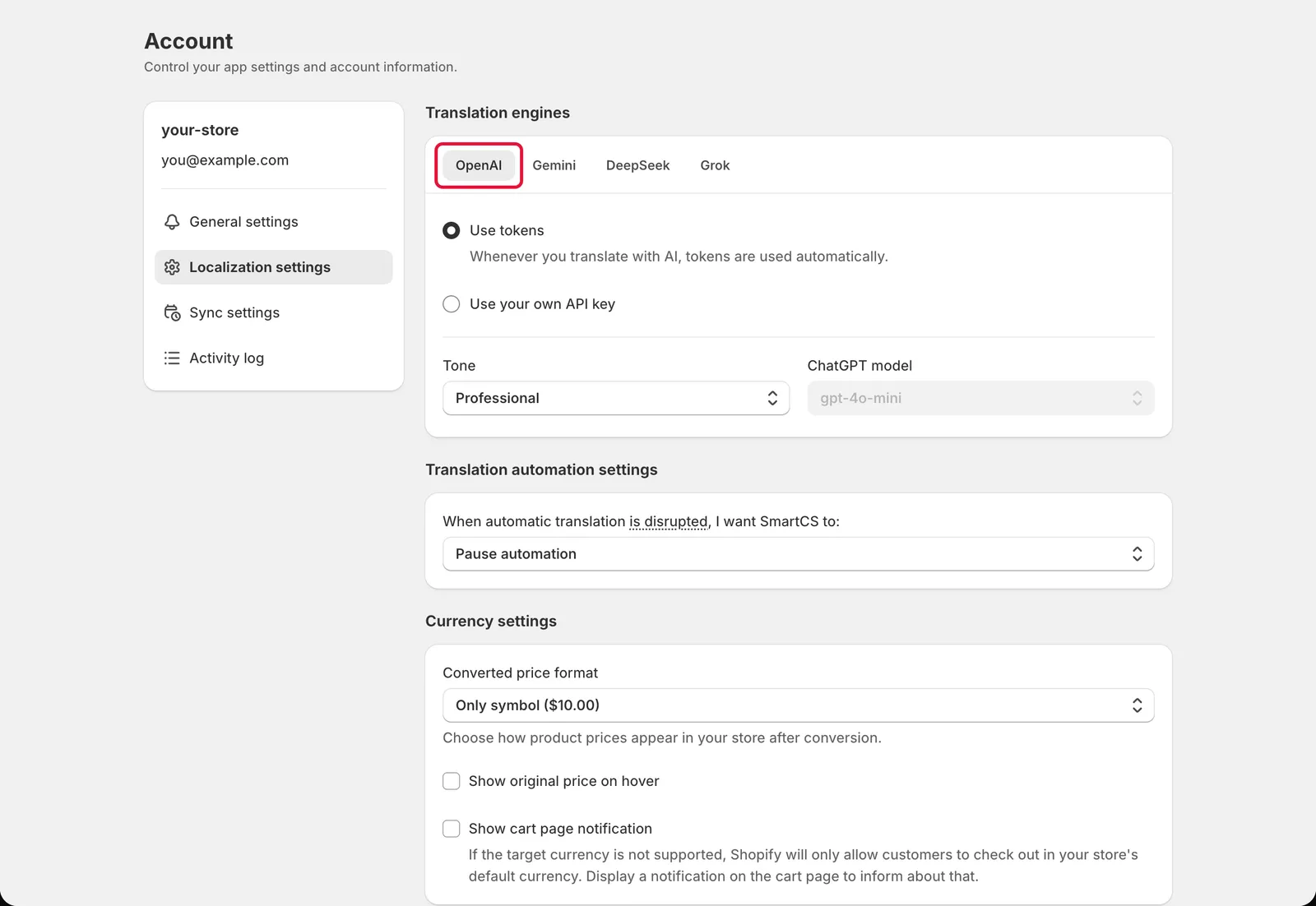
On the OpenAI or Gemini tab, choose Kendi API anahtarınızı kullanın. Paste your key in API anahtarı. Click Kaydet in the save bar. SmartCS checks the key with the provider before it saves anything. If the provider refuses the key, nothing is saved and the reason shows under the field.
Choose what automation does
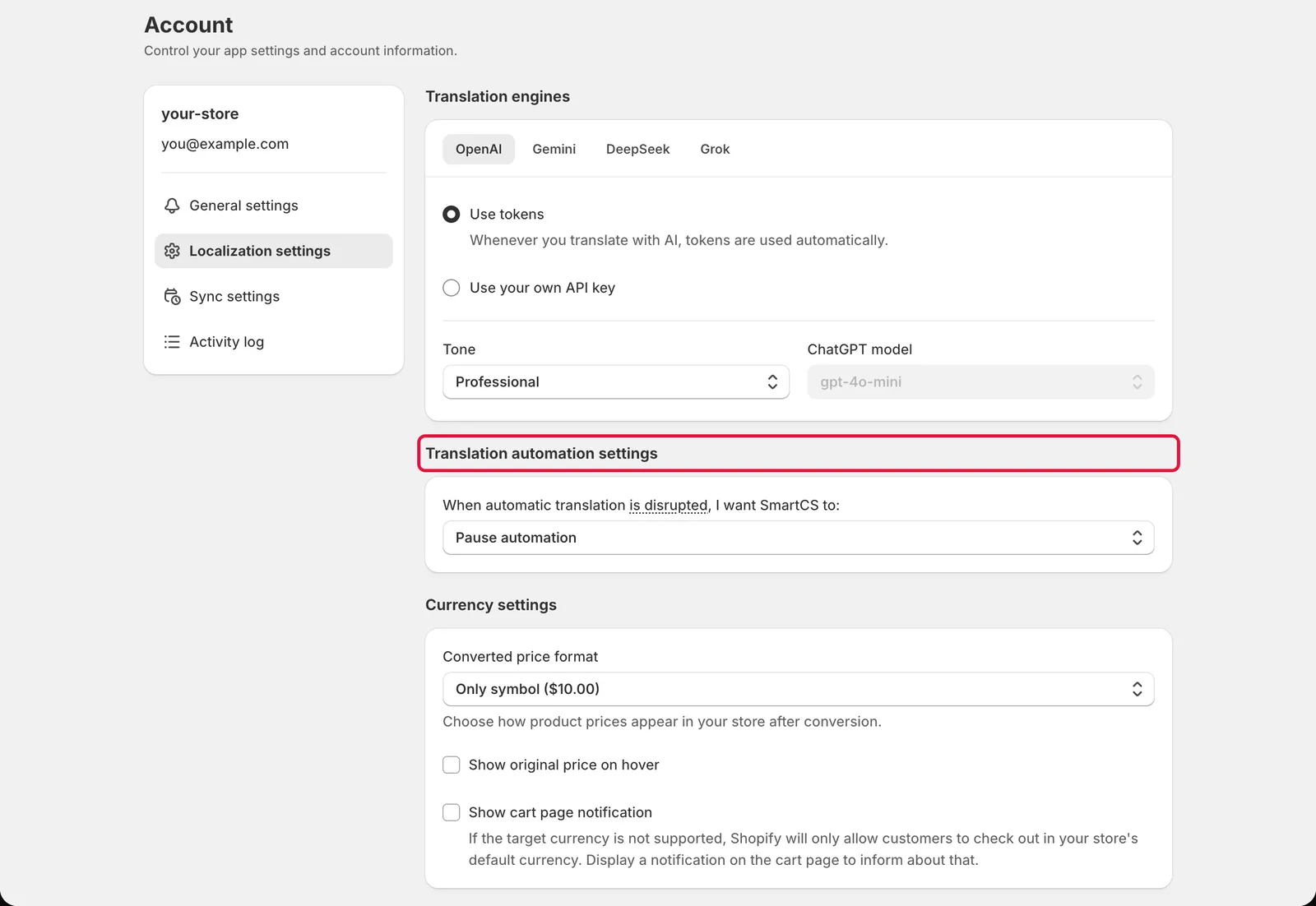
In Çeviri otomasyonu ayarları, open the list that follows the sentence Otomatik çeviri kesintiye uğradığında SmartCS'in şunu yapmasını istiyorum Choose Otomasyonu duraklat or Geçici olarak ücretsiz motora geç. The second option appears only when the Free engine is available for your store. See Pause automation or switch to the free engine.
Set the price format
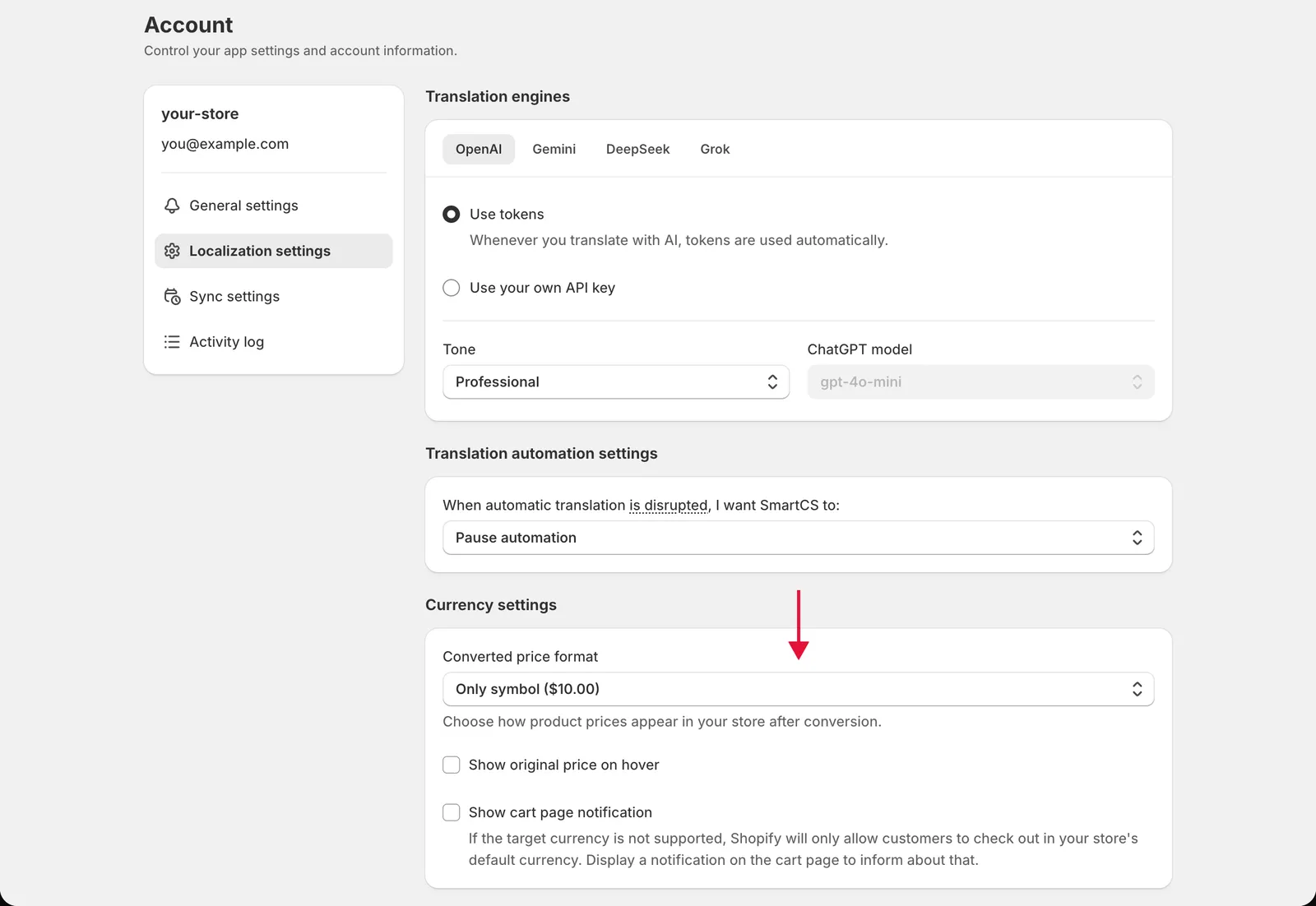
In Para birimi ayarları, open Dönüştürülmüş fiyat biçimi and choose Yalnızca sembol ($10.00) or Sembol ve kod ($10.00 USD). Two checkboxes follow: Üzerine gelindiğinde orijinal fiyatı göster and Sepet sayfası bildirimini göster. When the cart notification is on, more fields let you change its wording and colors. See Currency format and Cart notification.
Save your changes
Click Kaydet in the save bar. The page shows Değişiklikler kaydedildi. Click Vazgeç to go back to the saved values. While you have unsaved changes, the engine tabs and the Hesap bölümleri menu are off.
Good to know
- Currency settings go live on your storefront when you save.
- A plan that does not include an engine or an own key shows that option locked, or does not show the tab.
- To check a saved key, click Anahtarı kontrol et. To stop using it, click Anahtarı kaldır and confirm. These two buttons act at once, and they are off while the page has unsaved changes. Save or discard your changes first. After you remove a key, translations on that engine use tokens again.
- If a key stops working, a red banner at the top of the engine card says why, for example that the key is out of credit. Runs that use the key cannot start until it works again.
- If one card cannot be saved, the page shows Bazı değişiklikler kaydedilmedi. It names the cards that failed. The other cards are saved.
- SmartCS deletes your saved keys when you uninstall the app.
İlgili makaleler
Wallet and SmartCS tokens
Check your token balance, see how AI translation uses tokens and read your token history in the SmartCS wallet.
Sync settings: scheduled or real-time
Choose when SmartCS reads changed content from Shopify: at set times or in real time for products and collections, and which content types the schedule covers.
Son güncelleme: 18 Kasım 2026