Localization settings: engines, own API key, tone
Set the tone of each translation engine, use your own API key, choose what automation does when your quota runs out, and pick the converted price format.
Use लोकलाइज़ेशन सेटिंग्स to set how each translation engine writes, what automatic translation does when your quota runs out, and how converted prices look in your store.
The page has three cards. One save bar saves all of them.
Steps
Open Localization settings
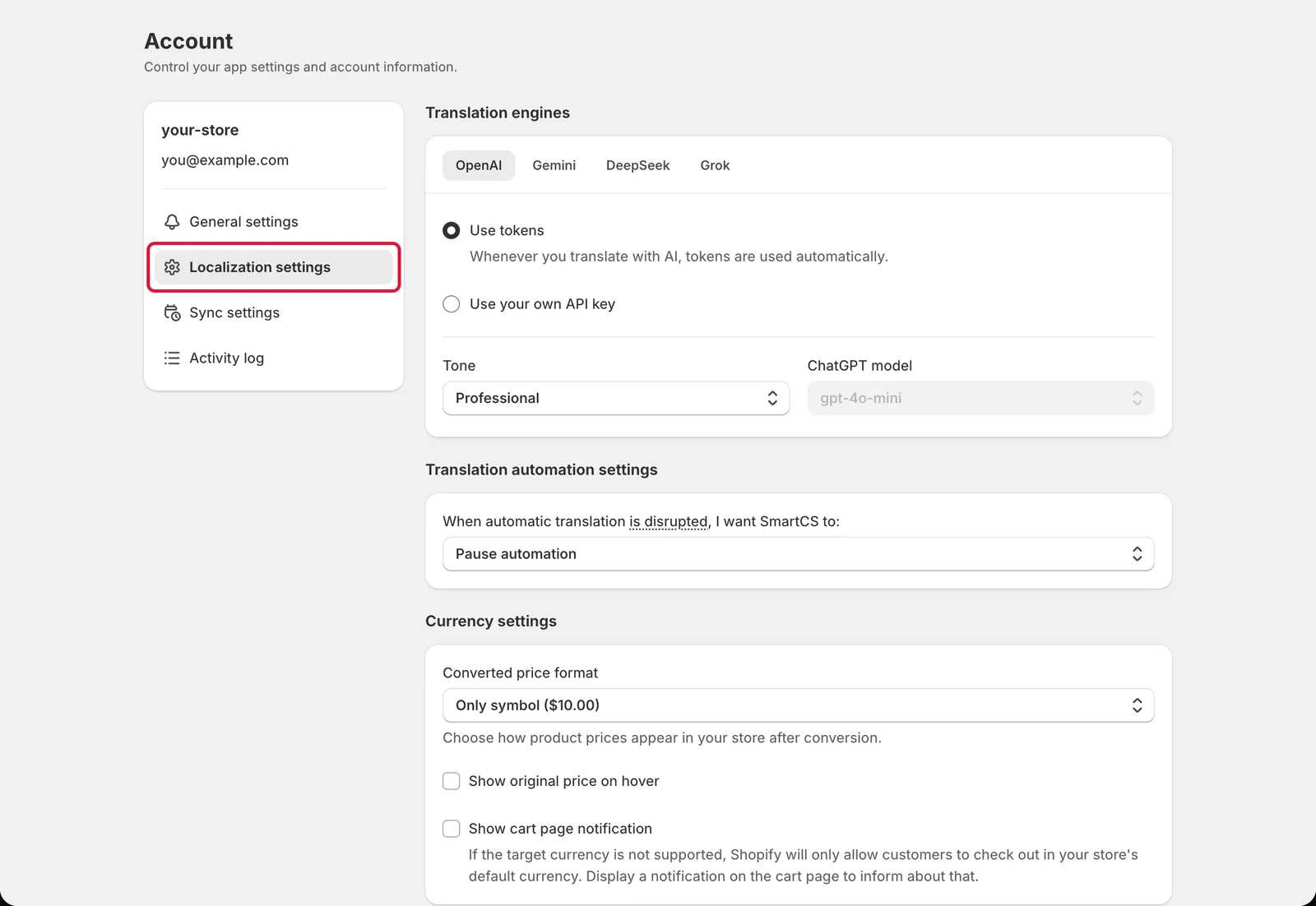
In SmartCS, open अकाउंट और सेटिंग्स. In the खाते के अनुभाग menu, click लोकलाइज़ेशन सेटिंग्स. The cards are अनुवाद इंजन, अनुवाद ऑटोमेशन सेटिंग्स and मुद्रा सेटिंग्स.
Set the tone
इसे चालू करने के लिए हमसे संपर्क करें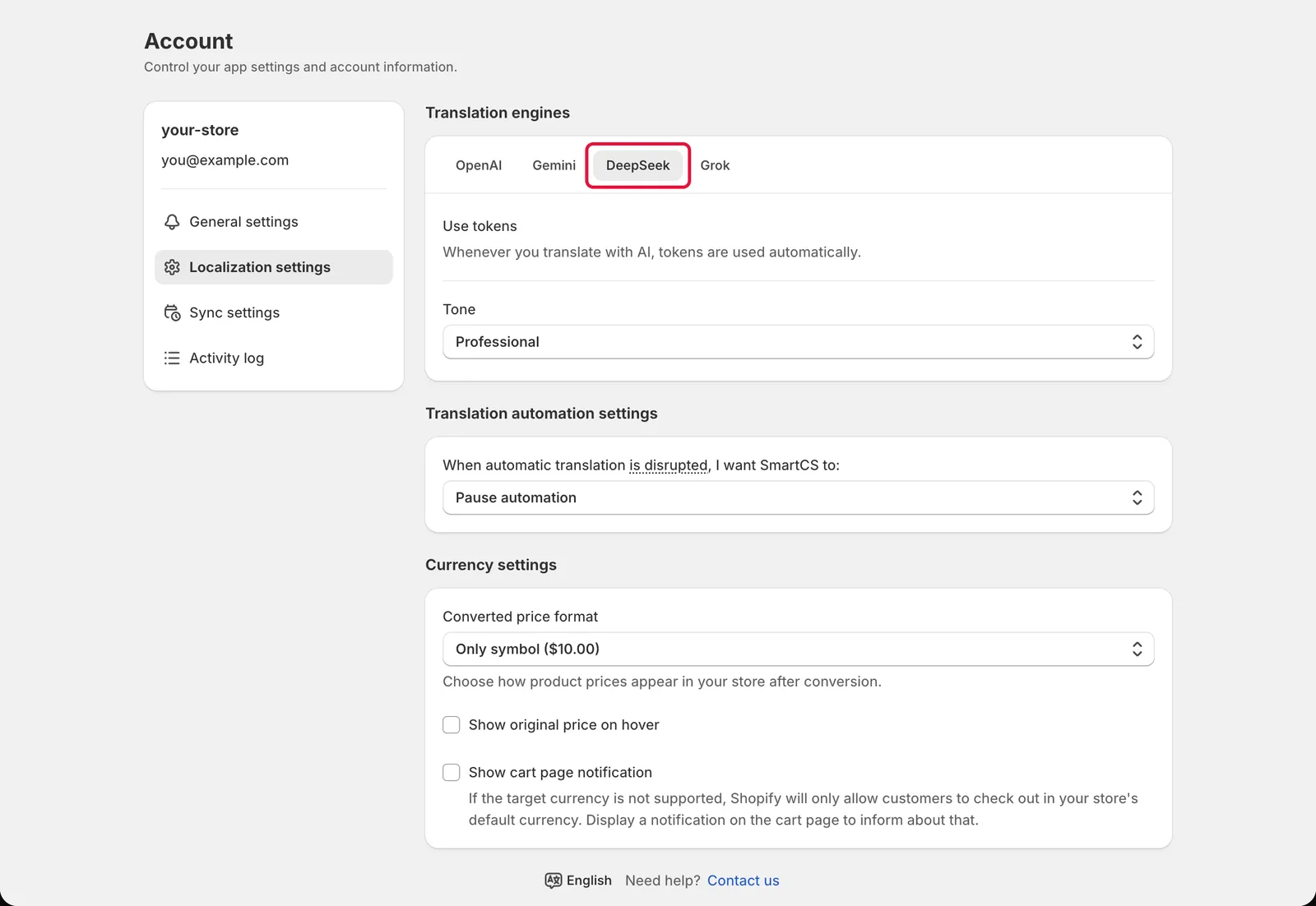
In अनुवाद इंजन, click the tab of an engine, such as DeepSeek. Open लहजा and choose प्रोफ़ेशनल, अनौपचारिक, सरल or रचनात्मक. The tone is saved for that engine. See Translation engines for the engines SmartCS offers.
Use your own API key
इसे चालू करने के लिए हमसे संपर्क करें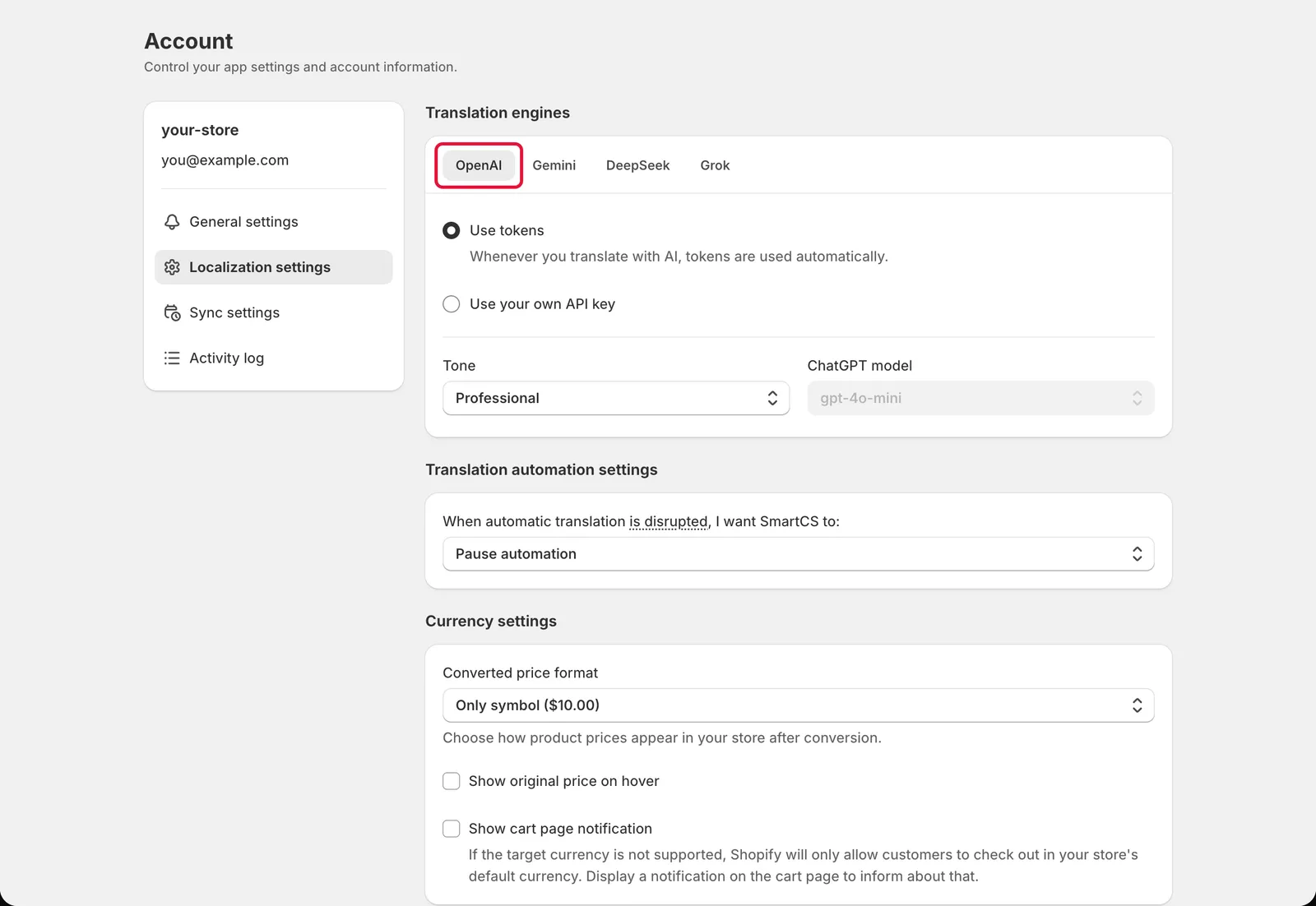
On the OpenAI or Gemini tab, choose अपनी API कुंजी का उपयोग करें. Paste your key in API कुंजी. Click सेव करें in the save bar. SmartCS checks the key with the provider before it saves anything. If the provider refuses the key, nothing is saved and the reason shows under the field.
Choose what automation does
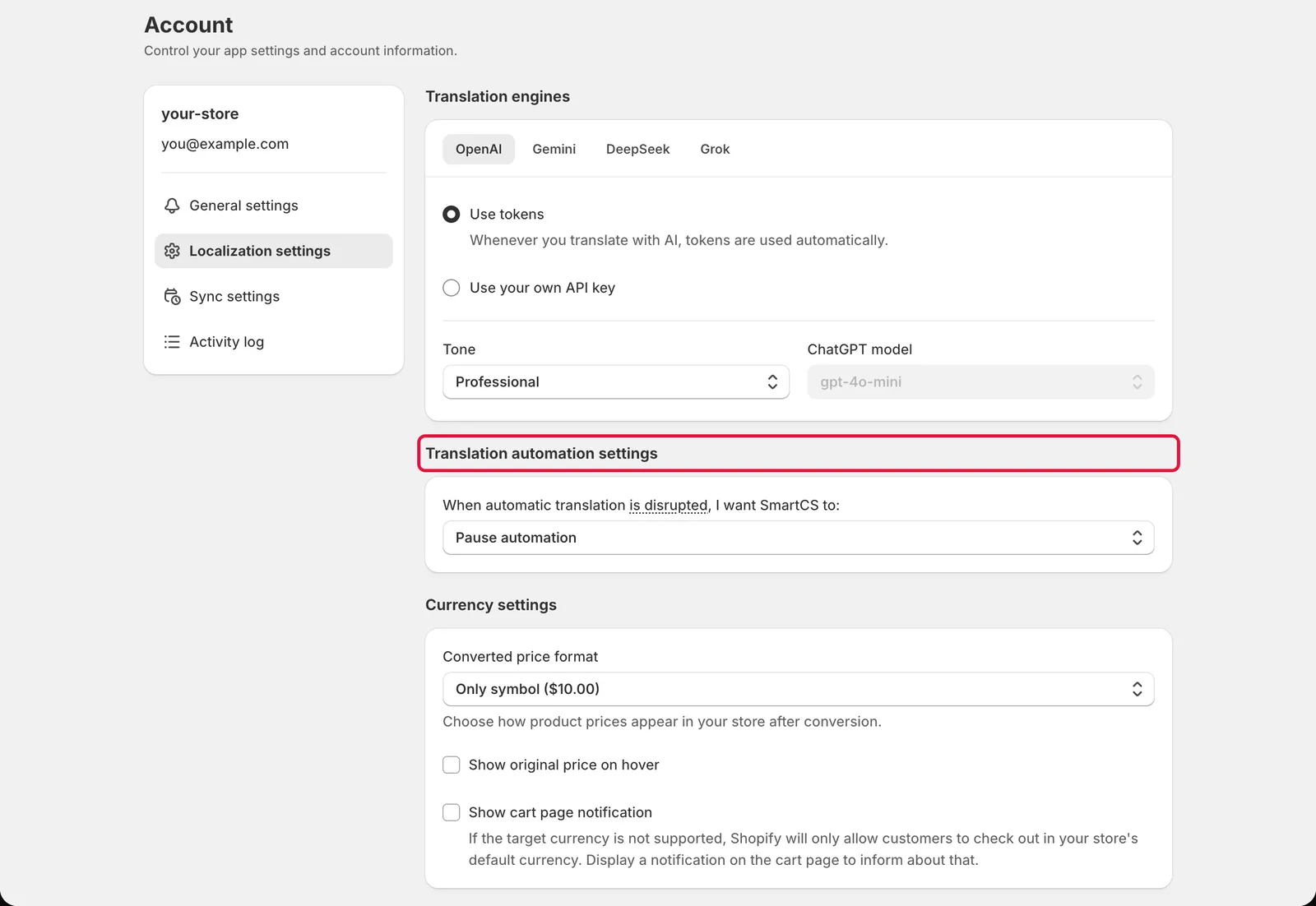
In अनुवाद ऑटोमेशन सेटिंग्स, open the list that follows the sentence जब ऑटोमैटिक अनुवाद बाधित हो जाए, तब मैं चाहता/चाहती हूँ कि SmartCS Choose ऑटोमेशन रोकें or अस्थायी रूप से Free इंजन पर स्विच करें. The second option appears only when the Free engine is available for your store. See Pause automation or switch to the free engine.
Set the price format
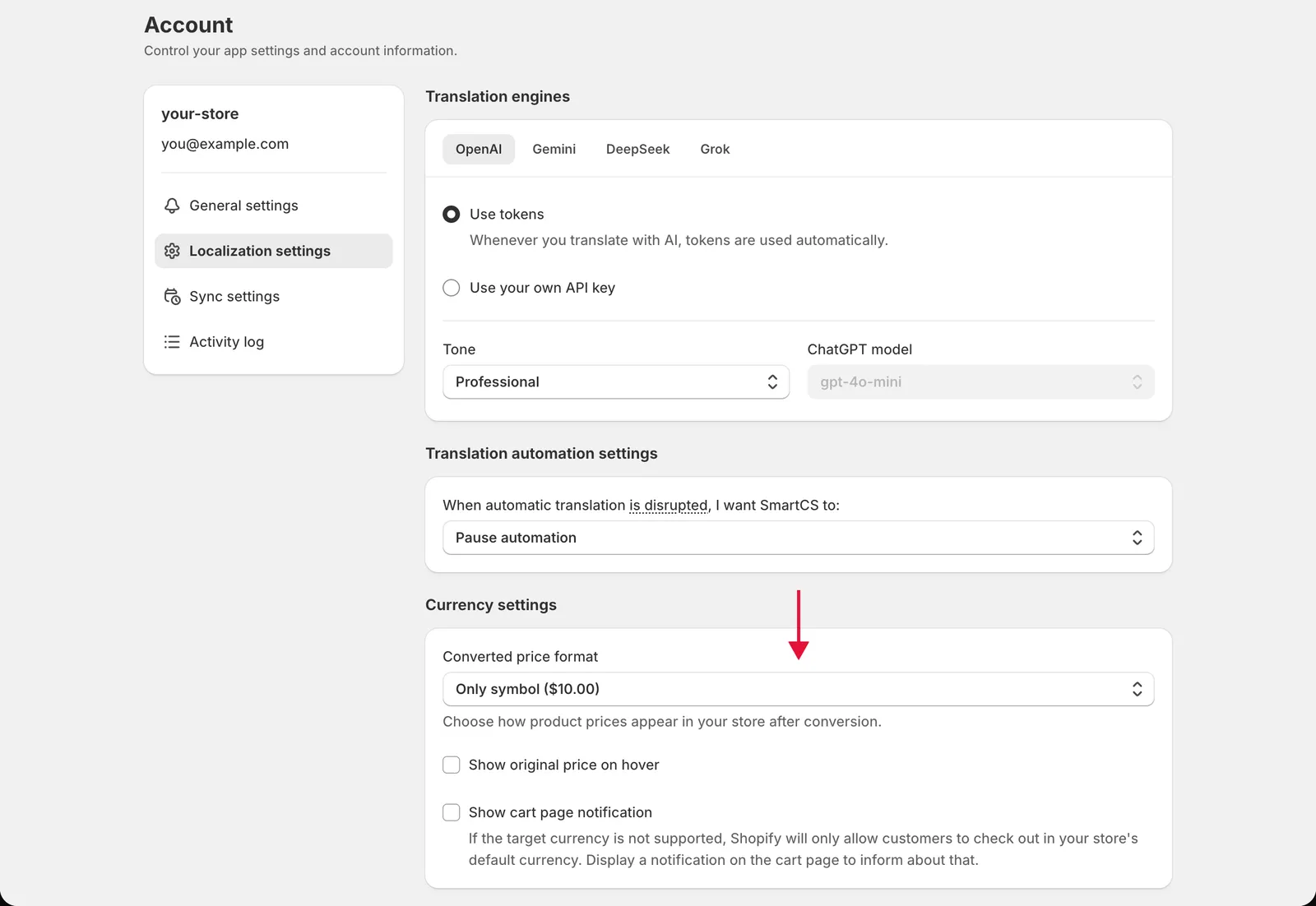
In मुद्रा सेटिंग्स, open कन्वर्ट की गई कीमत का फ़ॉर्मैट and choose केवल चिह्न ($10.00) or चिह्न और कोड ($10.00 USD). Two checkboxes follow: होवर करने पर मूल कीमत दिखाएँ and कार्ट पेज की सूचना दिखाएँ. When the cart notification is on, more fields let you change its wording and colors. See Currency format and Cart notification.
Save your changes
Click सेव करें in the save bar. The page shows बदलाव सेव हो गए. Click रद्द करें to go back to the saved values. While you have unsaved changes, the engine tabs and the खाते के अनुभाग menu are off.
Good to know
- Currency settings go live on your storefront when you save.
- A plan that does not include an engine or an own key shows that option locked, or does not show the tab.
- To check a saved key, click कुंजी जाँचें. To stop using it, click कुंजी हटाएँ and confirm. These two buttons act at once, and they are off while the page has unsaved changes. Save or discard your changes first. After you remove a key, translations on that engine use tokens again.
- If a key stops working, a red banner at the top of the engine card says why, for example that the key is out of credit. Runs that use the key cannot start until it works again.
- If one card cannot be saved, the page shows कुछ बदलाव सेव नहीं हुए. It names the cards that failed. The other cards are saved.
- SmartCS deletes your saved keys when you uninstall the app.
संबंधित लेख
Wallet and SmartCS tokens
Check your token balance, see how AI translation uses tokens and read your token history in the SmartCS wallet.
Sync settings: scheduled or real-time
Choose when SmartCS reads changed content from Shopify: at set times or in real time for products and collections, and which content types the schedule covers.
आख़िरी अपडेट: 18 नवंबर 2026