Set up the switcher on your store
Choose who sees the switcher and which template it uses, save your changes, and turn on the app embed so shoppers can pick a currency and a language.
Set up the switcher so shoppers can pick a currency and a language on your store. You do all of it on one page, Wisselaarinstellingen, with a live preview next to the settings.
Before you start
Publish at least one language or one currency. See Add and publish languages and Add and publish currencies.
The switcher hides what it has nothing to offer. It hides the language part when only one language is published, and the currency part when only one currency is enabled.
Steps
Open Switcher settings
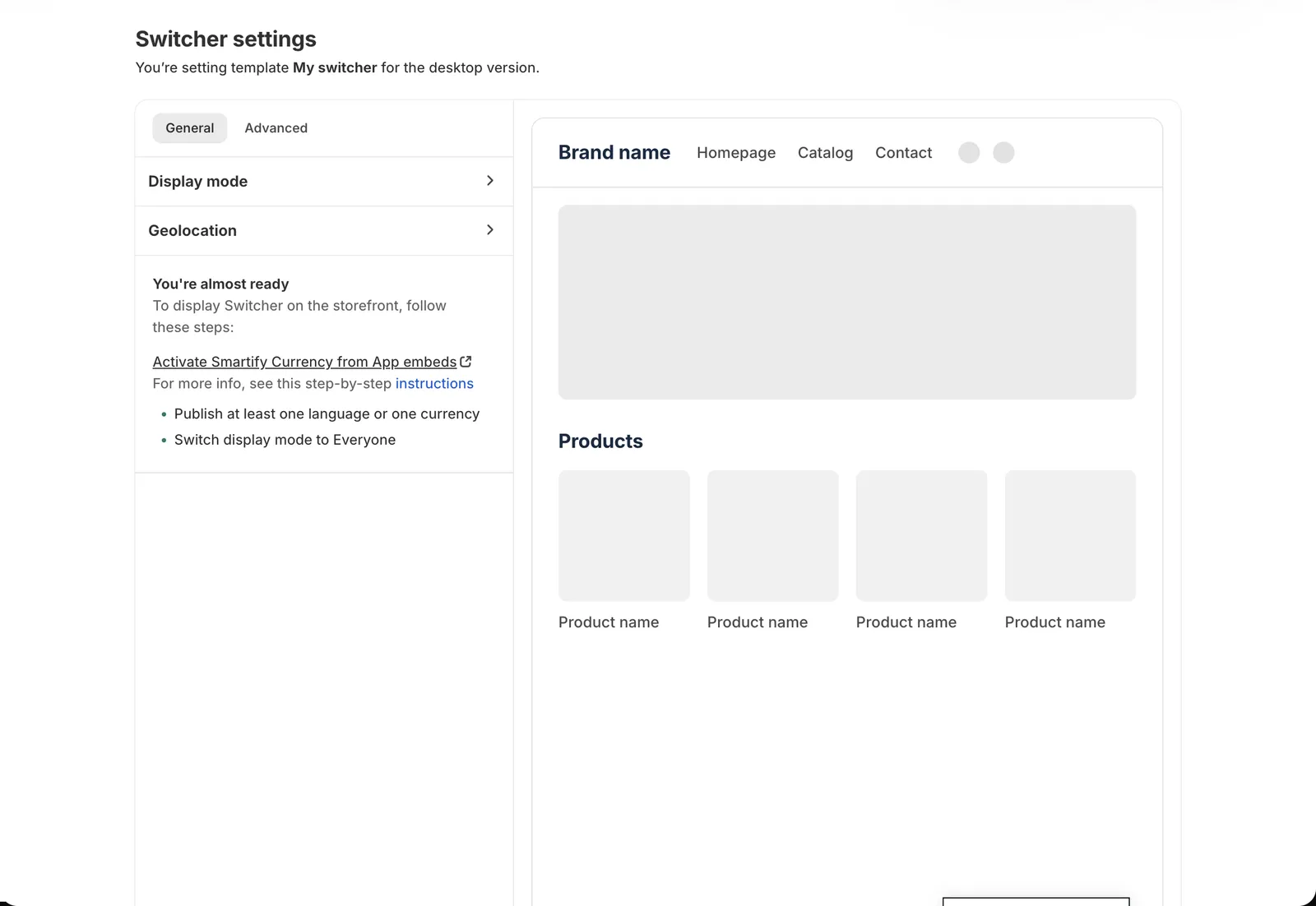
In SmartCS, open Wisselaarinstellingen. The settings are on the left and the preview is on the right. On a narrow screen, you see one at a time.
Choose a device
At the bottom of the settings, next to Instelling voor, select the desktop or the mobile icon. The two versions have their own settings. See Desktop and mobile.
Choose who sees it
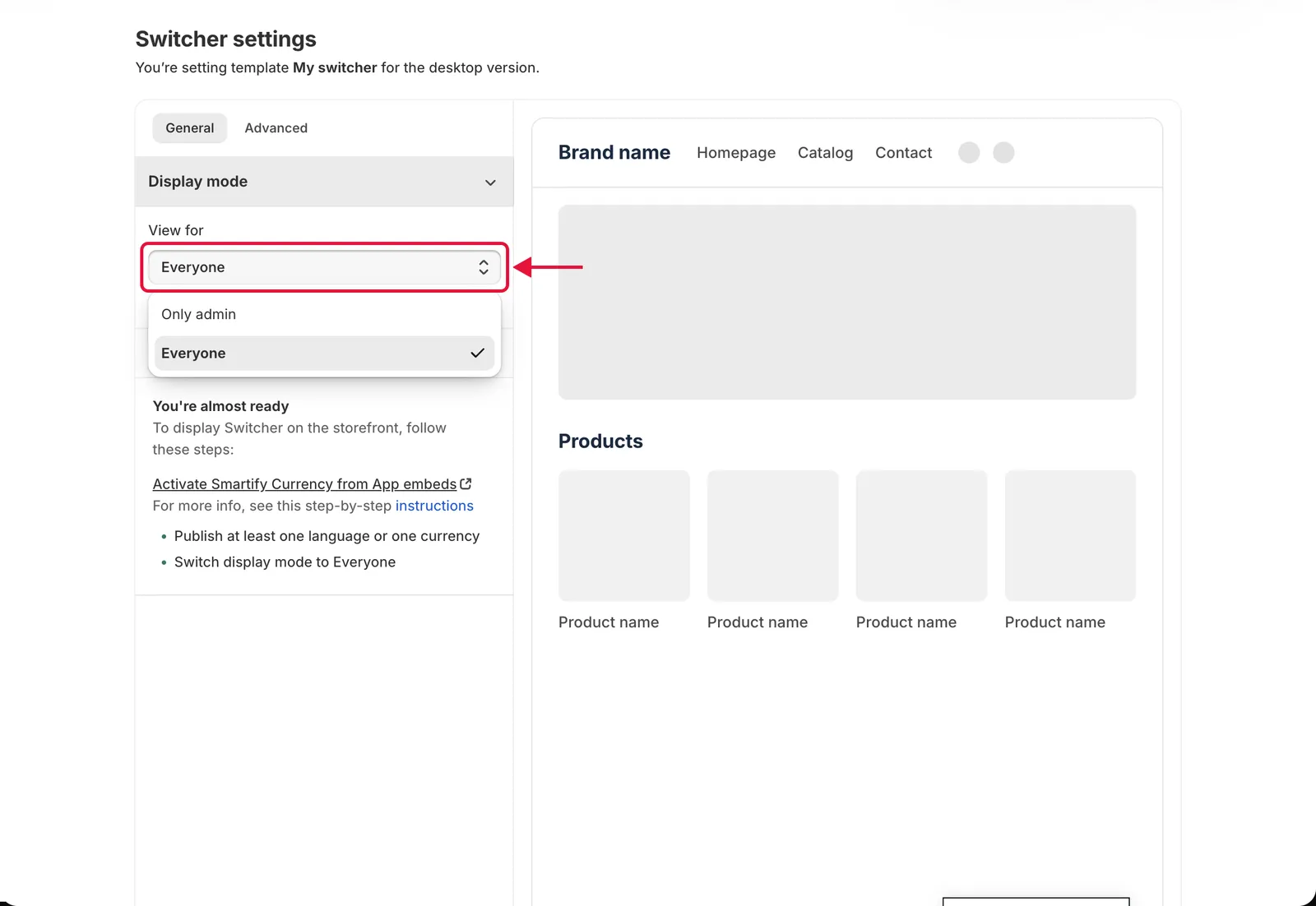
On the Algemeen tab, open Weergavemodus. Next to Weergave voor, choose Iedereen to show the switcher to every visitor, or Alleen beheerder to keep it hidden for now. This choice applies to both devices.
With Alleen beheerder, visitors see no switcher and no converted prices. You can see the switcher only in the theme editor and in the preview inside the app.
Pick a template
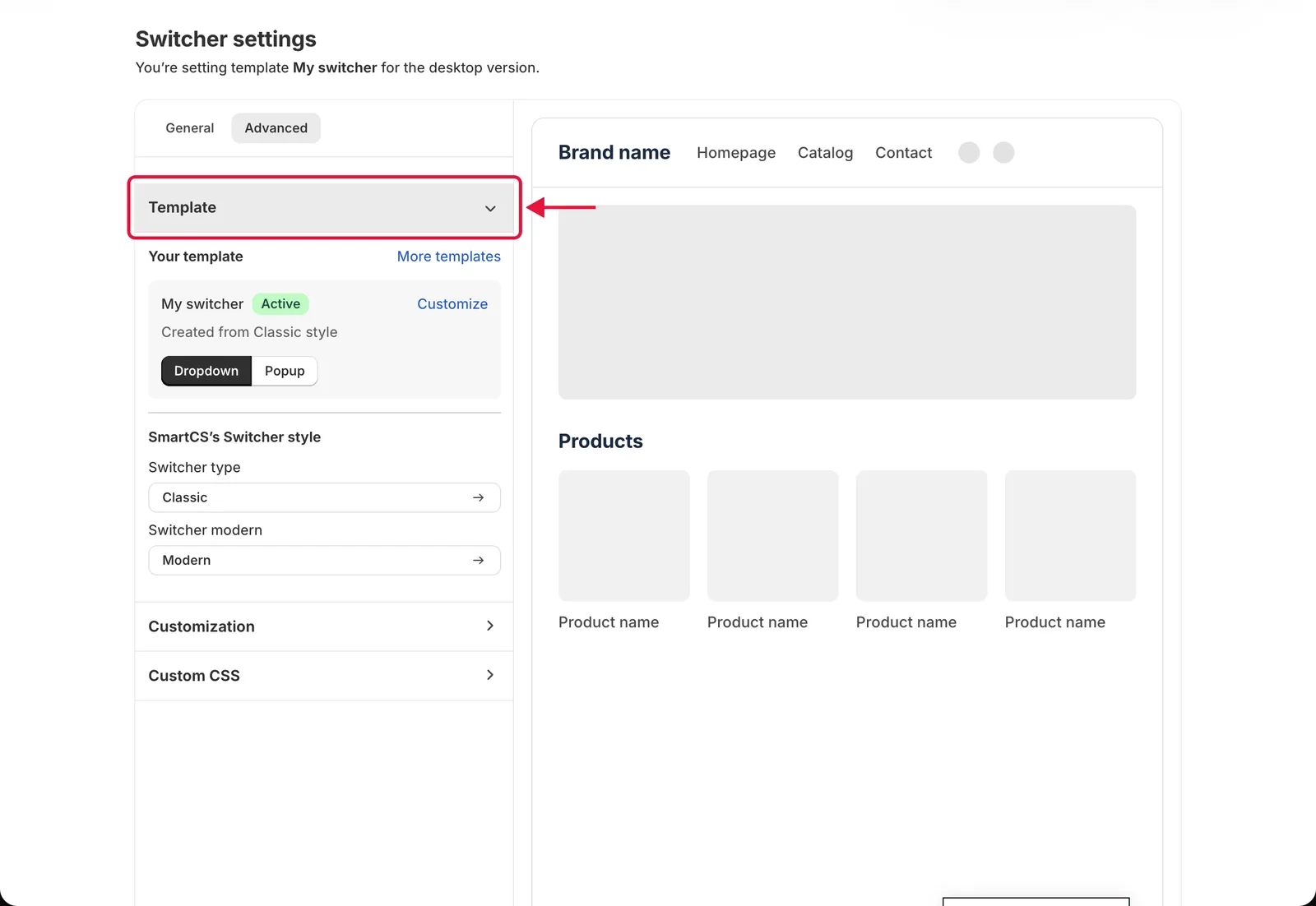
Open the Geavanceerd tab. In Sjabloon, you see the template in use. To choose another one, see Switcher templates.
Customize the switcher
Neem contact met ons op om dit in te schakelen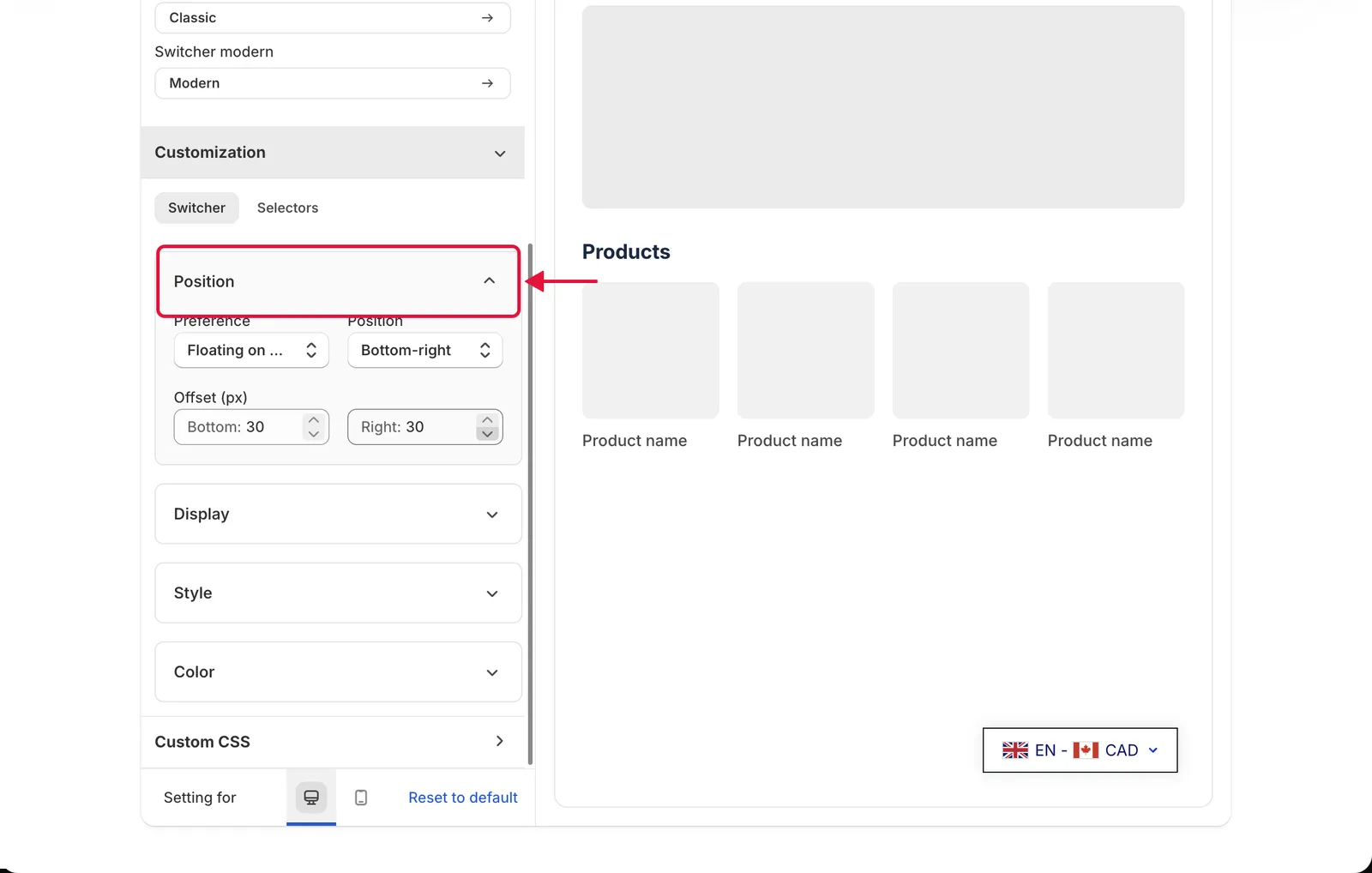
This step is optional. Click Aanpassen to open Aanpassing. It has four cards: Positie, Weergave, Stijl and Kleur. To set the place, see Choose where the switcher appears.
Save your changes
Click Opslaan in the bar at the top of the page. The app shows Wijzigingen opgeslagen. Select Negeren to undo your changes.
If the app shows Wisselaarwijzigingen staan nog niet in je winkel, click Opnieuw proberen.
Turn on the app embed
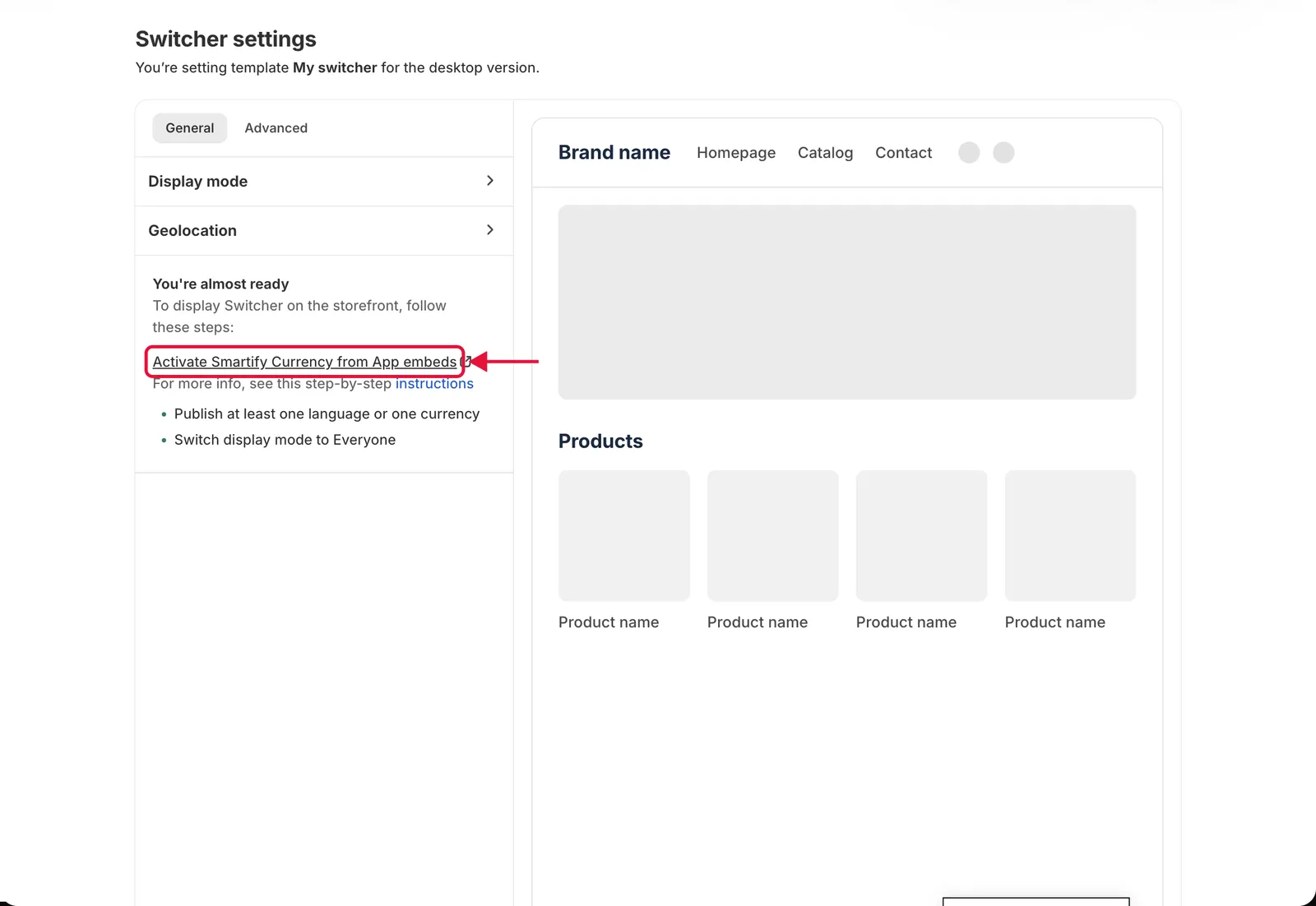
On the Algemeen tab, scroll to Je bent bijna klaar. Click Activeer Smartify Currency bij App-embeds. It opens your theme editor in a new tab. Turn on Smartify Currency and save the theme.
Open the instructions
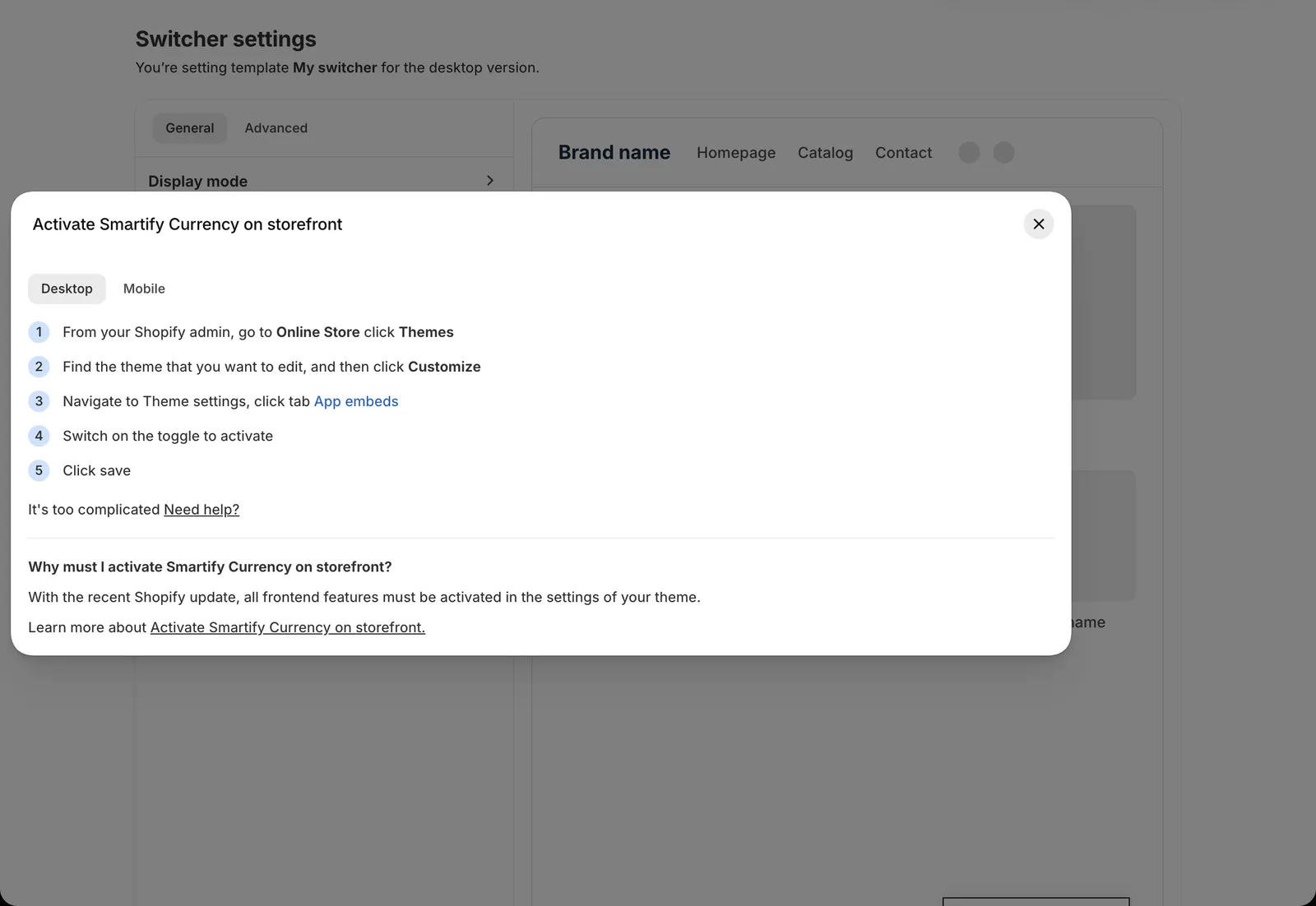
If you need help with the theme editor, click the link to the step-by-step instructions under it. A window opens with the steps for Desktop and for Mobiel. Close it with the X.
Preview your store
Click Voorbeeld in onlinewinkel at the top of the page. Your store opens in a new tab.
That tab shows the switcher only when Weergave voor is set to Iedereen. While it is set to Alleen beheerder, check your work in the preview inside the app, or open your live theme in the theme editor.
Good to know
- If the app embed is off, the page shows App-embed is niet ingeschakeld above the settings. Click App-embed inschakelen to turn it on. See Turn on the app embed.
- Shoppers see the switcher, and prices converted by SmartCS, only when Weergave voor is set to Iedereen. See Preview and visibility.
- Some actions save at once, without the save bar. Applying a template is one of them.
Opmerking
If you change the settings and the switcher does not change on your store, wait a short time and reload the page. The app sends your saved settings to your store a moment after you save.
Gerelateerde artikelen
Track background tasks
Follow translations and other background tasks in the Task progress panel. Cancel, restart, retry or resume a task.
Switcher templates and your own templates
Choose a Classic or Modern template for your switcher, apply it, and save your own template after you customize it.
Laatst bijgewerkt: 18 november 2026