Find and filter content to translate
Search your store content, switch between resource groups, and filter the editor list by translation status or product details.
Find the item you want in the translation editor. You can switch the resource group, filter the list, and search your content.
Before you start
Open कॉन्टेंट अनुवाद and select the edit (pencil) button in a group row. The list and its controls are in the left column of the editor. See Edit translations manually.
Switch the resource group
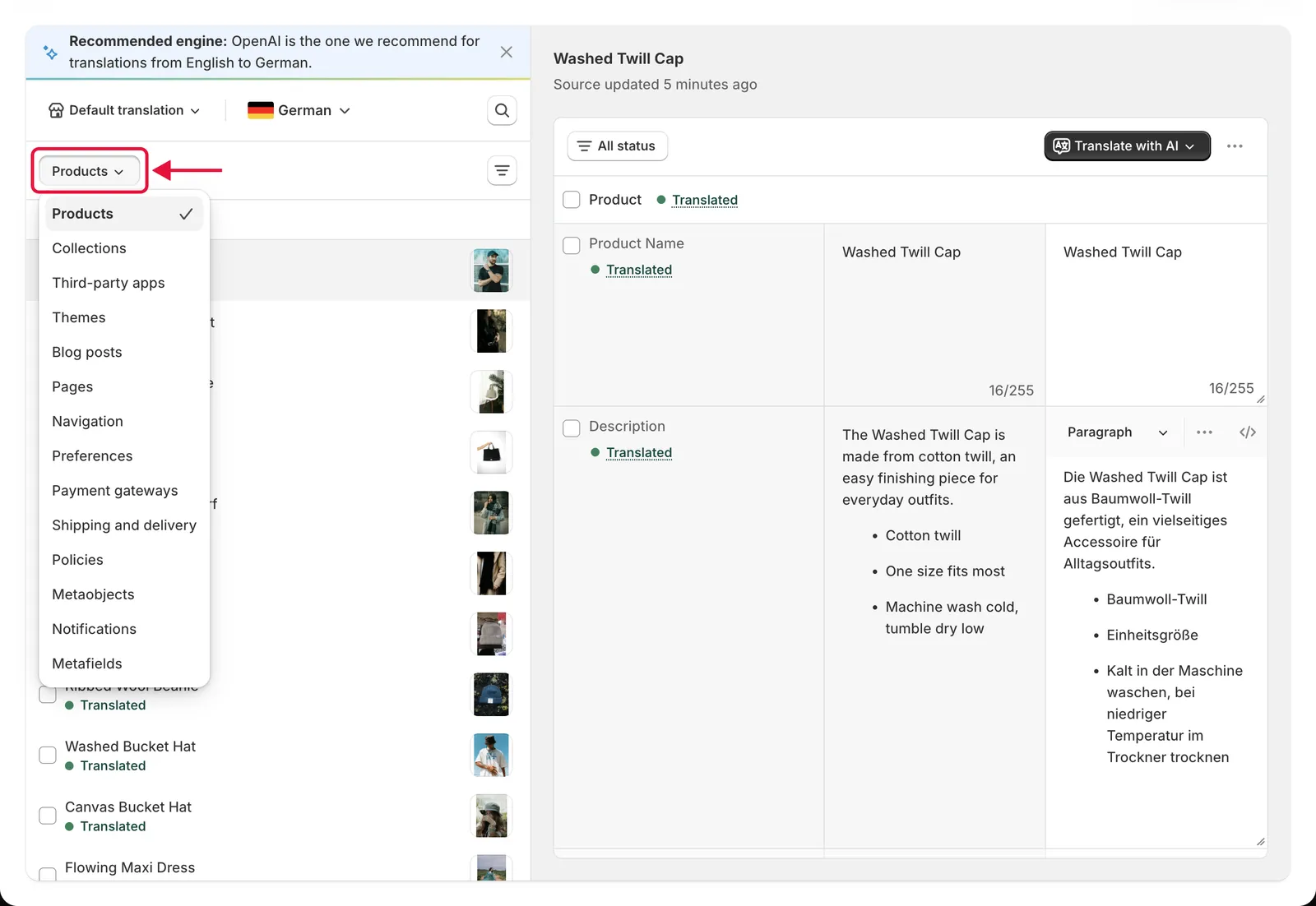
Select the group button at the top of the list, such as प्रोडक्ट. The menu lists every group, for example कलेक्शन, थीम, पेज and नेविगेशन. A group your plan does not include is dimmed. A group with nothing in it opens an empty message.
In थीम, a theme picker appears when your store has more than one theme.
Filter by translation status
Show the filters
Select the फ़िल्टर button above the list.
Pick a status
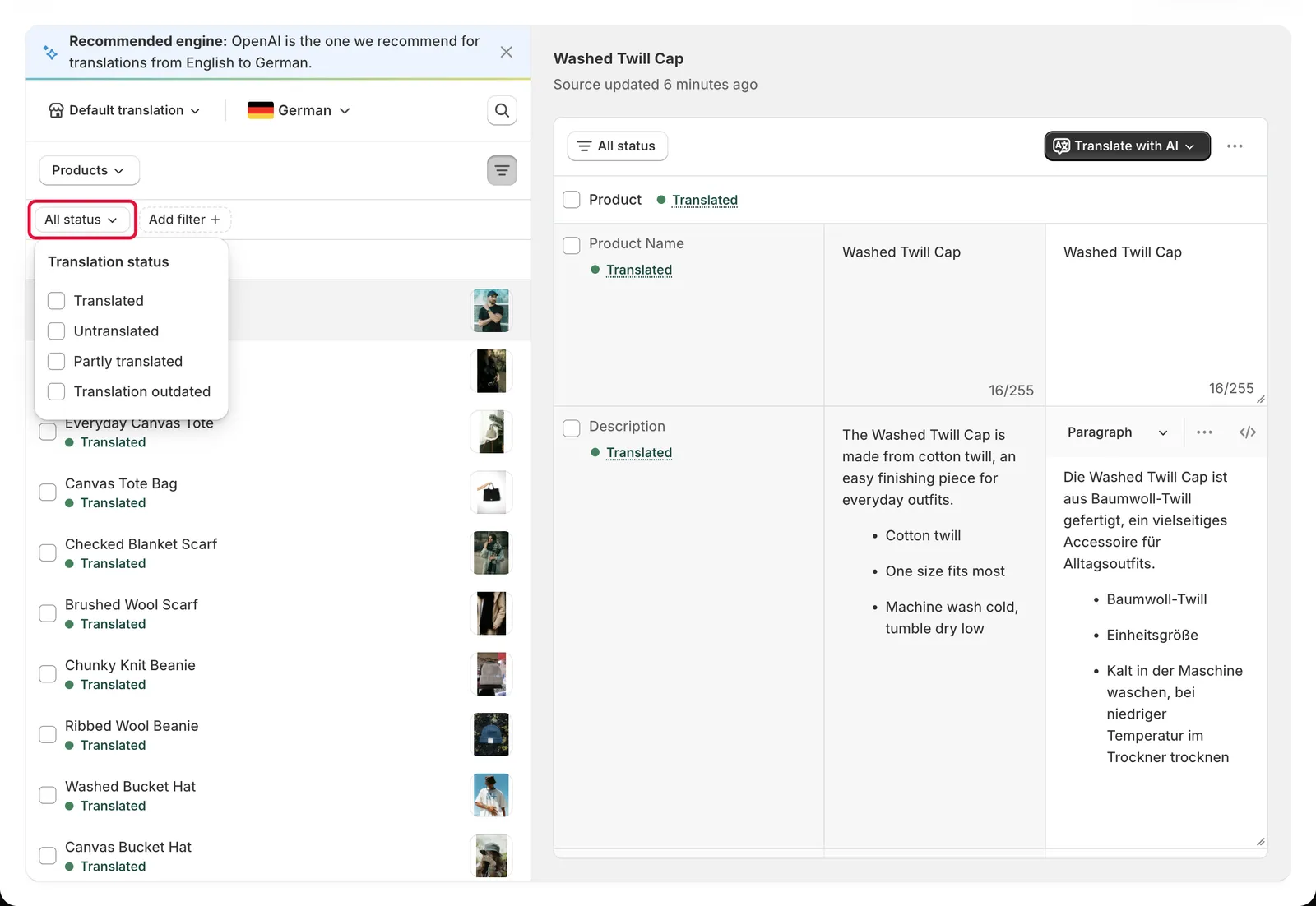
Select सभी स्थितियाँ, then tick one or more of अनुवादित, अनुवाद नहीं हुआ, आंशिक रूप से अनुवादित and अनुवाद पुराना है. The list updates at once. See Translation status.
Filter products by details
इसे चालू करने के लिए हमसे संपर्क करेंAdd a filter
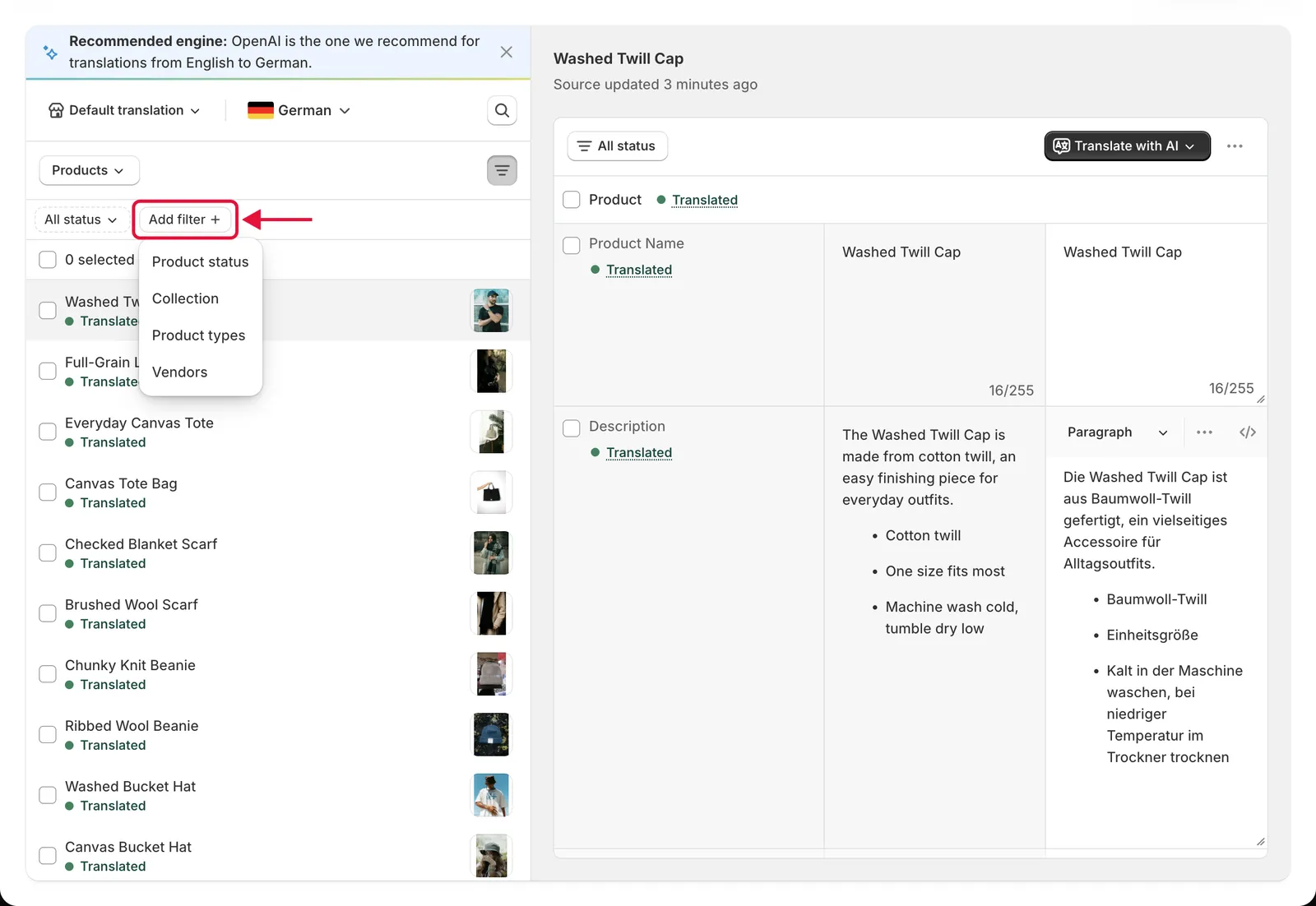
In the प्रोडक्ट group, select फ़िल्टर जोड़ें in the filter row, then choose प्रोडक्ट की स्थिति, कलेक्शन, प्रोडक्ट के प्रकार or वेंडर.
Pick values
Tick the values you want. The filter shows as a button with its values. Values inside one filter are alternatives. Different filters apply together.
Remove filters
Select हटाएँ inside a filter, or सभी हटाएँ to remove them all.
Without this plan, the button is dimmed and marked as locked.
Search your content
इसे चालू करने के लिए हमसे संपर्क करेंOpen search
Select the खोजें button at the top of the left column and type at least 2 characters.
Narrow the search
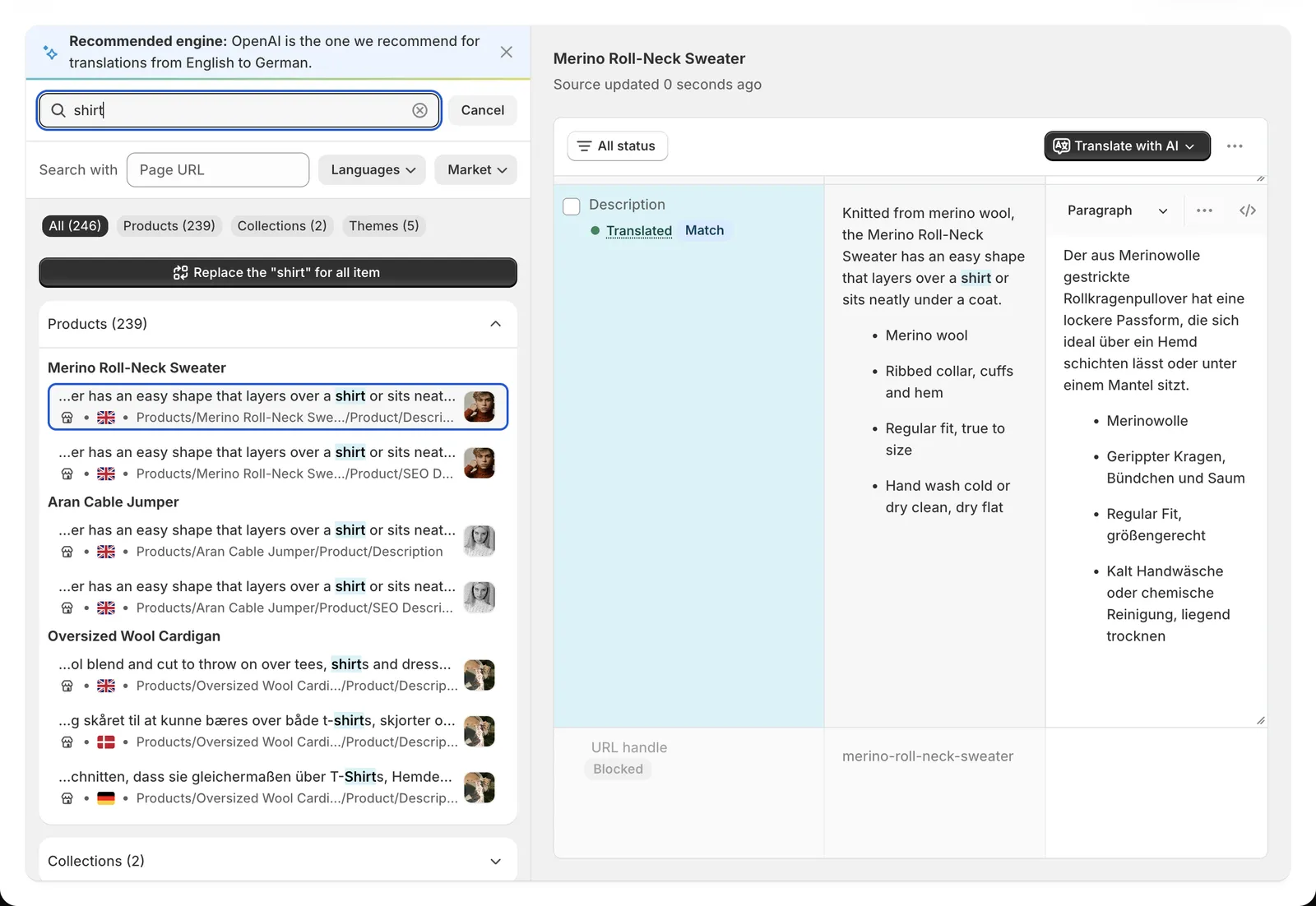
Results come from every group. Next to इससे खोजें you can enter a पेज URL, or pick भाषाएँ and a मार्केट. Use the chips to show one group.
Open a result
Select a result. The editor opens the item and marks the field with the match. To change the found text everywhere, see Search and replace.
Good to know
- Without this plan, the search box only filters the list by item title.
- Long lists show a page counter with previous and next buttons.
- Your filters stay in the page address, so the back button and shared links keep them.
नोट
Changing filters clears the rows you ticked for bulk actions.
संबंधित लेख
Edit translations manually
Open a resource in the translation editor, type or fix a translation field by field, use rich text, and save your changes.
Review translations: approve or reject
Approve or reject translations that wait for your review, so only text you have checked is published to your store.
आख़िरी अपडेट: 18 नवंबर 2026