Add the switcher as an app block
Place the switcher inside a section of your theme with the SmartCS Switcher app block, so it sits where you want instead of in a corner.
Add the SmartCS Switcher block to a section of your theme to place the switcher exactly where you want it.
Kontakt os for at aktivere detteBefore you start
- Turn on the Smartify Currency app embed. The block only marks the place. The switcher itself comes from the app embed. See Turn on the app embed.
- Set the position to Indlejret i siden. Without it, the block stays empty. See Choose where the switcher appears.
- Use a theme that supports app blocks. Which sections accept an app block depends on your theme.
Steps
Set the position to embedded
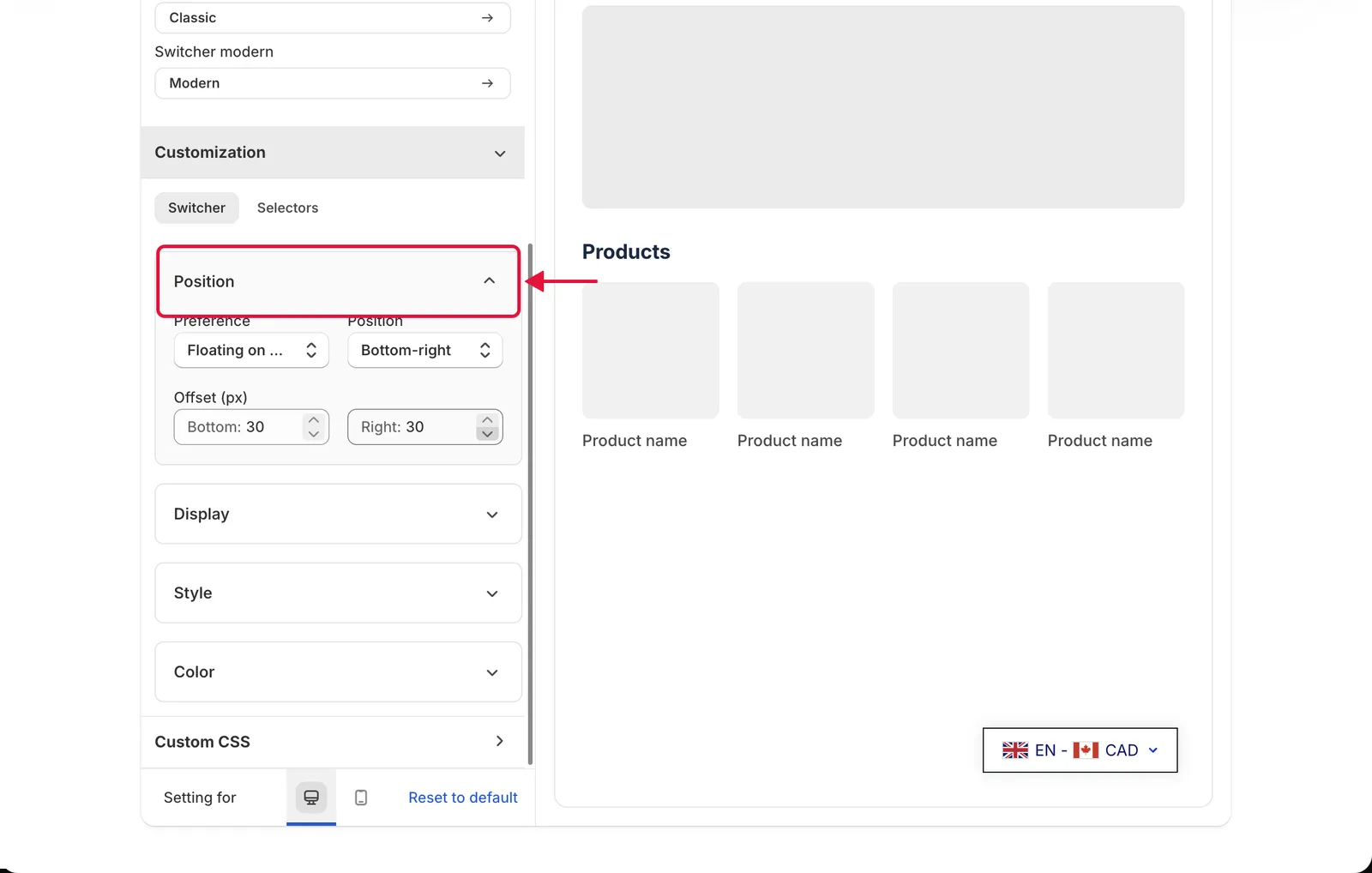
In Skifteindstillinger, open the Avanceret tab and click Tilpas. In Tilpasning, open the Placering card. Set Præference to Indlejret i siden. Do this for each device you want, then click Gem.
Open the theme editor
Under the preference, the card shows the sentence Tilføj SmartCS-skifterblokken i din temaeditor for at placere den hvor som helst i din butik Click Åbn temaeditor. The theme editor of your live theme, the one that is published, opens.
Add the block
In the theme editor, go to the section where the switcher should appear. Add a block to that section and choose SmartCS Switcher from the list of apps. Move the block to the place you want.
Save the theme
Click save in the theme editor. Then open your store to check the result.
Good to know
- Add the block once. SmartCS shows one switcher on a page, and it uses the first block it finds. If you add the block more than once, expect the other blocks to stay empty.
- If your theme has no SmartCS Switcher block, the switcher appears in a corner of the page.
- The position is set for each device. Set the embedded position for both desktop and mobile if you want the block on both.
- The app shows the note Afhængigt af det tema, du bruger, kan skifterens faktiske placering afvige for most themes. Check your store after you save.
- When you uninstall SmartCS, the block is removed from your theme with the app.
Bemærk
The block does not show the switcher on its own. If you do not see the switcher, check that Vis for is set to Alle, and that the app embed is on. See The switcher or a currency doesn't show.
Relaterede artikler
Choose where the switcher appears
Place the switcher in a corner, on the side, over the top of the page or inside your theme, and set the corner and the distance from the edge.
Choose what the switcher shows
Choose which parts the switcher button shows, such as language and currency, and set how each one is written, with or without a flag.
Sidst opdateret 18. november 2026