Review translations: approve or reject
Approve or reject translations that wait for your review, so only text you have checked is published to your store.
Approve or reject translations that wait for your review. Approved text goes to your store. Rejected text is removed so it can be translated again.
Kontakt os for at aktivere detteBefore you start
Translations wait for review only when the review step is on for your store. Then every new translation is held back instead of being sent to Shopify.
Text you type yourself in the editor does not wait for review. It is saved and sent to Shopify as soon as you save it.
Steps
Open the item
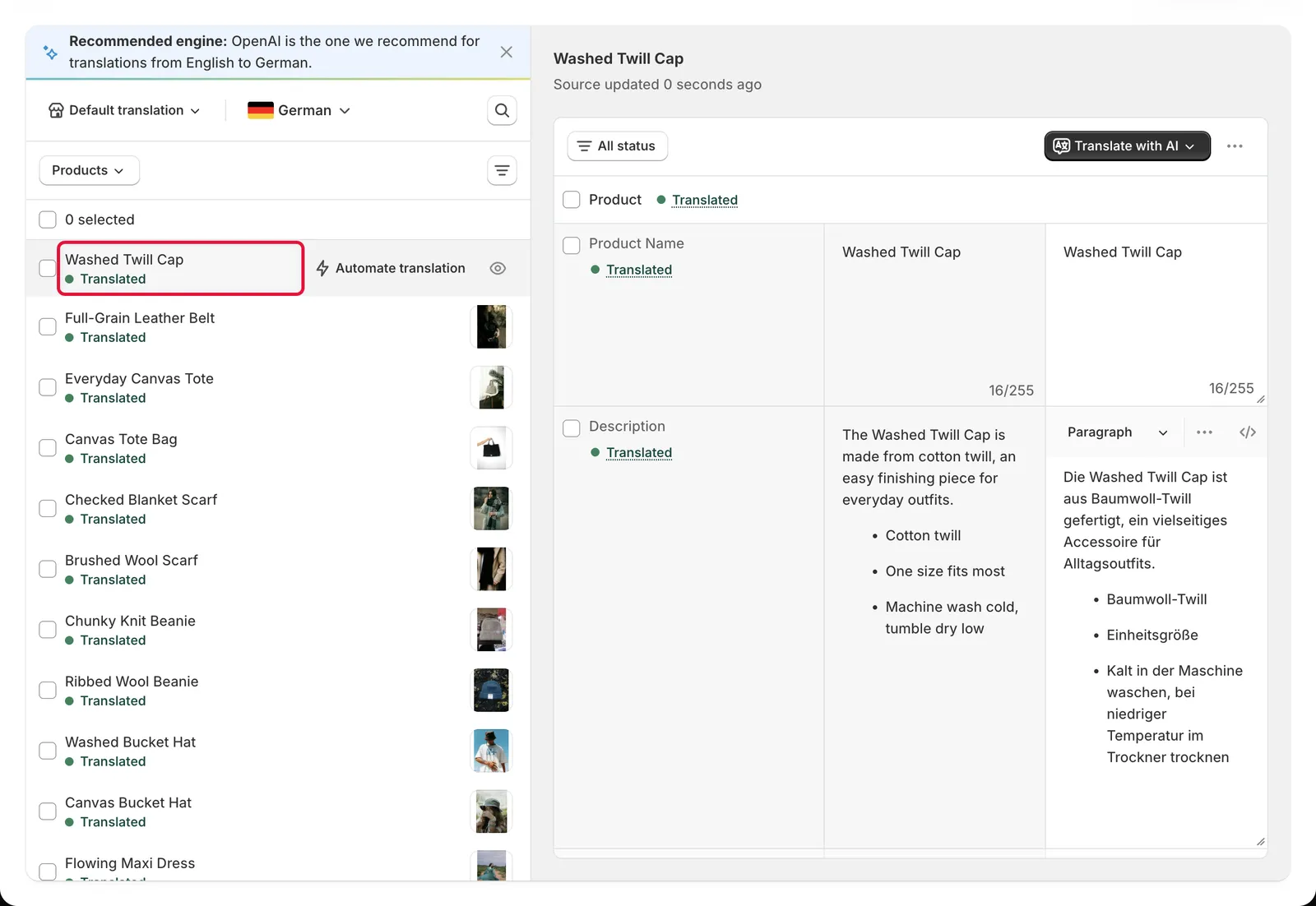
In SmartCS, open Indholdsoversættelse. Choose a language and a content group, then select an item. Content with translations waiting for review has the status Under gennemgang.
Read the banner
A blue banner at the top of the item says how many translations are waiting. It explains the two choices: Godkend udgiver dem i din butik. Afvis fjerner dem, så de kan oversættes igen.
Fields that wait for review are marked Under gennemgang. Read them before you decide.
Approve the translations
Select Godkend to publish every waiting translation of the item to your store. The message Oversættelser godkendt confirms it.
Reject the translations
Select Afvis to remove the machine translations that wait for review. The message Oversættelser afvist confirms it. The next translation run translates those fields again.
Good to know
- Approve works on the whole item. You cannot approve one field at a time.
- Reject removes only machine text. It keeps text you wrote yourself, imported text, text that came from Shopify and any field that has a conflict.
- A rejected text is kept as an earlier version of the field. See Translation history and revert.
- An approved text keeps its origin. A machine translation still counts as machine text after you approve it.
Bemærk
If a field has a conflict, approving is refused with the message Løs først konflikterne. Godkend derefter oversættelserne.. Resolve the conflict first. See Sync content and resolve conflicts.
To change a translation before you approve it, see Edit translations manually.
Relaterede artikler
Find and filter content to translate
Search your store content, switch between resource groups, and filter the editor list by translation status or product details.
Translation history and revert
See earlier versions of a translated field and put one back, so you can undo a change you did not mean to make.
Sidst opdateret 18. november 2026