Translate content with AI
Translate ticked items or a whole resource with an AI engine. Check the quote, add instructions and start the translation.
Translate content with AI to fill in the untranslated and outdated fields of one language in a single run. You choose the items, the engine and, if you want, extra instructions.
The Free engine is on every plan.
AI engines
Kontakt os for at aktivere detteThe AI engines (OpenAI, Gemini, Grok and DeepSeek) need a higher plan. See Translation engines.
Before you start
- Add the language and turn on its translation edits. See Add and publish languages. A language with edits off shows the error Redigering af oversættelser er slået fra for dette sprog..
- If a banner asks for translation permissions, grant them first.
Steps
Select the content
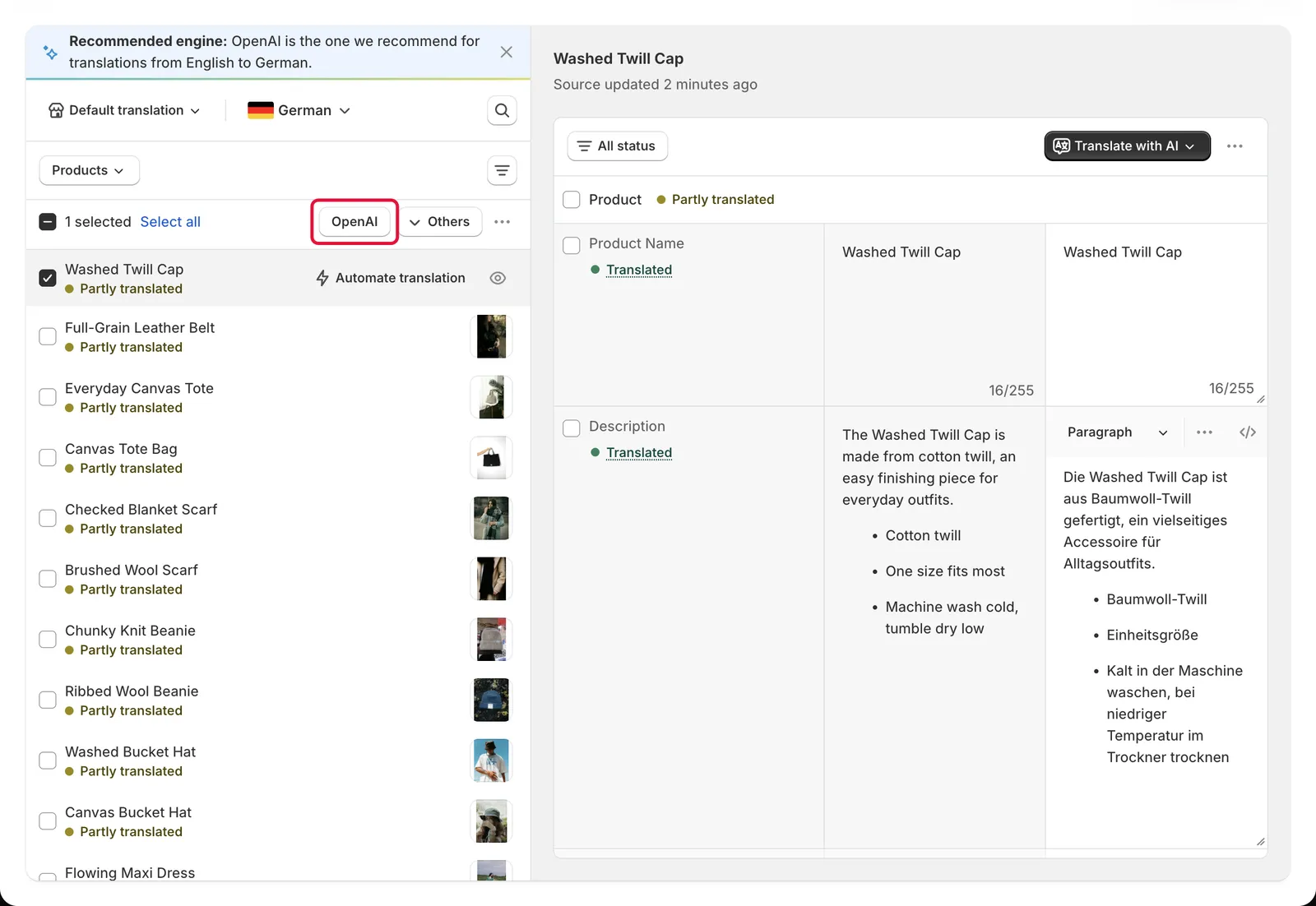
In SmartCS, open Indholdsoversættelse and pick the language in Oversæt til:. To translate part of a resource, open it (for example Produkter) and tick the items. You can tick up to 250 items for one run.
Choose an engine
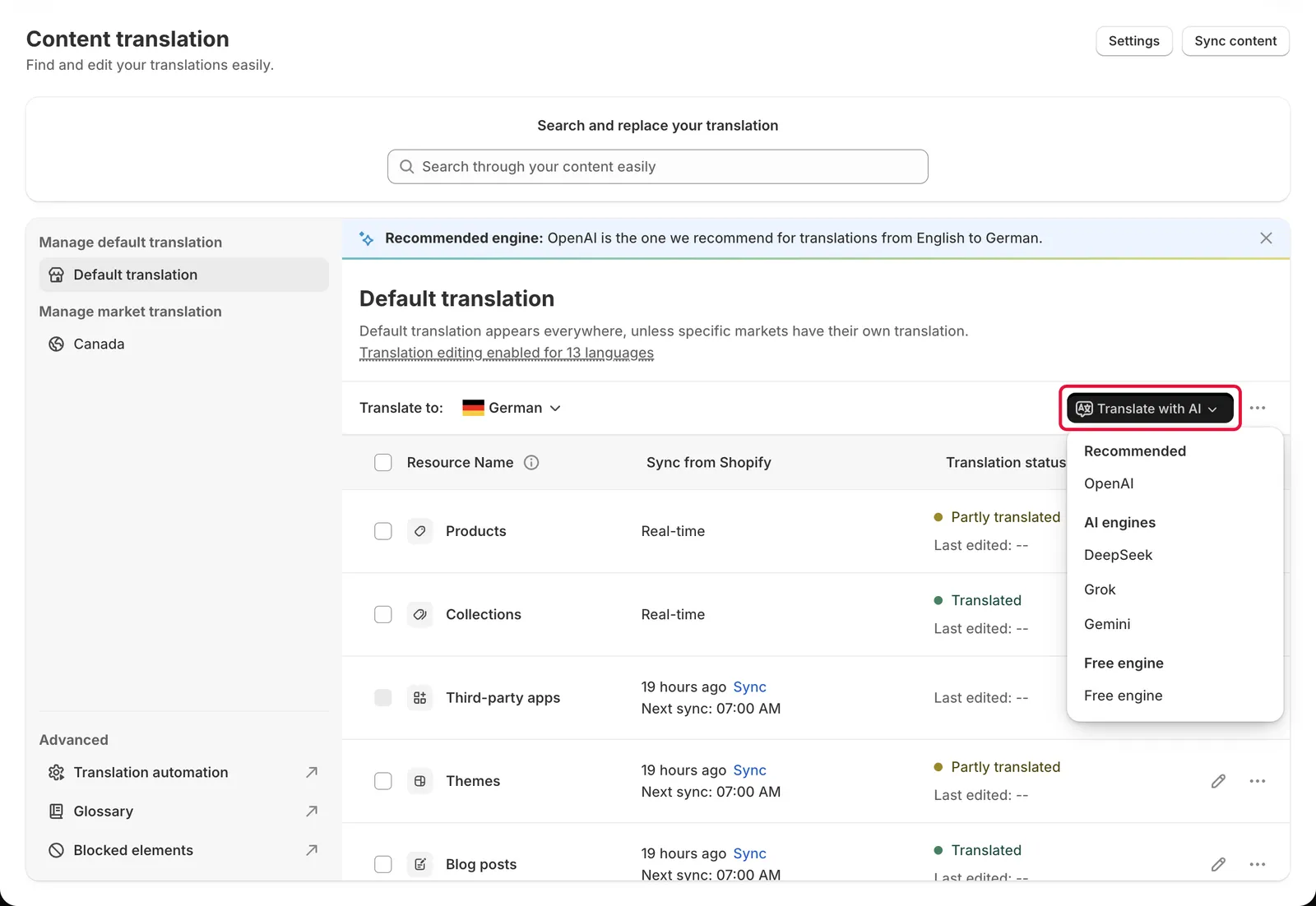
On the Indholdsoversættelse page, click Oversæt med AI. With no rows ticked, it translates every resource that can be translated. On a resource page, click the engine button in the bar above the list. Other engines are under Andre.
The menu groups engines as Anbefalet, AI-motorer and Gratis motor. An engine that your plan does not include, or that cannot translate this language, stays in the list but is grey, with the reason under its name.
Check the quote
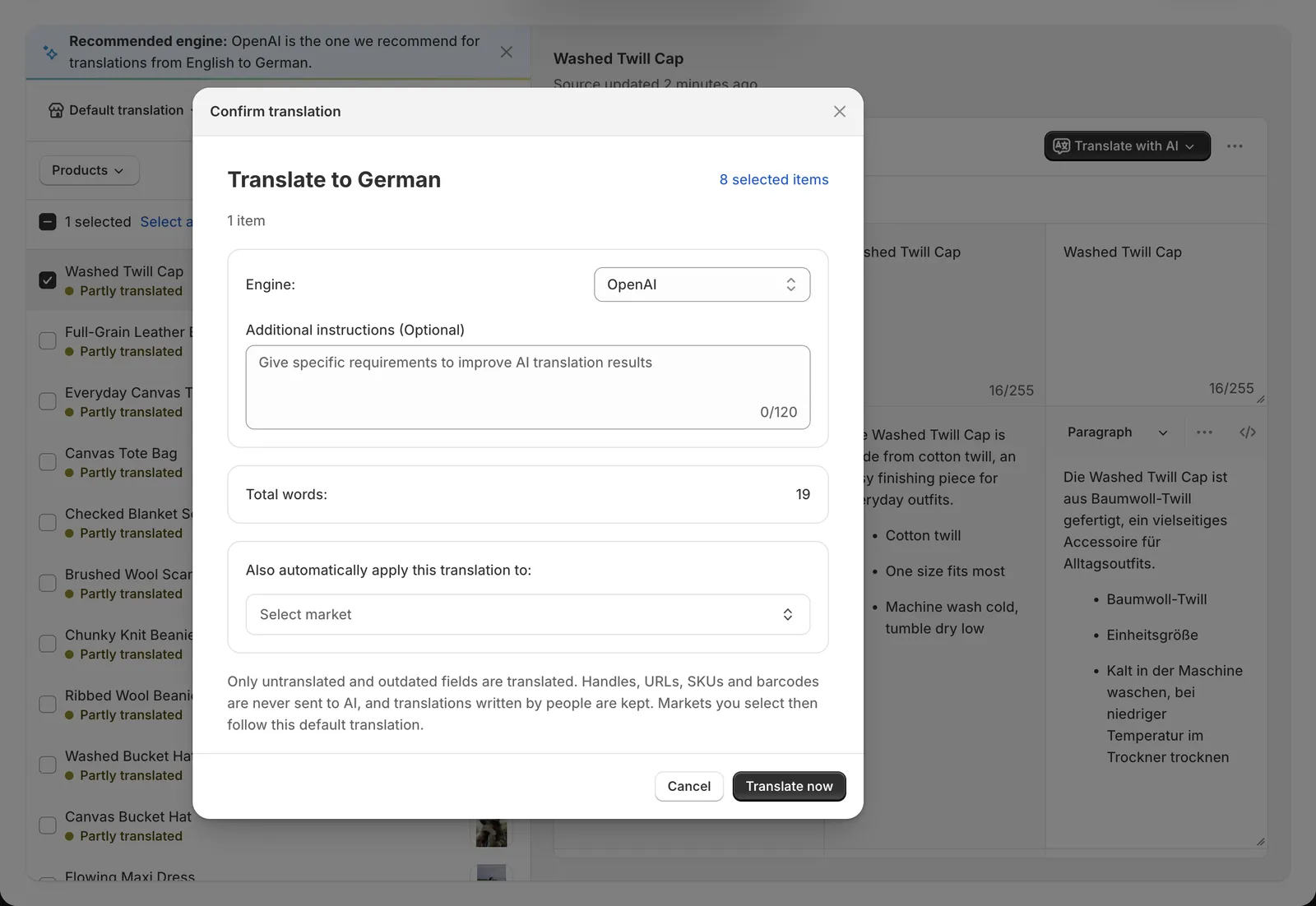
The Bekræft oversættelse dialog opens. It shows the number of items and Ord i alt:. You can switch engine in the Motor: list.
If the run does not fit what your store can use now, Oversæt nu stays off and a note tells you to contact us.
Add instructions
In Yderligere instruktioner (valgfrit), you can write up to 120 characters, for example "Use a friendly tone". The text goes with the translation request. Your glossary rules still apply. A run with instructions does not reuse your earlier translations, so its quote can be higher.
Pick specific elements
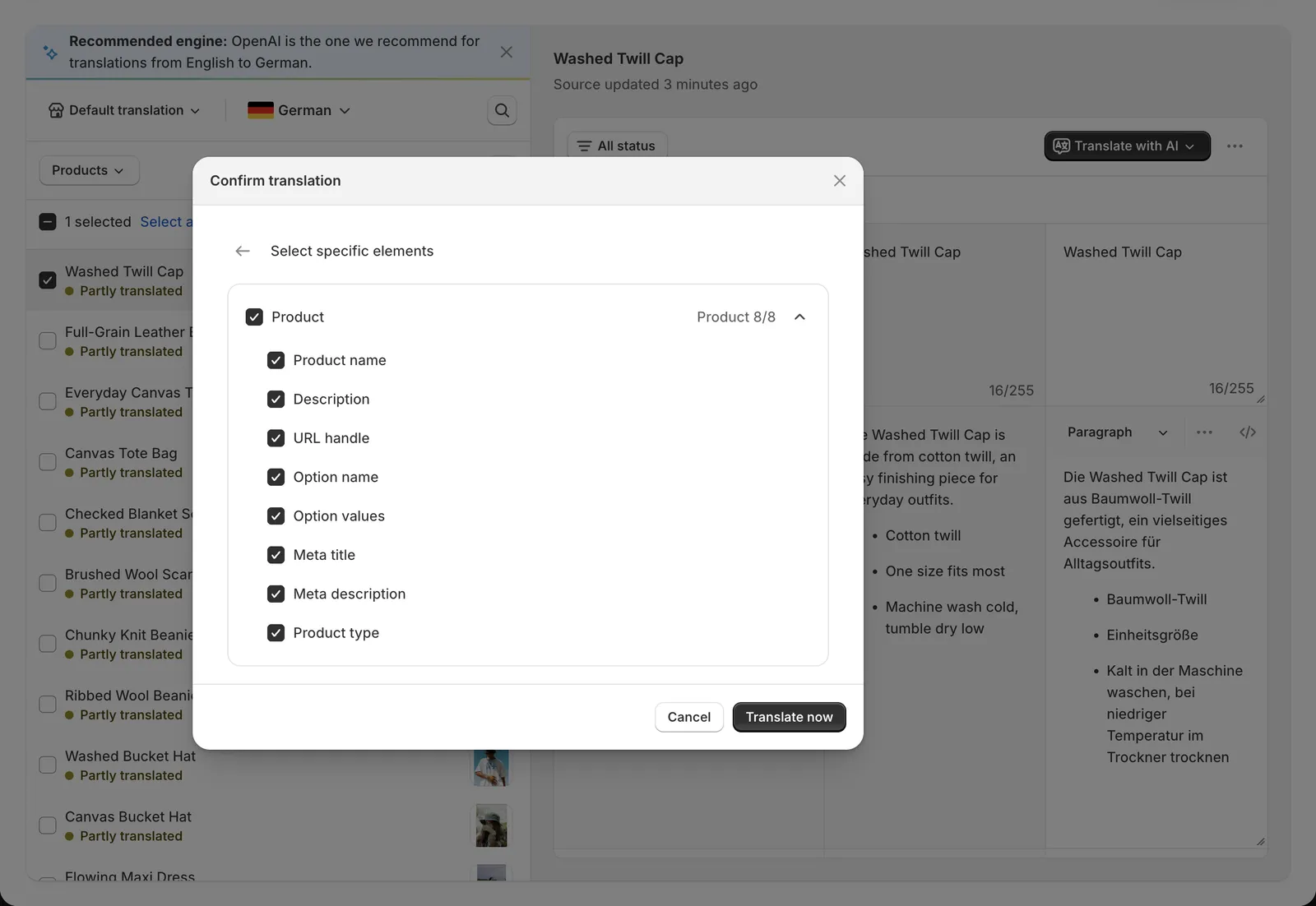
To translate only some fields, click the link at the top right of the dialog, such as "1 selected item". The Vælg bestemte elementer view lists the fields of each resource. Tick the ones you want. Each resource needs at least one. Use the arrow, Tilbage til Bekræft oversættelse, to go back.
Start the translation
Click Oversæt nu. The dialog closes and the run starts in the background. Follow it in Task progress.
Good to know
- Only untranslated and outdated fields are translated. Translations written by people are kept. URL handles, SKUs and barcodes are never sent to AI.
- If your plan limits products, a run translates the products that fit and leaves the rest out. The dialog tells you how many before you start. Products per language on your plan: Free-pakken: 10
- The dialog may suggest an engine that suits the language. You can switch to it, compare, or close the suggestion.
- A resource that is already being translated is left out of a new run.
Bemærk
The Free engine and your own API key do not use your AI tokens or your monthly allowance.
Apply the translation to markets
Kontakt os for at aktivere detteWhen you translate the default translation and your store has markets, the dialog shows Anvend også automatisk denne oversættelse på: with a Vælg marked list. The markets you choose drop their own machine translations of these fields and follow the default translation. See Default and market translations.
Relaterede artikler
Default translations and market translations
Learn when to use the default translation for all markets and when to add a translation that only one market shows.
Translation engines: OpenAI, Gemini, Grok, DeepSeek
See which translation engines SmartCS offers and what each needs. Set the tone, or use your own API key for OpenAI or Gemini.
Sidst opdateret 18. november 2026