Mark as translated and delete translations
Mark many resources as translated or delete their translations at once from the editor list, or from the menu of one item.
Use bulk actions to change the translations of many resources in one step. You can mark them as translated, or delete their translations for one or more languages.
Before you start
Open the editor for a group and a language. See Edit translations manually. Markér som oversat uses the language you have open. Slet oversættelser starts with that language, and you can tick more. Both work in the market you have open. In a market, marking as translated needs market translations in your plan. See Default and market translations.
Mark resources as translated
Select resources
Tick the box of each resource in the list. To tick every row on the page, tick the box at the top of the list or select Vælg alle. Marking and deleting work on the rows you ticked. If the list offers a link to select every filtered item, that selection removes the Flere handlinger button, so only Oversæt med AI is left.
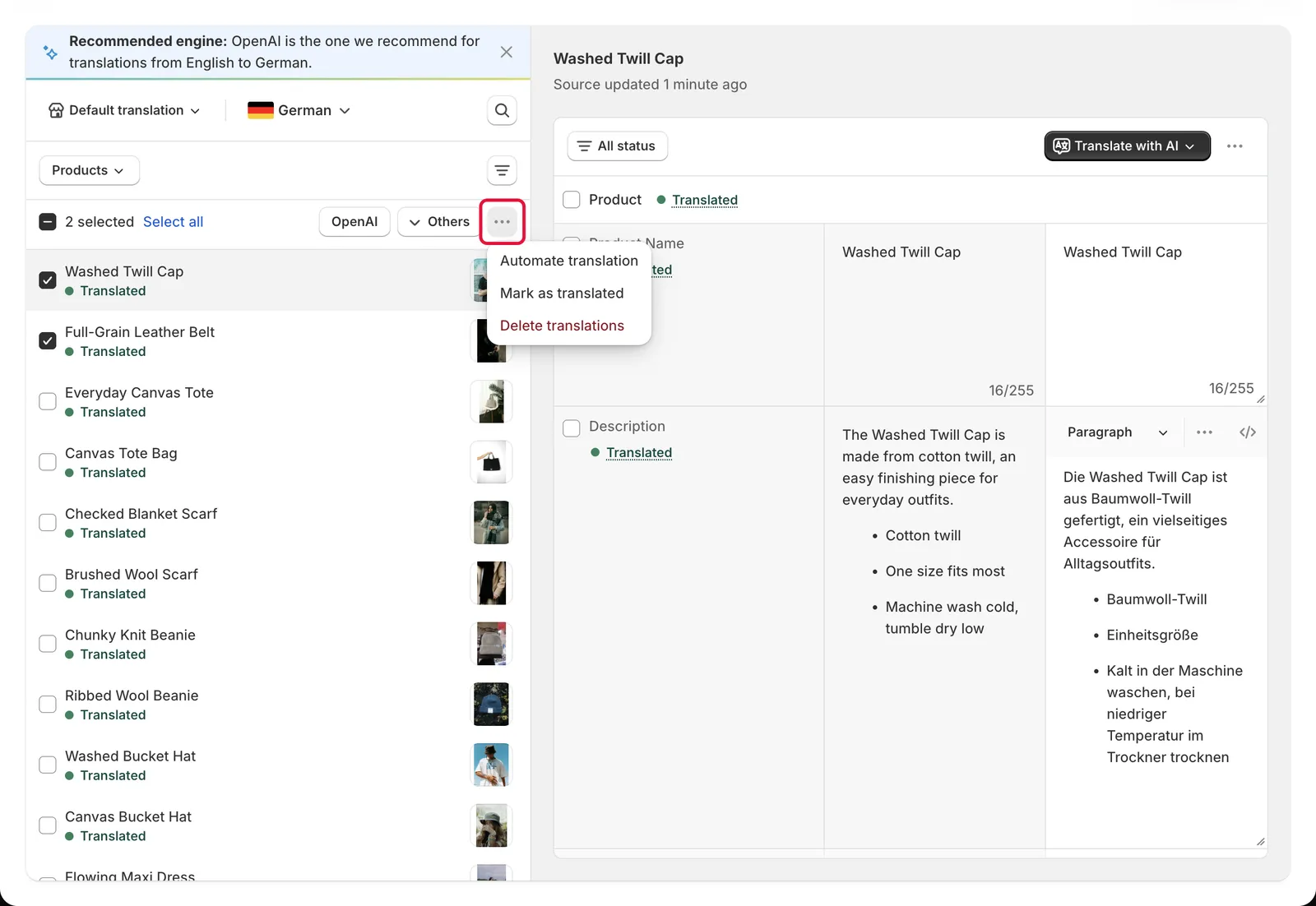
Choose Mark as translated
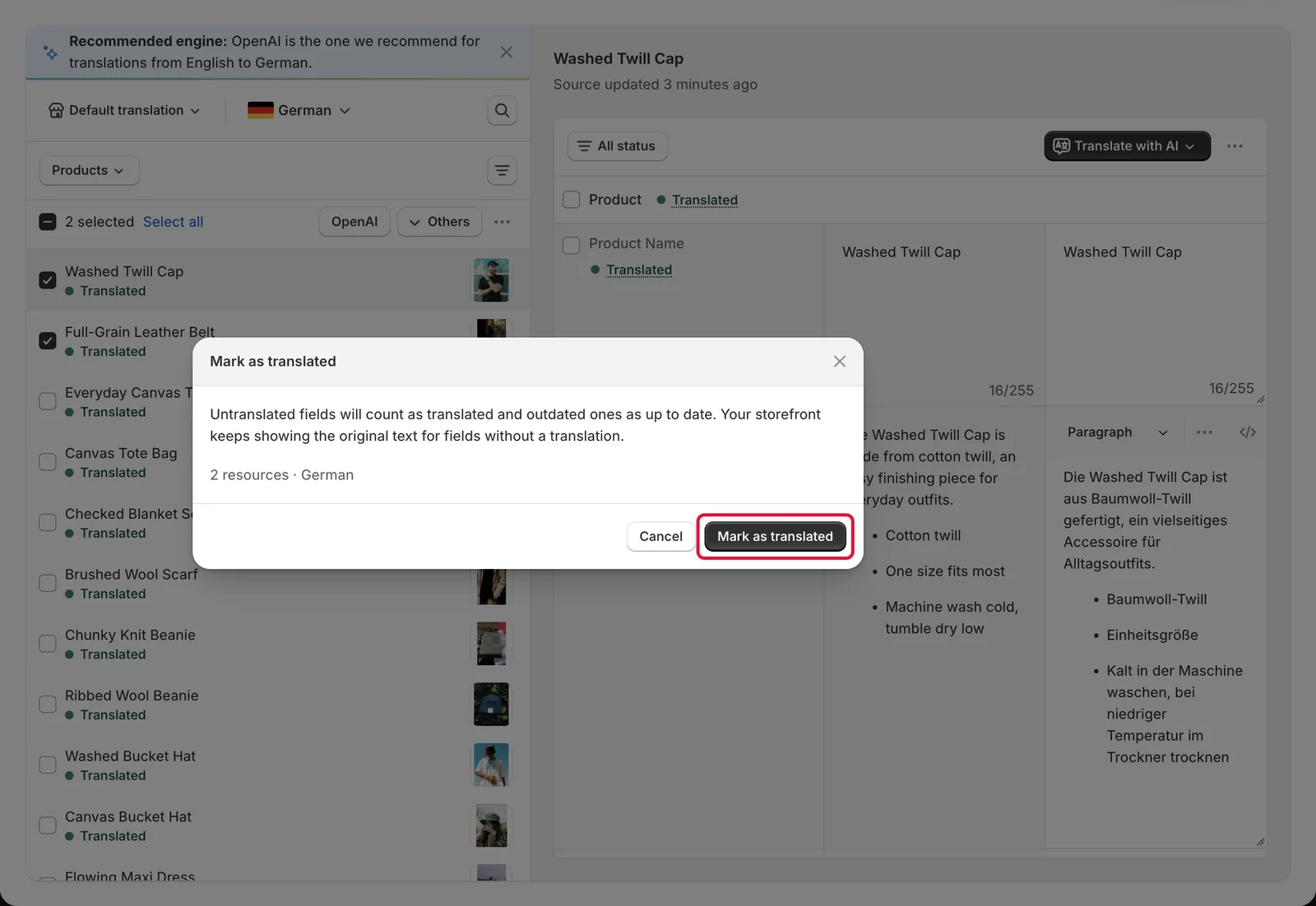
Select Markér som oversat. The dialog explains the result: Uoversatte felter regnes som oversat, og forældede felter som opdateret. Din webshop fortsætter med at vise den oprindelige tekst for felter uden oversættelse.
Confirm
Select Markér som oversat. A Markeret som oversat message confirms it. Select Annuller to stop.
Marking works for one language only: the one you have open. It does not write any text. It changes the status of the fields.
Delete translations
Select resources and open the menu
Tick the resources, then open the three-dot menu as above.
Choose Delete translations
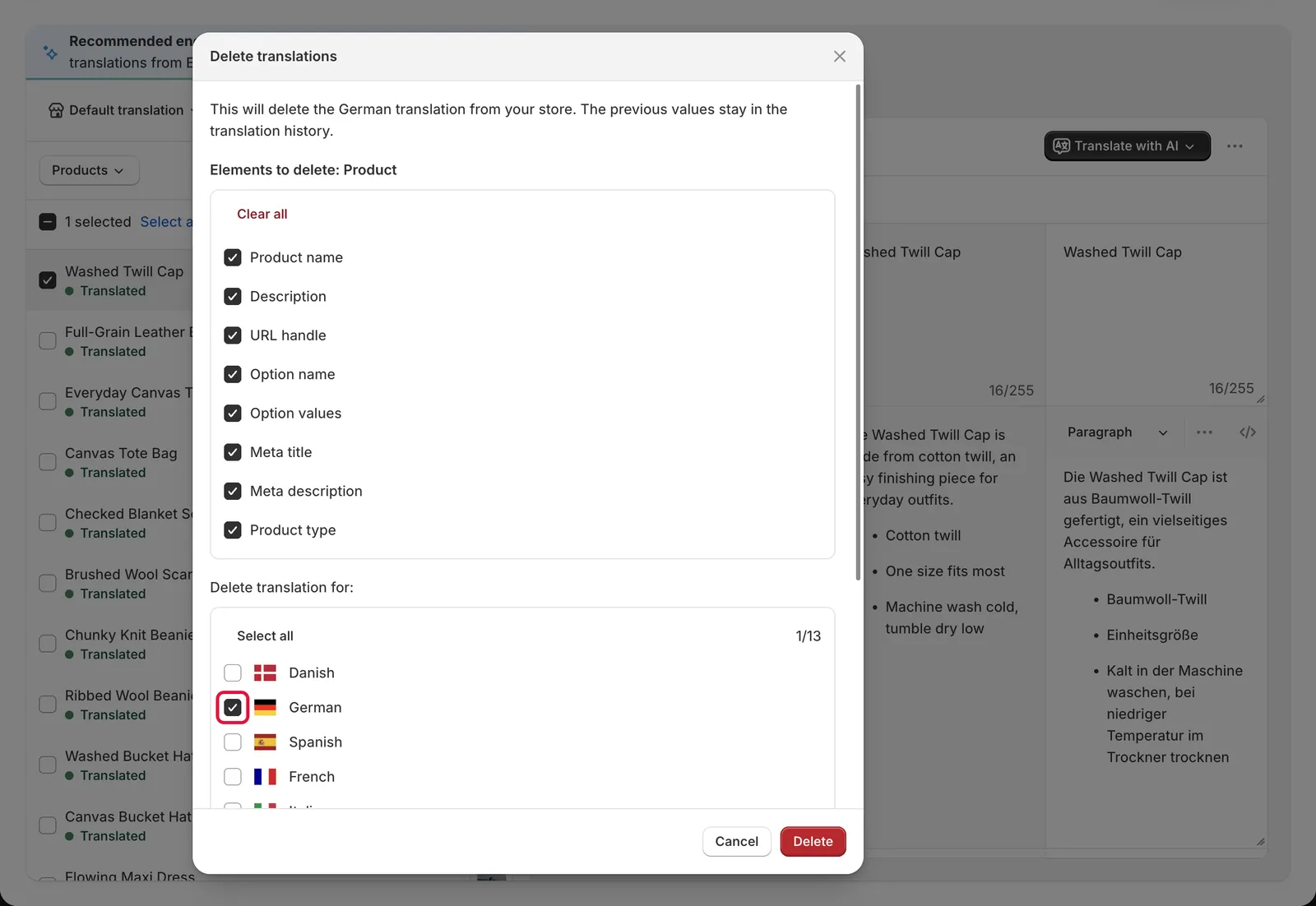
Select Slet oversættelser. When you ticked resources of one group, the dialog lists that group's elements under a heading such as Elementer, der skal slettes: Products, so you can keep some elements. Under Slet oversættelse for:, tick the languages. Your open language is ticked already.
Confirm
Select Slet. A Oversættelser slettet message confirms it.
In a market, only that market's own translations are deleted. The market then shows the default translation again.
Use the menu of one item
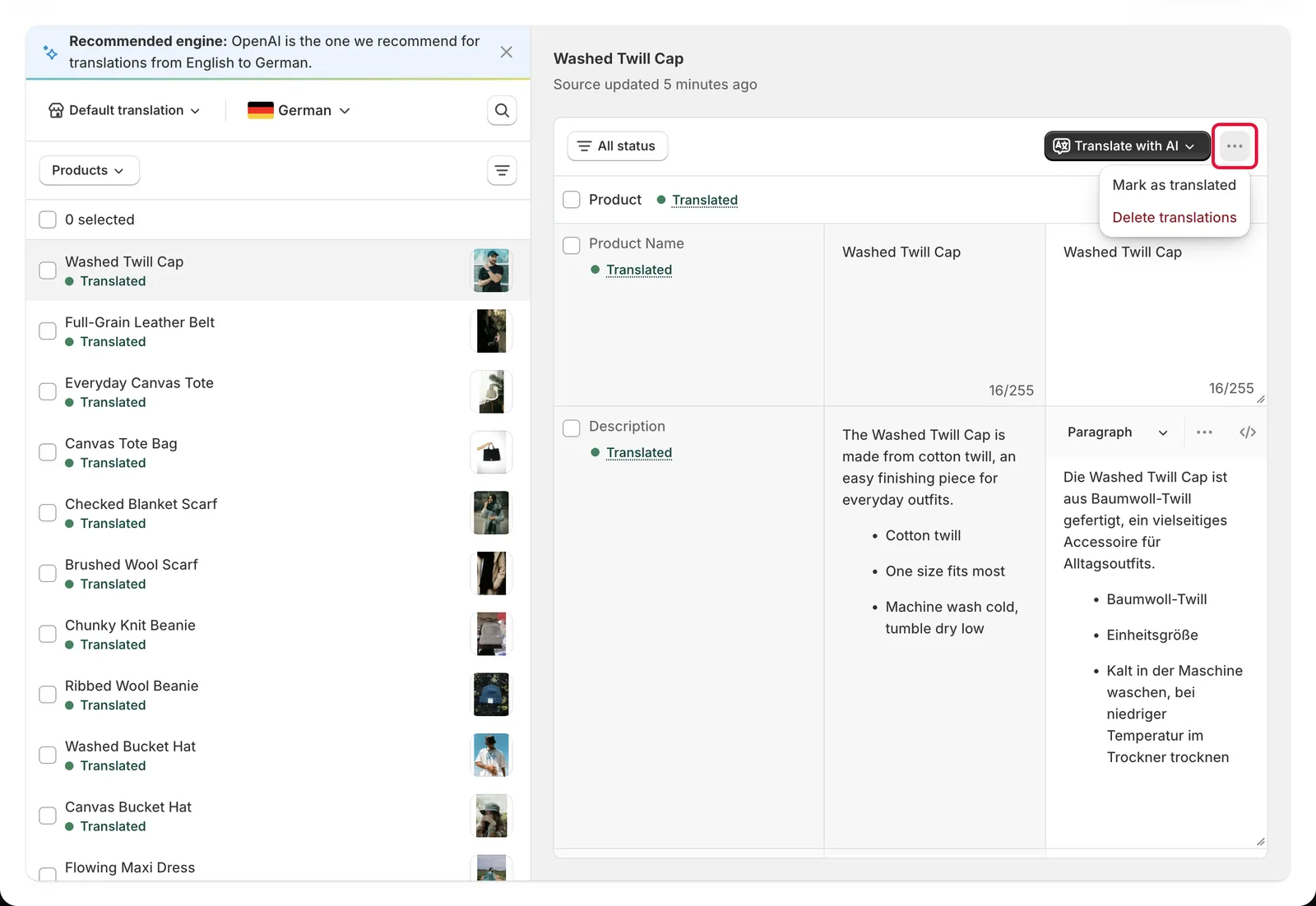
In the item card, select Flere handlinger to see Markér som oversat and Slet oversættelser for that item. If you ticked some fields first, the delete covers only those fields. The dialog also lists your other languages under Slet også andre sprog. Tick the ones you want to delete too.
Good to know
- A delete cannot be undone from the editor on a plan that keeps no history. Kontakt os for at aktivere dette A plan that keeps versions lists the deleted values in Translation history. It keeps this many versions of a field: Free-pakken: 0
- A large selection runs in the background. Watch it in Task progress.
- If Shopify refuses some resources, SmartCS keeps their translations and tells you how many.
- Fields that were changed outside the app are skipped. Resolve them in the editor first.
- A resource that a running job holds cannot be ticked until the job ends.
Advarsel
Deleting removes the translations from your store. Check the languages in the dialog before you confirm.
Relaterede artikler
Translation history and revert
See earlier versions of a translated field and put one back, so you can undo a change you did not mean to make.
Use a different image or file per language
Choose a different image or PDF file for each language, so shoppers see the right file in their language.
Sidst opdateret 18. november 2026