Choose where the switcher appears
Place the switcher in a corner, on the side, over the top of the page or inside your theme, and set the corner and the distance from the edge.
Choose where the switcher appears on your store. You can float it in a corner, pin it to a side, put it in a bar over the top of the page, or place it inside your theme.
Skontaktuj się z nami, aby to włączyćBefore you start
Position is part of customization, so your plan must include it. On a plan without it, the fields are locked.
The app then shows the message Dostosowywanie przełącznika nie jest jeszcze włączone w Twoim sklepie. with a Skontaktuj się z nami button.
Desktop and mobile have their own position. Choose a device first, with Ustawienia dla at the bottom of the settings. See Desktop and mobile.
Steps
Open Customize
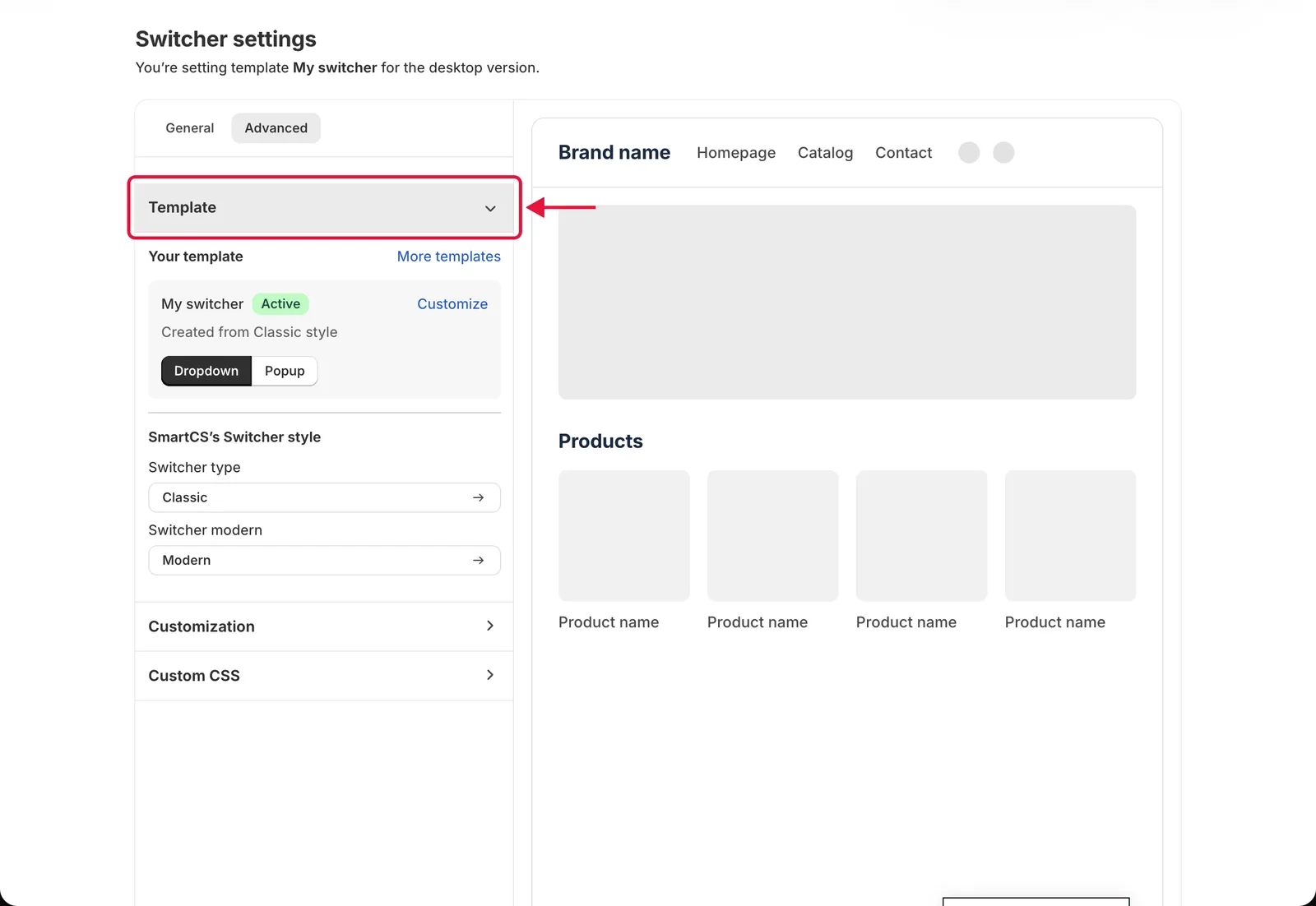
In Ustawienia przełącznika, open the Zaawansowane tab. In Szablon, click Dostosuj. The Personalizacja section opens.
Open the Position card
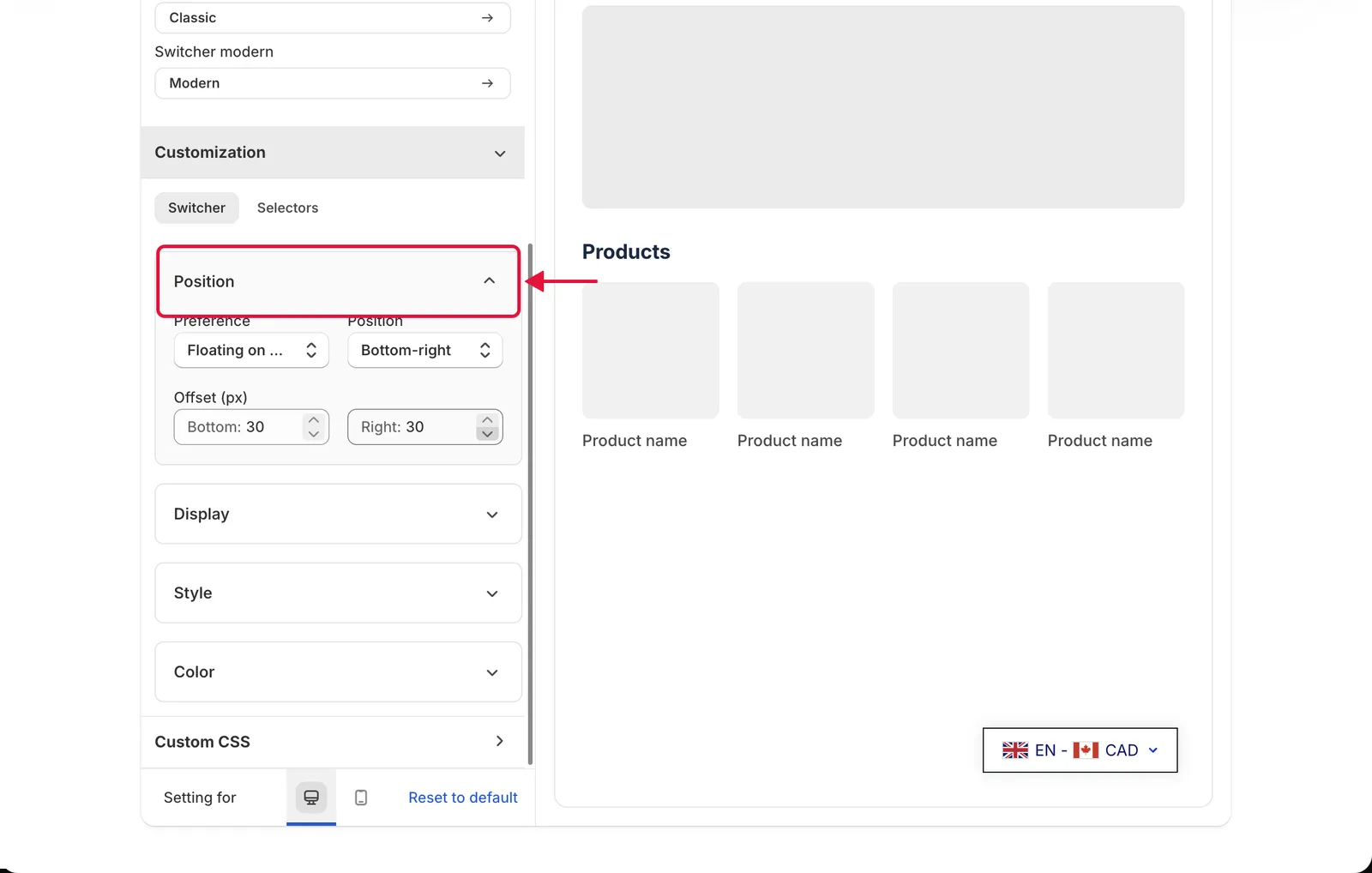
On the Przełącznik tab, click Położenie. The preview on the right shows your choices as you make them.
Choose a preference
Open Preferencja and choose one option:
- Pływający w rogu strony: the switcher stays in a corner while shoppers scroll.
- Osadzony na stronie: the switcher sits inside your theme. See the last step.
- Nad górą strony: a bar at the top of the page. Classic templates only.
- Pływający z boku: the switcher sits halfway down the side of the page. Modern templates only.
Set the corner and offset
For Pływający w rogu strony, choose a corner in Położenie. Then enter the distance from the two edges in Odsunięcie (px). Each number is from 0 to 500.
For Nad górą strony, choose Wyrównaj do lewej or Wyrównaj do prawej. For Pływający z boku, the corner you choose decides if the switcher is on the left or the right side.
Save your changes
Click Zapisz in the bar at the top of the page. Select Odrzuć to undo your changes.
Place it in your theme
For Osadzony na stronie, the card shows your store theme and the link Otwórz edytor motywu. Add the SmartCS Switcher block in the theme editor. See Add the switcher as an app block.
Good to know
- When you change the preference, the app resets the offsets to their default values. Check them again.
- If the settings of the two devices differ, the Zaawansowane tab shows a banner with Zastosuj. It copies the other device's settings into the one you are editing. Save to keep them.
- Osadzony na stronie has no offset. If your theme has no SmartCS Switcher block, the switcher appears in a corner.
- For Osadzony na stronie, the app can show the note W zależności od używanego motywu rzeczywiste położenie przełącznika może się różnić.. The real position can differ from the preview, so check your store after you save.
- On a phone, a theme header often has room for an icon only. If the switcher does not fit there, use a corner or the top bar on mobile.
Powiązane artykuły
Switcher templates and your own templates
Choose a Classic or Modern template for your switcher, apply it, and save your own template after you customize it.
Add the switcher as an app block
Place the switcher inside a section of your theme with the SmartCS Switcher app block, so it sits where you want instead of in a corner.
Ostatnia aktualizacja: 18 listopada 2026