Choose where the switcher appears
Place the switcher in a corner, on the side, over the top of the page or inside your theme, and set the corner and the distance from the edge.
Choose where the switcher appears on your store. You can float it in a corner, pin it to a side, put it in a bar over the top of the page, or place it inside your theme.
इसे चालू करने के लिए हमसे संपर्क करेंBefore you start
Position is part of customization, so your plan must include it. On a plan without it, the fields are locked.
The app then shows the message आपके स्टोर के लिए स्विचर को कस्टमाइज़ करना अभी चालू नहीं है। with a हमसे संपर्क करें button.
Desktop and mobile have their own position. Choose a device first, with इसके लिए सेटिंग at the bottom of the settings. See Desktop and mobile.
Steps
Open Customize
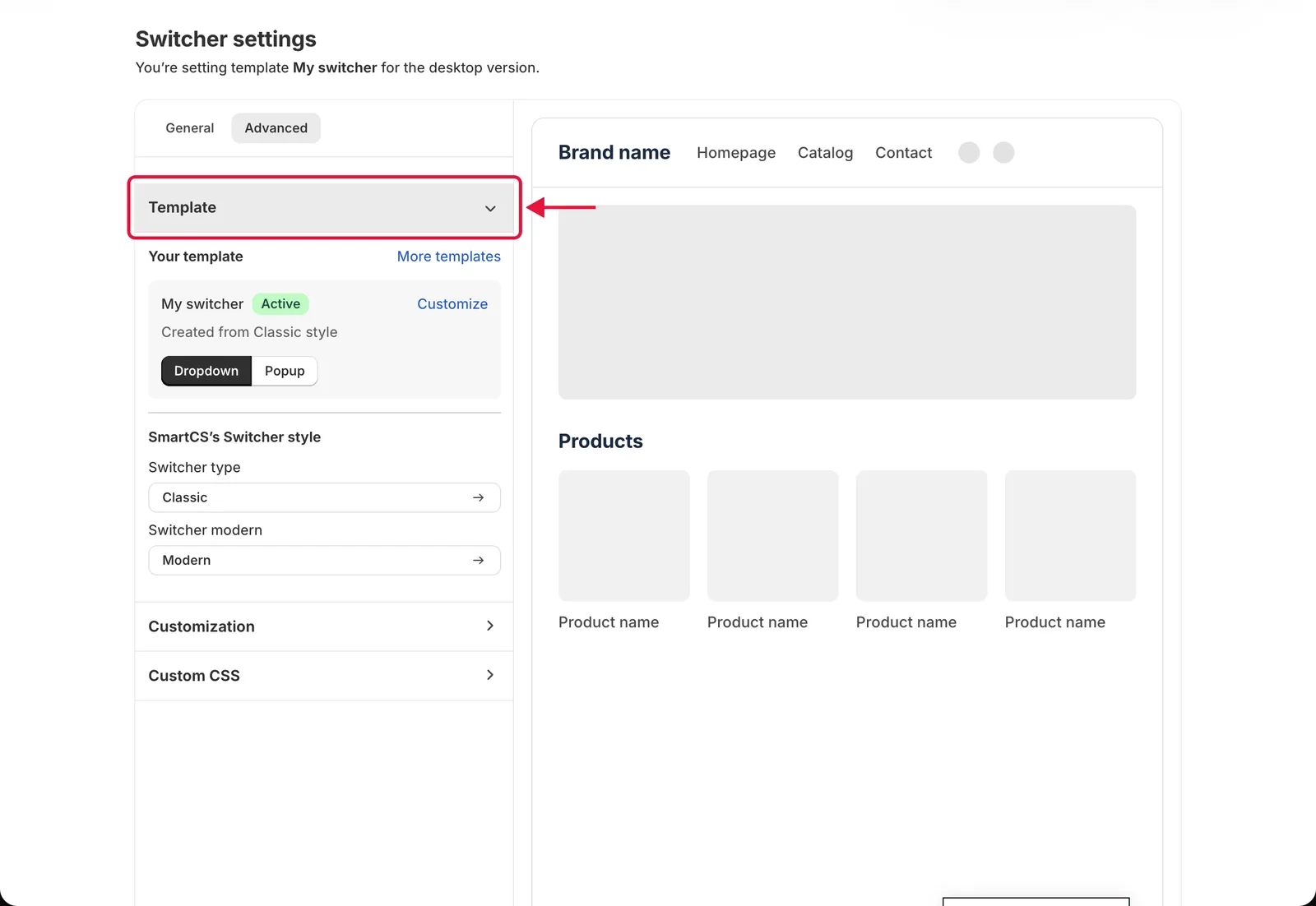
In स्विचर सेटिंग्स, open the एडवांस tab. In टेम्पलेट, click कस्टमाइज़ करें. The कस्टमाइज़ेशन section opens.
Open the Position card
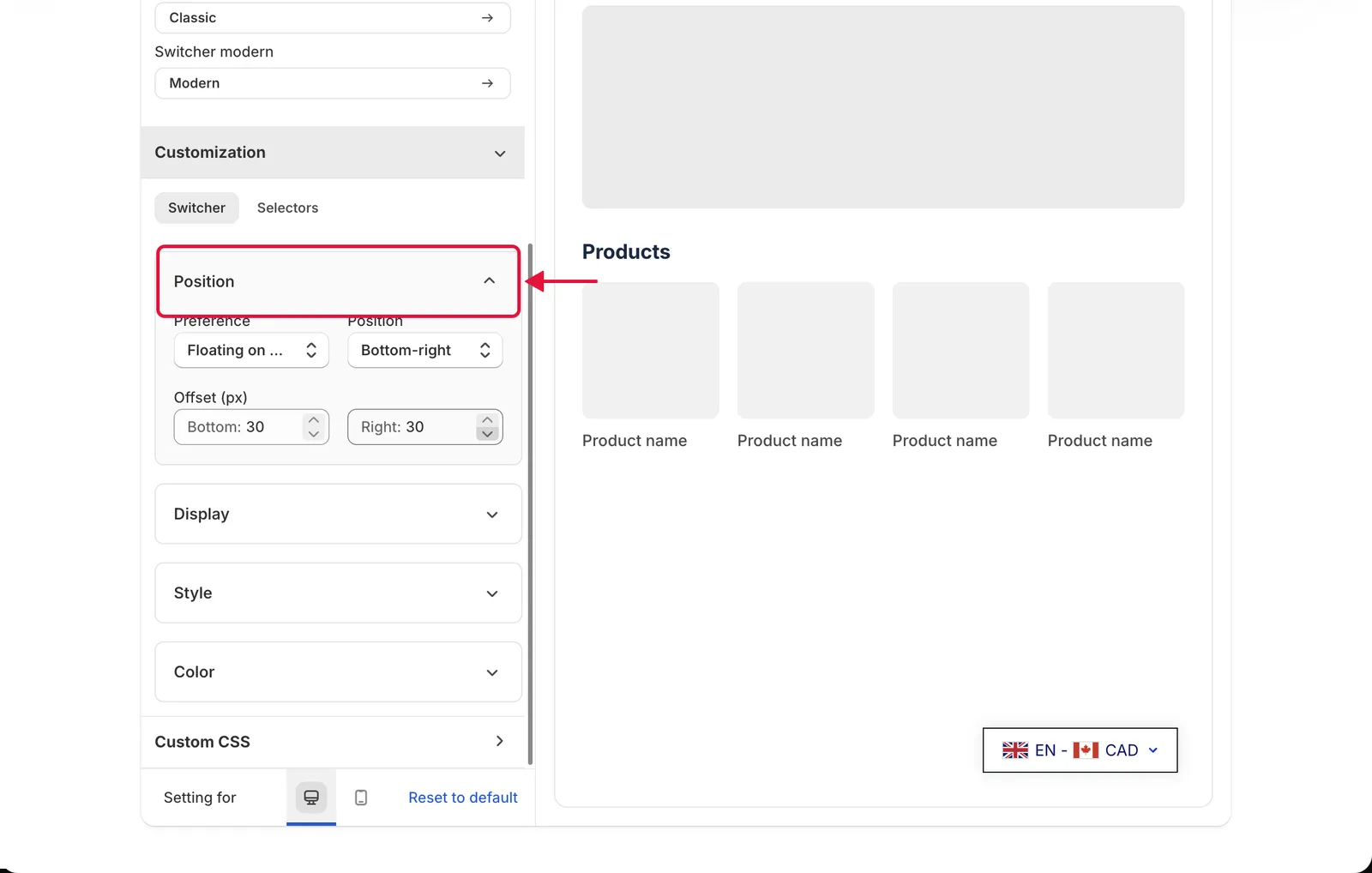
On the स्विचर tab, click पोज़िशन. The preview on the right shows your choices as you make them.
Choose a preference
Open पसंद and choose one option:
- पेज के कोने में फ़्लोटिंग: the switcher stays in a corner while shoppers scroll.
- पेज में एम्बेड किया हुआ: the switcher sits inside your theme. See the last step.
- पेज के ऊपर: a bar at the top of the page. Classic templates only.
- साइड में फ़्लोटिंग: the switcher sits halfway down the side of the page. Modern templates only.
Set the corner and offset
For पेज के कोने में फ़्लोटिंग, choose a corner in पोज़िशन. Then enter the distance from the two edges in ऑफ़सेट (px). Each number is from 0 to 500.
For पेज के ऊपर, choose बाएँ संरेखित करें or दाएँ संरेखित करें. For साइड में फ़्लोटिंग, the corner you choose decides if the switcher is on the left or the right side.
Save your changes
Click सेव करें in the bar at the top of the page. Select रद्द करें to undo your changes.
Place it in your theme
For पेज में एम्बेड किया हुआ, the card shows your store theme and the link थीम एडिटर खोलें. Add the SmartCS Switcher block in the theme editor. See Add the switcher as an app block.
Good to know
- When you change the preference, the app resets the offsets to their default values. Check them again.
- If the settings of the two devices differ, the एडवांस tab shows a banner with लागू करें. It copies the other device's settings into the one you are editing. Save to keep them.
- पेज में एम्बेड किया हुआ has no offset. If your theme has no SmartCS Switcher block, the switcher appears in a corner.
- For पेज में एम्बेड किया हुआ, the app can show the note आप जो थीम उपयोग कर रहे हैं, उसके अनुसार स्विचर की वास्तविक पोज़िशन अलग हो सकती है।. The real position can differ from the preview, so check your store after you save.
- On a phone, a theme header often has room for an icon only. If the switcher does not fit there, use a corner or the top bar on mobile.
संबंधित लेख
Switcher templates and your own templates
Choose a Classic or Modern template for your switcher, apply it, and save your own template after you customize it.
Add the switcher as an app block
Place the switcher inside a section of your theme with the SmartCS Switcher app block, so it sits where you want instead of in a corner.
आख़िरी अपडेट: 18 नवंबर 2026