Add and publish languages
Add a language to your store, translate it, then switch it on with Publish so shoppers can see it.
Add a language so your store can show translated content. A new language starts as unpublished. You publish it when the translation is ready.
Before you start
- Your store has a limit on how many languages you can add. See Source language and language limits.
- If you see Permissões necessárias, select Conceder permissões first. You need this permission before you can add a language.
Add a language
Open Languages
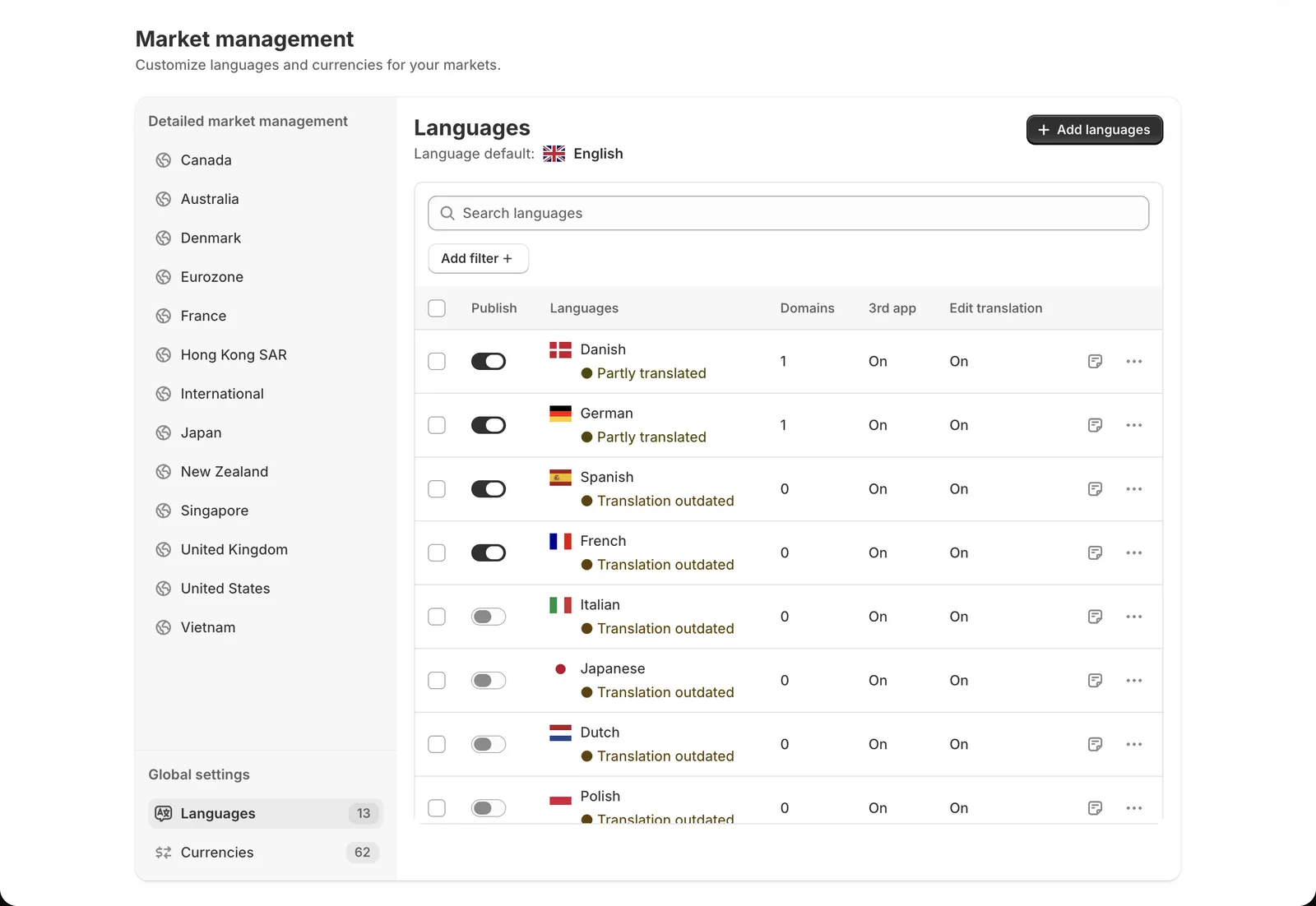
Open SmartCS: Currency & Translate, then go to Gestão de mercados. Under Definições globais, select Idiomas.
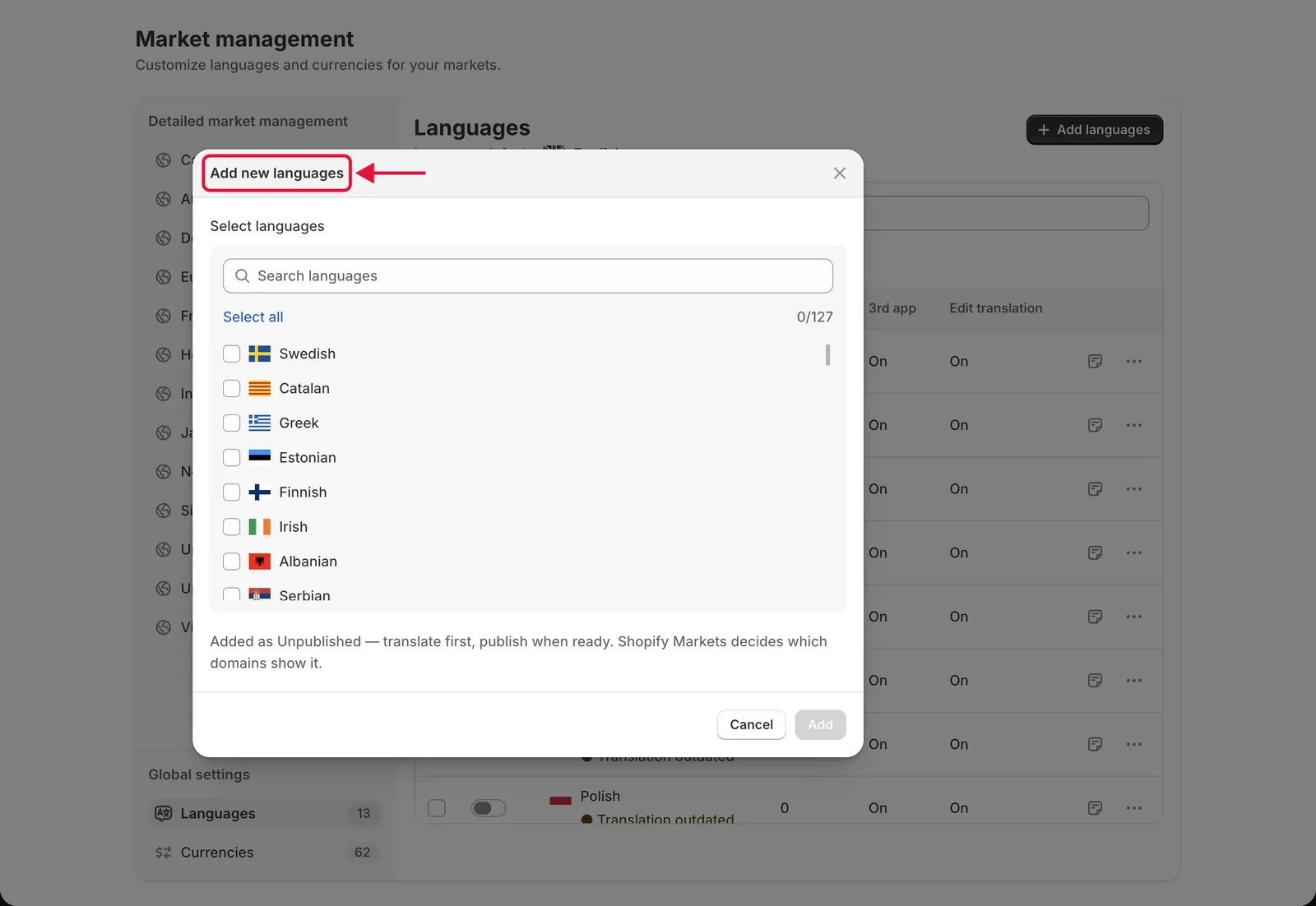
Pick languages
Under Selecionar idiomas, tick each language you want. Use the search field to find one by name or code. Languages you already added are not listed. When you pick as many as your limit allows, the other checkboxes are disabled.
Enter a code
If the list does not load, type a code such as fr, de or pt-BR in Ou introduza um código de idioma.
Add the languages
Select Adicionar. SmartCS adds the languages one at a time. It stops at the first one that Shopify or your limit refuses, and the dialog shows the reason.
Publish a language
Translate the content first. Then turn on the switch in the Publicar column of the language row.
If fewer than half of the items are translated, a dialog warns you that shoppers will see untranslated text in your default language. Select Publicar mesmo assim to continue, or close the dialog and keep translating.
Good to know
- SmartCS adds a language to your whole store. It does not choose which domains show it. Shopify Markets decides that, so assign the language to a domain there. See Manage a market.
- Languages you add in the Shopify admin also appear in this list.
- The number of published languages is limited too. When you reach it, a badge (Limite atingido) appears on the row of each unpublished language and its switch is locked.
- Shopify allows up to 20 languages in a store, and your default language is one of them.
Nota
An unpublished language is not visible to shoppers. You can still translate it and check the result before you publish.
Artigos relacionados
Re-use translations between markets
Copy the translations of one market into another market for the same language, without translating the same texts again.
Source language and language limits
See which language is your source language and how many languages your store can add, publish and edit.
Última atualização: 18 de novembro de 2026