Default translations and market translations
Learn when to use the default translation for all markets and when to add a translation that only one market shows.
Translate once in the default translation for all markets. Add a market translation only where one market needs different text. Contacte-nos para ativar esta funcionalidade
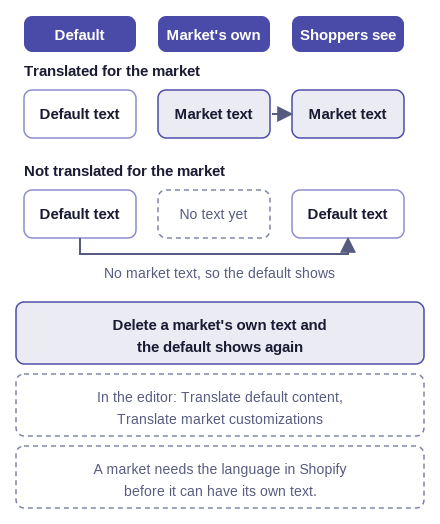
The two kinds
- Default translation. It appears everywhere, unless a market has its own translation.
- Market translation. It appears only in that market. Items you did not translate for the market show the default translation.
For example, use a market translation when one market needs a different word for the same product. Leave everything else on the default.
Before you start
- Create the market in Shopify and sync it. See How SmartCS works with Shopify Markets.
- The market must sell in the language. A market that does not sell in the language shows this message: Este mercado não vende neste idioma, por isso não pode ter uma tradução própria. Primeiro, adicione o idioma ao mercado na Shopify.
- Market translations must be switched on for your store. If they are off for now, you can read them but not edit them. The page then says: A edição de traduções de mercados está desativada por agora. Pode vê-las, mas não as editar.
Steps
Open Content translation
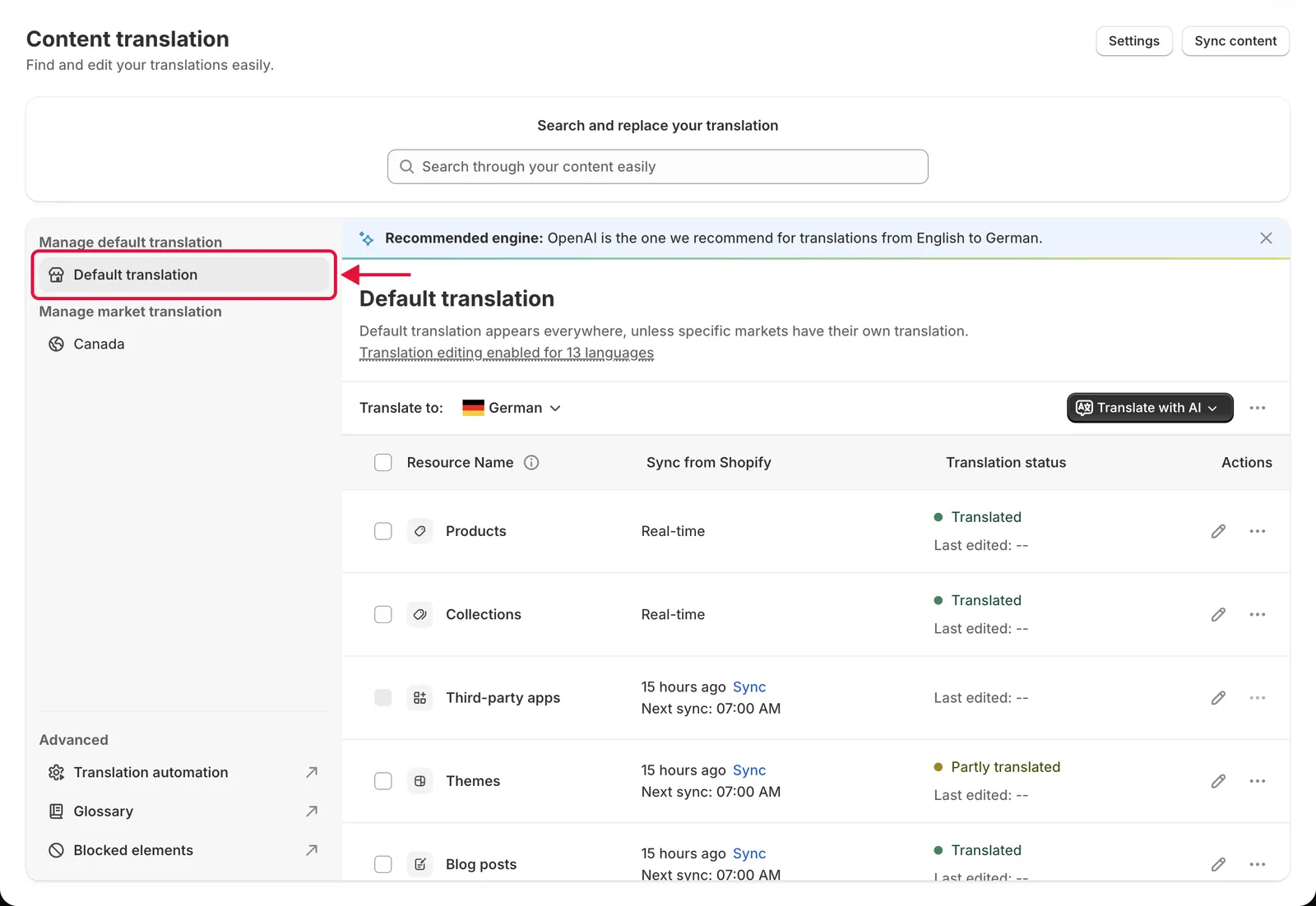
Open Tradução de conteúdo. Under Gerir tradução predefinida, Tradução predefinida is selected. Translations you make here apply to all markets.
Choose a market
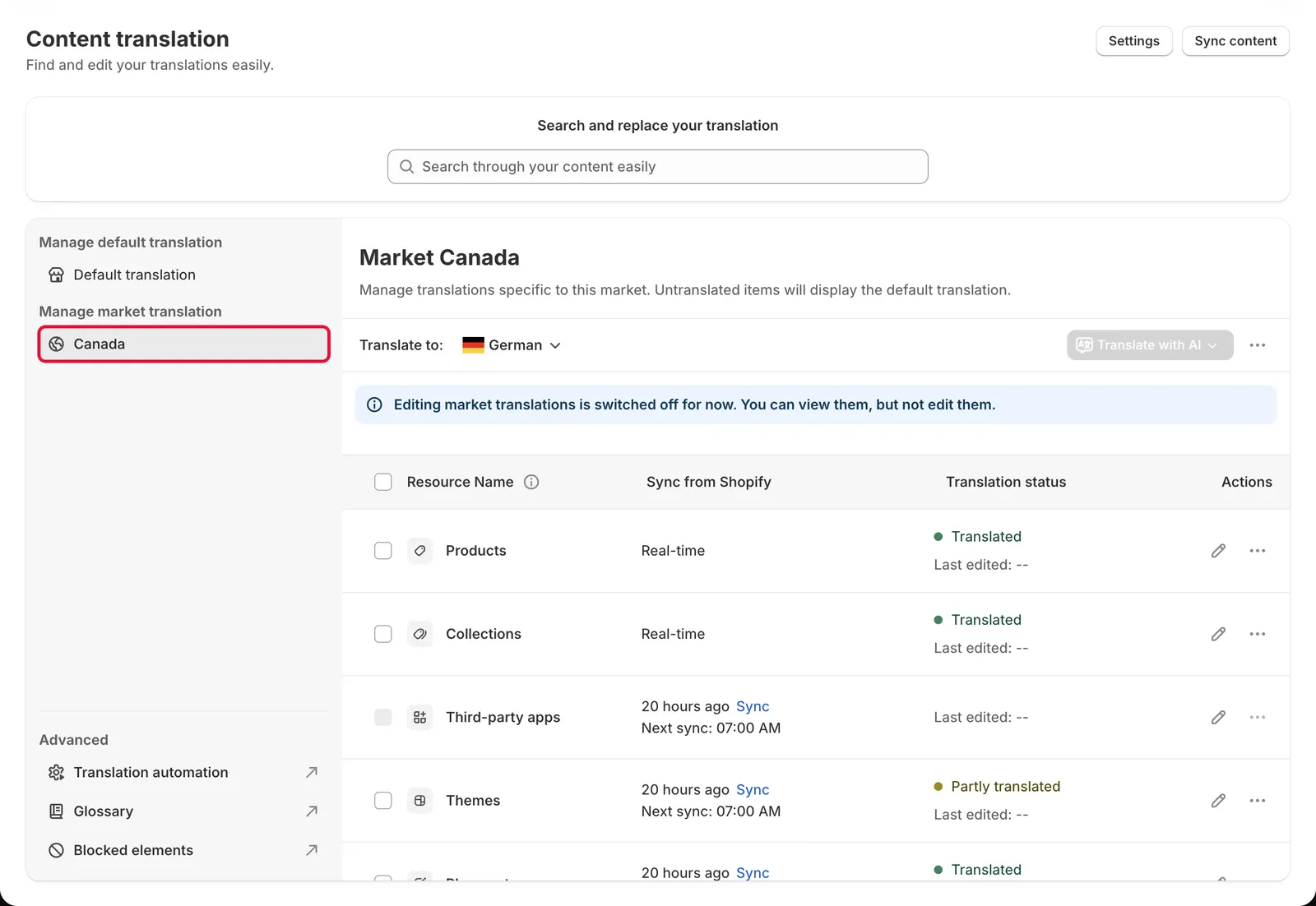
Under Gerir tradução do mercado, select a market. Only markets that sell the language you picked are listed. The page now manages translations for that market only.
Translate for the market
Translate with AI, or select the pencil in a row to edit by hand. Your text is saved as the translation of this market only. The default translation does not change.
Switch scope in the editor
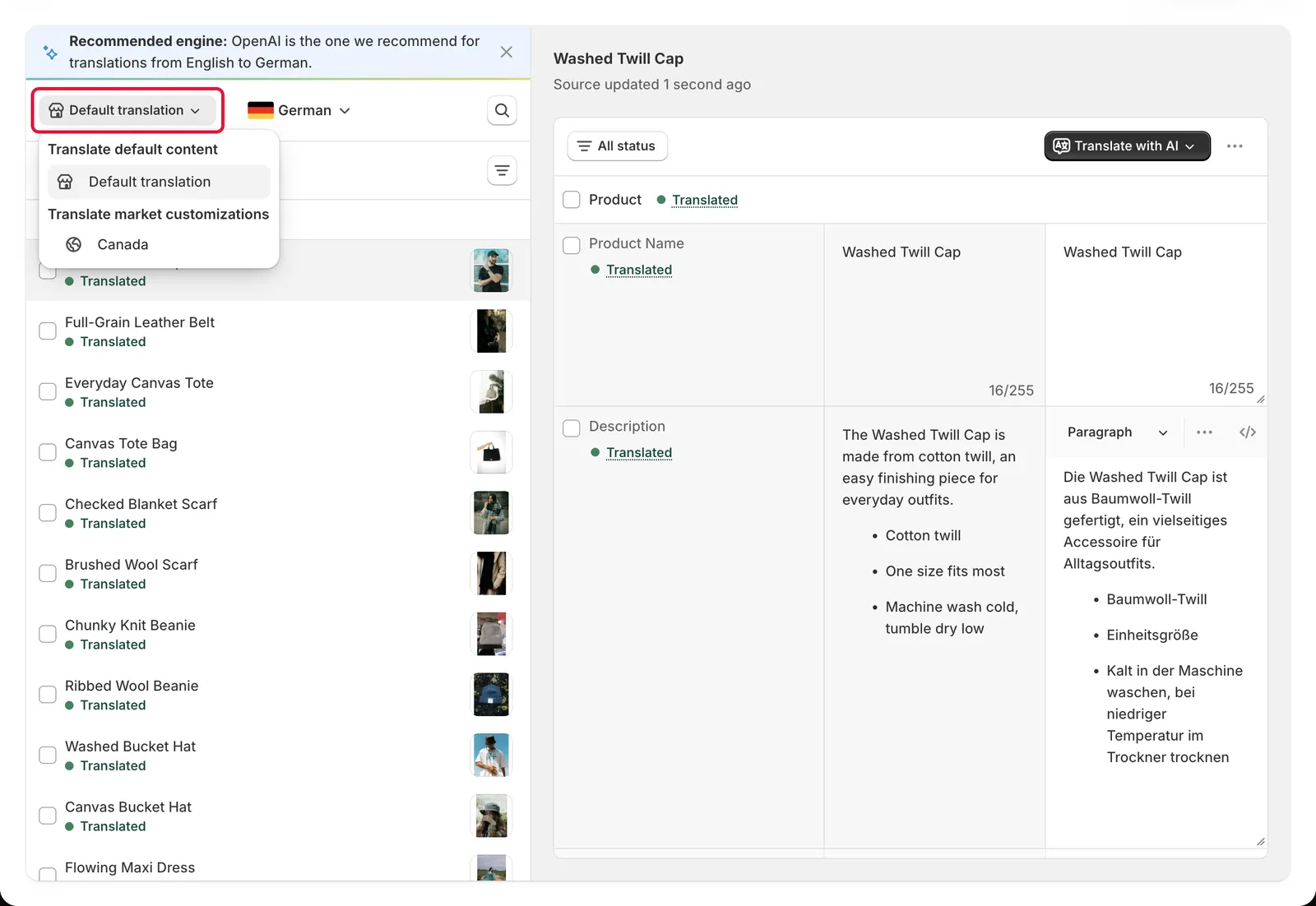
In the editor, open the scope button at the top. Pick a translation under Traduzir conteúdo predefinido or Traduzir personalizações do mercado. A line under the title says which one you are editing.
Go back to the default
To make one field follow the default again, select the Reutilizar tradução existente icon in the field footer. In the dialog, pick Usar tradução predefinida as the translation to re-use, then select Usar tradução predefinida to confirm. That option is off when the field already uses the default. To remove many market translations, select Eliminar traduções in a market. It deletes only the translations of that market.
Good to know
- A note in the card tells you where you are. On a market without its own translation, it offers a link to the default translation.
- In the editor, the globe icon in a field footer, Traduções em outros mercados, lists the default translation first, then every market. A market shows Usa a tradução predefinida or Ainda sem tradução.
- To copy translations from one market to another, see Re-use translations between markets.
- Without market translations on your plan, you can open a market and read it, but the buttons that change it are off. You can still delete market translations.
- Notifications and packing slips have one translation for all markets. In a market they are read-only.
Artigos relacionados
Sync content from Shopify and resolve conflicts
Fetch new and changed content from Shopify into SmartCS, and choose what to keep when Shopify holds a different translation.
Translate content with AI
Translate ticked items or a whole resource with an AI engine. Check the quote, add instructions and start the translation.
Última atualização: 18 de novembro de 2026