Different settings for desktop and mobile
Set up the switcher separately for desktop and mobile, copy one device's settings to the other, and see which settings are shared.
Set up the switcher separately for desktop and for mobile, so each one fits its screen.
Skontaktuj się z nami, aby to włączyćBefore you start
Your shoppers get the mobile version on a screen 767 pixels wide or narrower. Every other screen gets the desktop version. The switcher changes version when a shopper's window crosses that width.
Steps
Choose the device
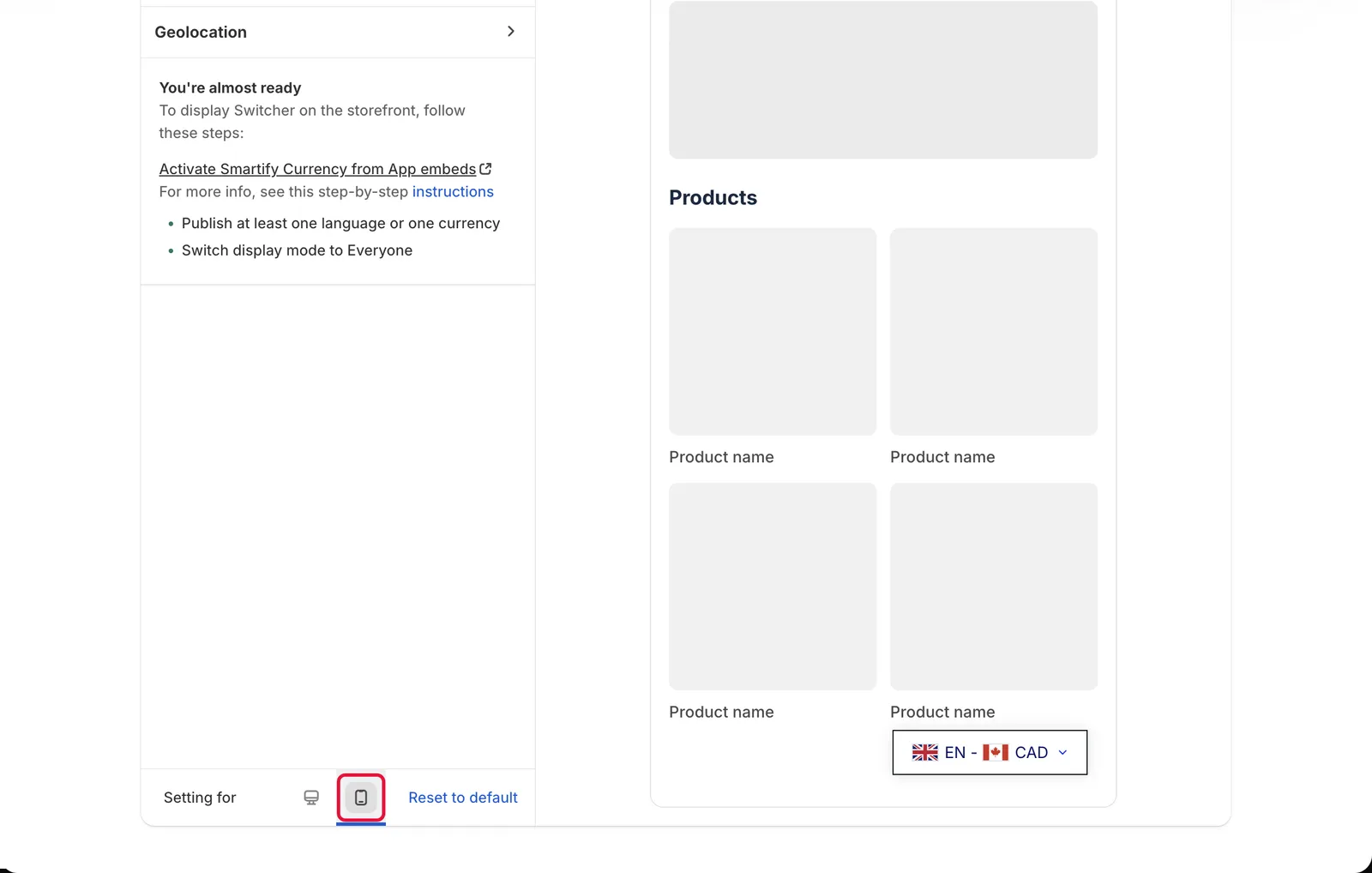
In SmartCS, open Ustawienia przełącznika. At the bottom of the settings column, next to Ustawienia dla, click the Komputer or Telefon button. The line under the page title names the version you are setting. The preview shows that version.
Change the settings
Open the Zaawansowane tab and change the template, Sposób otwierania przełącznika, or any card in Personalizacja. See Choose where the switcher appears, Choose what the switcher shows and Style and colours.
Switch to the other device
Click the other device button and repeat. Your unsaved changes to the first device stay in place while you switch.
Save both devices
Click Zapisz in the save bar. One save keeps the changes to both devices.
Copy one device to the other
When the customization of the two devices is different, the Zaawansowane tab shows a banner at the top. It asks if you want to apply the settings of the other device to the one you are setting, with an Zastosuj button. Click it to copy. The copy covers the cards in Personalizacja. It does not copy the template or Sposób otwierania przełącznika. The copy is not saved until you click Zapisz. The banner goes away when both devices match.
Phone-sized screens in the app
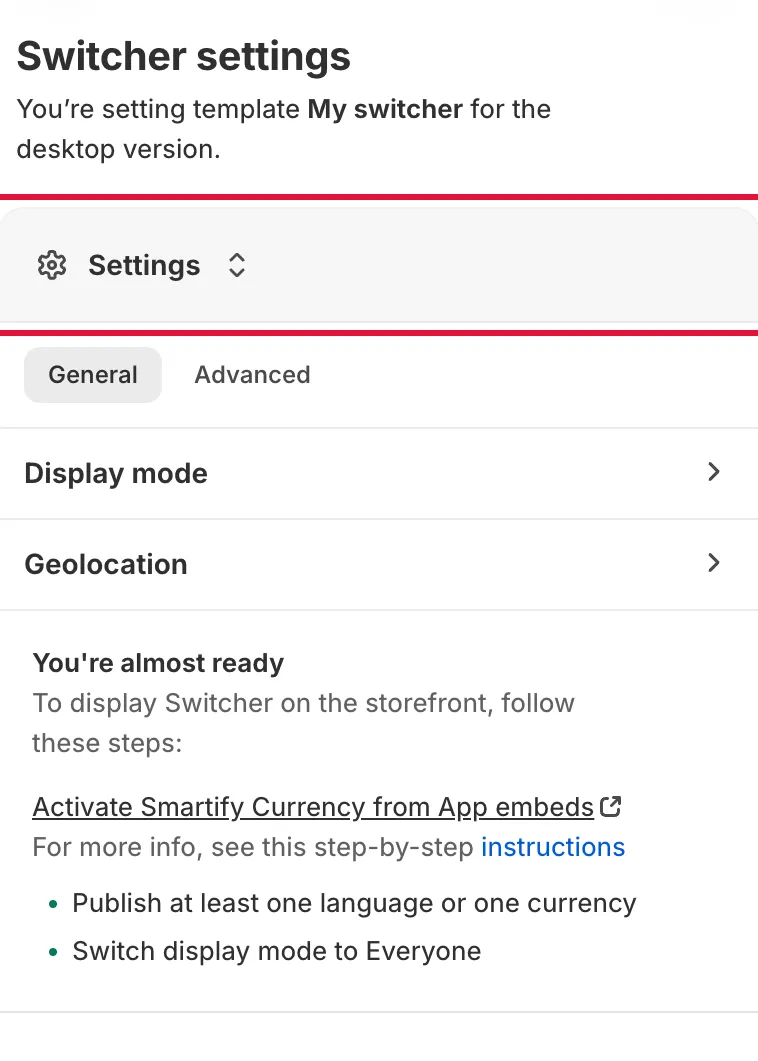
On a narrow screen, the settings and the preview do not fit side by side. Click Ustawienia at the top of the card to switch between them. The Ustawienia dla buttons then sit above the preview.
Good to know
- These settings are different for each device: the template, Sposób otwierania przełącznika and everything in Personalizacja.
- These settings are the same on both devices: Własny CSS, Tryb wyświetlania and Geolokalizacja. To style one device only, write a media query in your CSS. See Add custom CSS to the switcher.
- Przywróć domyślne resets only the device you are setting. See Preview the switcher, choose who sees it, or reset.
- Where Osadzony na stronie is chosen for mobile, the theme's header may not have room for the switcher. If it does not fit, choose Pływający w rogu strony or, with a Classic template, Nad górą strony for mobile.
Uwaga
The preview is a guide and can differ from your storefront in small ways. Check the real result on a phone after you save.
Powiązane artykuły
Style and colours
Change the frame, font, flags and colours of the switcher button, including its hover and open states, and save them for your store.
Add custom CSS to the switcher
Add your own CSS to change how the switcher looks on your store, and learn the size limit and what the field accepts.
Ostatnia aktualizacja: 18 listopada 2026