Edit language names and flags
Change the flag and the names a language shows, so shoppers see names they know.
Change the flag and the names of a language. Use native names that shoppers know, such as "Deutsch" for German.
Steps
Open Languages
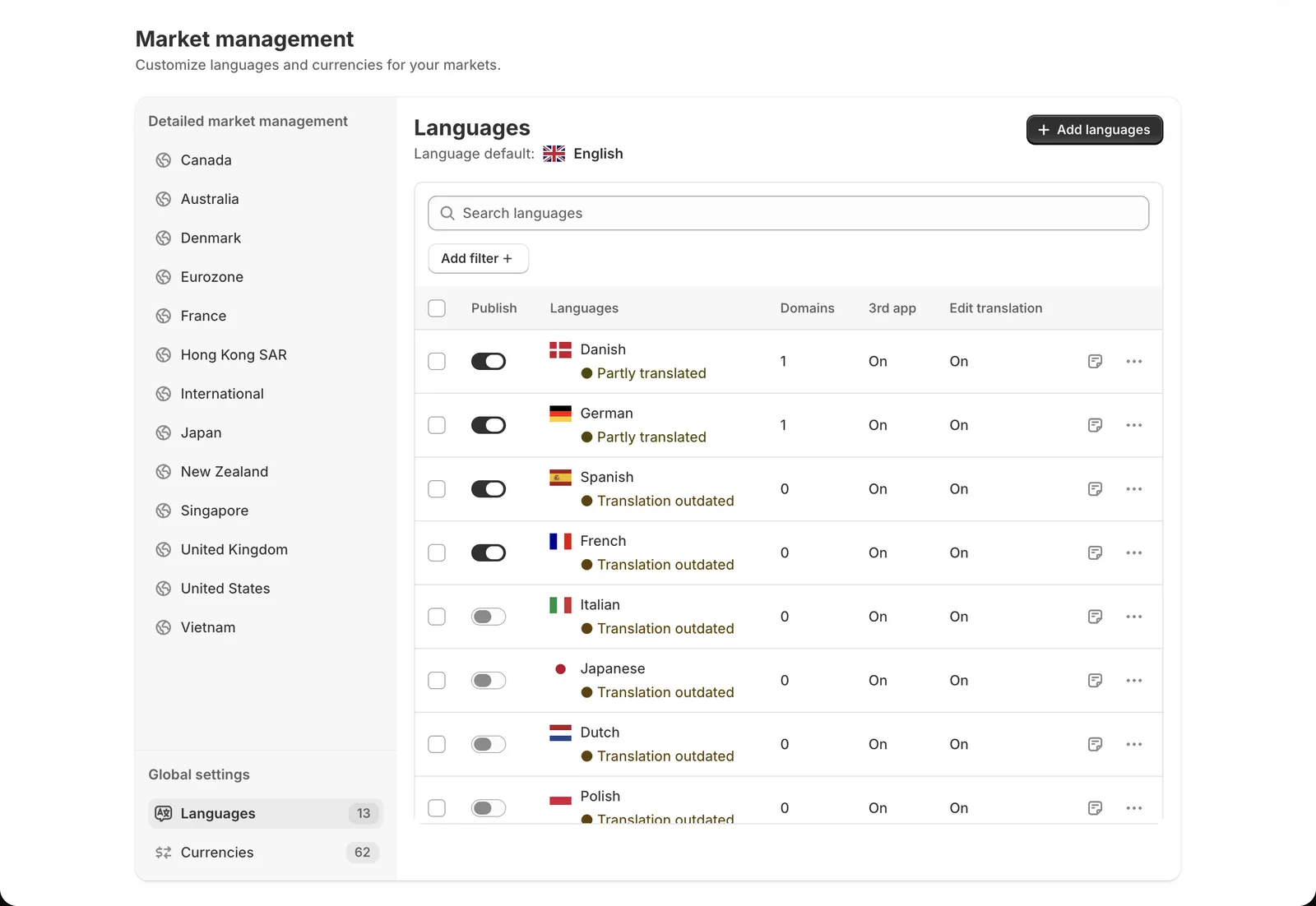
Open SmartCS: Currency & Translate, then go to Market management. Under Global settings, select Languages.
Open the actions menu
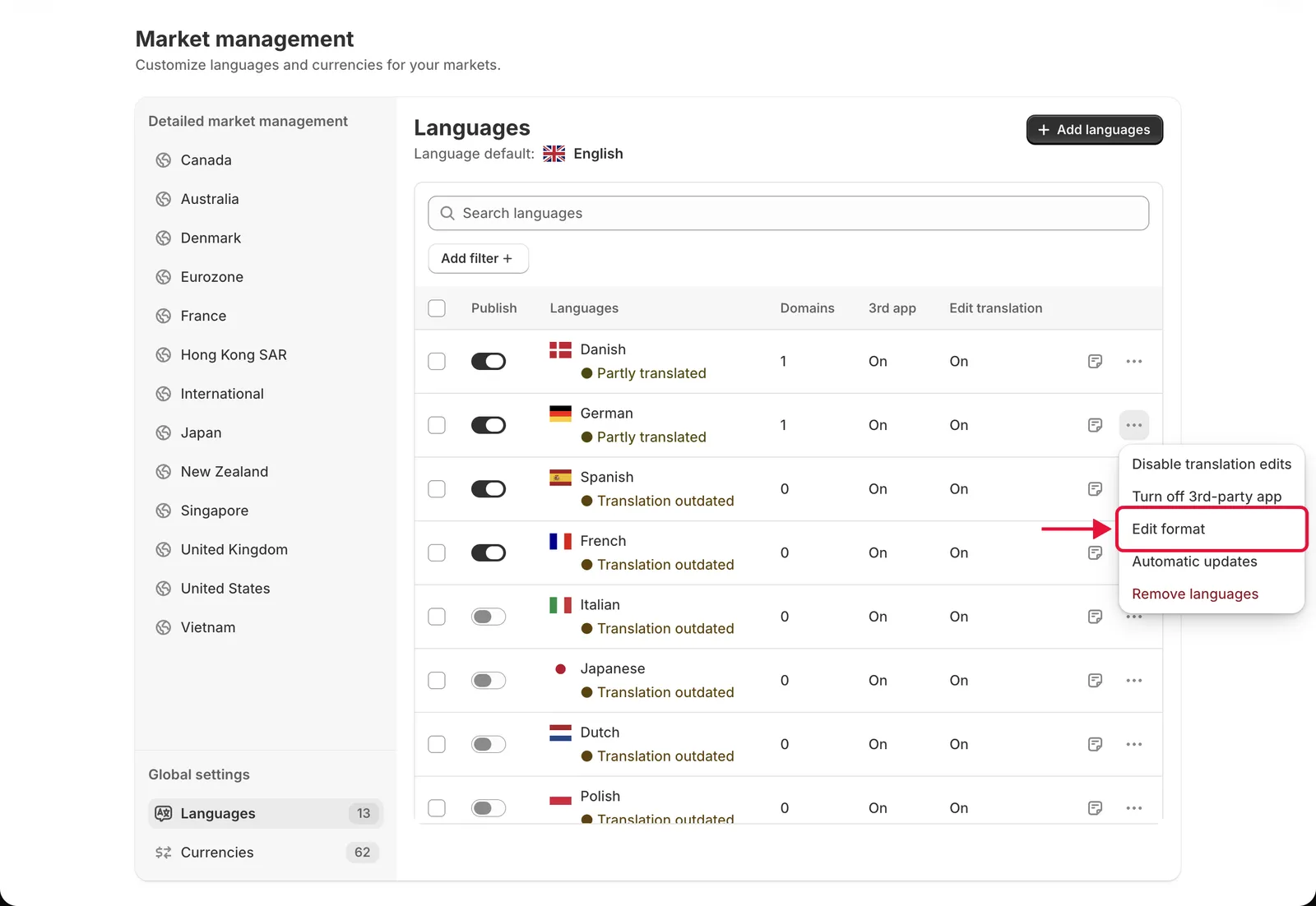
In the row of the language, open the actions menu (the three dots). Select Edit format.
Edit names and flag
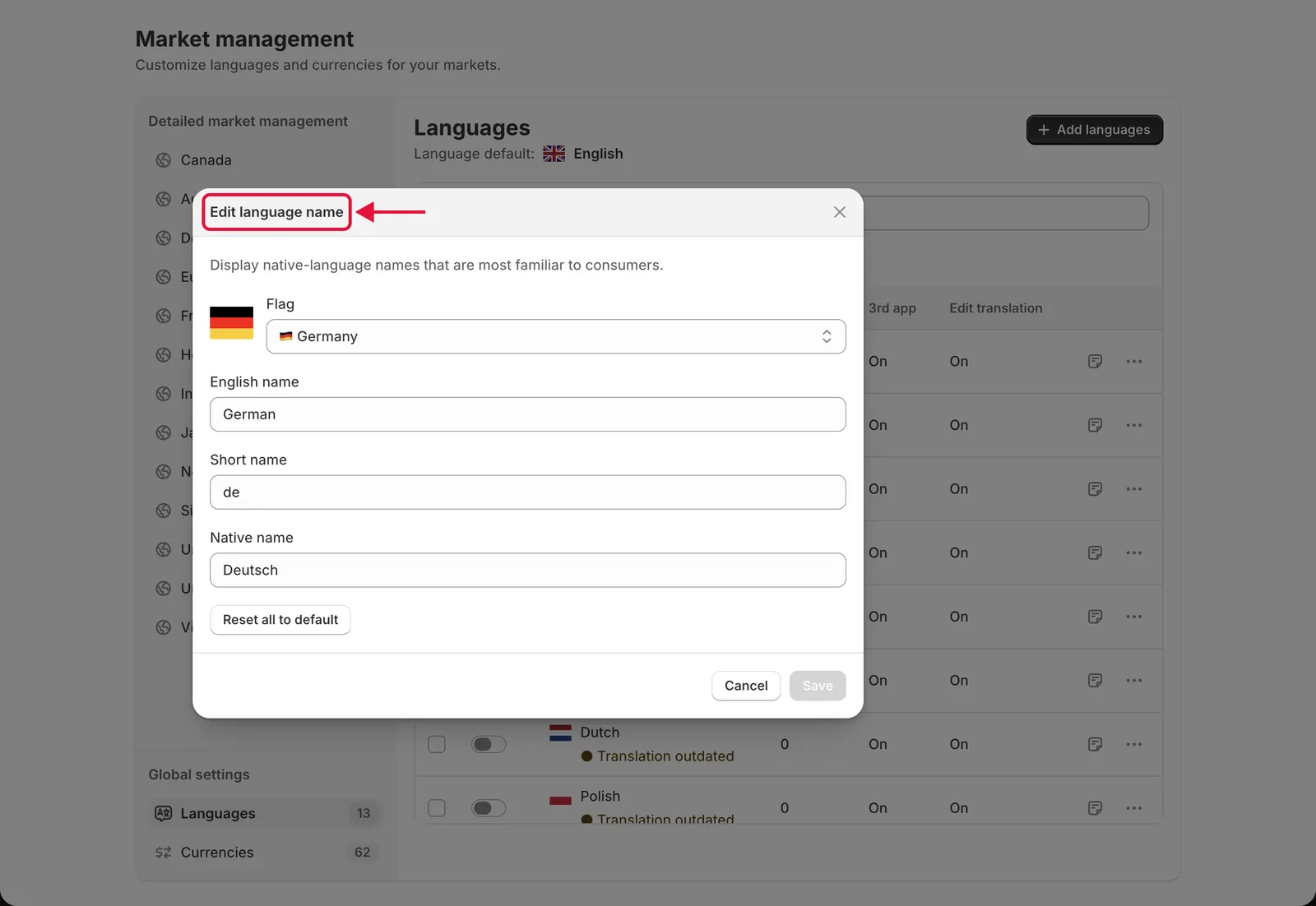
In the Edit language name dialog, change what you need:
- Flag: pick a flag from the list. The list has country flags, the EU flag and some regional flags.
- English name: the name in English.
- Short name: a short name, up to 15 characters. By default it is the language code.
- Native name: the name in the language itself, up to 64 characters.
Save your changes
Select Save. The button stays off until you change something.
Reset a language
To go back to the original flag and names, select Reset all to default in the same dialog.
Good to know
- These names and flags show in the language switcher on your storefront. Which name shoppers see depends on the language setting in your switcher. See Switcher display.
- If you do not set a native name, the switcher uses the standard name of the language.
- A field with a problem shows its message under the field. If a flag is not accepted, choose another one from the list.
Related articles
Source language and language limits
See which language is your source language and how many languages your store can add, publish and edit.
Turn translation edits on or off
Turn translation edits off for a language you do not use now, and turn them back on within 30 days to get your work back.
Last updated November 18, 2026