Choose what the switcher shows
Choose which parts the switcher button shows, such as language and currency, and set how each one is written, with or without a flag.
Choose what the closed switcher button shows to your shoppers: the language, the currency, or both, and how each one is written.
Contact us to turn this onBefore you start
- If the fields in the Customization block are grey, customizing is not turned on for your store.
- Each device has its own settings. Set desktop first, then see Different settings for desktop and mobile.
- To show the currency, your store's money format must be verified. Until then, Currency stays as it is, the Code and Symbol parts of the currency format are locked, and the page shows Currency formatting needs verification. See Set up your store's money format.
Steps
Open the Display card
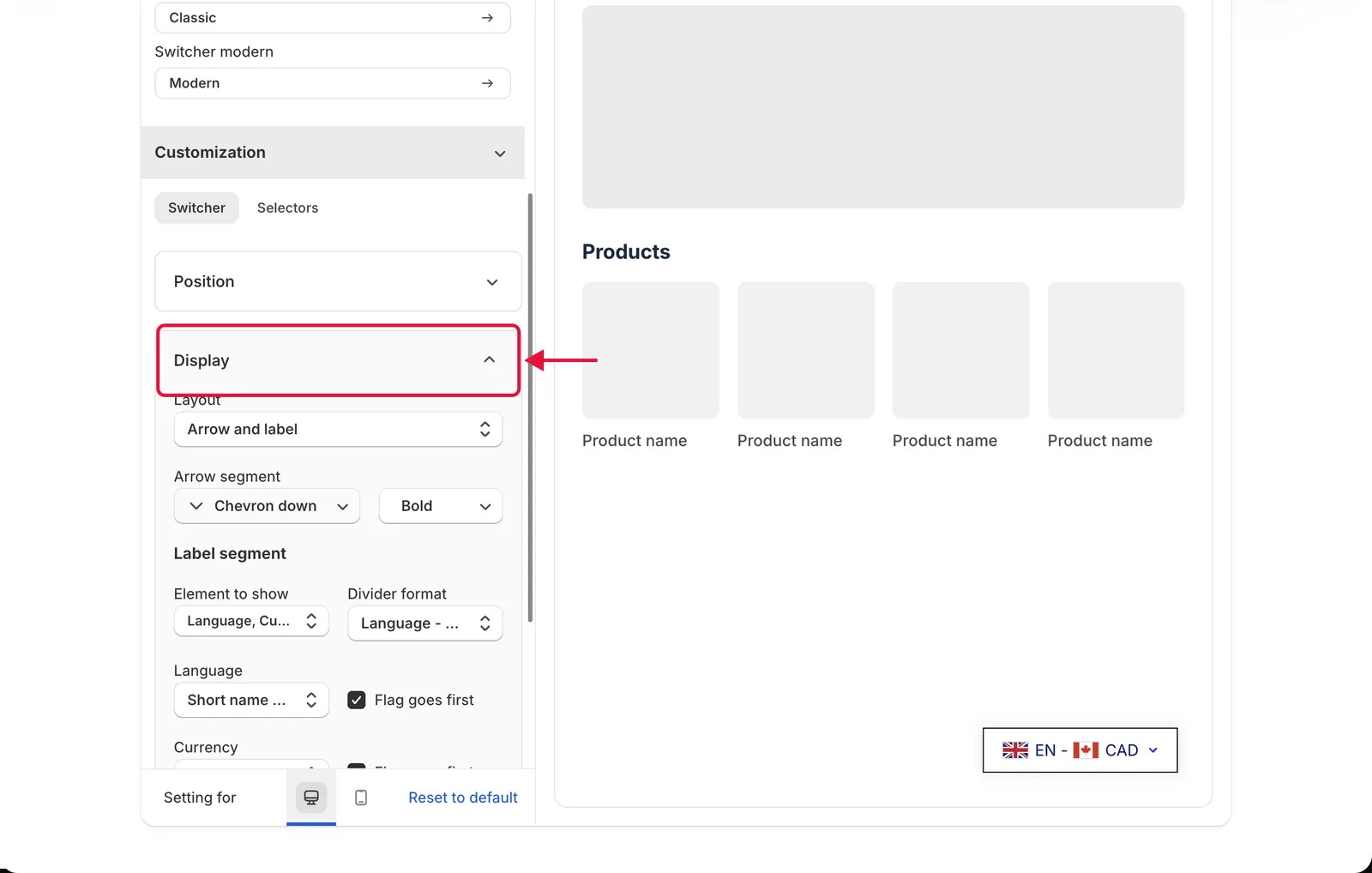
In SmartCS, open Switcher settings. Click the Advanced tab. In the Template block, click Customize. In the Customization block, stay on the Switcher tab and click Display.
Choose the layout
With a Classic template, open Layout. Choose Arrow and label, Only label or Only arrow. If the button has an arrow, use Arrow segment to pick its icon and weight. With Only arrow, the button shows no label, so the next settings are hidden.
Choose the elements
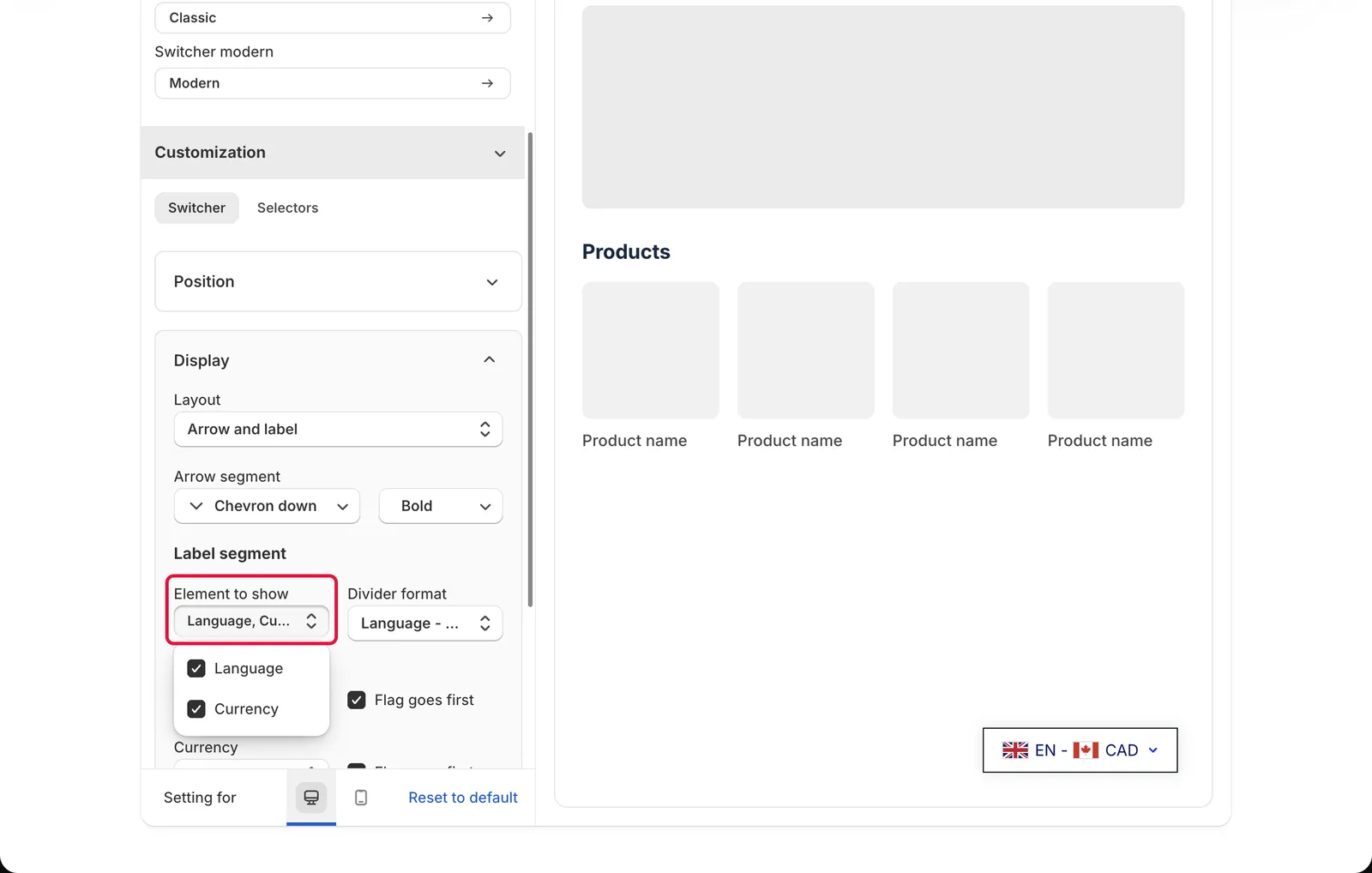
Open Element to show and tick Language, Currency, or both. One item always stays ticked.
Set the divider
When both are ticked, open Divider format and choose what separates them: a space, a dash, a slash or a vertical bar.
Set the formats
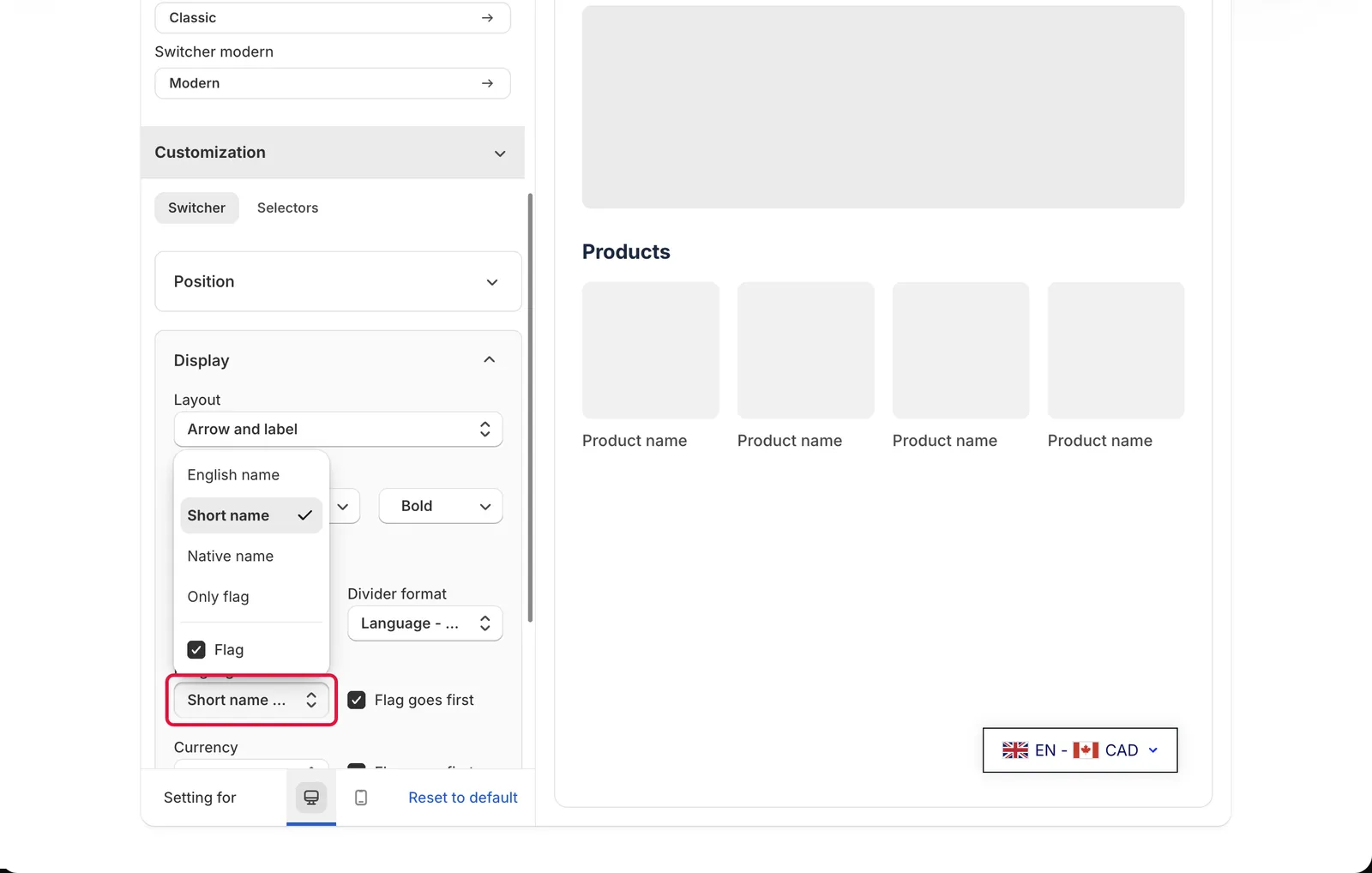
Open Language and choose English name, Short name, Native name or Only flag. Tick Flag in the same list to add a flag. Then open Currency and tick Name, Code or Symbol. Drag the rows to change their order. Tick Flag goes first to put the flag before the text. It is grey until a flag is on.
Check and save
The preview shows your changes as you make them. Click Save in the save bar.
Modern templates
Contact us to turn this onA Modern template adds Location to Element to show. Choose its name format, or a flag or an icon. Only flag and Only icon are offered only when Location is the only item ticked.
Location shows the country a shopper buys from. It shows only in Multiple currencies mode, when your store sells in 2 or more countries. In Switcher mode there is no country list, so it does not show. See Multiple currencies mode vs Switcher mode.
The list that opens
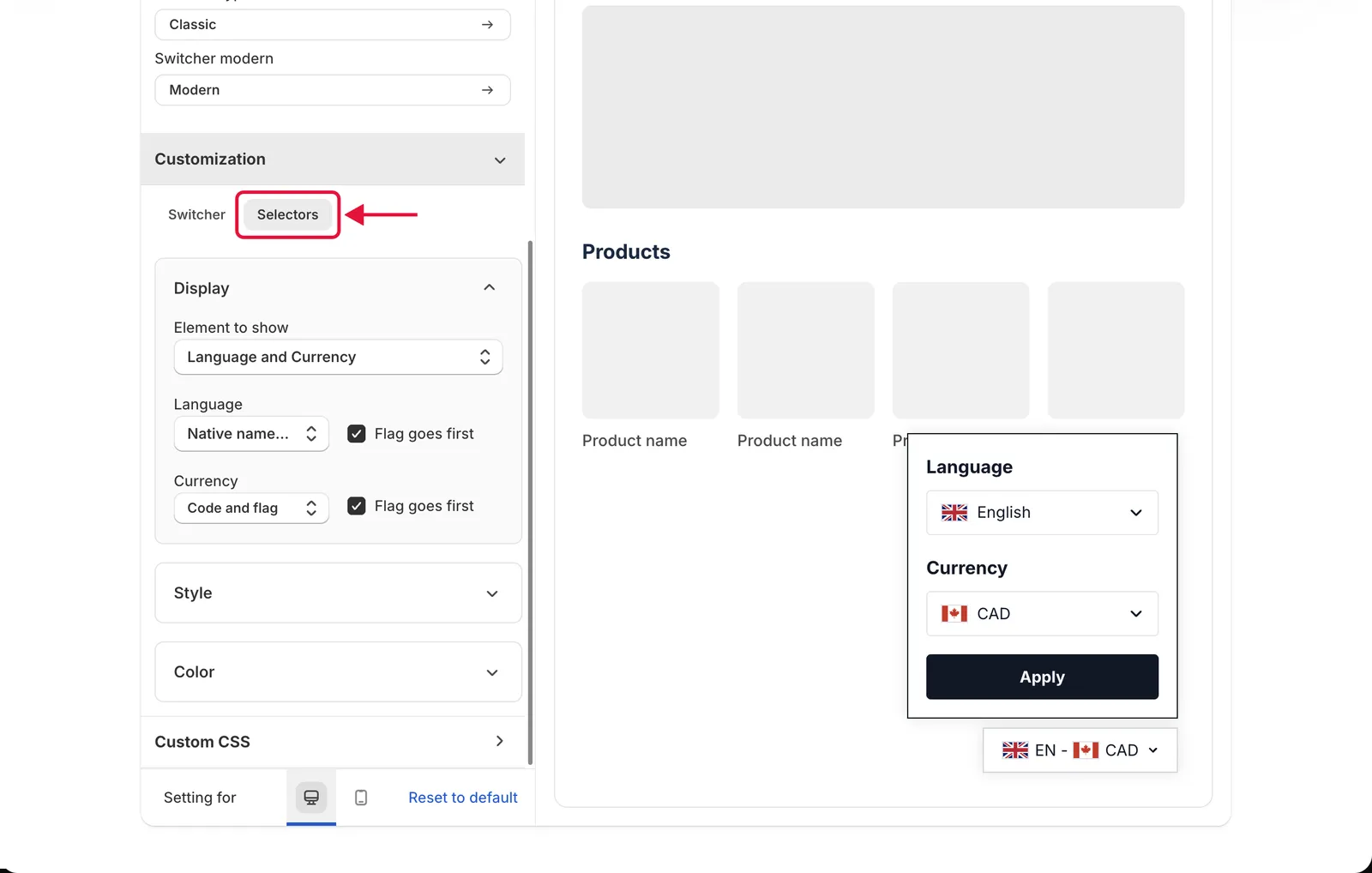
The Selectors tab sets what the list of languages and currencies shows after a shopper opens the switcher. Its Display card works the same way. Element to show is one choice here: Language and Currency, Only language or Only currency.
Good to know
- The storefront shows an item only when its list has 2 or more entries. With one published language, the language is hidden. With one currency, the currency is hidden. If nothing is left, no switcher shows. The preview tells you when this happens.
- Language names come from each language's format. See Edit language names and flags.
- SmartCS has no control to sort the switcher. In Switcher mode, currencies usually appear in the order you added them. In Multiple currencies mode, they follow the order of your countries in Shopify. Languages follow the order Shopify gives them.
Note
The preview is a guide and can differ from your storefront in small ways. After you save, open Preview on Online Store to check the real result.
Related articles
Add the switcher as an app block
Place the switcher inside a section of your theme with the SmartCS Switcher app block, so it sits where you want instead of in a corner.
Style and colours
Change the frame, font, flags and colours of the switcher button, including its hover and open states, and save them for your store.
Last updated November 18, 2026