Translate the switcher's texts
Translate the words on your storefront switcher, such as Language, Currency and Search, for each published language.
Translate the words on your storefront switcher for each language. The switcher has default words in every language. Write your own text only where you want something different.
These texts apply only to the Akıllı değiştirici, the new switcher that SmartCS shows on your storefront. They also cover the location pop-up that suggests a language and currency to visitors. The older switcher widget does not read them, so editing them changes nothing there.
Before you start
Publish the language first. The texts page opens only for a published language. For an unpublished language, the Akıllı değiştirici row is not listed in Themes. If you open the page by its address, a warning says so and offers a button that leads to your languages in Pazar yönetimi. See Add and publish languages.
Edit the texts
Open Smart switcher
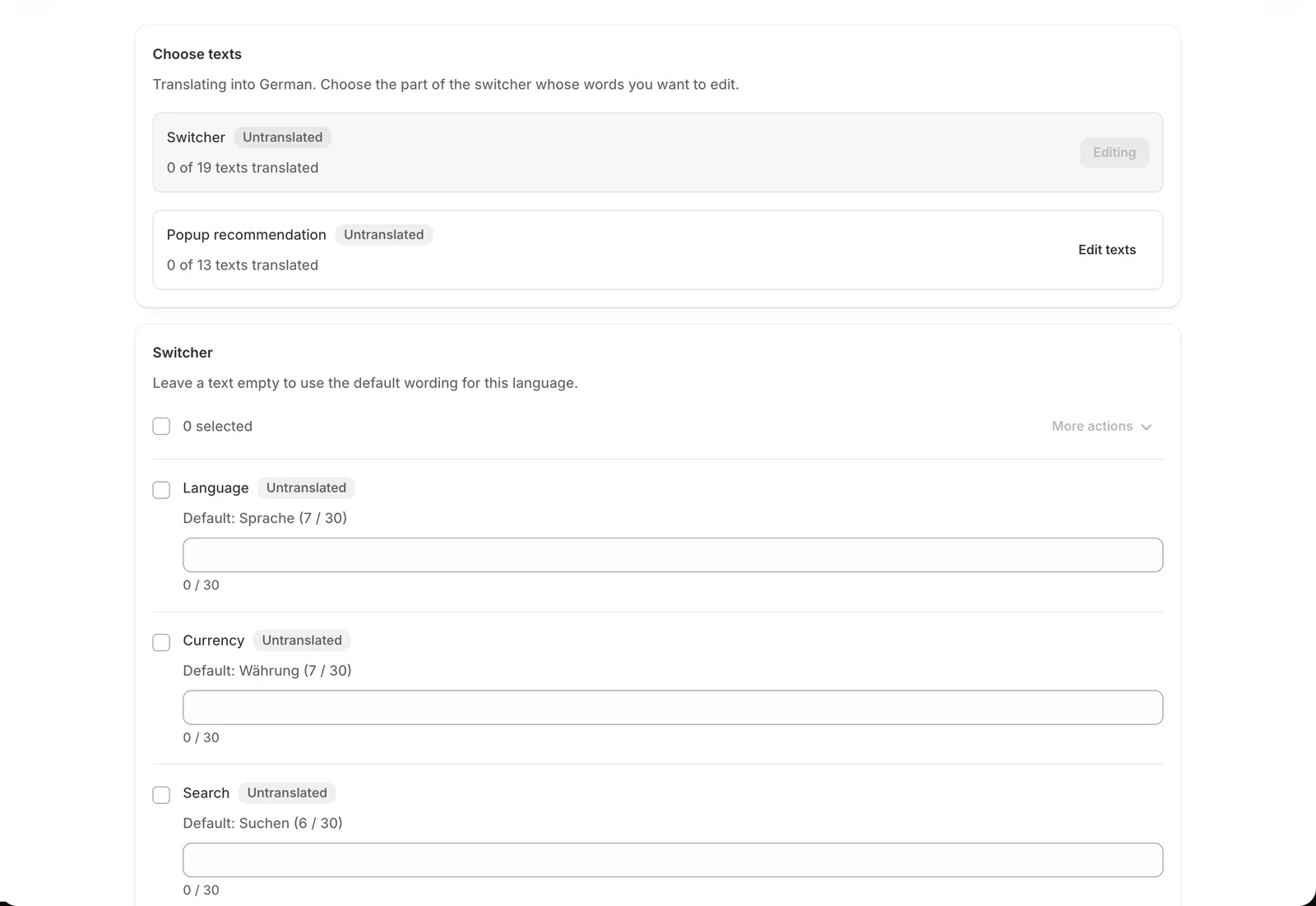
In SmartCS, open İçerik çevirisi and choose the language. Select the Temalar row, then select Akıllı değiştirici in the list. This entry is not shown inside a market. Open it from the default translation.
Choose a group of texts
The Akıllı değiştirici page has two groups: Değiştirici and Açılır öneri. Each shows a status and how many texts are translated. Select Metinleri düzenle on a group to list its texts.
Type your text
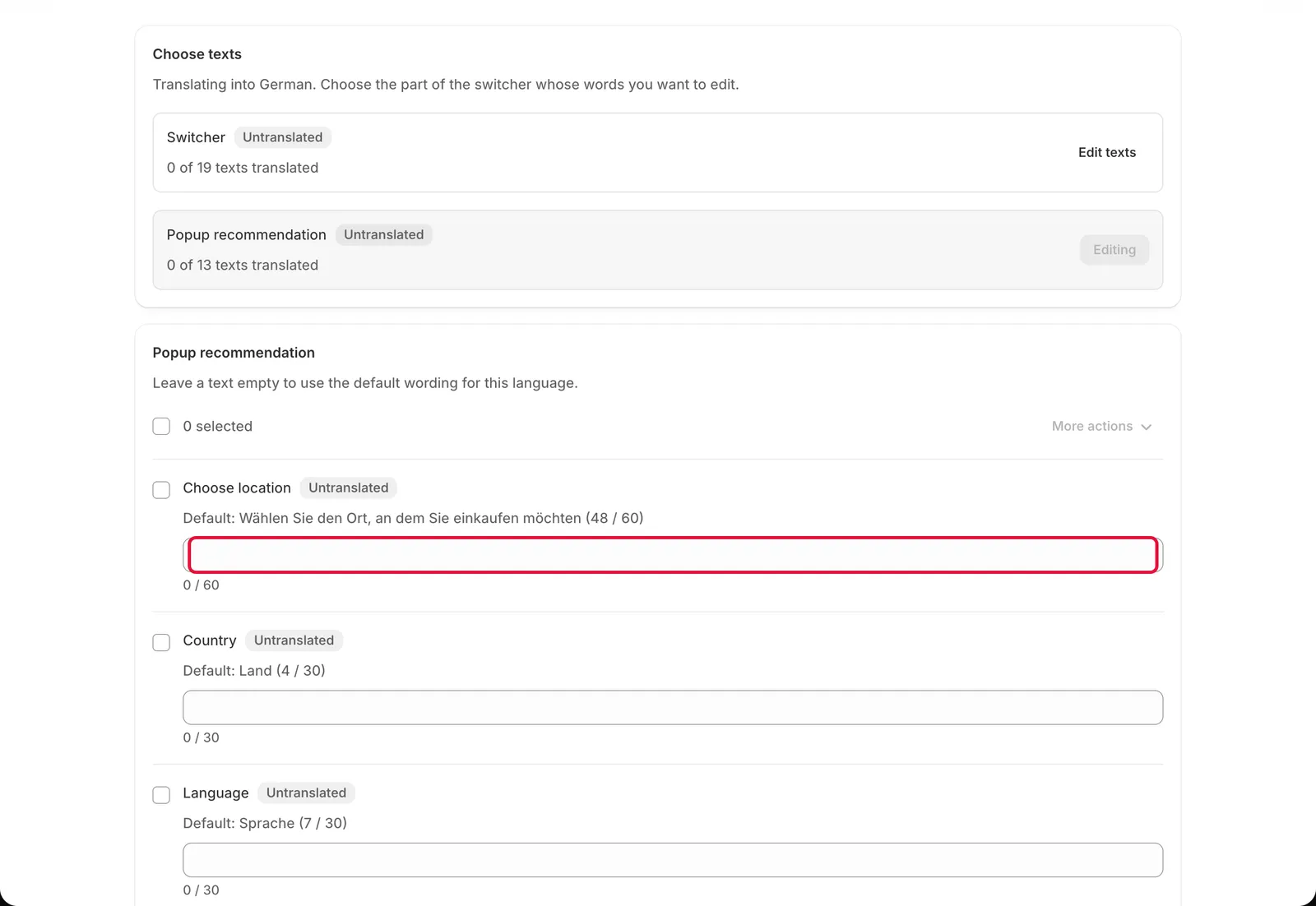
Under each text name you see the default wording and a counter. Type your own wording in the field. Each text is one line. It has its own character limit, which the counter shows. Leave a field empty to use the default wording.
Save the texts
Select Kaydet in the bar at the top of the page. Only the texts you changed are saved. Select Vazgeç to drop your changes.
SmartCS sends saved texts to your store in the background. They can take a short time to appear on your storefront.
Mark or delete several texts
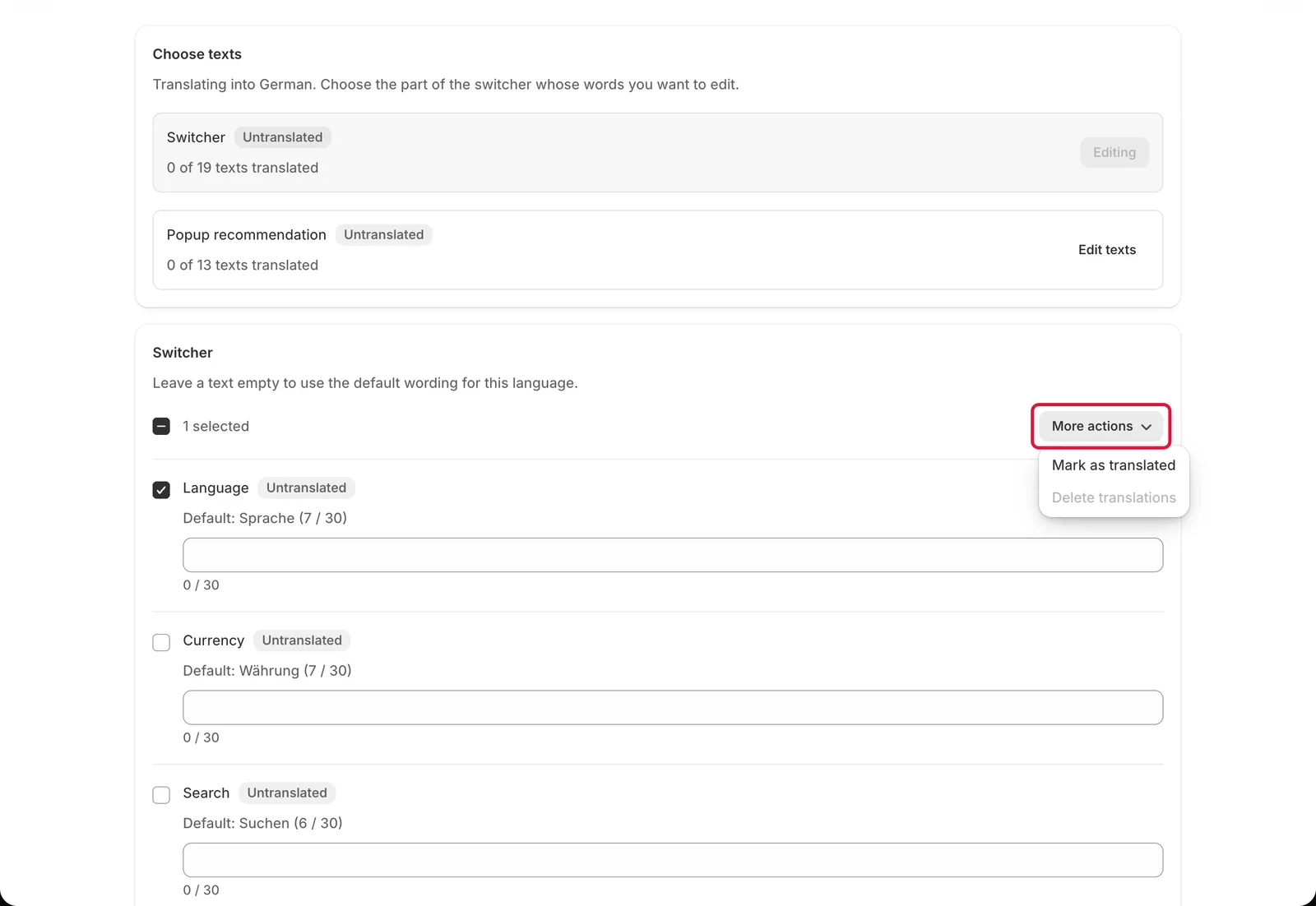
Tick one or more texts, or tick Tüm metinleri seç. Then open Diğer işlemler.
- Çevrildi olarak işaretle keeps the default wording but counts the text as translated. It applies to ticked texts that have no text of your own.
- Çevirileri sil removes your text from the ticked texts and brings back the default wording. A dialog asks you to confirm with Sil. You cannot undo it.
Good to know
- The status of a group is Çevrildi when every text has your own wording. It is Kısmen çevrildi when some do, and Çevrilmedi when none do.
- A text cannot contain a line break. A text that is too long shows an error under its field and is not saved.
- Some texts have names such as "Modern choose location", because the page names them after their key.
Not
Your texts are kept for each language. A language with no text of yours shows the default wording, then English if the language has none.
İlgili makaleler
Content from other apps
See which apps in your store keep text in Shopify, how much of it you can translate, and why some app text cannot be translated here.
Search and replace in translations
Find a word across your store content and replace it in your translations, with a preview of every change before anything is saved.
Son güncelleme: 18 Kasım 2026