Turn translation edits on or off
Turn translation edits off for a language you do not use now, and turn them back on within 30 days to get your work back.
Turn translation edits on or off for one language. Turning edits off for a language you do not use frees room to turn edits on for another language.
What the setting does
Each language has the setting 翻訳の編集. It shows オン or オフ in the table.
- When edits are on, you can translate the language and edit its translations.
- When edits are off, the language is locked. You cannot translate it or edit it, and automatic translation does not run for it.
Turn edits off
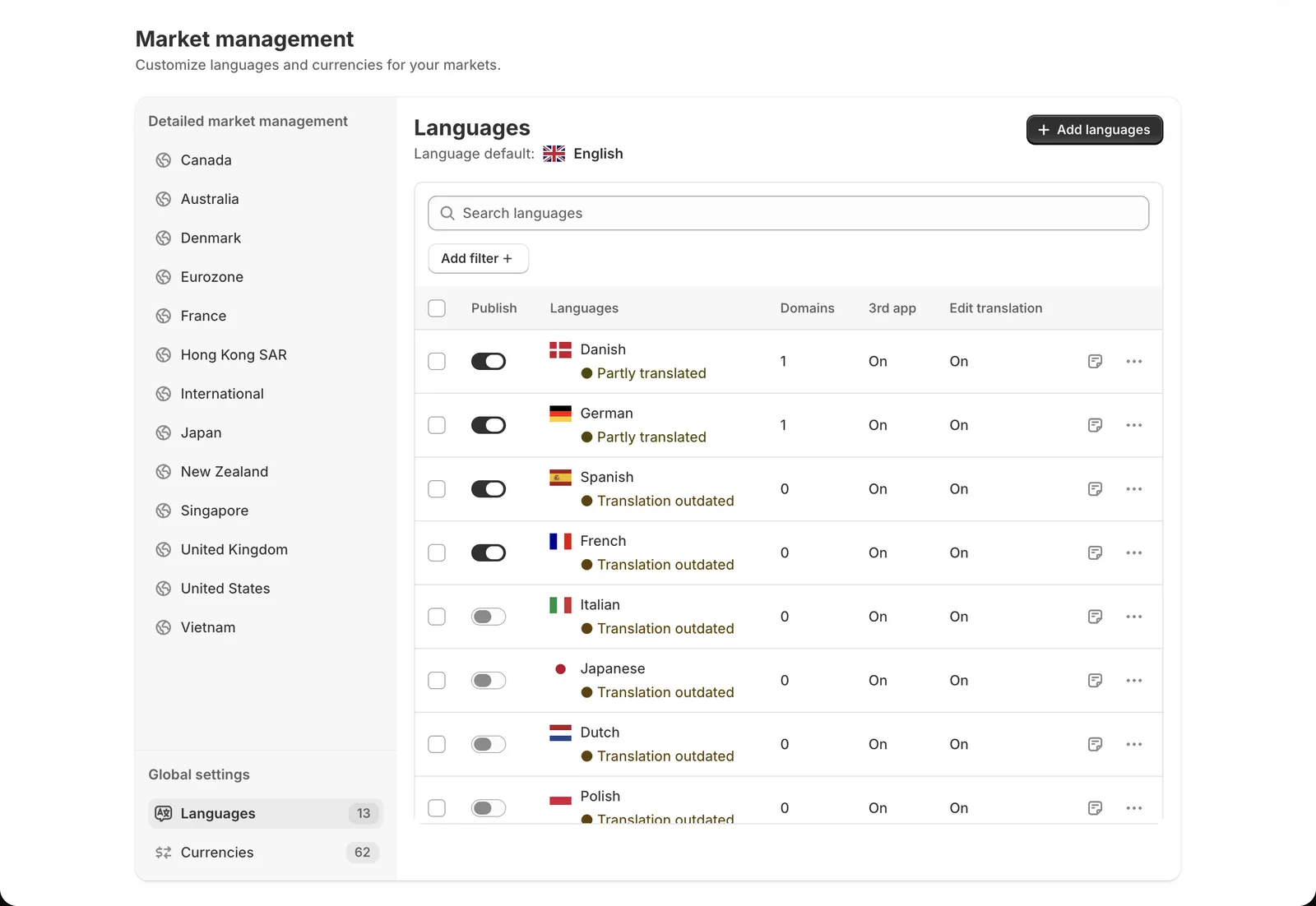
Open the actions menu
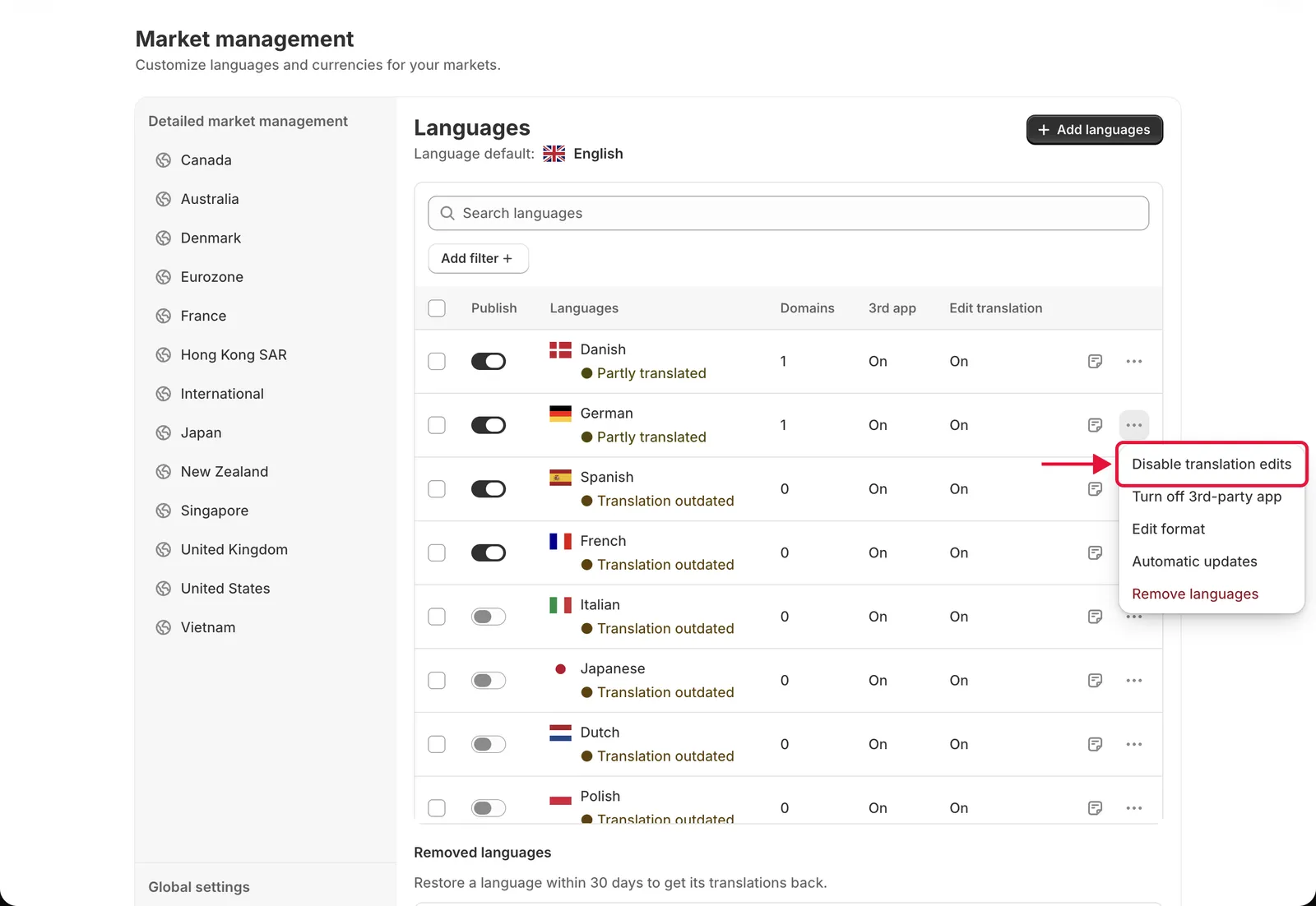
In the row of the language, open the actions menu (the three dots). Select 翻訳の編集を無効にする.
Read the dialog
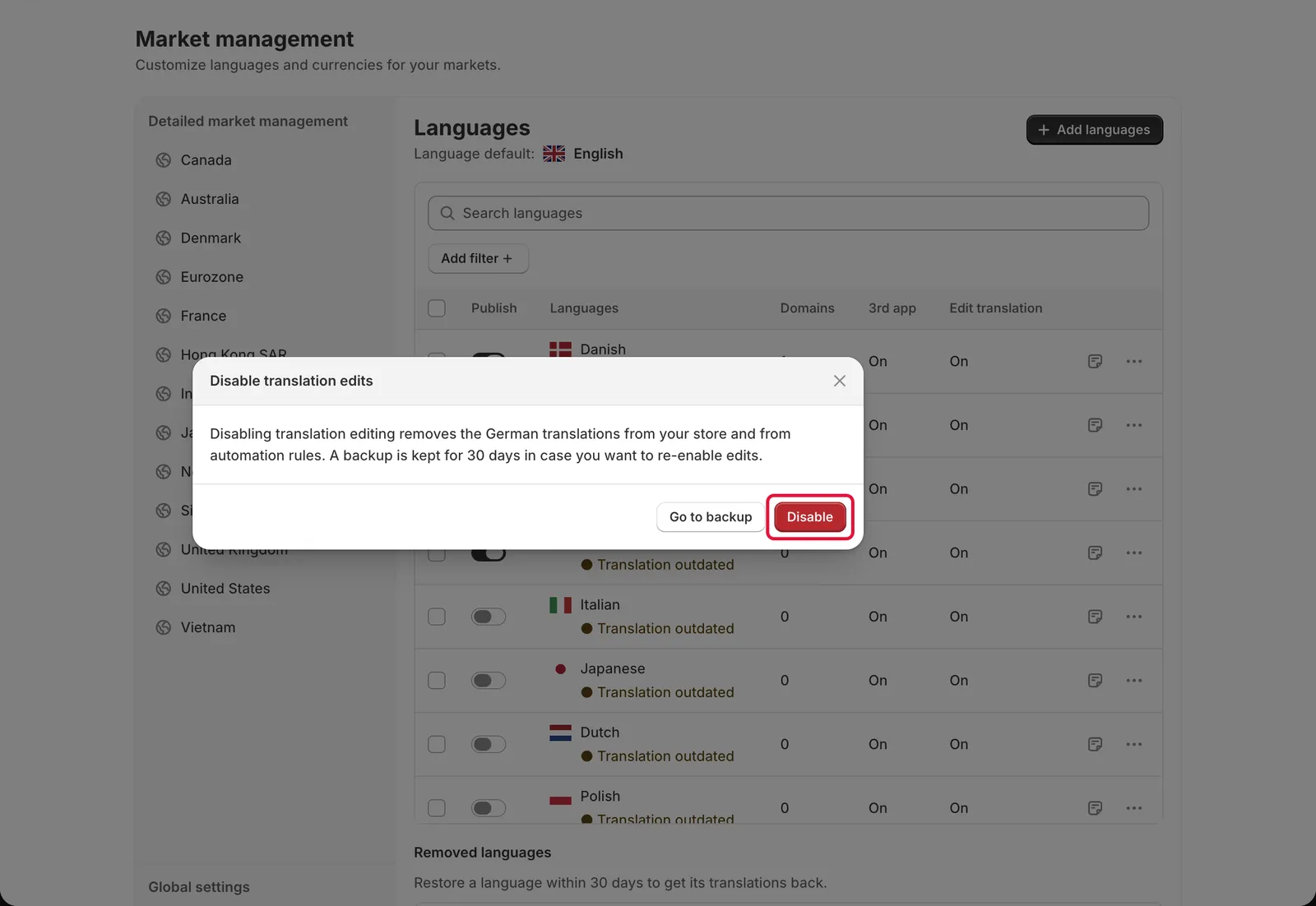
Read the dialog. It says that the translations of this language are removed from your store and from automation rules, and that SmartCS keeps a backup for 30 days.
Confirm and disable
Select 無効にする. To look at other backups first, select バックアップへ移動.
SmartCS locks the language right away. It then removes the translations from your store in the background.
Turn edits on
In the same menu, select 翻訳の編集を有効にする. You can also select 復元 in the 削除された言語 list below the table.
- Within 30 days, SmartCS brings the backup back and sends the translations to your store again.
- After 30 days, the backup is deleted and the language starts again with no translations.
Good to know
- You cannot turn edits off for your source language.
- Edits can be on for as many languages as your language limit allows. At the limit, 翻訳の編集を有効にする opens a dialog that says you reached the limit. See Source language and language limits.
- A language with edits off still counts toward the limit for adding languages. To stop it counting, remove it. See Unpublish, remove and restore languages.
警告
While a job is running for a language, you cannot turn its edits off or on. Try again when the job finishes.