Multiple currencies mode vs Switcher mode
Learn how Switcher mode and Multiple currencies mode price your store, what each one changes for shoppers, and how to switch between them in the app.
SmartCS: Currency & Translate can show prices in other currencies in two ways. Read this article to choose the mode that fits your store, and to learn how to switch between the modes safely.
ご利用になるにはお問い合わせくださいOpening the Multiple currencies page switches your store
Opening the Multiple currencies page switches your store to Multiple currencies mode and publishes the change to your online store immediately, with no confirmation. The buttons that lead to it do the same. If your plan does not include this mode, the page is locked and nothing switches. See If you opened it by accident.
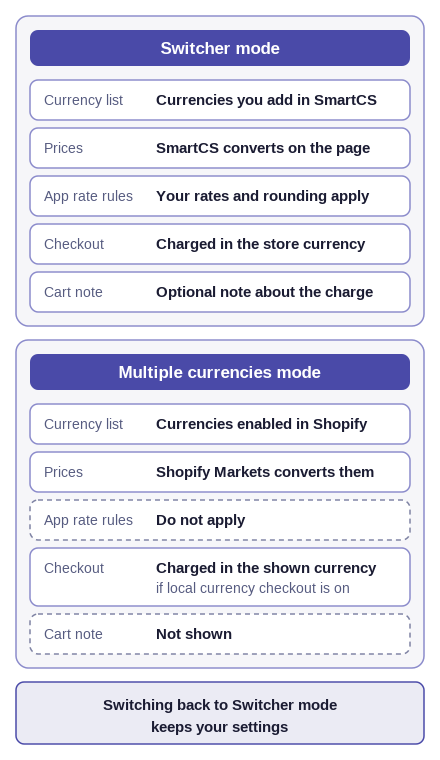
Switcher mode
Switcher mode is the default. SmartCS converts the prices on your pages with its own exchange rates.
- You choose the currencies, rates, rounding and price format in the app.
- Shoppers can switch currency from the switcher. On plans that include it, Auto switch by location is available.
- The converted prices are for display. Checkout stays in the currency Shopify charges, which is usually your store currency. You can tell shoppers this with the cart notification.
Multiple currencies mode
In Multiple currencies mode, Shopify Markets prices your store in local currencies.
- The switcher lists the currencies that Shopify has enabled for your store. When a shopper picks one, the switcher uses Shopify's own currency form.
- SmartCS does not convert the regular prices your theme shows. Shopify does. The exception is prices you added by hand as custom HTML: the app can still convert those while カスタムHTML価格の変更を許可する is on. That setting is on by default for new stores.
- While Shopify's local currency checkout is on, Shopify converts, rounds and formats the prices, and the rules you set in SmartCS do not apply. Custom price changes and manual conversion do not work.
- Checkout uses the shown currency if local currency checkout is on in Shopify.
- Auto switch by location and the cart notification are off.
- On the Currencies tab, a banner reads これらの価格は Shopify Markets が管理しています. If some currencies are hidden by your plan, that notice shows instead.
For how Markets works with the app, see How SmartCS works with Shopify Markets.
Switch between the modes
Two buttons lead to Multiple currencies mode. Each one switches your store and publishes at once.
- On the Advanced page: go to マーケット管理, open the Currencies tab, and select 詳細設定へ移動。 In the 通貨の表示 section, find Multiple Currenciesに切り替える and select 今すぐ切り替える. This button stays off while you have unsaved changes: save or discard them first.
- On the ダッシュボード page: a banner may show with the heading Multiple Currenciesがご利用いただけるようになりました! Its 今すぐ切り替える button dismisses the banner and opens the Multiple currencies page, which switches your store at once. It does not wait for you to save or discard changes, so only use it when you mean to switch. The banner shows only when your Currencies list has more than one currency (published or not), your store is not in Multiple currencies mode and you have not dismissed it. You can dismiss it instead.
After you switch, the app shows the Multiple currencies page. It lists your enabled currencies in 有効になっているすべての通貨, and you cannot change that list there.
Go back to Switcher mode
On the Multiple currencies page, find the 切替モードに戻す section and select 今すぐ切り替える. The app switches back, publishes at once, and returns you to the Advanced page. Your currencies and settings are kept.
If you opened it by accident
Your store is now in Multiple currencies mode. Nothing is lost, and you can go back.
Switch back right away
If you are still on the Multiple currencies page, find 切替モードに戻す and select 今すぐ切り替える. You are done.
Reopen Advanced
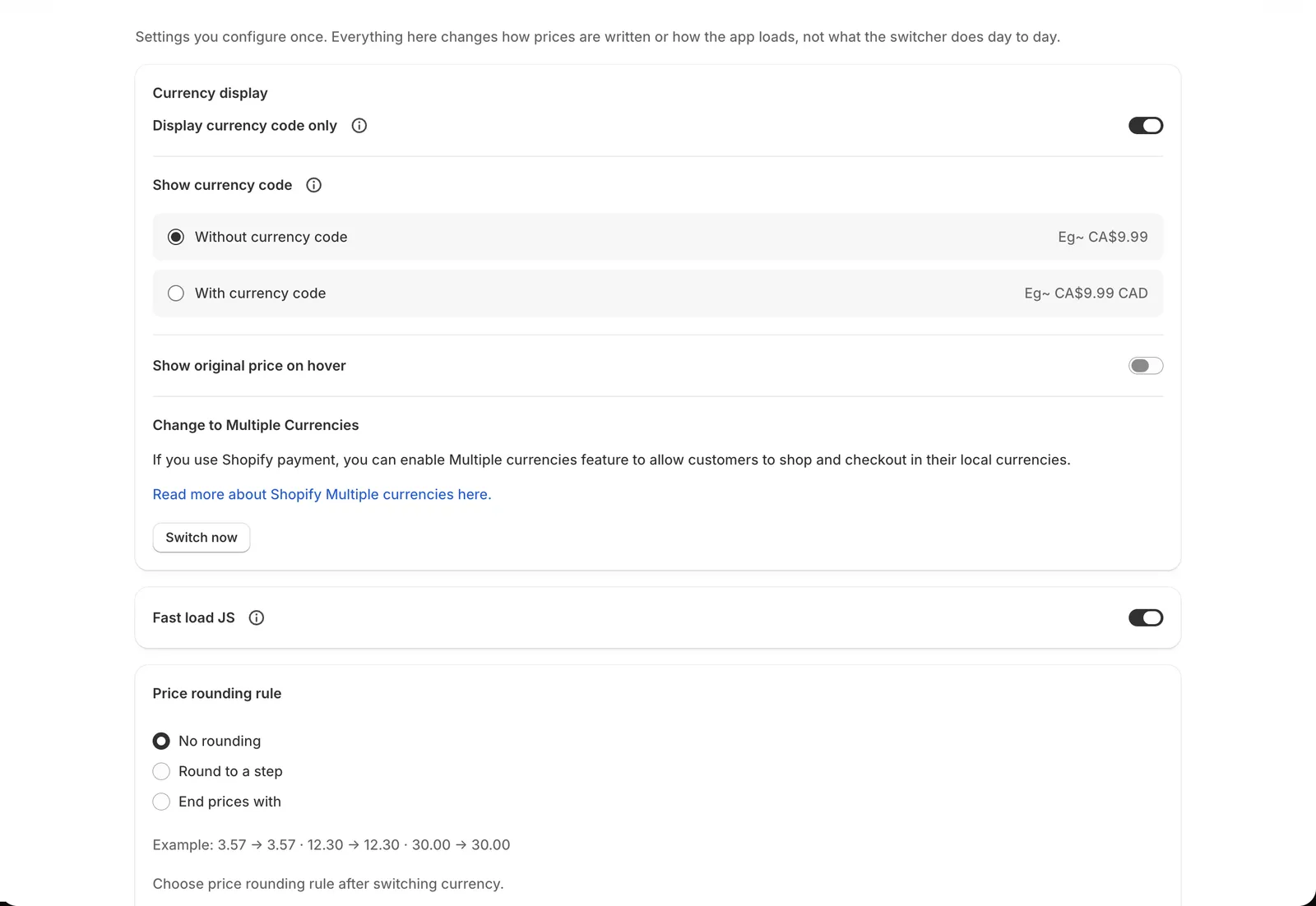
If you left the page, go to マーケット管理, open the Currencies tab, and select 詳細設定へ移動。 The Advanced page opens.
Return to the page
In the 通貨の表示 section, select 今すぐ切り替える under Multiple Currenciesに切り替える. You are already in this mode, so nothing changes, and the app shows the Multiple currencies page.
Switch back to Switcher mode
On that page, select 今すぐ切り替える in the 切替モードに戻す section.
Your currencies, rates and other settings are kept. Check your online store afterwards, because each switch is published at once.
Good to know
- Multiple currencies mode needs a plan that includes it. Without it, the button is locked.
- The app text says to use this mode if you use Shopify Payments and want shoppers to check out in their local currencies.
関連記事
Cart notification for converted prices
Tell shoppers in the cart that prices are shown in another currency and which currency their card is charged in, with your own wording and colors.
Content translation overview
See where you translate your store content, how the page is laid out, and how to start translating with AI or by hand.
最終更新日:2026年11月18日