Add custom CSS to the switcher
Add your own CSS to change how the switcher looks on your store, and learn the size limit and what the field accepts.
Add your own CSS to change the look of the switcher in ways the style and colour settings do not cover.
Contáctenos para activar esta funciónBefore you start
- If the field is grey, custom CSS is not turned on for your store.
- Try the settings in Style and colours first. They need no code.
- You need to know basic CSS. SmartCS does not check that your rules do what you expect.
Steps
Open the Custom CSS block
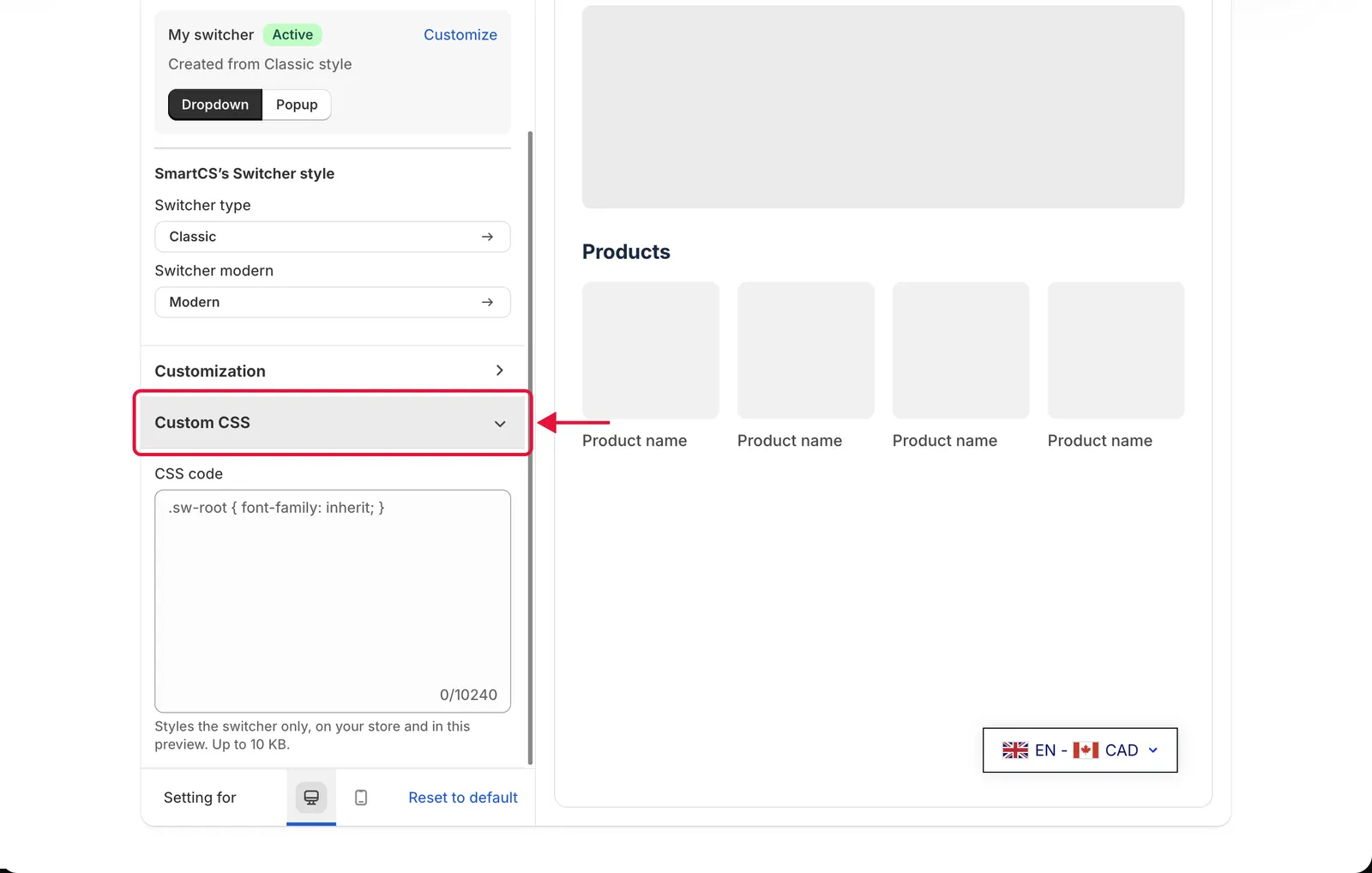
In SmartCS, open Configuración del selector. Click the Avanzado tab. Click the CSS personalizado block to open it. It is the third block, after Plantilla and Personalización.
Write your CSS
Type or paste your rules in Código CSS. The counter under the field counts characters, but the limit counts bytes. The grey example in the empty field shows the style of rule to write.
Check the preview
The preview shows your CSS as you type. It styles the switcher only, not the rest of the page.
Save your changes
Click Guardar in the save bar. SmartCS puts the CSS on your store with the rest of your switcher settings.
What the field accepts
- CSS only. You cannot add JavaScript. Anything you type is read as CSS and never run as code.
- Up to 10 KB. The limit counts bytes, not characters. A comment with accented or non-Latin letters uses more than 1 byte per letter, so it can pass the character count and still be too long. If your CSS is too long, the field shows El CSS personalizado puede tener como máximo 10 KB. Shorten the CSS before you save.
- Switcher only. Your CSS styles the switcher only. Your theme's CSS does not reach into it.
- One CSS for both devices. To style only one device, write a media query. See Different settings for desktop and mobile.
Advertencia
SmartCS does not filter your CSS. A rule such as one that moves or hides the switcher is applied as written. If the switcher disappears from your store, clear the field and save.
Good to know
- If your settings become too large to put on your store, the page shows Los cambios del selector aún no están en tu tienda. Shorten your CSS, then try again.
- Your CSS comes after the switcher's own styles. When two rules have the same weight, yours wins.
- When your store does not have custom CSS turned on, your saved CSS is kept but is not shown on your store.
Artículos relacionados
Different settings for desktop and mobile
Set up the switcher separately for desktop and mobile, copy one device's settings to the other, and see which settings are shared.
Preview the switcher, choose who sees it, or reset
Choose who can see the switcher on your storefront, check how it looks before visitors do, and go back to the default settings.
Última actualización: 18 de noviembre de 2026