Your Home page: setup guide and analytics
Use the Home page to finish the Setup guide, check your app embed status and read your visitors, sales, languages and currencies over time.
Use the Home page to finish your setup and to see how shoppers use your languages and currencies. It is the page the app opens on, and it is named 儀表盤.
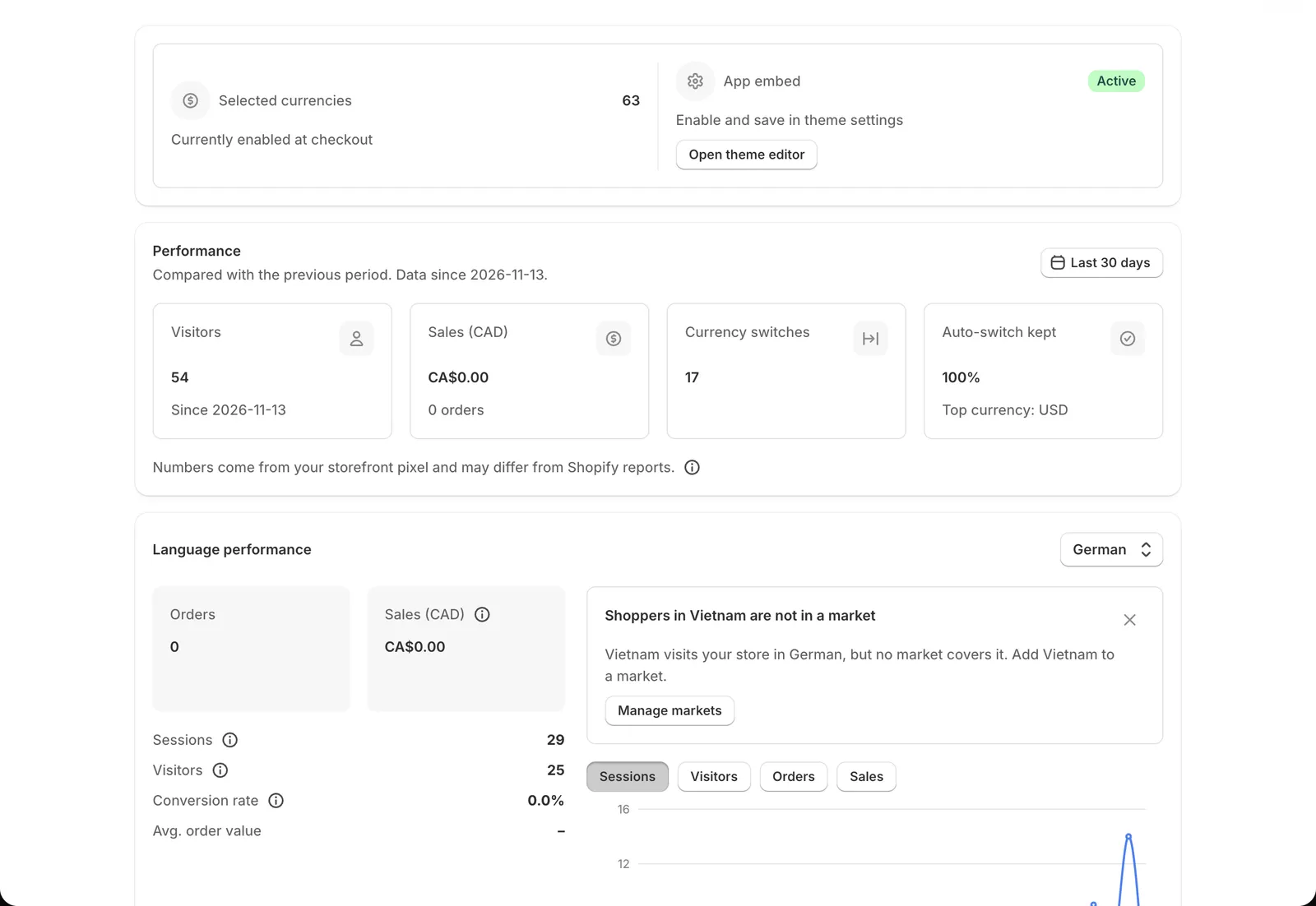
What you see on the page
From top to bottom, the page can show these parts:
- A banner named 完成您商店的設定. It only appears if you skipped the setup wizard. You can resume the wizard from it or close it.
- The 設定指南. It disappears when all steps are done.
- A status bar with 已選貨幣 and 應用程式嵌入.
- 表現, 語言表現, 洞察 and 貨幣表現.
Setup guide and status
The guide has three steps. Each step opens when you click it, and the first unfinished step opens by itself. The steps are 設定貨幣格式, 啟用應用程式嵌入 and 啟用應用程式. See Set up your store's money format and Turn on the SmartCS app embed.
The status bar stays on the page after the guide is gone. It shows how many currencies you have turned on. It also shows if the app embed is 已啟用 or 未啟用. Click 開啟佈景主題編輯器 to change it.
Performance
表現 shows four numbers for a date range: 訪客, 銷售額, 貨幣切換 and 保留自動切換. The first three numbers show their change compared with the previous period. The last tile also names your top currency.
To change the range, click the date range button. Choose a preset such as 今天, 最近 30 天 or 最近 12 個月, or choose 自訂範圍 and pick a start and an end date. The other sections use the same range, except 洞察.
注意
The numbers come from the SmartCS pixel on your storefront. SmartCS does not check them against your Shopify orders, so they can differ from your Shopify reports. Use your Shopify reports for revenue.
Language performance
語言表現 shows one language at a time. Choose the language from the list at the top of the section. You see its orders, sales and sessions, and a chart by day. Click 按國家/地區檢視 or 比較語言 to open a table.
The section can also show one tip for the language you picked. For example, it tells you when a language is not published or when some content is not translated. Close a tip when you do not need it.
If your store has no extra language yet, the section offers 新增語言.
Insights
洞察 lists suggestions based on 基於最近 30 天. Examples are adding a currency that shoppers switch to often, or adding a country to your Shopify markets. The page shows the first 3 suggestions. Click 重新整理 to read your data again. You can close a suggestion you do not need, or show all of them with the button under the cards.
Currency performance
貨幣表現 has three views. Click one to switch:
- 切換次數 shows how often shoppers switched to each currency.
- 按貨幣 shows sales for each currency.
- 按國家/地區 shows sales for each country.
Other cards
Near the bottom of the page, a dismissible card lists a few things the app can do. Close it with the menu on the card. The heading of the card reads:
更精細地管理貨幣。The page may also show a banner that you can close. It shows only when your store has more than 1 currency added in the app, is not in Multiple currencies mode, and you have not closed it before. The heading of the banner reads:
Multiple Currencies 現已推出!Do not click 立即切換 unless you want to change the mode of your store. Read Multiple currencies mode vs Switcher mode first.
Good to know
- A new store has no data yet. 表現 shows numbers after your first visitors.
- If the app embed is off, visitors and currency switches are not counted. Turn it on to start counting.
- Language sessions are counted from the first storefront visit after the app embed is on.
相關文章
Set up your store's money format
Add the SmartCS price wrapper to your Shopify money format so the app can find your prices and convert them on your storefront.
What's free and how to get more
See what your store gets for free in SmartCS and how to ask for more features or higher limits.
最後更新:2026年11月18日