Your Home page: setup guide and analytics
Use the Home page to finish the Setup guide, check your app embed status and read your visitors, sales, languages and currencies over time.
Use the Home page to finish your setup and to see how shoppers use your languages and currencies. It is the page the app opens on, and it is named Panel.
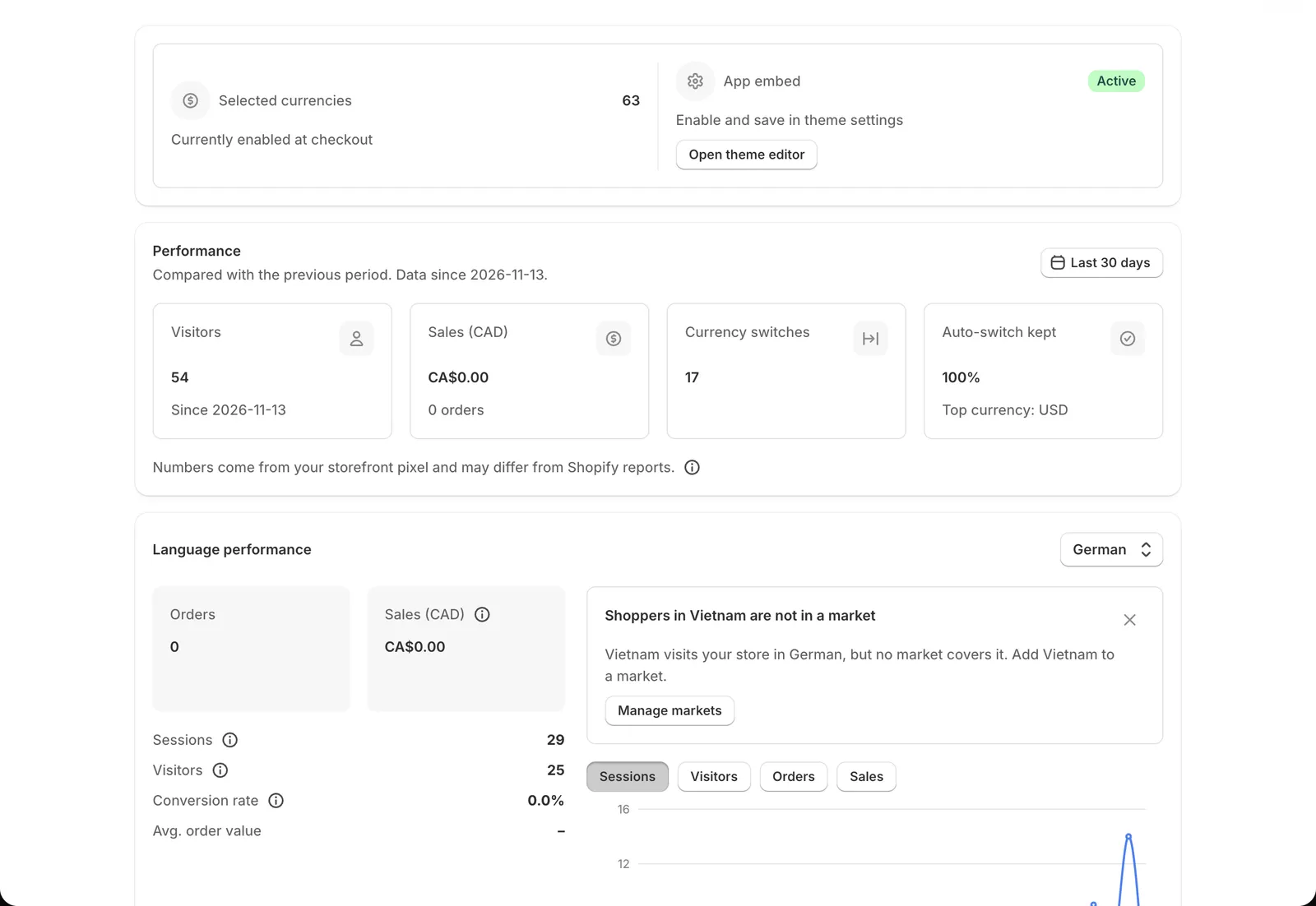
What you see on the page
From top to bottom, the page can show these parts:
- A banner named Dokończ konfigurację sklepu. It only appears if you skipped the setup wizard. You can resume the wizard from it or close it.
- The Przewodnik konfiguracji. It disappears when all steps are done.
- A status bar with Wybrane waluty and Osadzenie aplikacji.
- Wydajność, Wydajność języków, Wskazówki and Wydajność walut.
Setup guide and status
The guide has three steps. Each step opens when you click it, and the first unfinished step opens by itself. The steps are Skonfiguruj format walutowy, Włącz osadzenie aplikacji and Włącz aplikację. See Set up your store's money format and Turn on the SmartCS app embed.
The status bar stays on the page after the guide is gone. It shows how many currencies you have turned on. It also shows if the app embed is Aktywne or Nieaktywne. Click Otwórz edytor motywu to change it.
Performance
Wydajność shows four numbers for a date range: Odwiedzający, Sprzedaż, Zmiany waluty and Zachowane zmiany automatyczne. The first three numbers show their change compared with the previous period. The last tile also names your top currency.
To change the range, click the date range button. Choose a preset such as Dziś, Ostatnie 30 dni or Ostatnie 12 miesięcy, or choose Zakres niestandardowy and pick a start and an end date. The other sections use the same range, except Wskazówki.
Uwaga
The numbers come from the SmartCS pixel on your storefront. SmartCS does not check them against your Shopify orders, so they can differ from your Shopify reports. Use your Shopify reports for revenue.
Language performance
Wydajność języków shows one language at a time. Choose the language from the list at the top of the section. You see its orders, sales and sessions, and a chart by day. Click Wyświetl według kraju or Porównaj języki to open a table.
The section can also show one tip for the language you picked. For example, it tells you when a language is not published or when some content is not translated. Close a tip when you do not need it.
If your store has no extra language yet, the section offers Dodaj język.
Insights
Wskazówki lists suggestions based on Na podstawie ostatnich 30 dni. Examples are adding a currency that shoppers switch to often, or adding a country to your Shopify markets. The page shows the first 3 suggestions. Click Odśwież to read your data again. You can close a suggestion you do not need, or show all of them with the button under the cards.
Currency performance
Wydajność walut has three views. Click one to switch:
- Zmiany shows how often shoppers switched to each currency.
- Według waluty shows sales for each currency.
- Według kraju shows sales for each country.
Other cards
Near the bottom of the page, a dismissible card lists a few things the app can do. Close it with the menu on the card. The heading of the card reads:
Zarządzaj walutami z większą kontroląThe page may also show a banner that you can close. It shows only when your store has more than 1 currency added in the app, is not in Multiple currencies mode, and you have not closed it before. The heading of the banner reads:
Multiple Currencies jest już dostępneDo not click Przełącz teraz unless you want to change the mode of your store. Read Multiple currencies mode vs Switcher mode first.
Good to know
- A new store has no data yet. Wydajność shows numbers after your first visitors.
- If the app embed is off, visitors and currency switches are not counted. Turn it on to start counting.
- Language sessions are counted from the first storefront visit after the app embed is on.
Powiązane artykuły
Set up your store's money format
Add the SmartCS price wrapper to your Shopify money format so the app can find your prices and convert them on your storefront.
What's free and how to get more
See what your store gets for free in SmartCS and how to ask for more features or higher limits.
Ostatnia aktualizacja: 18 listopada 2026