Translation history and revert
See earlier versions of a translated field and put one back, so you can undo a change you did not mean to make.
See the earlier versions of a translated field and put one of them back. Use it to undo a change you did not mean to make.
Свяжитесь с нами, чтобы включить эту функциюBefore you start
History is kept for each field and each language. The app keeps the text a change replaces or deletes. A change can be a manual edit, an AI translation, a reused translation or a deleted translation.
How many versions you can see depends on your plan. You see up to this many of the newest versions of a field:
Тариф Free: 0A version older than that limit is not shown and cannot be restored.
Steps
Open the item
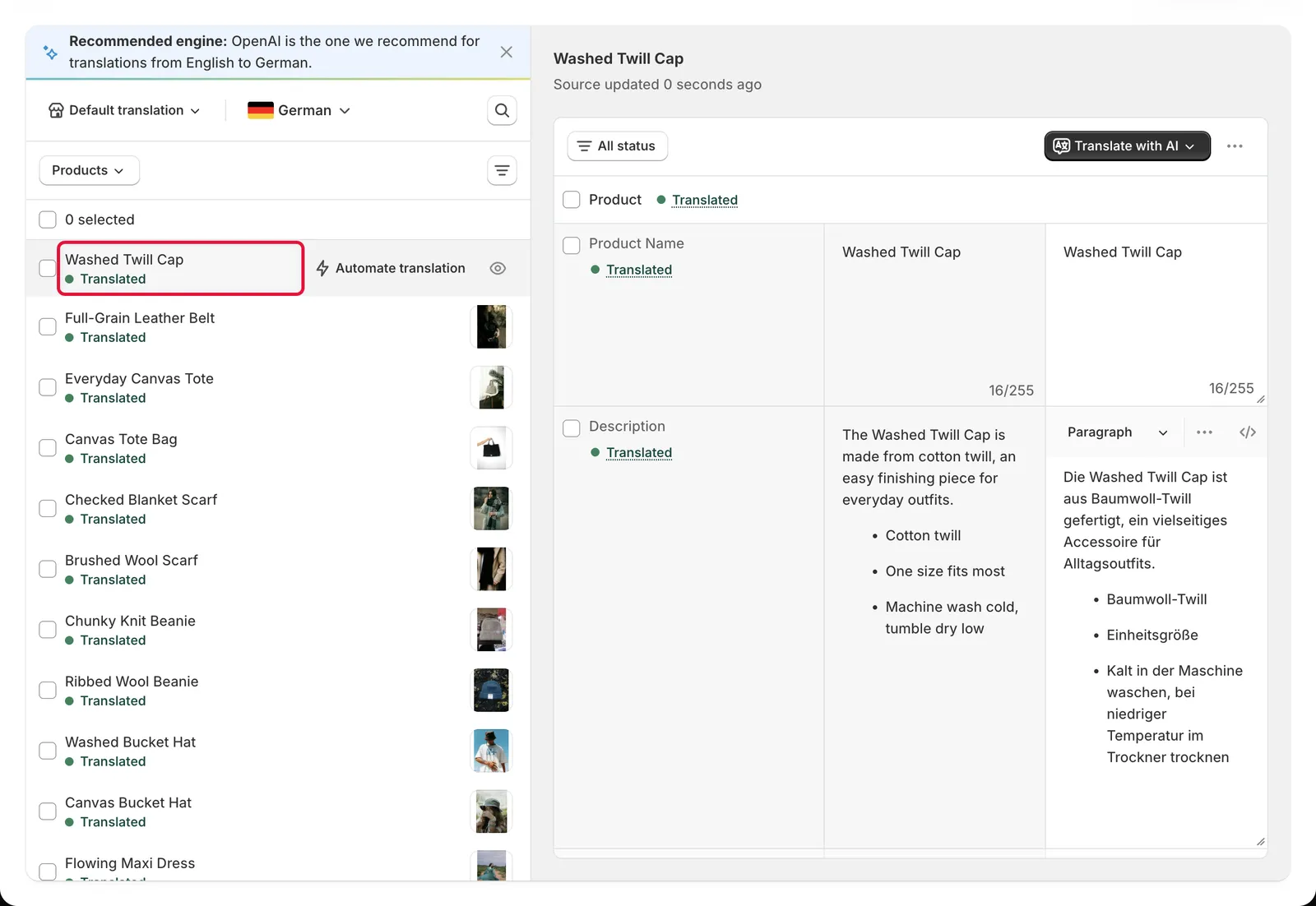
In SmartCS, open Перевод контента. Choose a language and a content group, then select an item.
Open the field menu
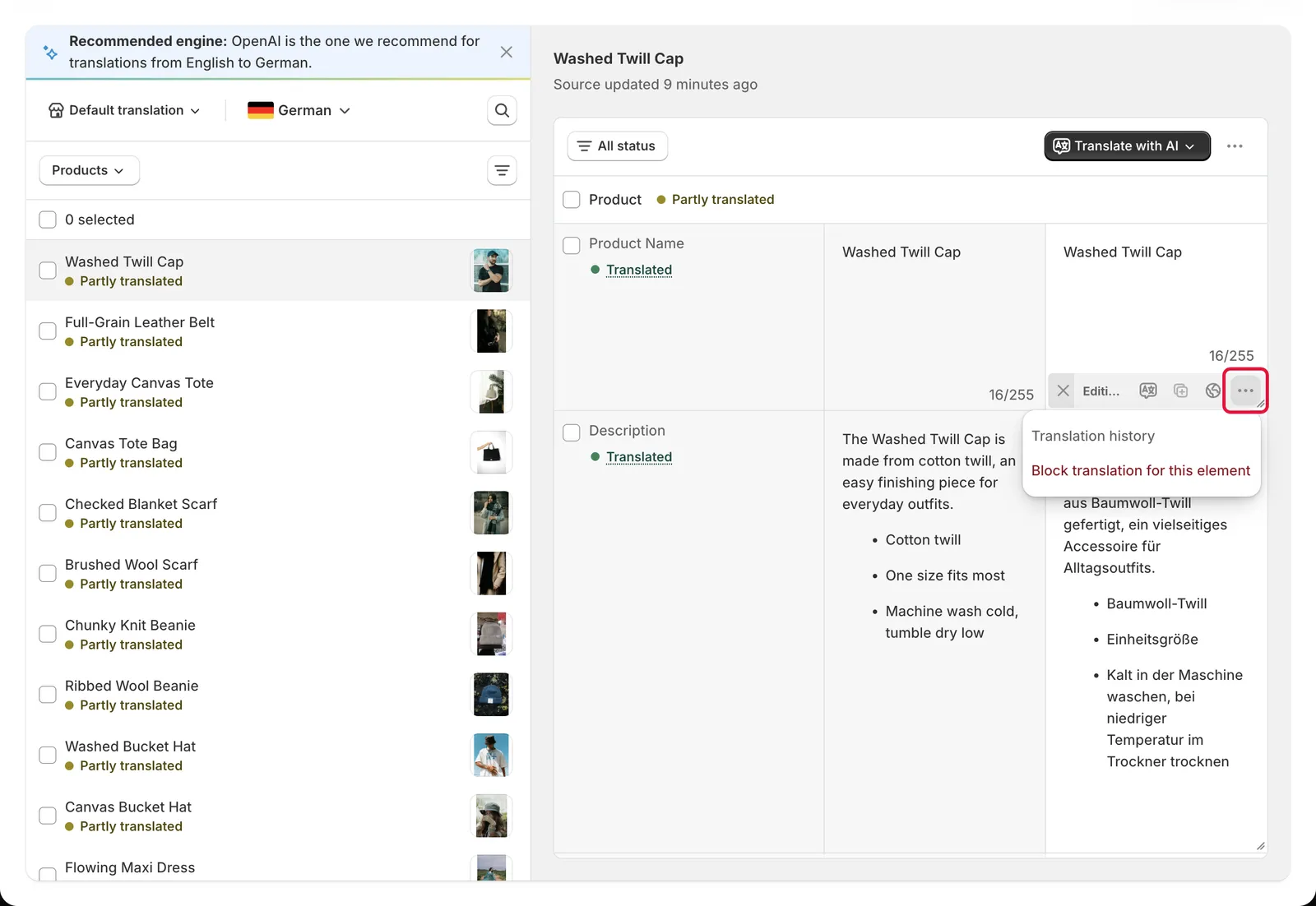
Find the field you want to look at. In the strip under the field, select the Другие действия button. The menu lists История переводов.
Open the history
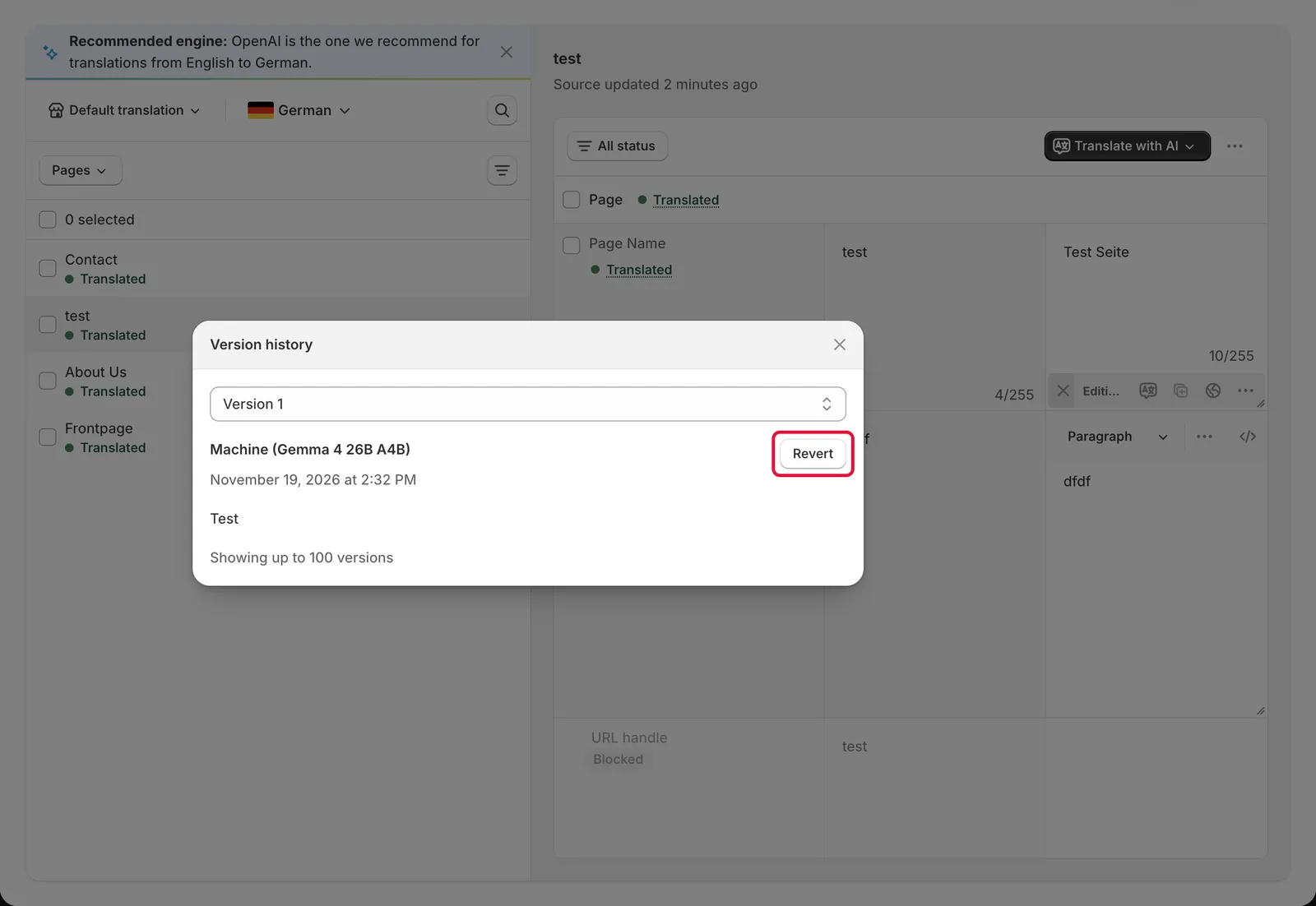
Select История переводов. A window opens with the title История версий. A line at the bottom tells you how many versions it shows at most.
Choose a version
Use the list at the top to pick a version. The newest version has the highest number. For each version you see where the text came from, the date and the text itself.
Revert the field
Select Вернуть next to the version you want. The message Перевод восстановлен confirms it. The field now holds that text and the text is sent to Shopify.
Good to know
- The menu item is switched off when a field has no earlier version.
- Вернуть is switched off for the version that is already in the field.
- A reverted text counts as your own manual edit. Reverting also adds a new version, so you can undo the revert.
- If the source text changed since you opened the item, the revert is refused. Reload the item and try again.
- A version with no text cannot be restored.
Примечание
SmartCS saves earlier versions on every plan, but how many you can see depends on your plan. On a plan that keeps no history, a field that already has earlier versions shows the menu item locked, with a badge. Upgrade your plan to see them.
To change a translation by hand, see Edit translations manually.
Похожие статьи
Review translations: approve or reject
Approve or reject translations that wait for your review, so only text you have checked is published to your store.
Mark as translated and delete translations
Mark many resources as translated or delete their translations at once from the editor list, or from the menu of one item.
Последнее обновление: 18 ноября 2026 г.