Format how prices look
Write your own price format for a currency, with or without the currency code, using placeholders for the amount, and see an example before you save.
Write how prices look in one currency, for example where the symbol goes and which separators the number uses. Each currency has two formats: one without the currency code and one with it.
Before you start
Add the currency first. See Add and publish currencies. Every currency already has a default format. You only need to write your own when the default does not suit your store.
Steps
Open Edit format
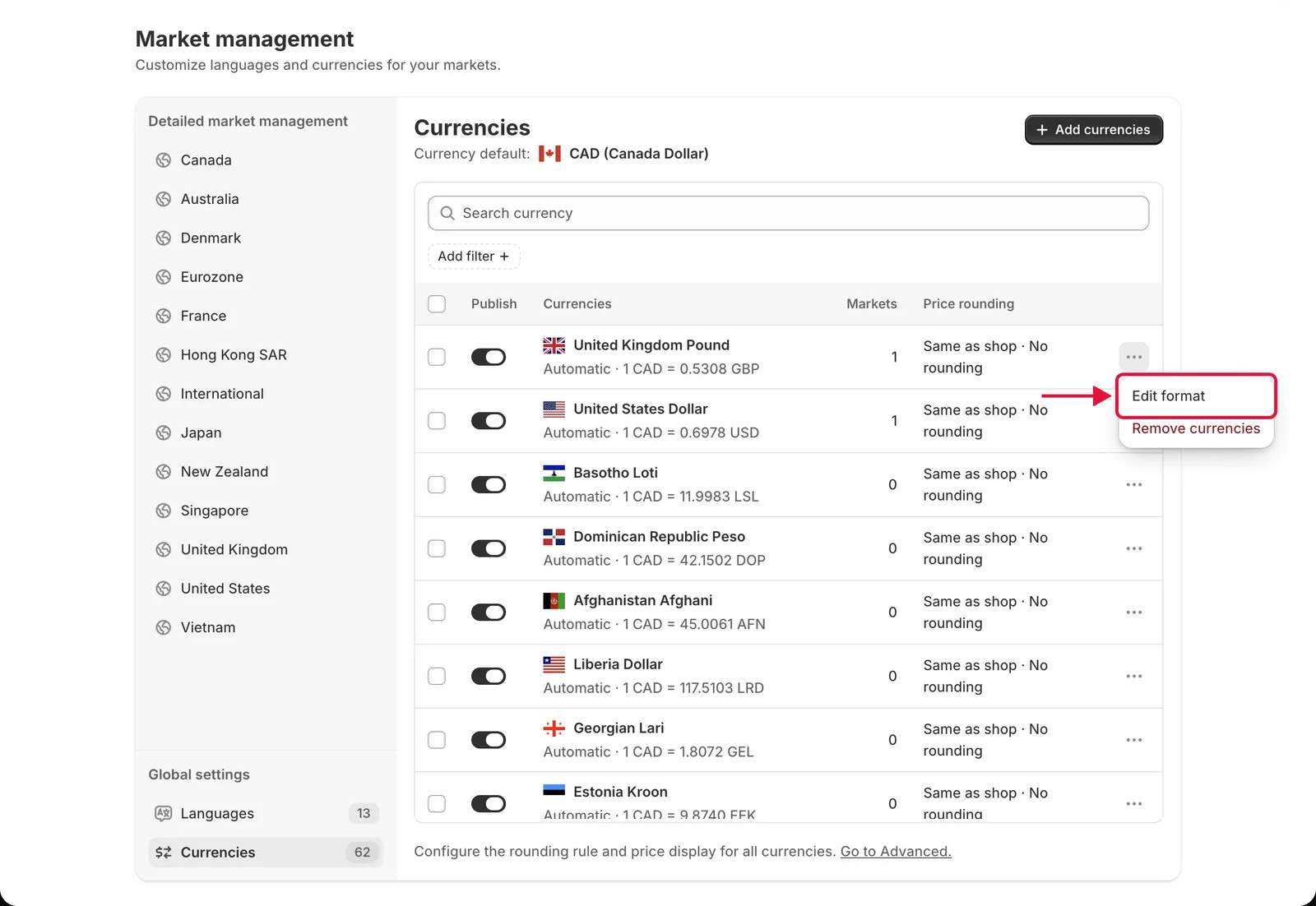
Open Marktbeheer. Under Algemene instellingen, click Valuta's. Open the actions menu at the end of the currency row and click Formaat bewerken.
Write the formats
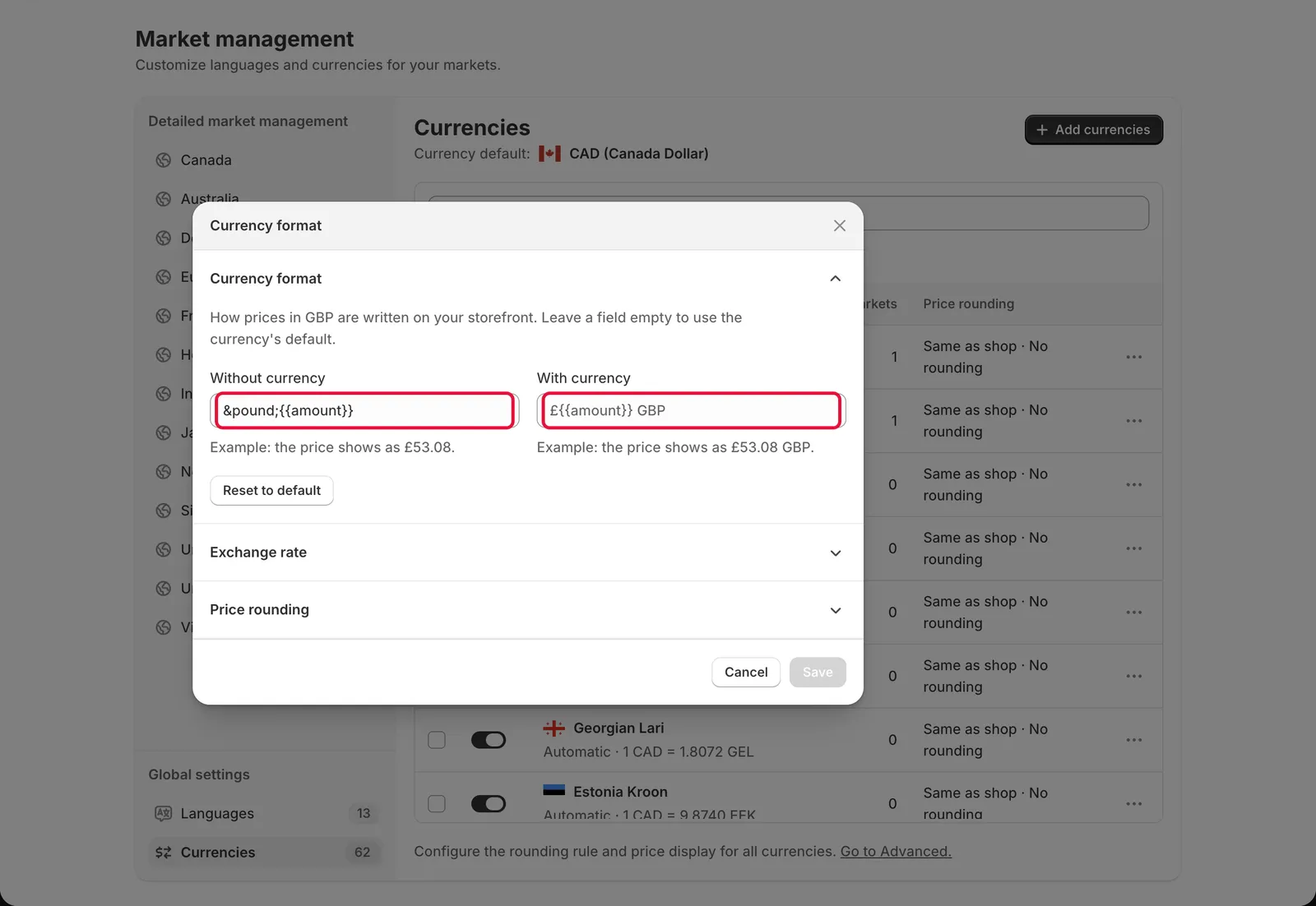
In the Valutaformaat section, fill in Zonder valuta, Met valuta, or both. The grey text in each field is the default format. Leave a field empty to keep the default.
Check the example
Look at the example under each field. It shows a converted price written in your format.
Save the format
Click Opslaan. The app shows Opgeslagen and publishes the change to your storefront.
Placeholders
A format must contain one placeholder for the amount. The app shows the examples below for 1234.56.
| Placeholder | Result |
|---|---|
{{amount}} | 1,234.56 |
{{amount_no_decimals}} | 1,235 |
{{amount_with_comma_separator}} | 1.234,56 |
{{amount_no_decimals_with_comma_separator}} | 1.235 |
{{amount_with_apostrophe_separator}} | 1'234.56 |
{{amount_with_space_separator}} | 1 234,56 |
{{amount_no_decimals_with_space_separator}} | 1 235 |
Write anything else around the placeholder, such as a symbol or a code. For example, {{amount}} USD shows the code after the number.
Good to know
- The app does not accept a format without a placeholder, a placeholder it does not know, or HTML tags. The field shows what to fix and Opslaan stays off until you fix it.
- A currency with its own number of decimals, such as the Japanese yen, can show fewer decimals than the placeholder suggests.
- To clear both formats, click Terugzetten naar standaard and save.
- Shoppers see one of the two formats on the whole storefront. You choose which one in Account en instellingen, under Lokalisatie-instellingen, in Valuta-instellingen. Set Formaat van omgerekende prijzen to Alleen symbool ($10.00) to use the format without the code. Set it to Symbool en code ($10.00 USD) to use the format with the code.
- This is not the money format of your Shopify store. For that, see Set up your store's money format.
Opmerking
While your store is in Multiple currencies mode, Shopify Markets formats prices. Formaat bewerken is turned off. See Multiple currencies mode vs Switcher mode.
Gerelateerde artikelen
Exchange rates: automatic, manual or with a markup
Choose how SmartCS converts your prices into each currency: the automatic daily rate, a rate you type, or the automatic rate plus a markup.
Round converted prices
Round converted prices to a clean step or to an ending such as .99, for your whole store or for one currency, and check an example before you save.
Laatst bijgewerkt: 18 november 2026