Storefront still shows the original language
Find out why your store still shows the original text after you translated it, and check each possible cause in order.
Use this checklist when you translated content in SmartCS but your storefront still shows the original text. SmartCS saves translations in Shopify, and your theme reads them from there. So a missing translation is usually a setting, a status, or text that is not stored in Shopify.
Before you start
Open your storefront in the language you are checking, for example with the switcher. Keep it open to check each change.
Steps
Check the language is published
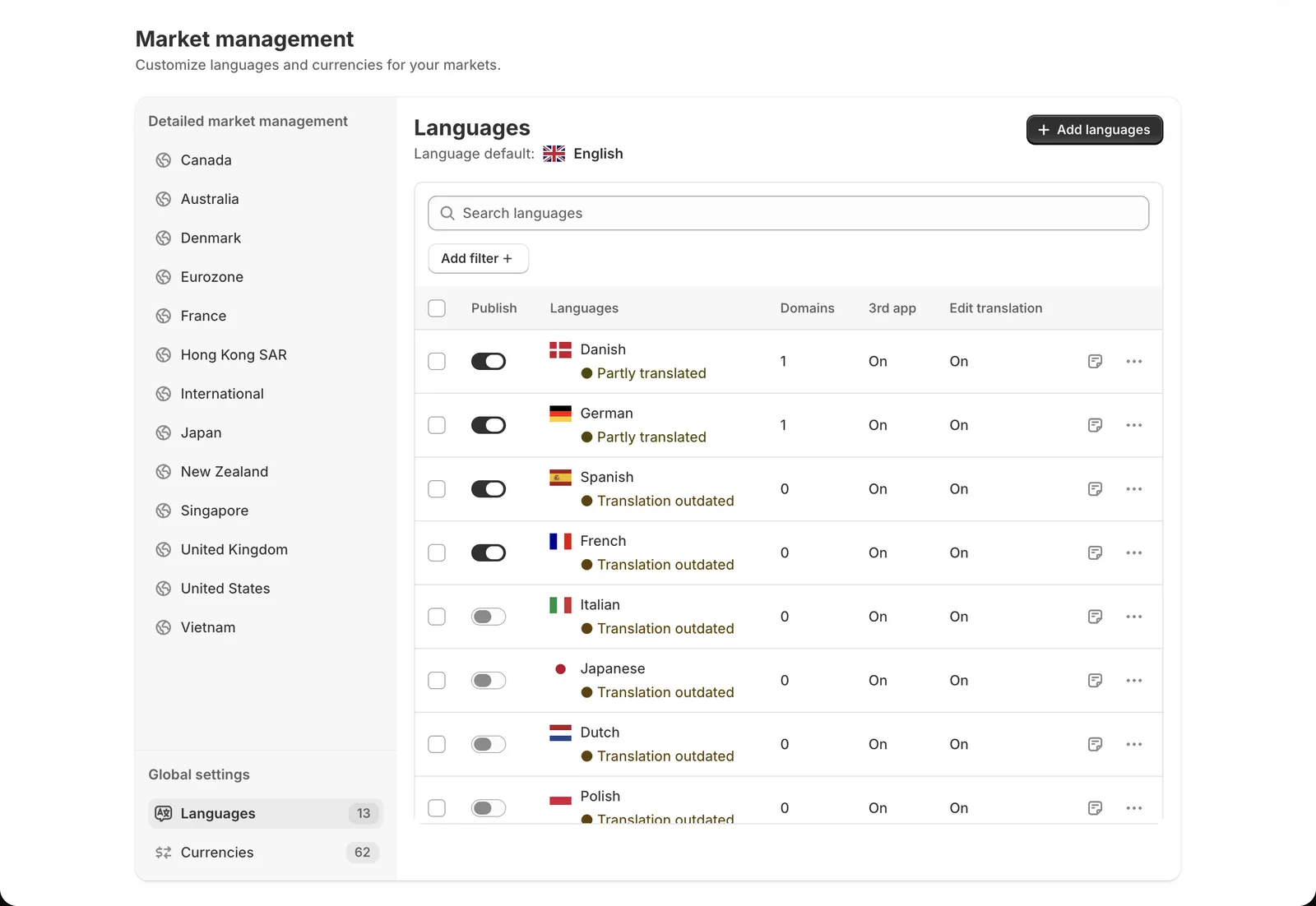
Open Marktbeheer. Under Algemene instellingen, select Talen. Turn on the switch in the Publiceren column. Shoppers cannot see an unpublished language, even when every item is translated. See Add and publish languages.
Check translation edits are on
In the same table, read the Vertaling bewerken column. When it shows Uit, SmartCS removed the translations of that language from your store. Choose Vertaalbewerkingen inschakelen in the row menu. Within 30 days, SmartCS restores the backup and sends the translations to your store again. See Turn translation edits on or off.
Check the market
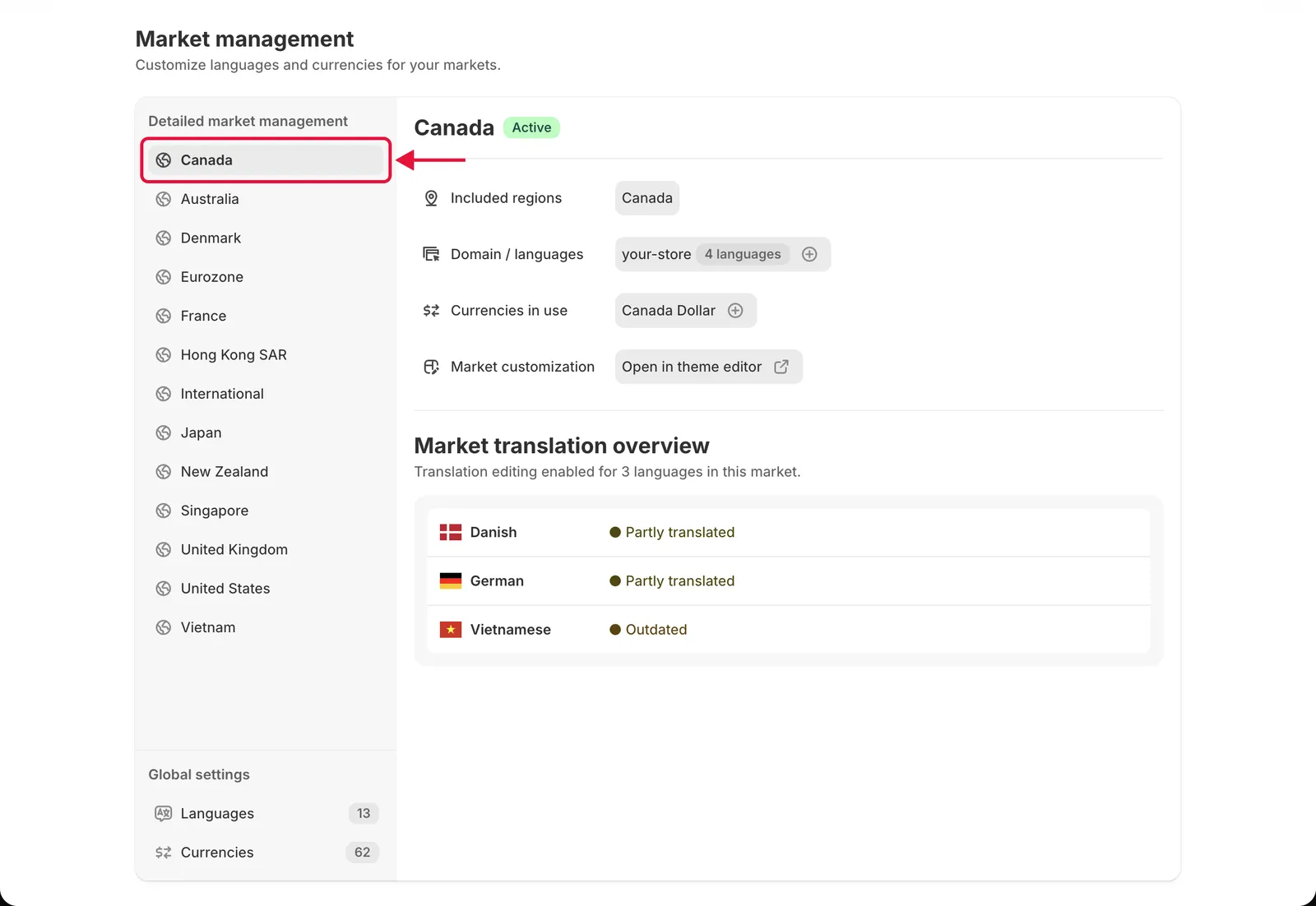
SmartCS adds a language to your whole store, and Shopify Markets decides which domains show it. Open Marktbeheer, select the market, and look for the language under Domein / talen. If it is missing, assign the language to the domain in Shopify Markets. See Manage a market.
Read the content status
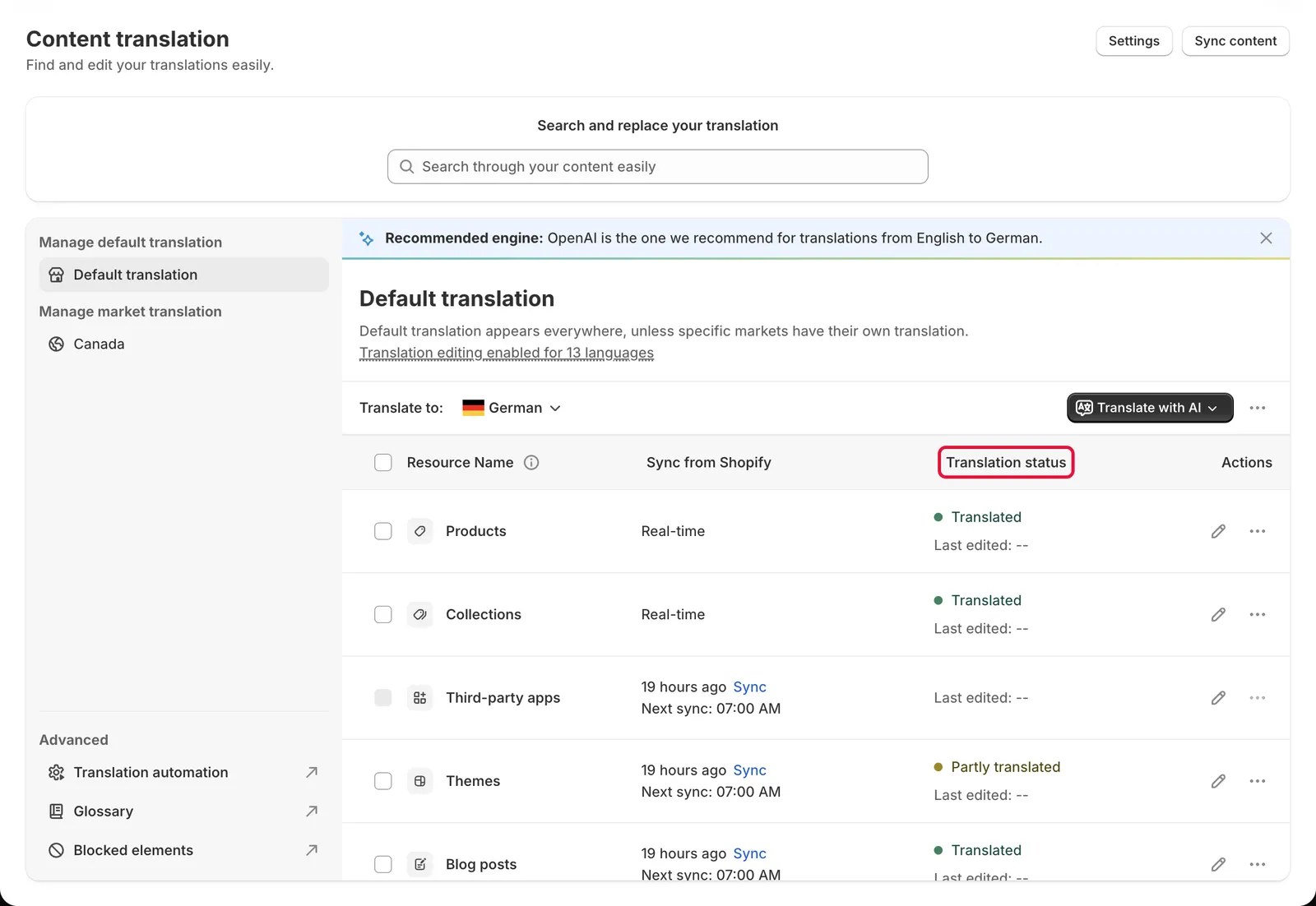
Open Contentvertaling, choose the language, and read the Vertaalstatus column. A row that shows Onvertaald or Gedeeltelijk vertaald still has fields to translate. A row that shows Verouderd or Conflict needs a decision. The table does not show Mislukt or Geblokkeerd. Select the pencil in the row to open the editor and look at each field there. Mislukt means Shopify refused the field, or a translation run for it failed, so fix the field and save it, or translate it again. Geblokkeerd means a rule keeps the field untranslated. See Translation status explained.
Check background tasks
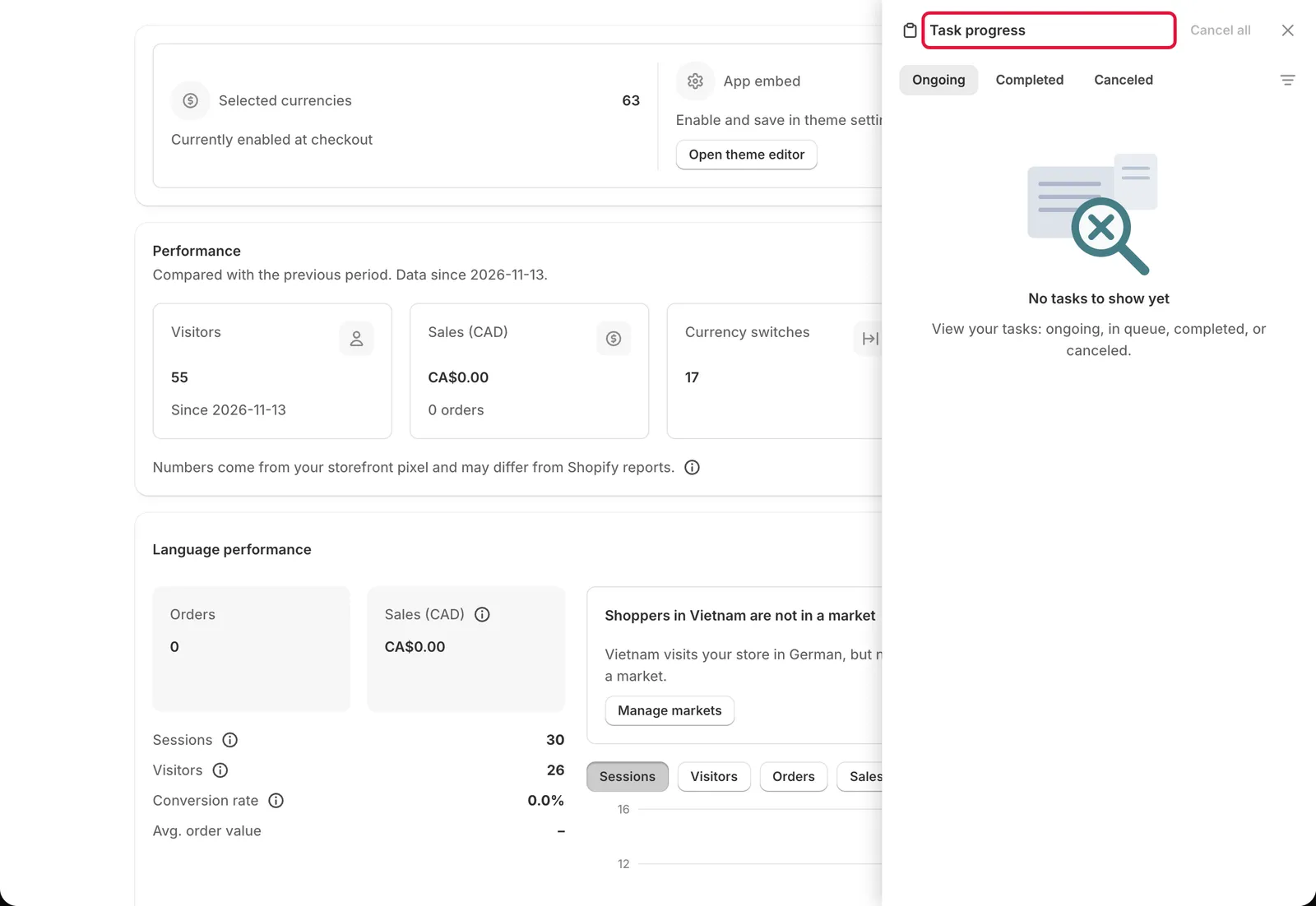
Translations and bulk actions run in the background. Select Taakvoortgang openen and check that your task has finished. If some items failed, select Mislukte opnieuw proberen. See Track background tasks.
Resolve conflicts
A row with Conflict means a translation that SmartCS wrote was changed in Shopify afterwards, for example in the Shopify admin or by another app. Your store shows the version that is in Shopify, which can differ from what you see in SmartCS. Open the item and choose Mijn versie behouden to put your translation live, or Die van Shopify gebruiken to accept the Shopify one. See Sync content from Shopify and resolve conflicts.
Check market translations
If a market has its own translation of a field, shoppers in that market see it instead of the default translation. In Contentvertaling, select the market under Marktvertaling beheren and open the field. To follow the default again, select Bestaande vertaling hergebruiken and choose Standaardvertaling gebruiken. See Default and market translations.
Check where the text comes from
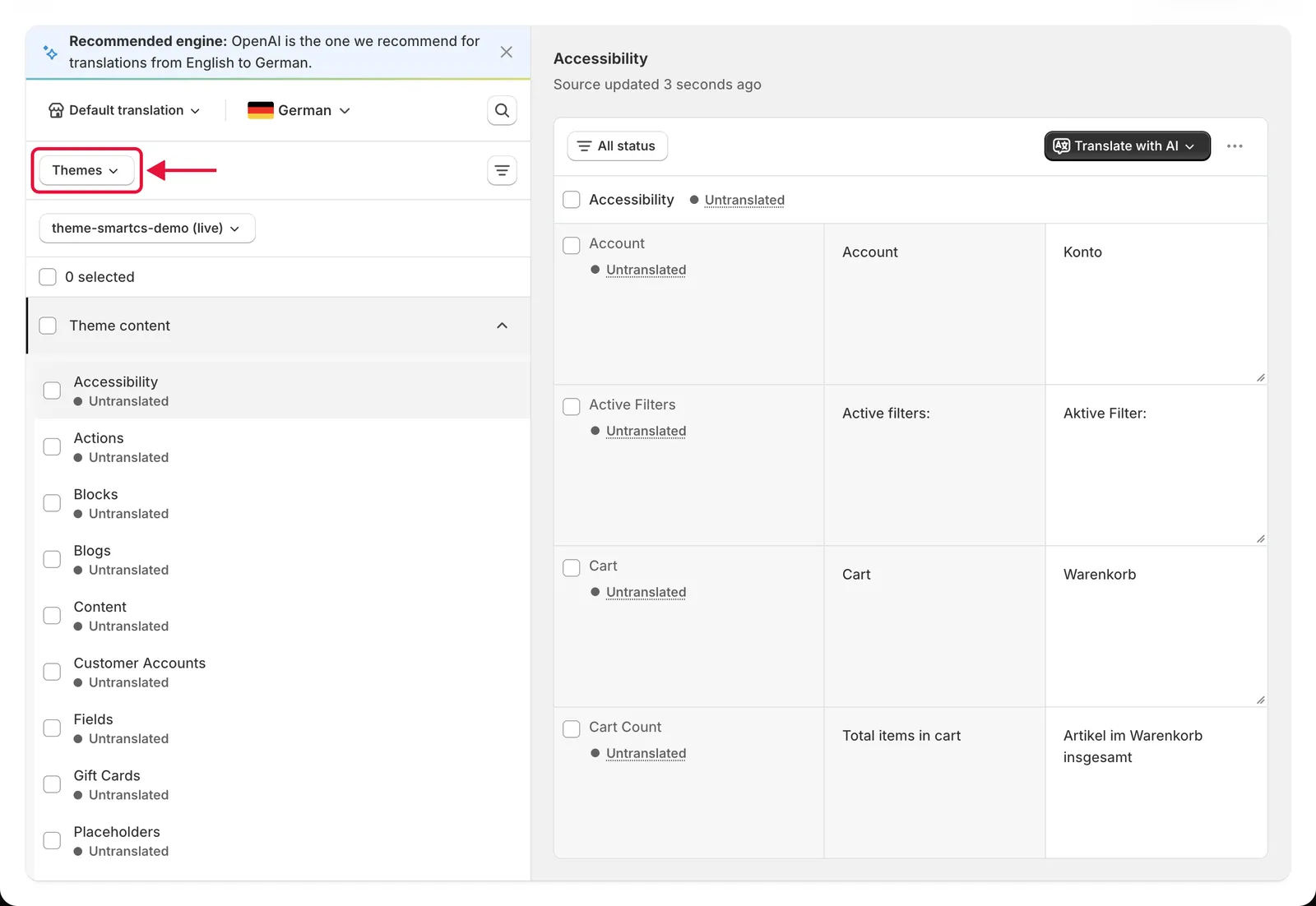
SmartCS translates only text that is stored in Shopify. Words typed straight into theme code, and text that an app keeps on its own server, are not in Shopify, so they stay in the original language. Fixed theme words are in the Thema's group. See Checkout, payment and theme text and Content from other apps.
Reload the storefront
Open the page in a private window, or clear your browser cache. Shopify and your browser can keep an older copy of a page for a short time.
Good to know
- If you turned on URL handle translation and shoppers cannot open a page, the address of that page changed. Links that use the old address can stop working. See Translate URL handles.
- Shopify limits how many translated keys one theme language can hold. SmartCS stays under the limit by never translating the built-in
shopify.keys of your theme. See Checkout, payment and theme text. - If the Task progress panel says Er is een fout opgetreden, see Common errors and what they mean.
Gerelateerde artikelen
Other questions
Quick answers about the app language, supported browsers, markets, fonts, hreflang tags and what happens to your theme when you uninstall.
The switcher or a currency doesn't show
Go through four checks, in order, to find why the switcher is missing from your storefront, then fix a missing currency or language.
Laatst bijgewerkt: 18 november 2026