Switcher templates and your own templates
Choose a Classic or Modern template for your switcher, apply it, and save your own template after you customize it.
A template is a ready-made look for your switcher. Choose one from the template gallery, or customize it and save your own. Each device, desktop and mobile, has its own template.
Templates by plan
- The default template is on every plan. It is a Classic template.
- ご利用になるにはお問い合わせください The other Classic templates.
- ご利用になるにはお問い合わせください The Modern templates.
You can open the gallery on any plan and preview every template. A template your plan does not include stays locked until it is turned on.
A locked template shows a お問い合わせ button. Contact us and we turn the templates on for your store.
Steps
Open the Template section
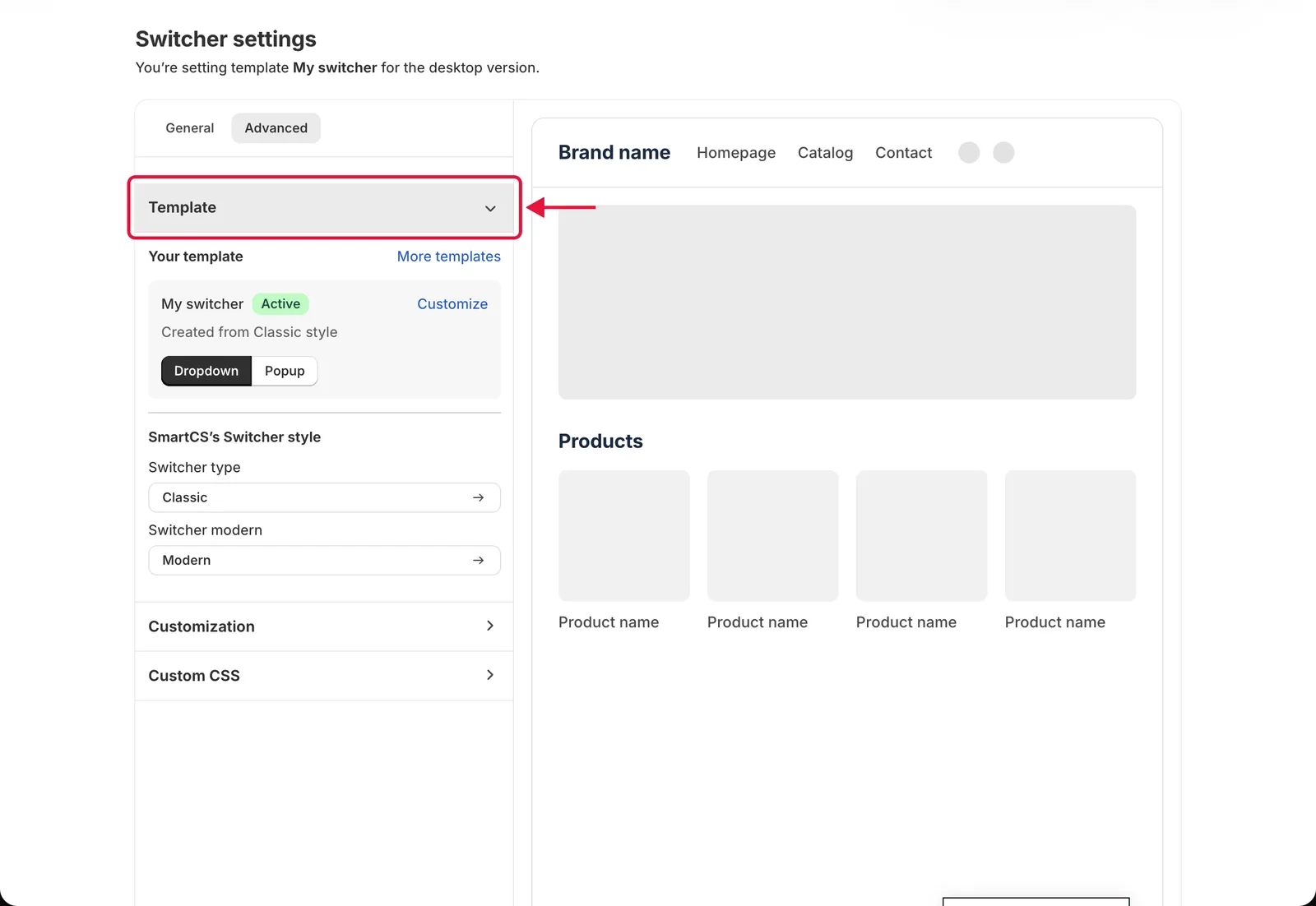
In 切替設定, open the 詳細設定 tab and then テンプレート. Under あなたのテンプレート, you see the template in use, marked 使用中.
Choose how it opens
For a Classic template, choose ドロップダウン or ポップアップ under 切替ツールの開き方. Click 保存 in the bar at the top of the page. A Modern template ignores this choice.
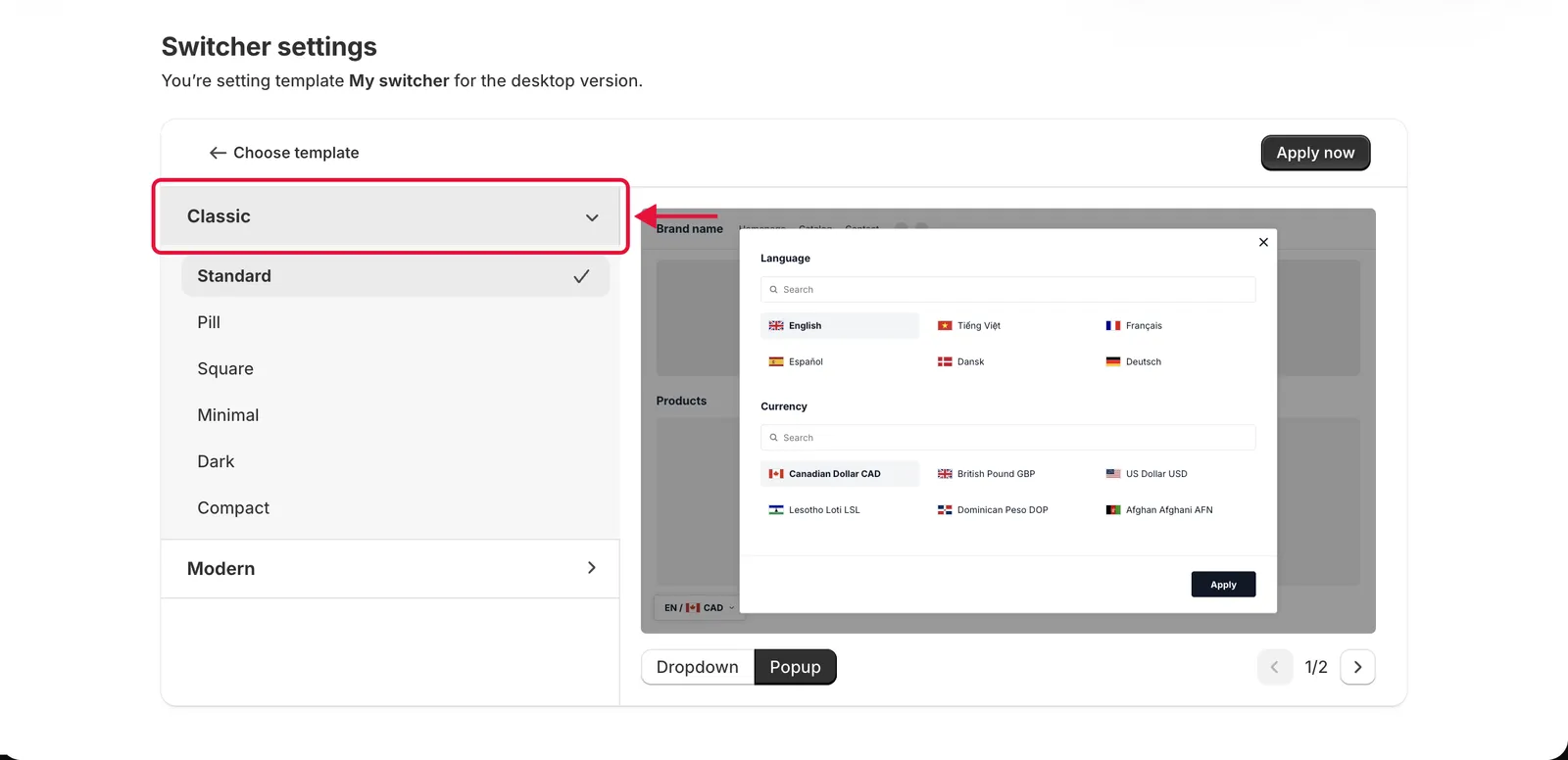
Preview a template
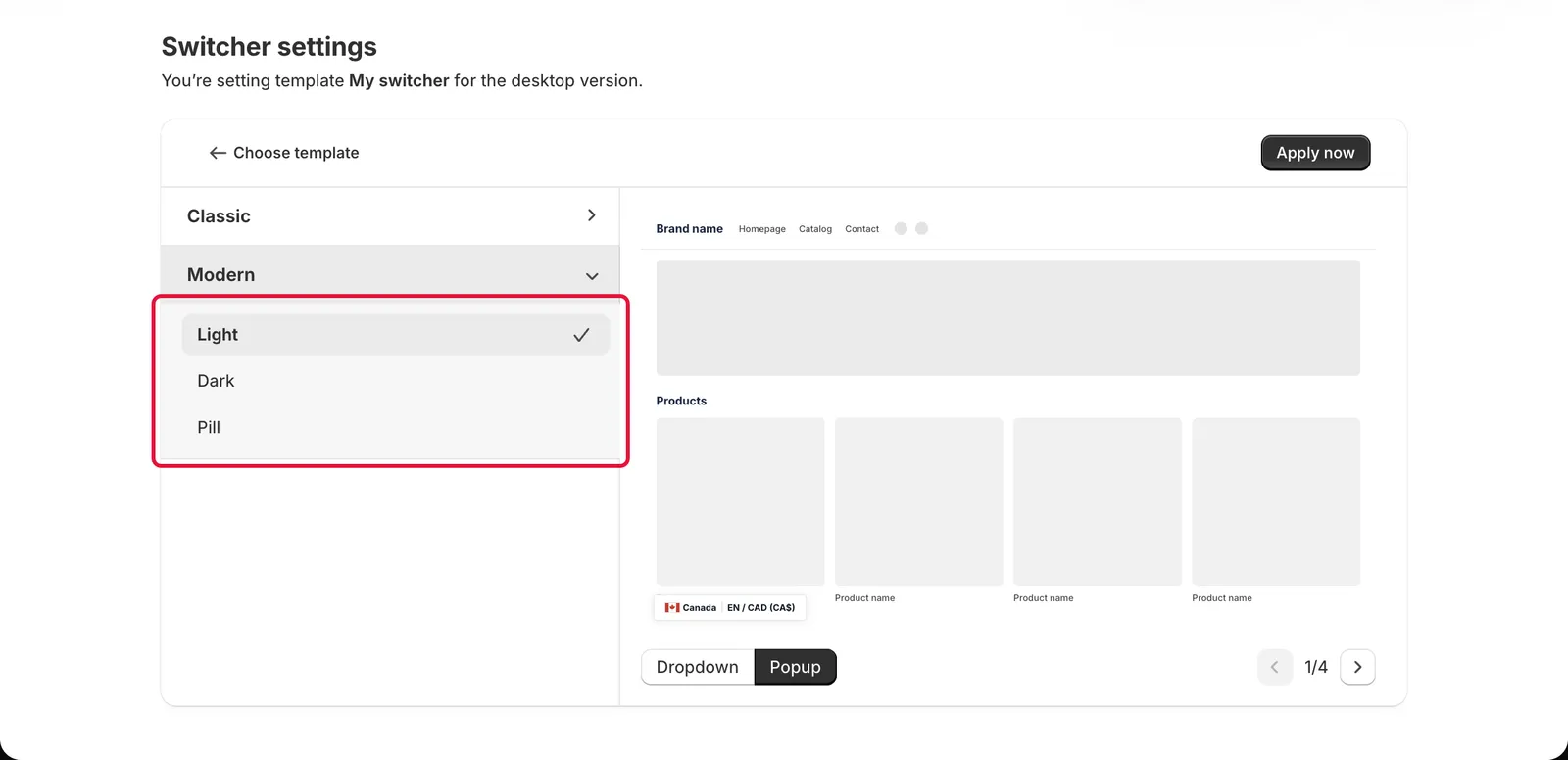
Pick a template in the list on the left. The sample store page on the right changes. Switch between ドロップダウン and ポップアップ, and use the arrows to see more sample pages.
Apply the template
Click 今すぐ適用. The template is saved at once. You do not need the save bar. The button is off when the template is already in use or is locked.
To leave without applying, click テンプレートを選択.
警告
Applying a template replaces the unsaved changes you made to the same device. Save or discard your changes first.
Save your own template
ご利用になるにはお問い合わせくださいCustomizing needs a plan that includes Classic templates. When you change a template and click 保存, the app asks you to name it. See Choose where the switcher appears for the settings.
- In 自分のテンプレートとして保存, enter a name in テンプレート名. Use up to 60 characters.
- Click 保存. The template becomes the one in use for that device.
If you edit a template that is already your own, the app saves your changes into it and does not ask for a name. If you already have a template with the same name, the app asks for a different one.
When you reach the number of templates your plan allows, the app shows 既存のテンプレートを上書きしますか?. Choose the template to replace, then click 保存. You can also delete a template you no longer need first.
Manage your templates
Once a device has its own templates, その他のテンプレート appears in the Template section. It opens あなたのカスタムテンプレート. Each template shows its name, the template it came from, and when you last saved it.
- Click 適用 to use a template. It saves at once.
- Click カスタマイズ on the template in use to edit it.
- Click the bin icon to delete a template that is not in use. In テンプレートを削除しますか?, tick the box and click 削除. You cannot recover a deleted template.
関連記事
Set up the switcher on your store
Choose who sees the switcher and which template it uses, save your changes, and turn on the app embed so shoppers can pick a currency and a language.
Choose where the switcher appears
Place the switcher in a corner, on the side, over the top of the page or inside your theme, and set the corner and the distance from the edge.
最終更新日:2026年11月18日